How to Automate Email Triage
A practical guide to daily inbox triage with needs-you lists, voice-matched drafts, polite nudges, digests, and approvals.

Founder, Task Machine
Email triage is the daily process of deciding which messages need your judgment, which can be answered from known facts, which are waiting on someone else, and which are noise. The goal is an inbox you can trust to show what needs your attention.
Most inbox automation fails because it treats email as a sending problem. The real problem is deciding who should act, what can be drafted safely, what should never be answered on your behalf, and which silent threads need a polite nudge. A useful email agent works like an operator, not a spam filter.
Why inbox work takes over the day
Inbox work expands because every thread has a different risk level. A scheduling reply can be routine. A pricing question, legal thread, hiring decision, or frustrated customer needs you. A newsletter needs no action, but it still steals attention when it sits beside real asks.
Read state does not solve this. People skim on their phone, mark things read by accident, and leave answered mail unread. A daily triage loop needs to scan by time window, read whole threads when needed, and state what it covered rather than claiming the inbox is clean.
What the manual process looks like
Done by hand, email triage is a morning operating loop:
- Scan everything that arrived or moved since the last run, regardless of read state.
- Sort each thread into needs-you, routine, noise, or waiting on the other side.
- Read full threads only where a reply, draft, or nudge decision depends on context.
- Draft short replies for routine threads using only known facts.
- Find waiting threads where the other side owes a reply and draft polite nudges on the agreed cadence.
- Summarize what needs attention, what was drafted, what was nudged, what was filed, and what rules should change.
The work is mostly classification and recall. The risk is letting an automated draft answer something that needed human judgment.
What an agent can automate
An email operator agent can take over the repetitive parts while keeping sends behind approval:
- Scan by time window. The agent works the mail that arrived or moved since the last run, including threads already read.
- Bucket by risk. Needs-you threads become a numbered list with sender, ask, and deadline. Routine threads get drafts. Noise is reported as counts. Waiting threads feed the nudge loop.
- Draft in your voice. The agent reads the triage rules and thread history, drafts only from known facts, and marks missing information with visible
[you: confirm date]gaps. - Chase silence carefully. It drafts short nudges only when the other side owes the reply, respects no-touch senders, stops at the configured limit, and surfaces gone-quiet threads.
- Compile a daily digest. The digest states the scan scope, confidence, needs-you list, drafts, nudges, noise counts, and proposed rule changes.
The agent labels and drafts. It does not send, archive, or delete without approval.
The guardrails that make it safe
The triage-rules document is the safety contract. It names what always needs you, what counts as routine, what is noise, how you sound, the nudge cadence, and the senders the agent must never touch.
Every outbound reply and nudge waits for approval. Money, legal, hiring, upset senders, first-time senders asking for time or decisions, and anything that would make a new promise stay in the needs-you list. Corrections become new rules, so the same mistake should not repeat on the next run.
Set it up in Task Machine
The Email triage & replies playbook provides a starting point for the method above. You need an active Task Machine workspace with Chat, workspace-management and Playbook-installation access (workspace owners have it). Browser access to Gmail or Outlook can be authorized after install. Until then, the agent works from forwarded threads and the triage-rules document.
1. Find the playbook
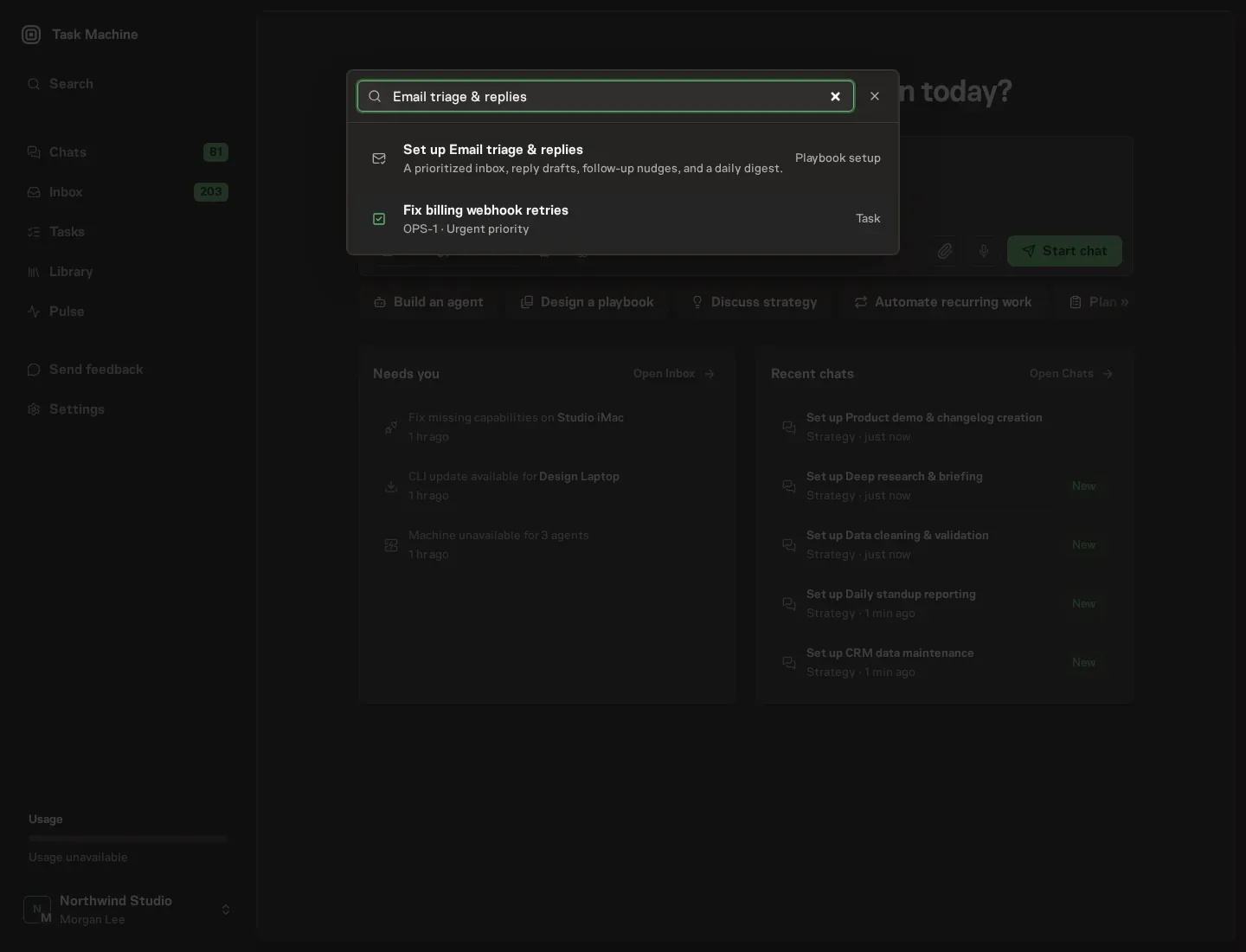
Open Search in your workspace and enter "Email triage & replies". The command center lists Set up Email triage & replies under Playbook setup.
2. Start the conversation
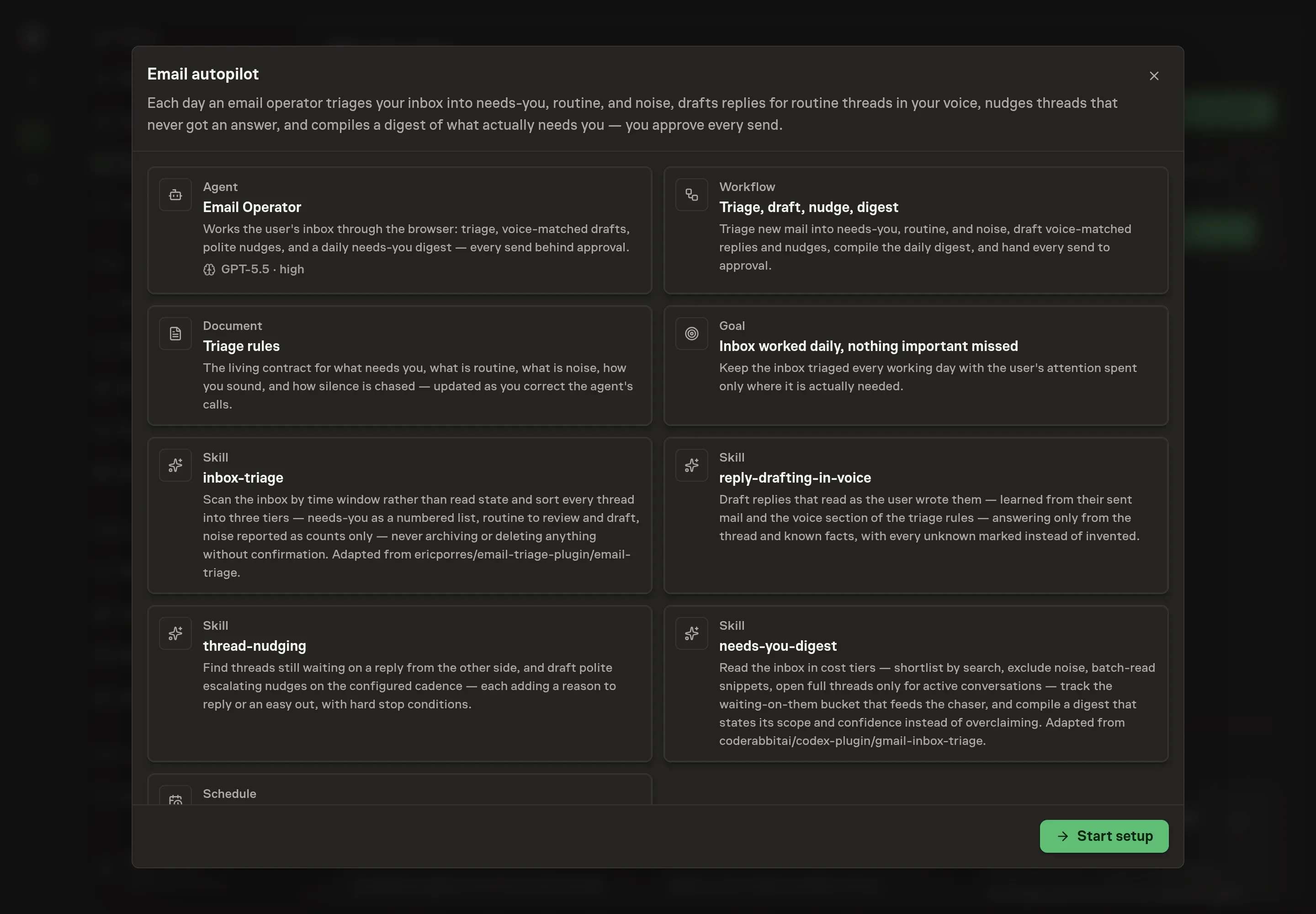
Choose Set up Email triage & replies. Task Machine opens a dedicated Chat with the Playbook card and an editable, unsent request. Read the intended job and outcome. Add your situation and send it when ready. Opening the draft does not install anything or start work. This walkthrough uses settings that require approval of the proposed Playbook.
3. Agree the working brief
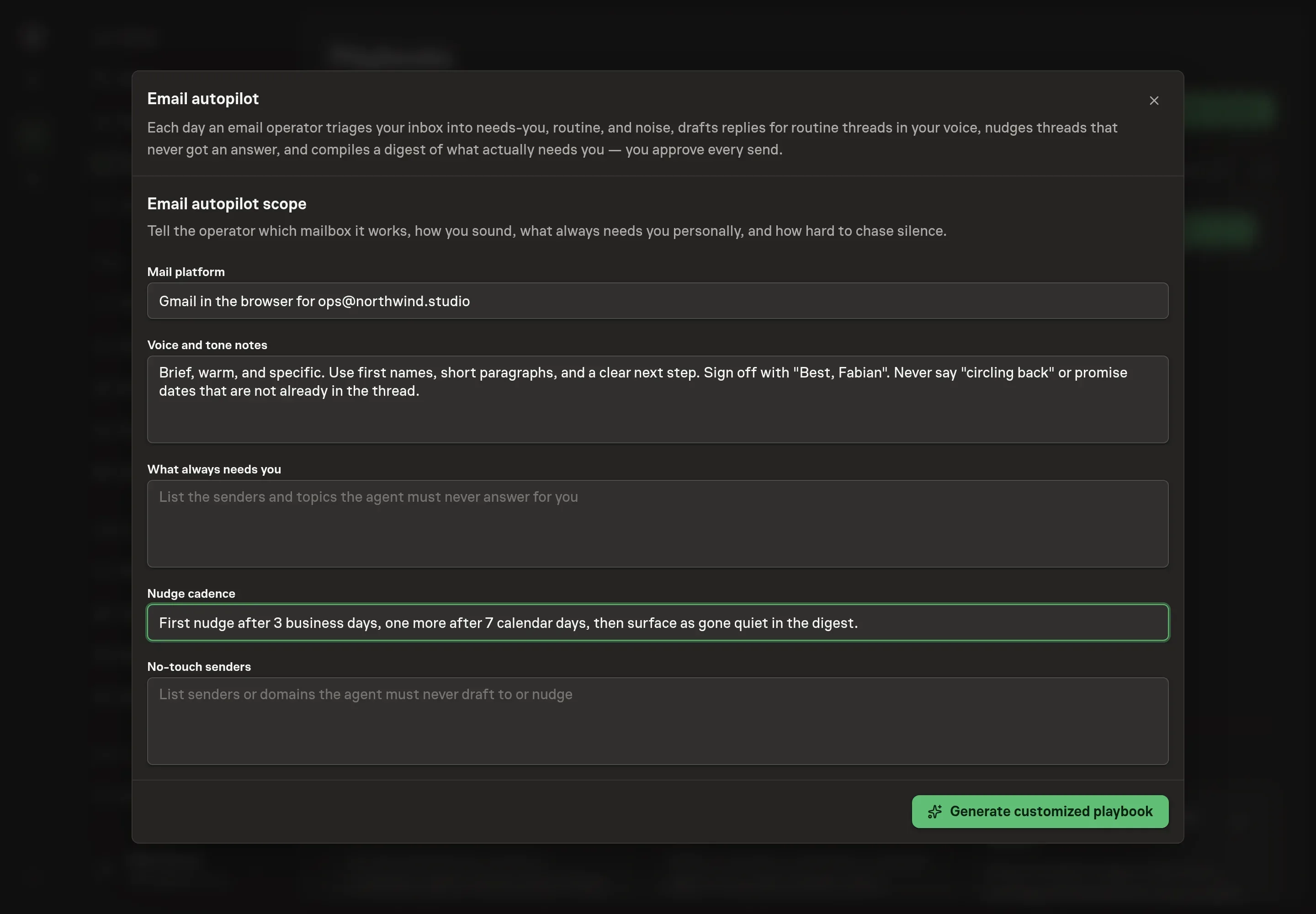
Use Chat to agree the inputs, expected output and limits before asking for a proposal. The Agent needs the mail platform, voice and tone notes, what always needs you, the nudge cadence, and no-touch senders. Be strict. The rules are what keep the agent from drafting where your judgment is required.
4. Review the proposed Playbook
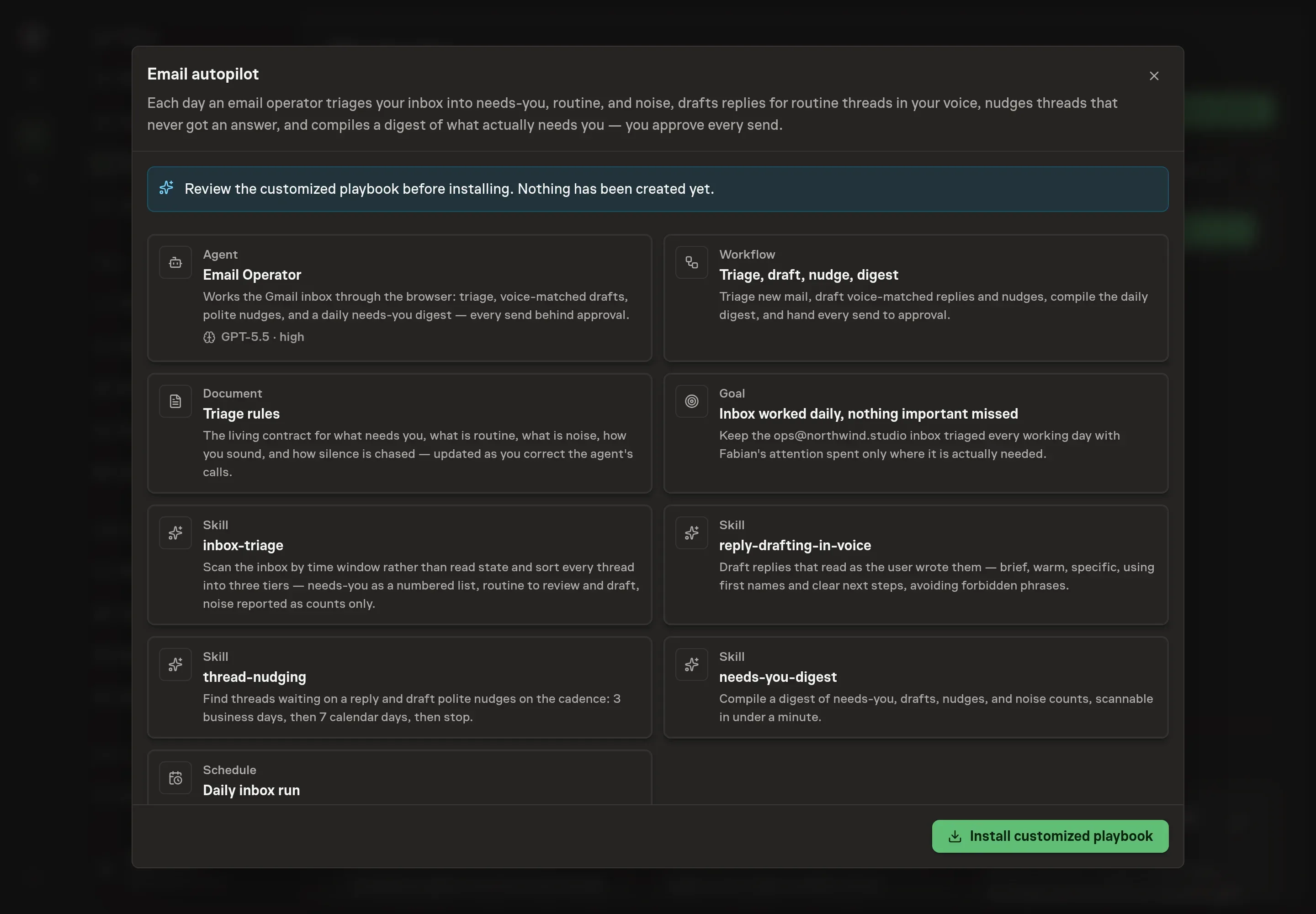
Ask the Agent to generate the Playbook from the agreed brief. Open its proposal in Chat and check the instructions and resources it will install, which carry more detail than the conversational summary. Review the generated playbook carefully. Confirm that sends remain approval-gated and that no-touch senders are carried into the rules. Ask for a revised proposal if anything is missing or changes the job.
5. Approve and prepare the first work
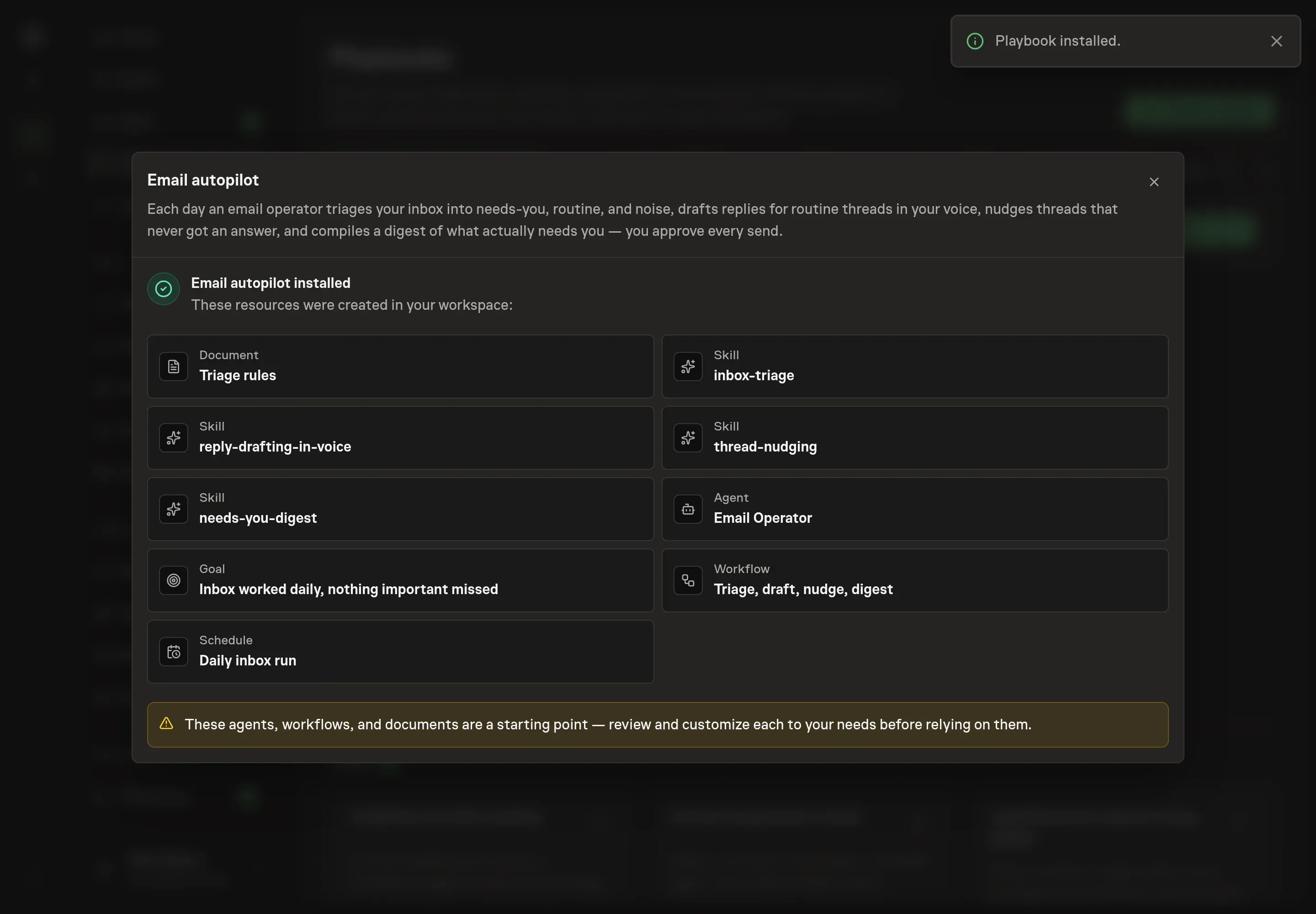
Choose Approve on the proposal in Chat when the configuration matches your brief. Task Machine installs that reviewed configuration. The approved item retains its review details. If your autonomy settings allow direct installation, this approval may not be required. Check the resulting configuration in that case too.
Complete any remaining secure service setup from the installation details in Chat. Inbox keeps those setup items available if you return later. Prepare the source documents and inputs before starting the first Task or Workflow. Installation does not authorize sending, publishing or changing an external service beyond the boundaries you agreed. Confirm each schedule's cadence and timezone, and resolve any pending schedule setup before it starts. A readback must wait for its agreed observation window and source data.
What good looks like
Three signs show the autopilot is helping:
- The digest is enough to act from. Needs-you items are numbered with sender, ask, and deadline, and routine drafts show any
[you: confirm date]gaps. - Drafts stay narrow. Routine replies answer one thread from known facts in the user's voice. Anything requiring a promise, price, decision, or long explanation moves back to needs-you.
- Corrections become rules. When you reject a draft or re-bucket a thread, the triage-rules document changes so the next run is better.
Common questions
Will the agent send email automatically? No. Every reply and nudge is a draft behind approval. Sending waits for the human approval step.
Can it archive newsletters or delete obvious noise? No. The bundle reports noise as counts and never archives or deletes without confirmation. Deletion is not the agent's call.
What does "needs-you" mean? It means the thread requires human judgment: money, legal, hiring, upset senders, first-time requests for your time, decisions, commitments, or any unclear case.
How does it learn my voice? It reads the voice section of the triage-rules document and the user's sent replies in the worked threads. If those conflict, actual sent mail wins.