How to Automate Invoicing and Expense Drafting
A practical guide to drafting invoices, AR reminders, and expense reports with settlement checks and human approval.

Founder, Task Machine
Invoicing and expense drafting is the recurring finance cycle that turns billable work, receivables, and spending records into invoices, overdue-payment reminders, and expense reports. The goal is to hand finance a complete batch to review, where the math ties, exceptions are visible, and nothing goes out without approval.
This job is worth automating because small finance errors compound. A missed invoice delays cash. A reminder sent to someone who already paid damages trust. An uncategorized expense or missing receipt creates cleanup work after the month has closed.
Why finance drafting backs up
The work looks administrative until the details matter. Invoice numbering must follow the prior invoice. Tax and payment terms must be stated correctly. AR reminders need the right tone for a good payer, occasional late payer, or repeat late payer. Expenses need categories, receipts, limits, and duplicate checks.
When one person owns all of that by hand, the billing run becomes a pile of small checks. Any one check is easy. The batch is where delays and mistakes appear.
What the manual process looks like
Done by hand, a finance drafting cycle usually looks like this:
- Collect customer, line-item, prior-invoice, payment-term, and PO details.
- Draft each invoice with the next sequential number, line math, tax, totals, and remittance details.
- Pull the AR aging report and identify invoices past due.
- Cross-check recent settlements so paid customers are excluded or flagged for review.
- Score each overdue customer by payment history and draft one tone-matched reminder per customer.
- Extract receipts and expense lines, categorize them, and flag policy exceptions.
- Review the invoice batch, AR chase list, and expense report before sending or filing anything.
The risk is usually not that someone forgets how invoices work. The risk is that reconciliation, tone, and exception checks happen late, inconsistently, or under time pressure.
What an agent can automate
An agent can prepare the batch while keeping all money movement and filing behind approval:
- Draft accurate invoices. The agent uses customer and line-item detail, mirrors the prior invoice's numbering and terms, calculates line totals, states assumptions, and includes payment details.
- Build the AR chase list. It pulls overdue receivables, cross-checks Stripe settlements, excludes recently paid customers, and flags "possibly paid" accounts for manual verification.
- Match reminder tone to history. Good payers get a gentle note, occasionally late customers get a friendly nudge, and repeat-late accounts get a firmer message.
- Compile expense reports. It extracts vendor, amount, date, category, receipt status, budget variance, and top spend, with exceptions surfaced first.
- Self-review the batch. It checks invoice math, AR eligibility, reminder tone, missing receipts, over-limit spend, reimbursables, and possible duplicates before approval.
The agent never charges a card, issues a refund, sends a reminder, or files a report on its own.
The guardrails that make it safe
Finance automation needs a strict boundary between drafting and action. The bundle enforces that boundary through a human approval node at the end of the workflow.
The agent can read and reconcile. It cannot send or file. It must flag recently paid customers instead of chasing them, default uncertain expenses to review, and surface policy exceptions instead of approving them. One approval covers one reviewed batch. If the batch changes, it needs review again.
Set it up in Task Machine
The Invoicing and expense management playbook provides a starting point for the method above. You need an active Task Machine workspace with Chat, workspace-management and Playbook-installation access (workspace owners have it). Accounting and billing access can be authorized later. Until then, the agent works from attached exports and source files.
1. Find the playbook
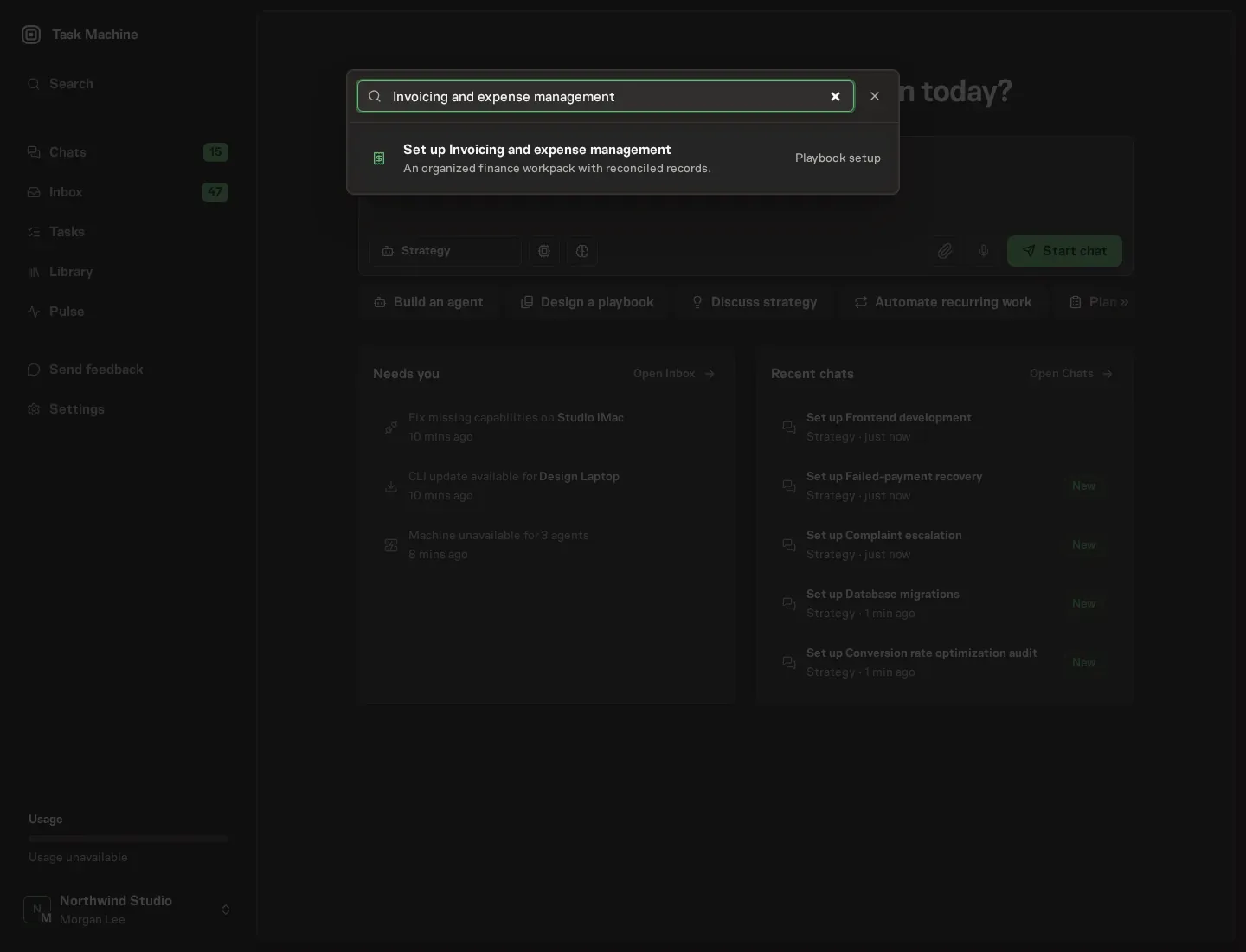
Open Search in your workspace and enter "Invoicing and expense management". The command center lists Set up Invoicing and expense management under Playbook setup.
2. Start the conversation
Choose Set up Invoicing and expense management. Task Machine opens a dedicated Chat with the Playbook card and an editable, unsent request. Read the intended job and outcome. Add your situation and send it when ready. Opening the draft does not install anything or start work. This walkthrough uses settings that require approval of the proposed Playbook.
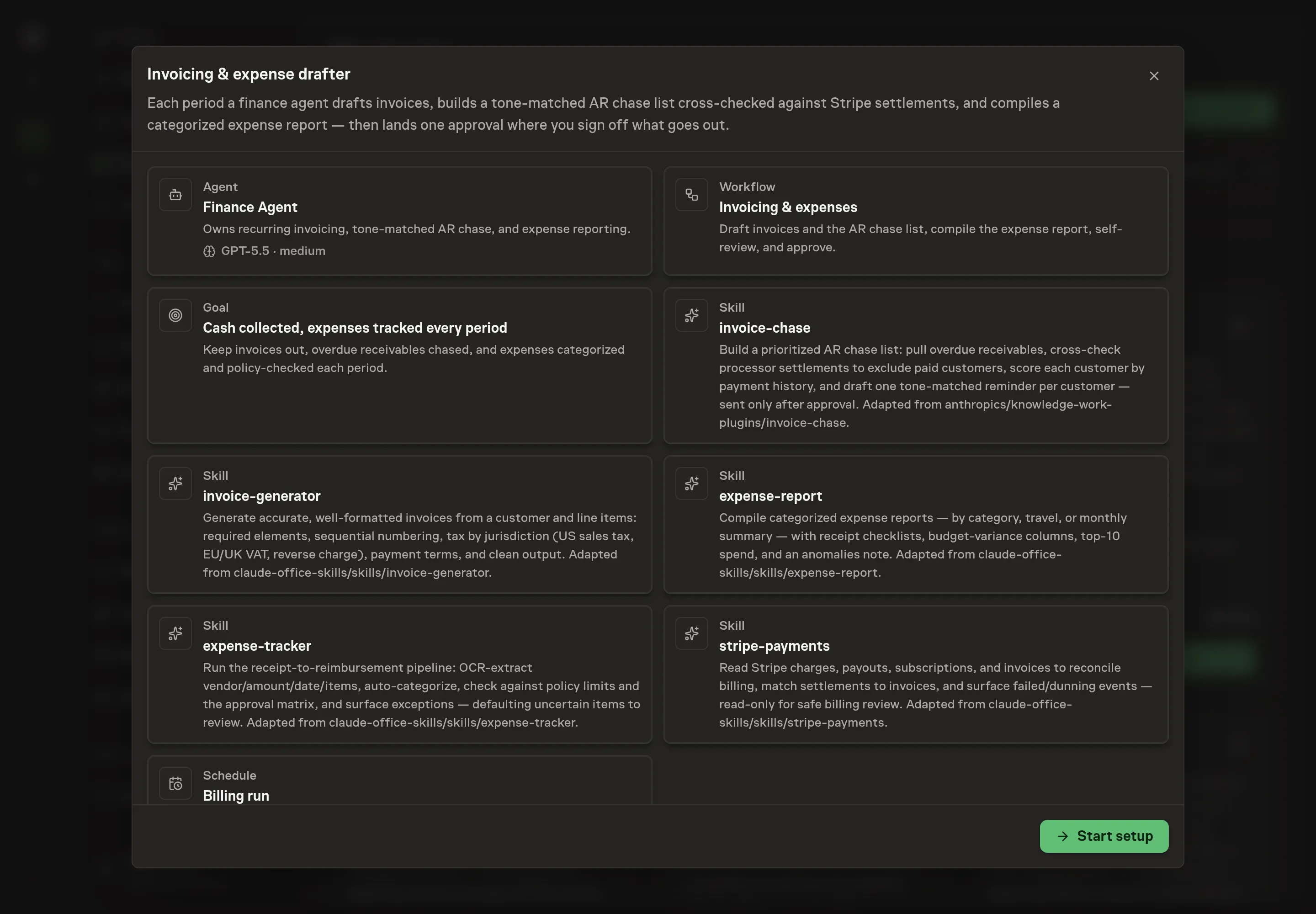
3. Agree the working brief
Use Chat to agree the inputs, expected output and limits before asking for a proposal. The Agent needs the billing period, clients or vendors, expense categories, approval notes, billing schedule, and timezone. Use answers that match the next batch finance should review, including any special review rules for high-value invoices, late accounts, or over-limit expenses.
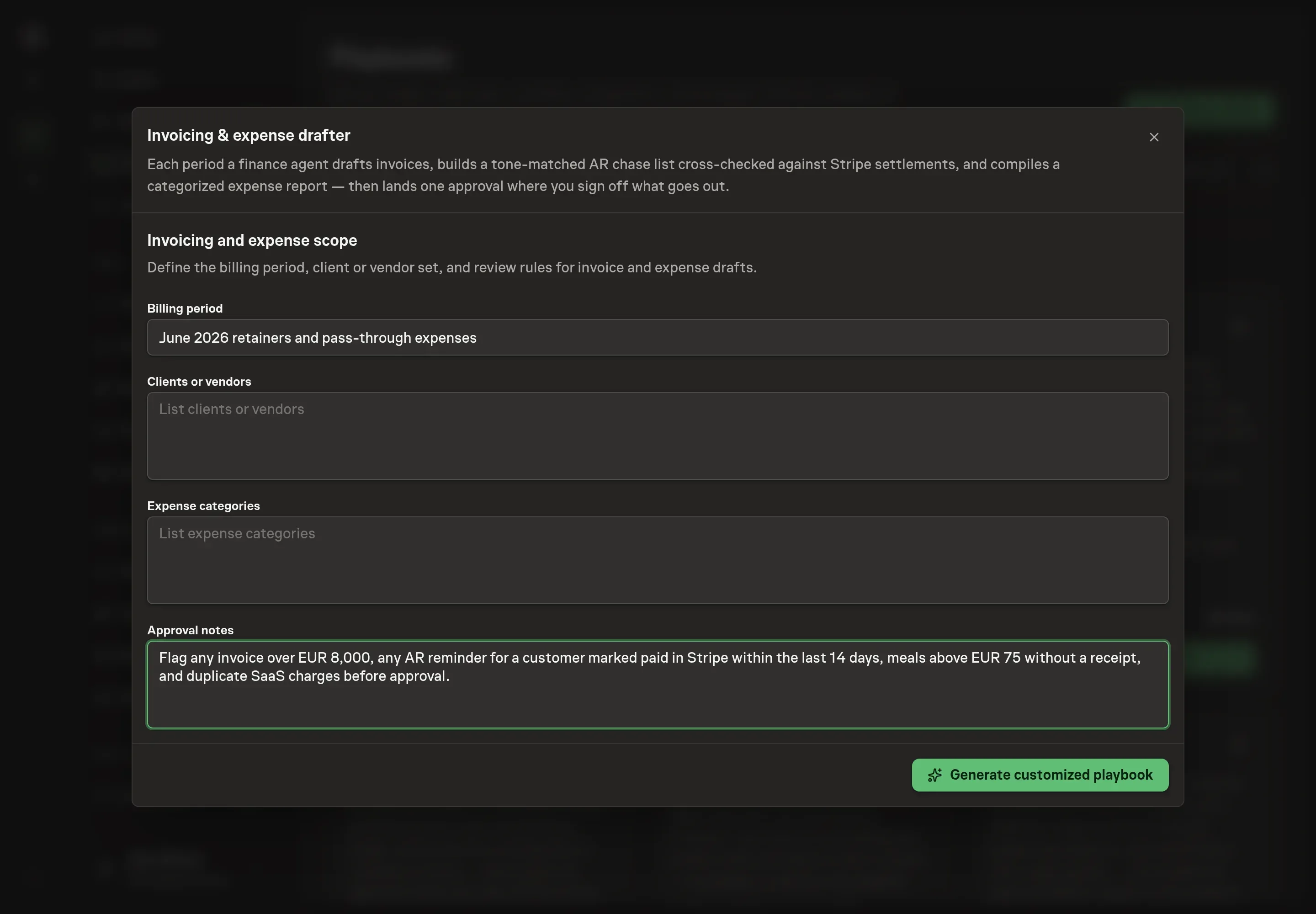
4. Review the proposed Playbook
Ask the Agent to generate the Playbook from the agreed brief. Open its proposal in Chat and check the instructions and resources it will install, which carry more detail than the conversational summary. Check that the workflow drafts invoices, builds the AR chase list, compiles the expense report, self-reviews the batch, and waits for approval. Ask for a revised proposal if anything is missing or changes the job.
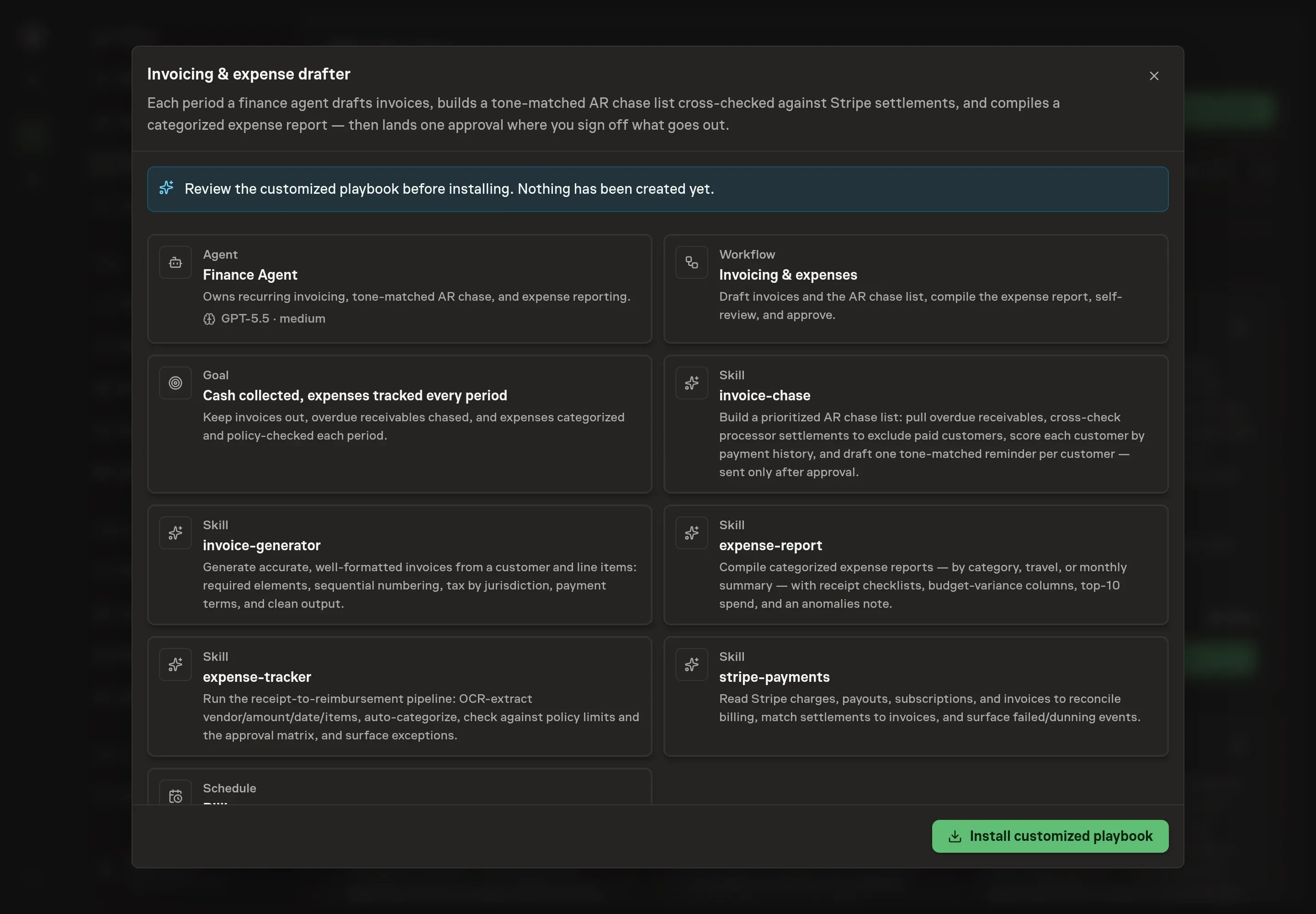
5. Approve and prepare the first work
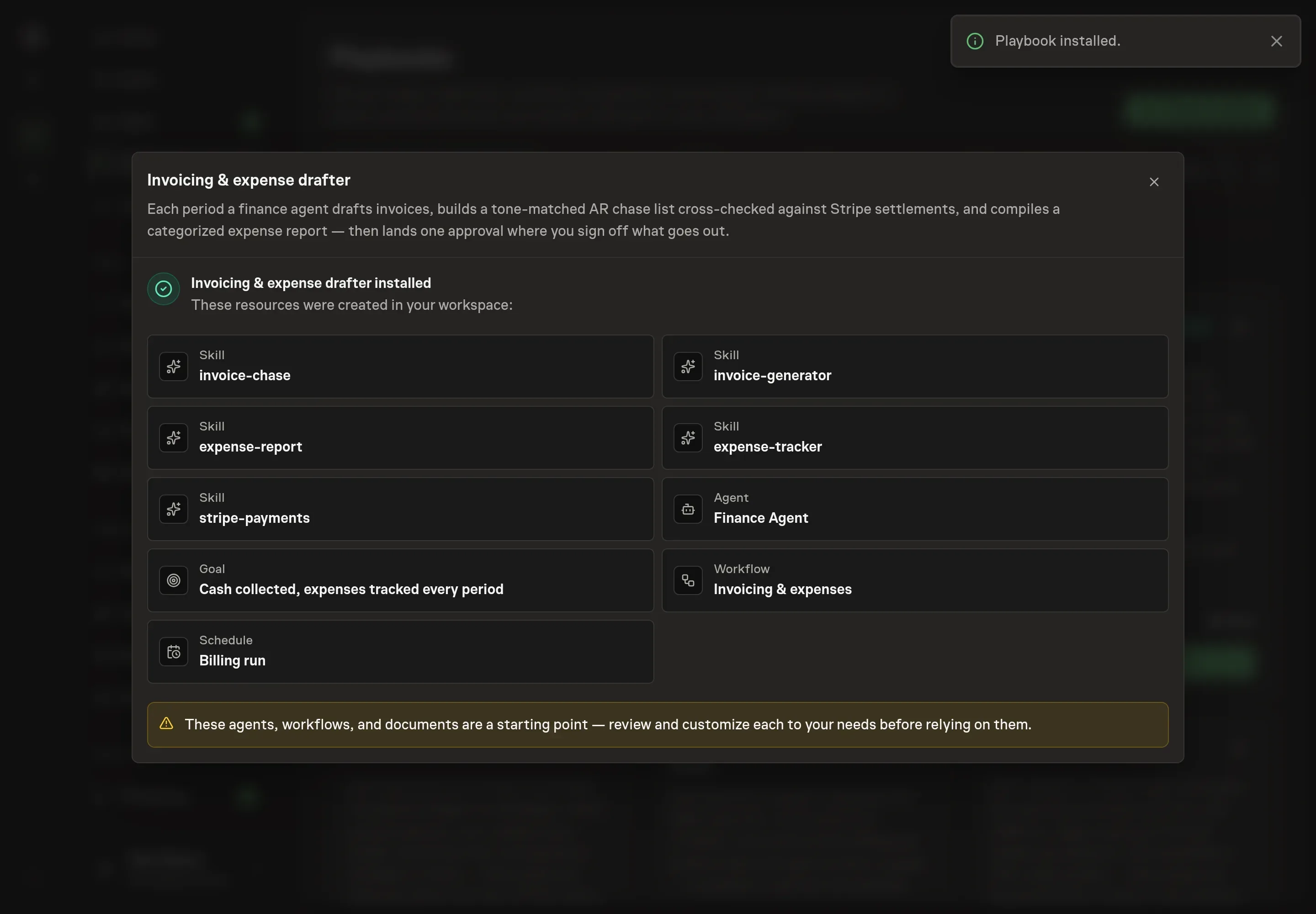
Choose Approve on the proposal in Chat when the configuration matches your brief. Task Machine installs that reviewed configuration. The approved item retains its review details. If your autonomy settings allow direct installation, this approval may not be required. Check the resulting configuration in that case too.
Complete any remaining secure service setup from the installation details in Chat. Inbox keeps those setup items available if you return later. Prepare the source documents and inputs before starting the first Task or Workflow. Installation does not authorize sending, publishing or changing an external service beyond the boundaries you agreed. Confirm each schedule's cadence and timezone, and resolve any pending schedule setup before it starts. A readback must wait for its agreed observation window and source data.
What good looks like
The batch is ready when finance can approve from evidence, not memory:
- Invoices tie out. Line math, tax assumptions, terms, invoice numbers, and totals are visible.
- The chase list excludes paid customers. Recent settlements are checked, and uncertain matches are flagged.
- Expense exceptions sit on top. Missing receipts, over-limit spend, reimbursables, unknown vendors, and likely duplicates are visible before the detail.
- Approval is batch-scoped. The exact invoices, reminders, and report reviewed are the ones approved.
Common questions
Can this send invoice reminders automatically? No. The agent drafts reminders and presents the batch. A human approves what goes out.
What if Stripe settlement data is unavailable? The agent falls back to AR history and flags the limitation. It should not silently treat every overdue invoice as chase-ready.
Can it handle both invoices and expenses in one run? Yes. The workflow drafts invoices and the AR chase list, compiles the expense report, self-reviews the batch, and then asks for approval.
Does it replace an accountant? No. It prepares a reviewable batch and surfaces exceptions. Finance judgment, filing decisions, and policy overrides stay with people.