How to Convert Office Documents With an Agent
A practical guide to agent-assisted PDF, Word, Excel, Markdown, OCR, merge, split, and office document conversion work.

Founder, Task Machine
Office document conversion is the work of moving a business document from one format to another without losing the content, structure, tables, images, or page set that made the original useful. It covers PDF to editable Word, office files to Markdown, Word and Excel edits, OCR for scanned files, and page-level merge or split work.
The hard part is choosing the right method for the source, checking whether a PDF has a real text layer, preserving formulas and tables, and telling the requester where the conversion needs human review. A faithful conversion changes the format and leaves the content alone.
Broken conversions leave people comparing files by hand
Document conversion usually looks small until a number changes, a table collapses into prose, a scanned PDF turns into broken text, or an editable Word file comes back with the right words but the wrong structure. The person who needed a usable contract, report, spreadsheet, or archive now has to compare files by hand.
Small teams often treat conversion as an interruption: open the source file, try an online converter, fix the worst formatting, and hope nobody asks about the edge cases. That is risky for documents with totals, dates, identifiers, signatures, scanned pages, or spreadsheet formulas. The job needs a routing decision, a conversion pass, and a fidelity check every time.
What the manual process looks like
Done by hand, office document conversion is a short but careful ritual:
- Inspect the attachment and confirm the real source format, not only the file extension.
- Decide the target format and the correct method: PDF to editable Word, office to Markdown, Word or Excel edit, OCR, merge, or split.
- Run the conversion with the right library or tool for that format pair.
- Compare the output against the original: first page, last page, data-heavy tables, page count, formulas, images, and section order.
- Write a handoff note that names anything that did not survive cleanly, such as OCR uncertainty, substituted fonts, complex layouts, watermarks, protected files, macros, SmartArt, or charts.
None of these steps is glamorous. Each one prevents a silent document error from becoming a customer-facing mistake, a bad finance number, or a messy internal review.
What an agent can automate
The Office document converter playbook turns that ritual into a triggered utility workflow:
- Detect and route the format pair. The agent identifies the source and target, then chooses the right path: native PDF extraction for editable Word, OCR for scans,
markitdownfor clean Markdown,python-docxfor Word work,openpyxlfor Excel work, and page-level operations for merge or split requests. - Preserve instead of paraphrasing. The workflow is instructed to keep text verbatim, preserve tables as tables, carry images at original resolution, keep formulas as formulas, and use real heading and table styles in the output.
- Handle scans honestly. A scanned PDF is treated differently from a PDF with a text layer. The agent OCRs the scan where the toolchain is available and tells the reviewer that recognition errors need review.
- Check fidelity before handoff. The agent compares page or section counts, spot-checks the first and last pages, inspects data-heavy tables, confirms totals remain unchanged, and lists caveats.
- Stop when the machine is missing a tool. If a required library, OCR engine, password, or source file is missing, the agent names the gap instead of delivering a degraded artifact.
The agent turns conversion into repeatable document handling, with an approval step at the end and no creative rewriting.
The guardrails that make it safe
The safe boundary for document conversion is simple: the agent can produce the artifact, but the human approves delivery. That matters because the final file may become a contract draft, finance sheet, board packet, policy document, or knowledge-base source.
The workflow also treats uncertainty as part of the output. The handoff note calls out OCR, complex layouts, formulas, protected files, watermarks, macros, SmartArt, and charts, so the reviewer knows exactly where to inspect before approving.
Set it up in Task Machine
The Office document conversion playbook provides a starting point for the method above. You need an active Task Machine workspace with Chat, workspace-management and Playbook-installation access (workspace owners have it). The playbook can be installed before every document library is available. If a needed library or OCR engine is missing at run time, the agent names what is missing instead of shipping a bad file.
1. Find the playbook
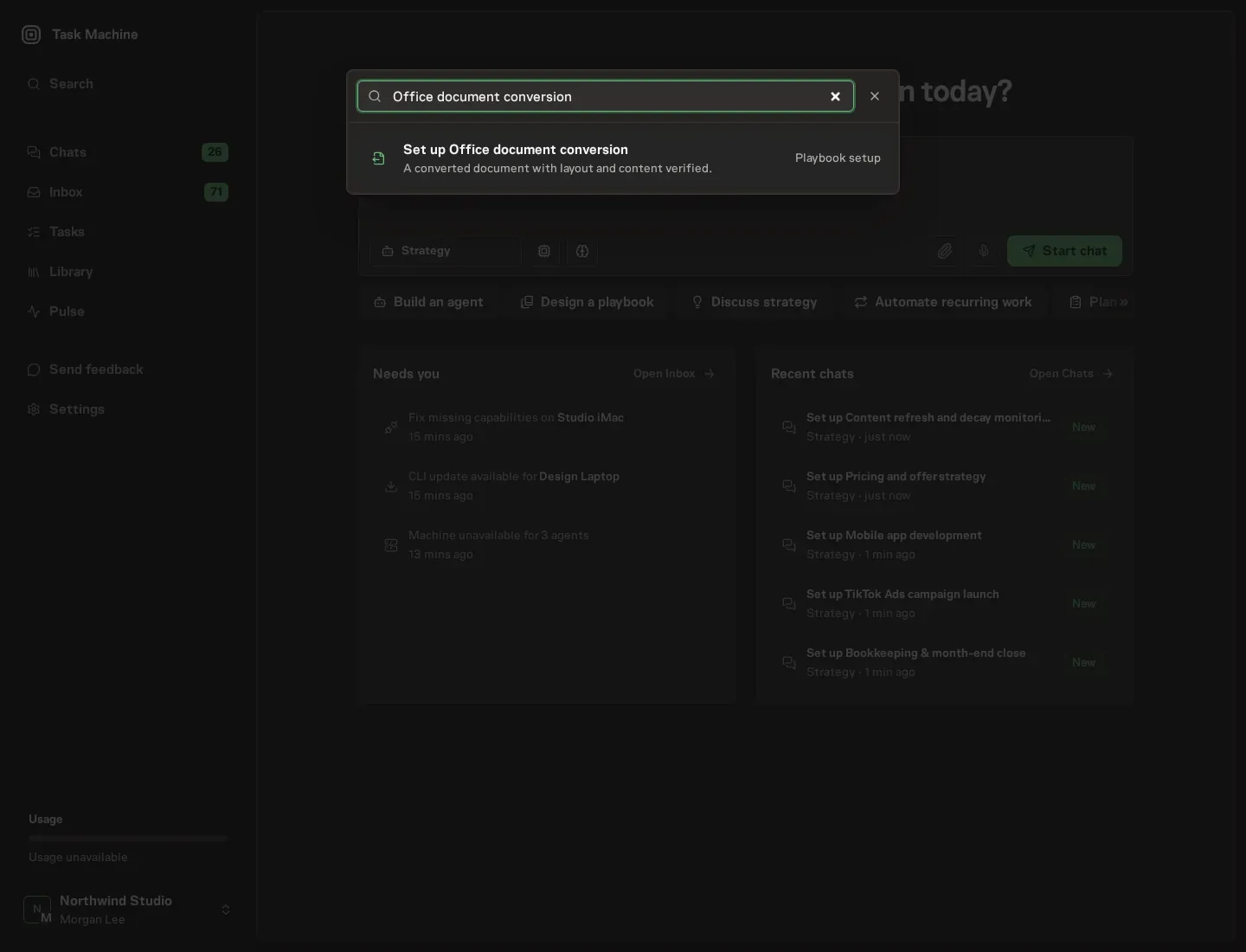
Open Search in your workspace and enter "Office document conversion". The command center lists Set up Office document conversion under Playbook setup.
2. Start the conversation
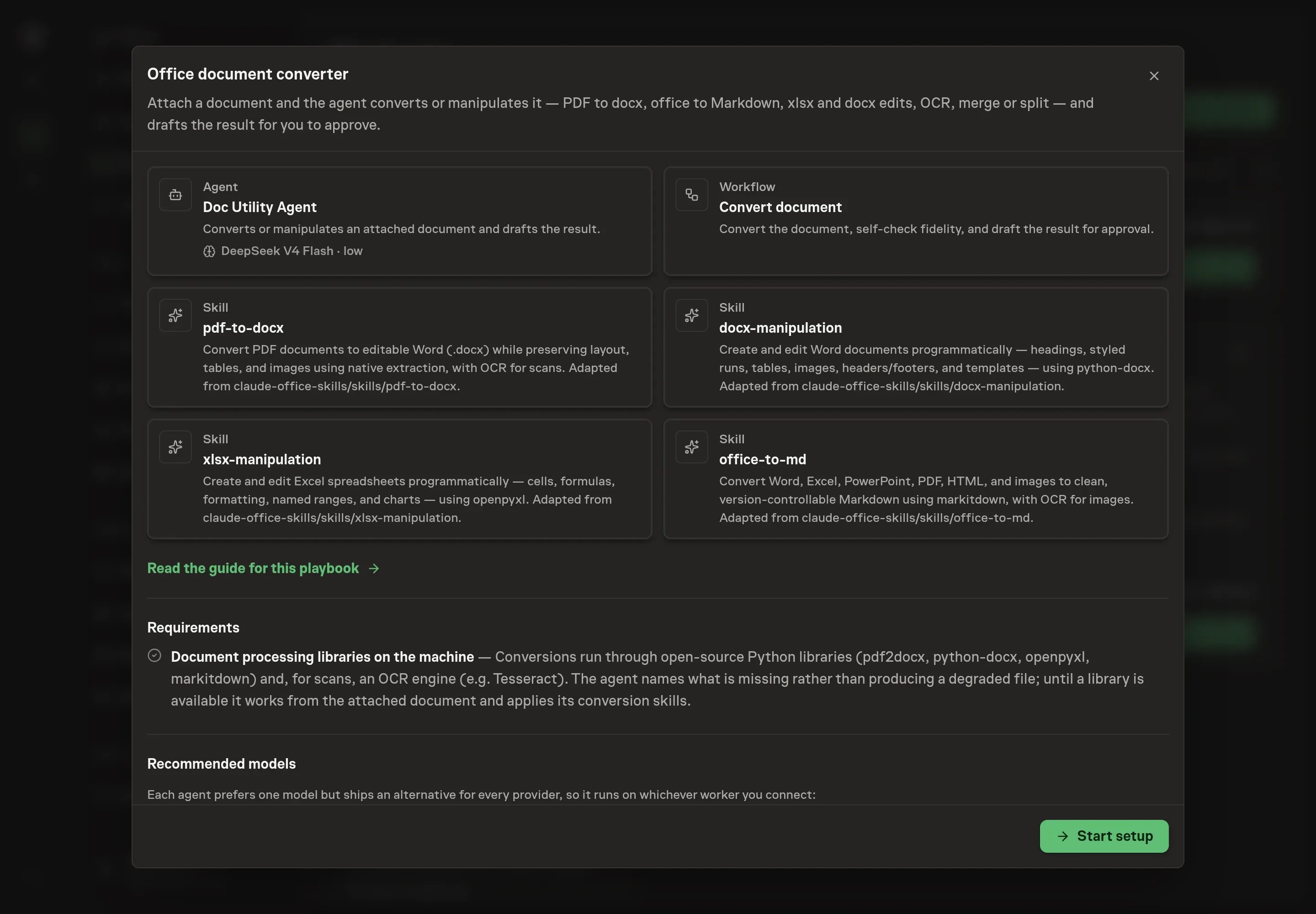
Choose Set up Office document conversion. Task Machine opens a dedicated Chat with the Playbook card and an editable, unsent request. Read the intended job and outcome. Add your situation and send it when ready. Opening the draft does not install anything or start work. This walkthrough uses settings that require approval of the proposed Playbook.
3. Agree the working brief
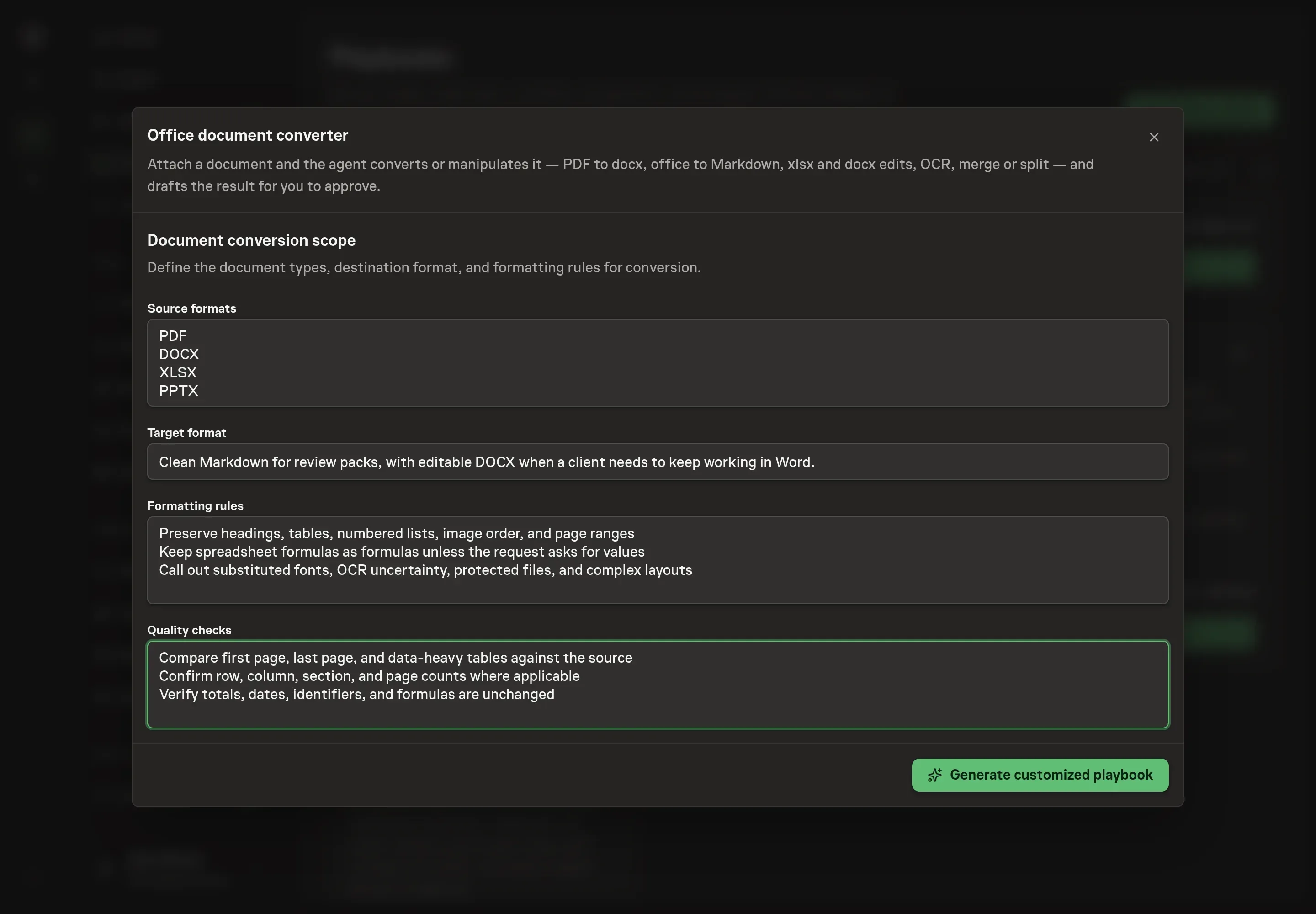
Use Chat to agree the inputs, expected output and limits before asking for a proposal. The Agent needs the formats and fidelity rules the agent should assume for your workspace. Add the source formats you expect, the target format you want most often, formatting rules such as preserving headings and tables, and quality checks such as comparing totals and page counts.
4. Review the proposed Playbook
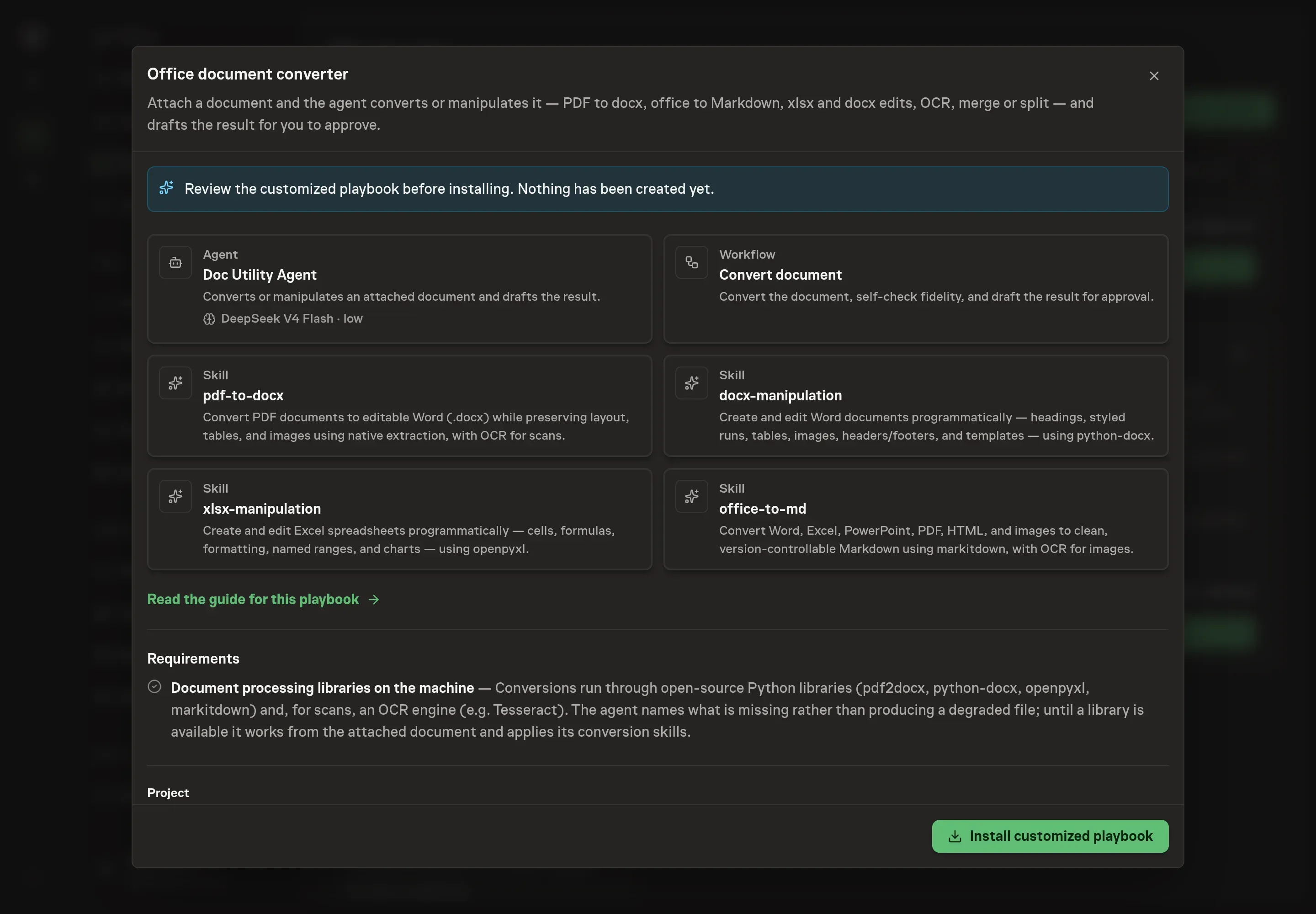
Ask the Agent to generate the Playbook from the agreed brief. Open its proposal in Chat and check the instructions and resources it will install, which carry more detail than the conversational summary. Check that the conversion scope matches your actual document work and that the quality checks are specific enough for the files your team handles. Ask for a revised proposal if anything is missing or changes the job.
5. Approve and prepare the first work
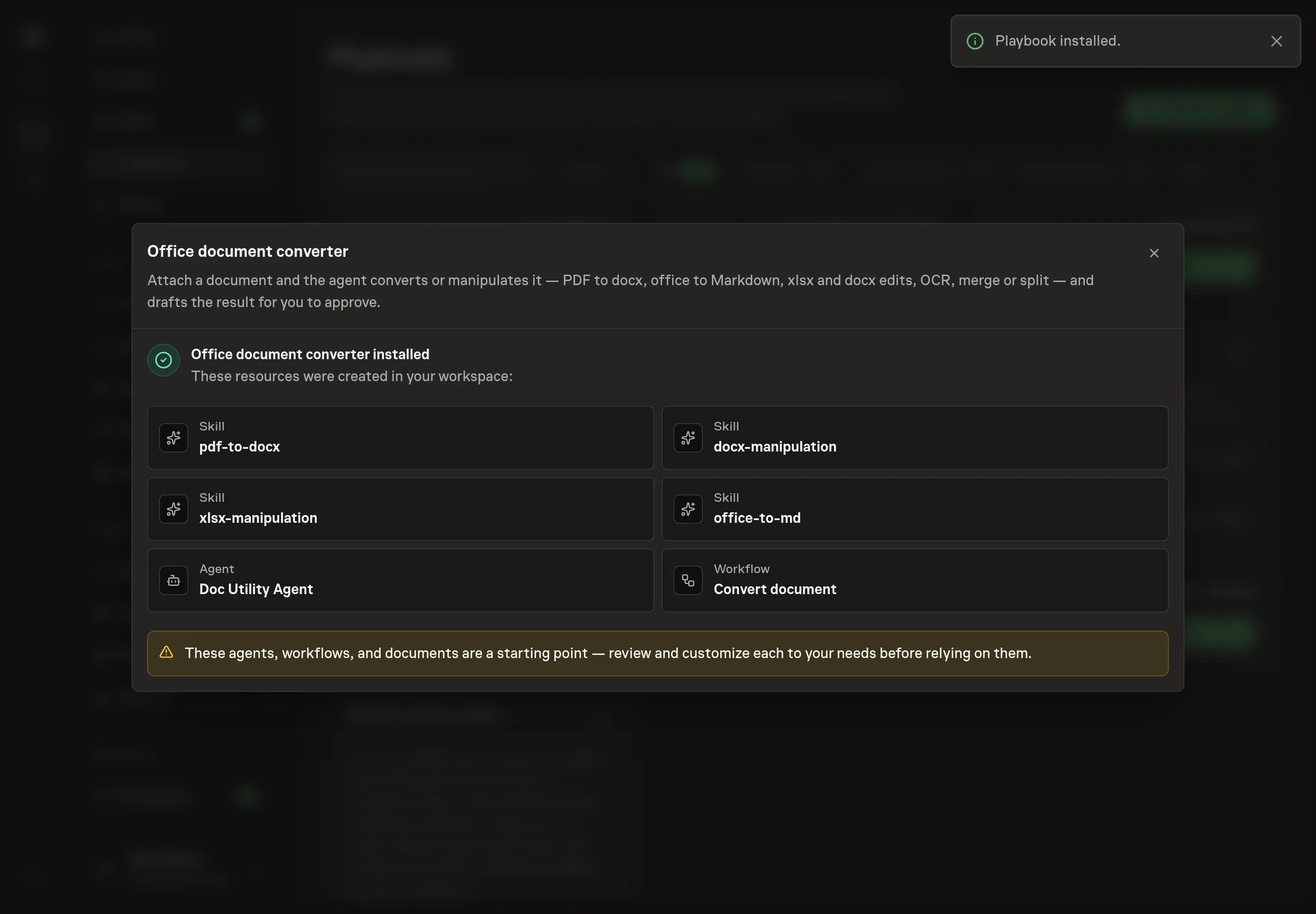
Choose Approve on the proposal in Chat when the configuration matches your brief. Task Machine installs that reviewed configuration. The approved item retains its review details. If your autonomy settings allow direct installation, this approval may not be required. Check the resulting configuration in that case too.
Complete any remaining secure service setup from the installation details in Chat. Inbox keeps those setup items available if you return later. Prepare the source documents and inputs before starting the first Task or Workflow. Installation does not authorize sending, publishing or changing an external service beyond the boundaries you agreed.
What good looks like
A useful document-conversion process is measured by fidelity, not speed alone:
- The output opens cleanly in the target application. A Word file is editable as a Word file, a spreadsheet keeps workbook structure, and Markdown is clean enough to search, diff, and feed into downstream work.
- The important structures survive. Headings, tables, formulas, images, pages, and source order are preserved or explicitly flagged.
- The caveats are useful. A reviewer can see which pages, tables, fonts, scanned sections, or protected files need attention before delivery.
Common questions
Can an agent safely convert scanned PDFs? Yes, if the workflow treats scans as OCR work and marks the result for review. A scanned document has no native text layer, so recognition errors are possible and should be called out.
Should every office file become Markdown? No. Markdown is useful when the goal is search, version control, diffs, or downstream agent work. Editable Word or Excel is better when a human will keep working in the original office format.
What happens if the needed library is not installed? The agent stops and names the missing library or OCR engine. That is safer than producing a partial file with quiet formatting or content loss.
Can this edit spreadsheets as well as convert documents? Yes. The playbook includes an Excel skill for cells, formulas, formatting, named ranges, and charts. The important rule is that formulas and values are preserved unless the requested edit explicitly changes them.