How to Triage Support Inboxes
A practical guide to classifying tickets, drafting replies, routing escalations, and keeping every support send behind approval.

Founder, Task Machine
Support inbox triage is the recurring work of reading new tickets, identifying the root cause, assigning priority, checking duplicates, routing the issue, and drafting the right reply. A useful process separates answerable tickets from unknowns, keeps sensitive actions behind approval, and gives every customer a response matched to their situation.
Small teams often do this in bursts. Someone opens the help desk between product work, answers the easy tickets, flags the painful ones, and promises to return later. The inbox grows unevenly: known questions wait too long, duplicates get missed, complaints escalate, and unknown issues get guessed at instead of routed.
Why support triage breaks SLAs
A messy support queue routes tickets wrongly as well as slowly. A login bug gets labeled as an account question, a duplicate bug report never reaches engineering, a billing dispute gets answered with a generic macro, or a security concern sits in the same pile as a feature request.
Priority rules also drift under pressure. A P1 should mean production down, data loss, security breach, or most users affected. A P2 should mean a core workflow is broken with no workaround. Without a repeatable classification pass, every ticket feels urgent and the actual urgent ones lose the queue.
What the manual process looks like
Done by hand, support triage has six steps:
- Read the full ticket thread and customer context, including later replies that may change the assessment.
- Categorize by root cause: bug, how-to, feature request, billing, account, integration, security, data, or performance.
- Assign P1 to P4 priority using impact, urgency, customer context, and SLA risk.
- Check for duplicates, known issues, related tickets, and existing knowledge-base answers.
- Draft a reply from the FAQ or canned-response library, personalized to the ticket, or write an escalation summary when the answer is not covered.
- Review sensitive cases, refunds, credits, disputes, security issues, closes, and customer-facing sends before anything changes.
The work is repetitive, but it still needs judgment. The best automation handles the reading, sorting, drafting, and self-checking while a person approves the action.
What an agent can automate
An agent can turn the queue into reviewable decisions:
- Classify by root cause. It reads each ticket and assigns the category based on the underlying issue rather than the customer's first wording.
- Prioritize consistently. It applies P1 to P4 rules and errs higher when unsure, especially around security, data loss, production impact, or SLA breach risk.
- Find duplicates and known issues. It searches the support desk, knowledge base, tracker, and prior tickets when access is connected.
- Draft replies from approved knowledge. It adapts the product FAQ and canned-response library, personalizes the answer, and avoids forcing a macro onto a ticket it does not fit.
- Escalate unknowns. When the FAQ does not cover the question, it writes a concise escalation with category, priority, what it checked, and where the ticket should go.
- Self-critique. It checks tone, unauthorized commitments, roadmap leaks, factual references, next steps, length, and sensitive content before handoff.
The agent never sends replies, issues refunds, closes tickets, or resolves disputes on its own.
The guardrails that make it safe
Customer-facing support needs two approval layers: knowledge boundaries and action boundaries. The agent should answer only from the FAQ, canned responses, known issues, and connected support context. If a ticket is outside that coverage, it escalates instead of guessing.
Action boundaries keep risk contained. Refunds, credits, billing adjustments, dispute handling, security concerns, ticket closes, and every customer-facing reply wait for a human. The agent can prepare the decision. The person approves the send or edits the answer.
Set it up in Task Machine
The Support triage & replies playbook provides a starting point for the method above. You need an active Task Machine workspace with Chat, workspace-management and Playbook-installation access (workspace owners have it). Support desk, project tracker, and email access are not required up front. Until connected, the agent works from attached exports and the FAQ document.
1. Find the playbook
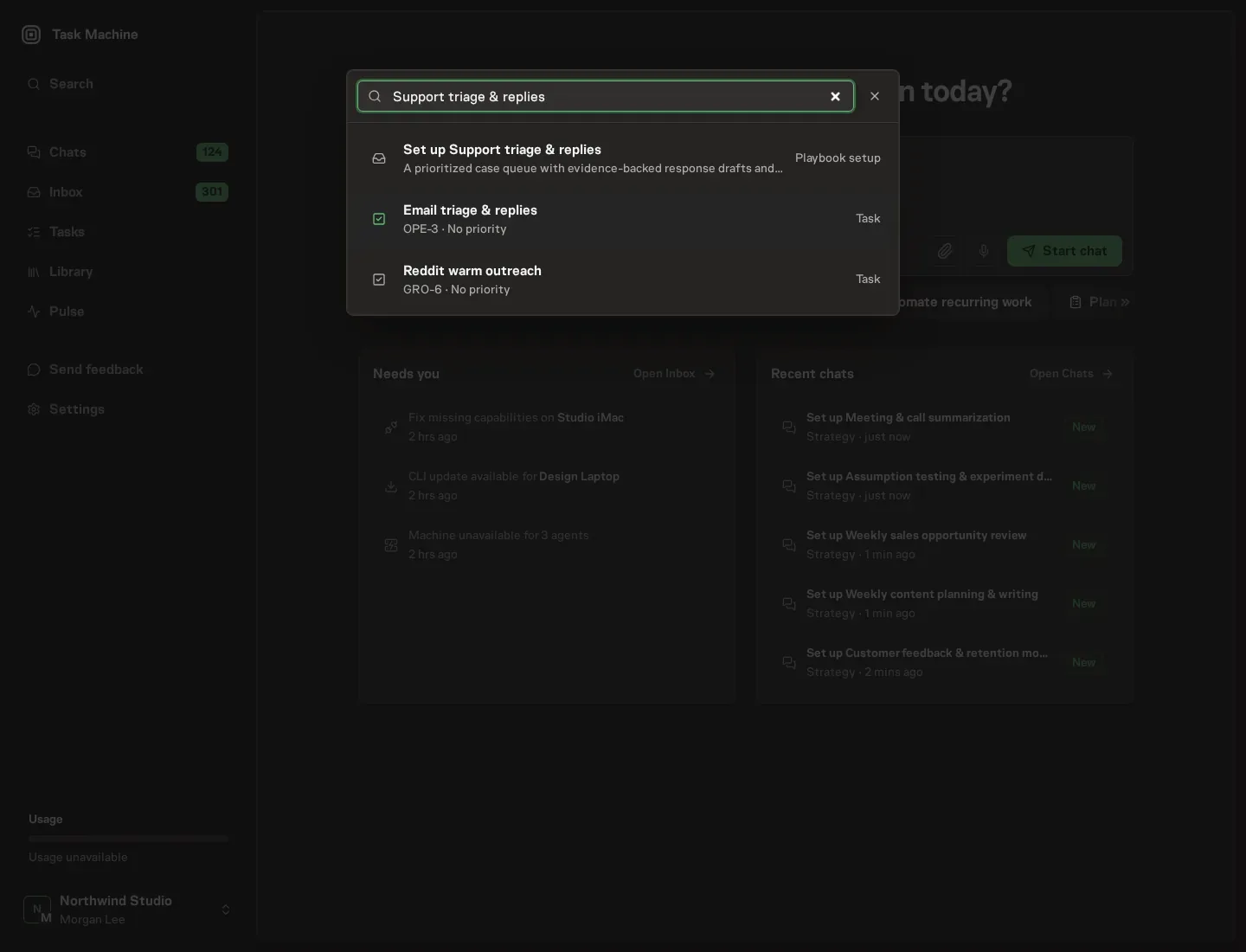
Open Search in your workspace and enter "Support triage & replies". The command center lists Set up Support triage & replies under Playbook setup.
2. Start the conversation
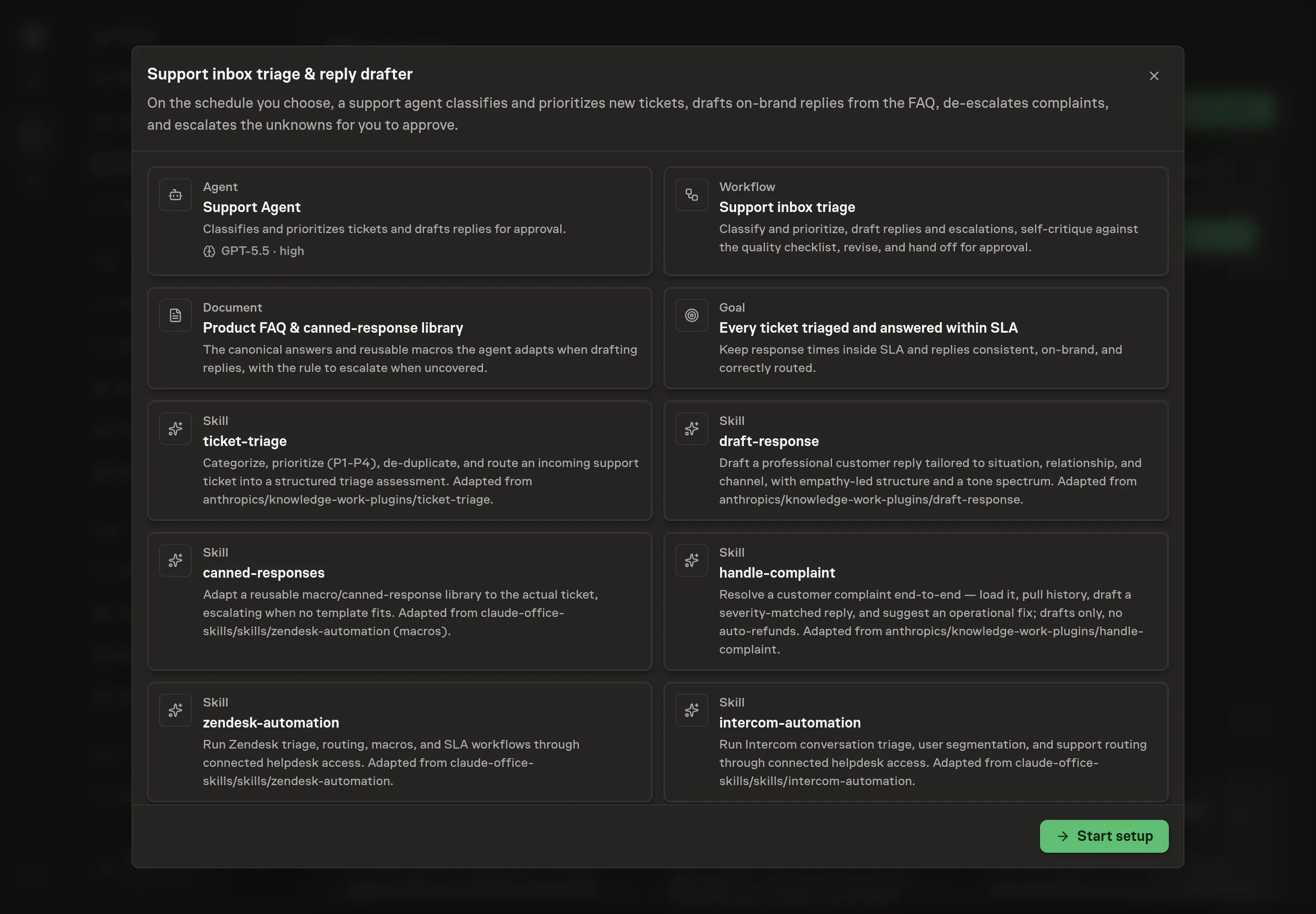
Choose Set up Support triage & replies. Task Machine opens a dedicated Chat with the Playbook card and an editable, unsent request. Read the intended job and outcome, add your situation, and send it when ready. Opening the draft does not install anything or start work. This walkthrough uses settings that require approval of the proposed Playbook.
3. Agree the services
Tell the Agent which services you use. The catalog offers these starting choices:
- Support desk to connect: Intercom. Optional.
Discuss any missing access or export-based alternative before generation. Check the exact proposal includes only the services you agreed. Enter credentials only through secure setup, never in Chat.
4. Agree the working brief
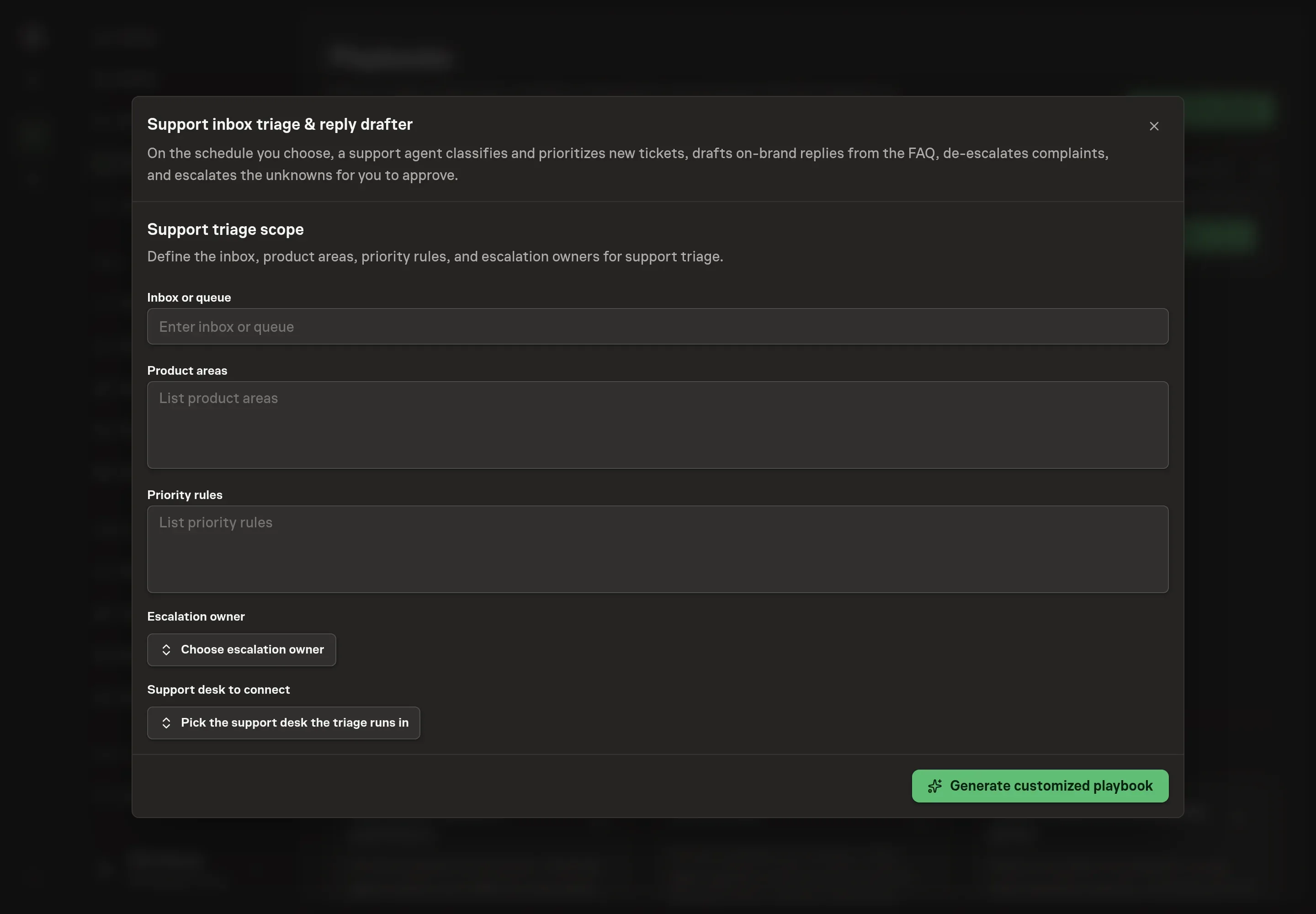
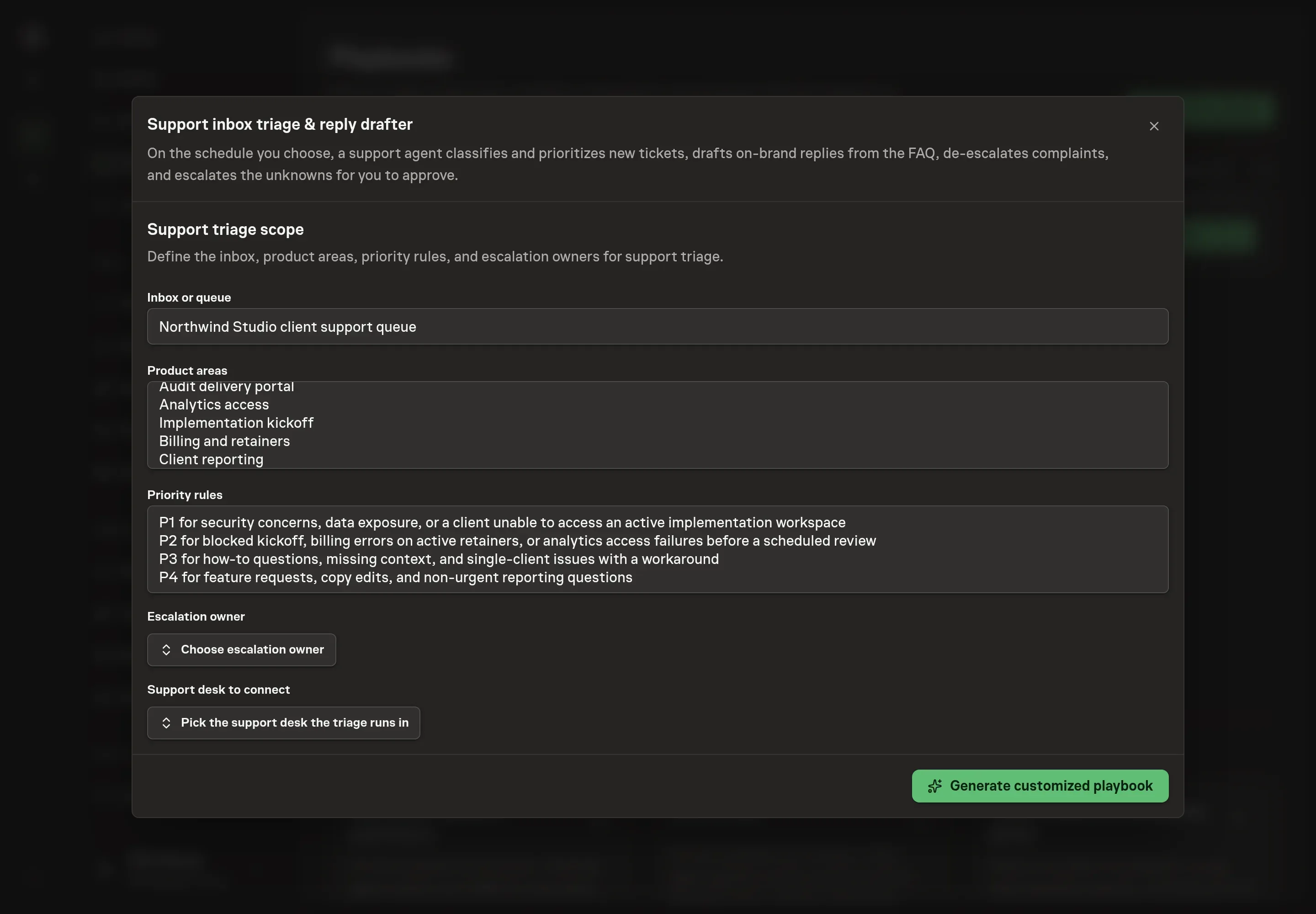
Use Chat to agree the inputs, expected output and limits before asking for a proposal. Discuss the inbox or queue, product areas, priority rules, and escalation owner. Use product areas that match your support routing, and write priority rules in terms of customer impact rather than internal team preference.
5. Review the proposed Playbook
Ask the Agent to generate the Playbook from the agreed brief. Open its proposal in Chat and check the instructions and resources it will install, which carry more detail than the conversational summary. Review the generated playbook before installing. Confirm the queue, product areas, priority rules, owner, and Intercom selection are correct. Ask for a revised proposal if anything is missing or changes the job.
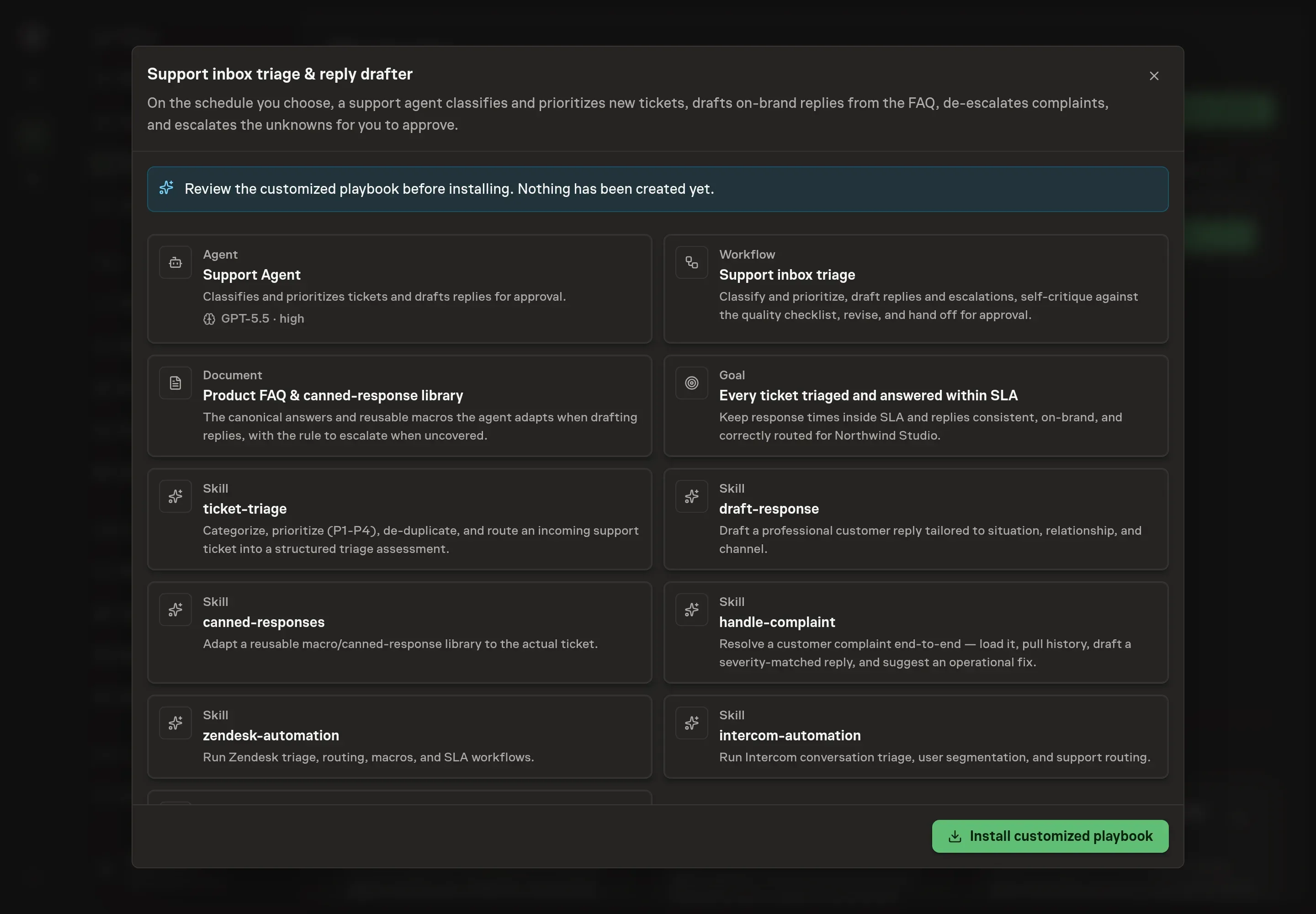
6. Approve and prepare the first work
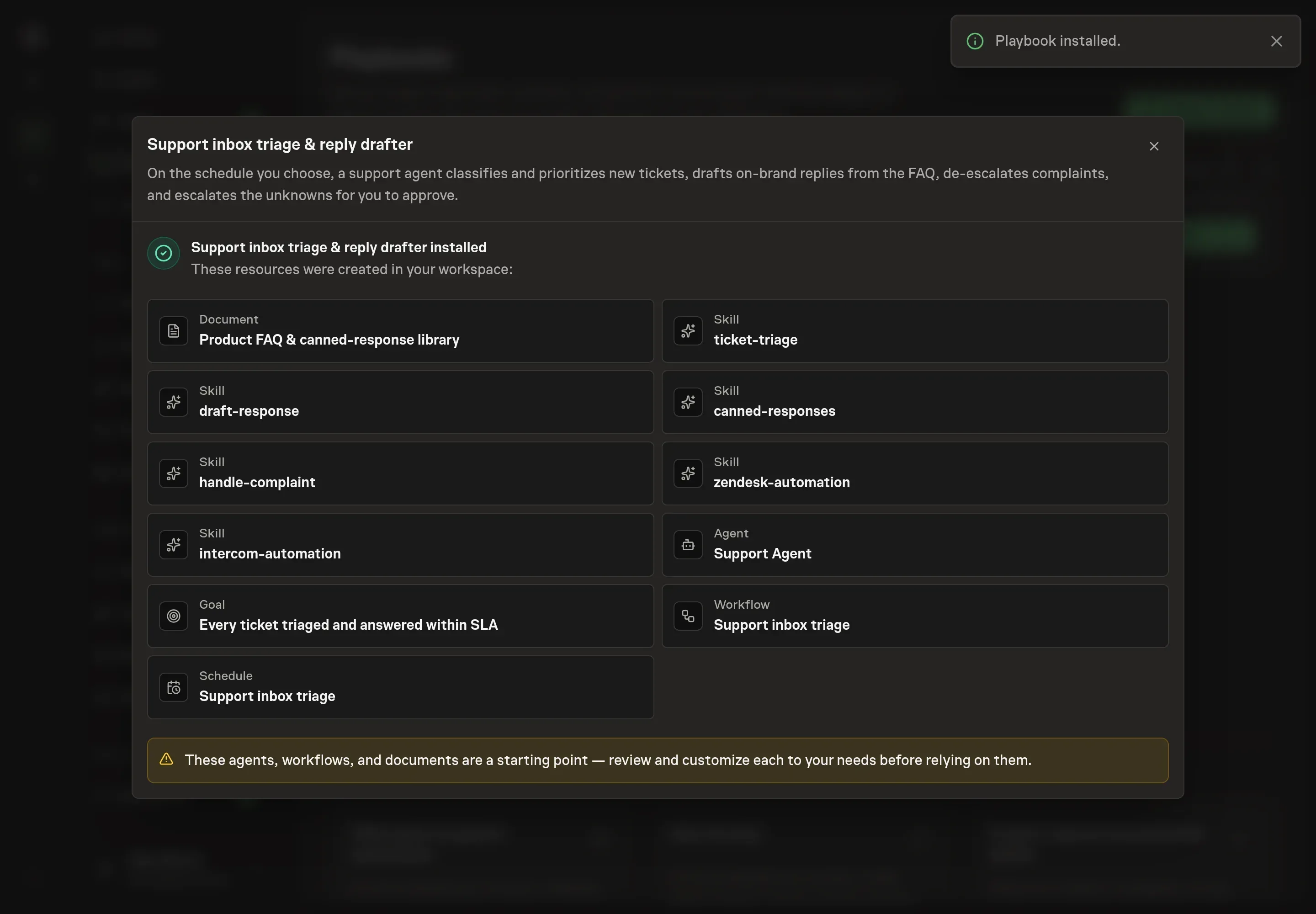
Choose Approve on the proposal in Chat when the configuration matches your brief. Task Machine installs that reviewed configuration. The approved item retains its review details. If your autonomy settings allow direct installation, this approval may not be required. Check the resulting configuration in that case too.
Complete any remaining secure service setup from the installation details in Chat. Inbox keeps those setup items available if you return later. Prepare the source documents and inputs before starting the first Task or Workflow. Installation does not authorize sending, publishing or changing an external service beyond the boundaries you agreed. Confirm each schedule's cadence and timezone, and resolve any pending schedule setup before it starts. A readback must wait for its agreed observation window and source data.
What good looks like
Three checks tell you whether support triage is improving:
- Every ticket has a route. Each item gets category, priority, product area, and either an approved reply draft or an escalation summary.
- Known questions stay grounded. FAQ-covered tickets use approved answers and personalized macros, not new guesses.
- Sensitive actions wait. Refunds, credits, disputes, security issues, closes, and sends all require human approval.
Common questions
Can the agent answer tickets automatically? No. It drafts replies and escalations, then waits for approval. That keeps customer-facing sends, refunds, credits, and closes under human control.
What should be in the FAQ document? Add canonical answers, refund boundaries, approved canned responses, known issue language, escalation thresholds, complaint language, and the product areas used for routing.
What happens when the agent does not know the answer? It should escalate. A good escalation includes the category, priority, customer context, what it checked, and the recommended owner.
Can this run without a connected support desk? Yes. The agent can work from attached exports and the FAQ document. Connecting Intercom lets it read conversations and prepare replies in the support context.