How to Draft Churn-Save Offers
A practical guide to churn-save replies with an agent: reason classification, matched offers, a written policy, and approval before anything is sent.

Founder, Task Machine
A churn-save offer is the reply you send when a customer tells you they are cancelling: a message that acknowledges their stated reason, makes exactly one offer matched to that reason, and asks one honest question about what went wrong. It targets voluntary churn, the customers who decided to leave, at the one moment they are still listening.
It is among the highest-leverage messages a subscription business sends. The customer has already told you the problem in their cancellation note. A reply that addresses that specific problem can keep the account, and even when it cannot, the exit answer tells you what to fix next.
Every unanswered day hardens a cancellation
A cancellation note is a closing window. The customer wrote it while the decision was fresh, and every day it sits unanswered, the decision hardens. Most small teams respond in one of two ways: a template that says "sorry to see you go", or a blanket discount sent to everyone regardless of reason.
Both waste the moment. A discount cannot save someone who stopped using the product, and a feature roadmap cannot save someone who can no longer afford it. The blanket discount is the more expensive mistake, because it teaches customers that cancelling is how you get a deal. And when nobody owns the reply, the notes that arrive in a busy week get the template or nothing at all.
What the manual process looks like
Done by hand, a churn save is a short ritual that rewards care over speed:
- Read the cancellation note closely and work out the real reason, which is not always the stated one.
- Classify it: too expensive, not using it enough, missing a feature, switching to a competitor, technical issues, a temporary pause in need, or a business that closed.
- Pick the one offer that fits the reason, from the set of concessions you are willing to give.
- Write the reply: genuine thanks, a specific acknowledgement of their reason, the offer with its concrete benefit, and one exit-interview question.
- Check the draft against your own limits, such as the discount cap and whether this customer has already had an offer, then send it.
Each note takes maybe twenty minutes to do well. The work is simple, but it demands the same discipline every time, and the discipline is exactly what slips when cancellations cluster.
What an agent can automate
Everything in that ritual except the final send decision is a rule that can be written down, which makes it a good fit for an agent running a fixed workflow:
- Read and classify. The agent reads the cancellation note or attachment and extracts the stated and implied reason, the tone, the customer's value, and whether the situation is recoverable, then classifies the reason into one bucket.
- Match exactly one offer. Each reason maps to a different save. Too expensive gets a time-boxed discount or a cheaper tier, with the dollar amount saved spelled out. Not using it gets a pause of one to three months plus an onboarding nudge, never a discount. A missing feature gets an honest roadmap answer or a workaround, with no ship date that is not committed. A switch to a competitor gets empathy and one honest differentiator. Technical issues get an escalation to support instead of a deal. A closed business gets a thank-you and a graceful goodbye.
- Draft the reply. The draft opens with genuine empathy, acknowledges the reason specifically enough to show the note was read, presents the one matched offer with its concrete benefit, and asks one exit-interview question in "help us improve" framing. It also makes leaving easy regardless, because a save attempt that traps people saves nothing.
- Self-check against policy. Before the draft reaches you, the agent checks it against every hard limit in the save-offer policy: no discount beyond 30% off, every offer time-boxed, never more than one offer per customer, no fake scarcity, and no claim the business cannot honor.
What stays judgment: whether the message goes out at all, and every case the rules cannot settle. High-value accounts, serious bug complaints, ambiguous notes, and any save that would need an out-of-policy offer get escalated to you instead of guessed at.
The guardrails that make it safe
A save offer is a pricing decision sent to a customer who is already halfway out the door, which is exactly the kind of message that should wait for a person.
The first guardrail is a written policy. The offer limits live in a save-offer policy document, not in the agent's head, so what a draft may offer is something you can read, edit, and tighten. The second is the workflow itself: intake, offer matching, drafting, and the policy self-check all run before an explicit approval step, and nothing is sent without your sign-off. Only after you approve does the agent prepare the reply in your email or support tool through the browser. The escalation rules close the loop, routing top accounts and edge cases to a personal reply instead of a template.
Set it up in Task Machine
The Churn prevention messaging playbook provides a starting point for the method above. You need an active Task Machine workspace with Chat, workspace-management and Playbook-installation access (workspace owners have it). Connecting your email or support tool is not required up front. Until you authorize browser access, the agent drafts into the Retention folder from the cancellation note you paste in and the save-offer policy.
1. Find the playbook
Open Search in your workspace and enter "Churn prevention messaging". The command center lists Set up Churn prevention messaging under Playbook setup.
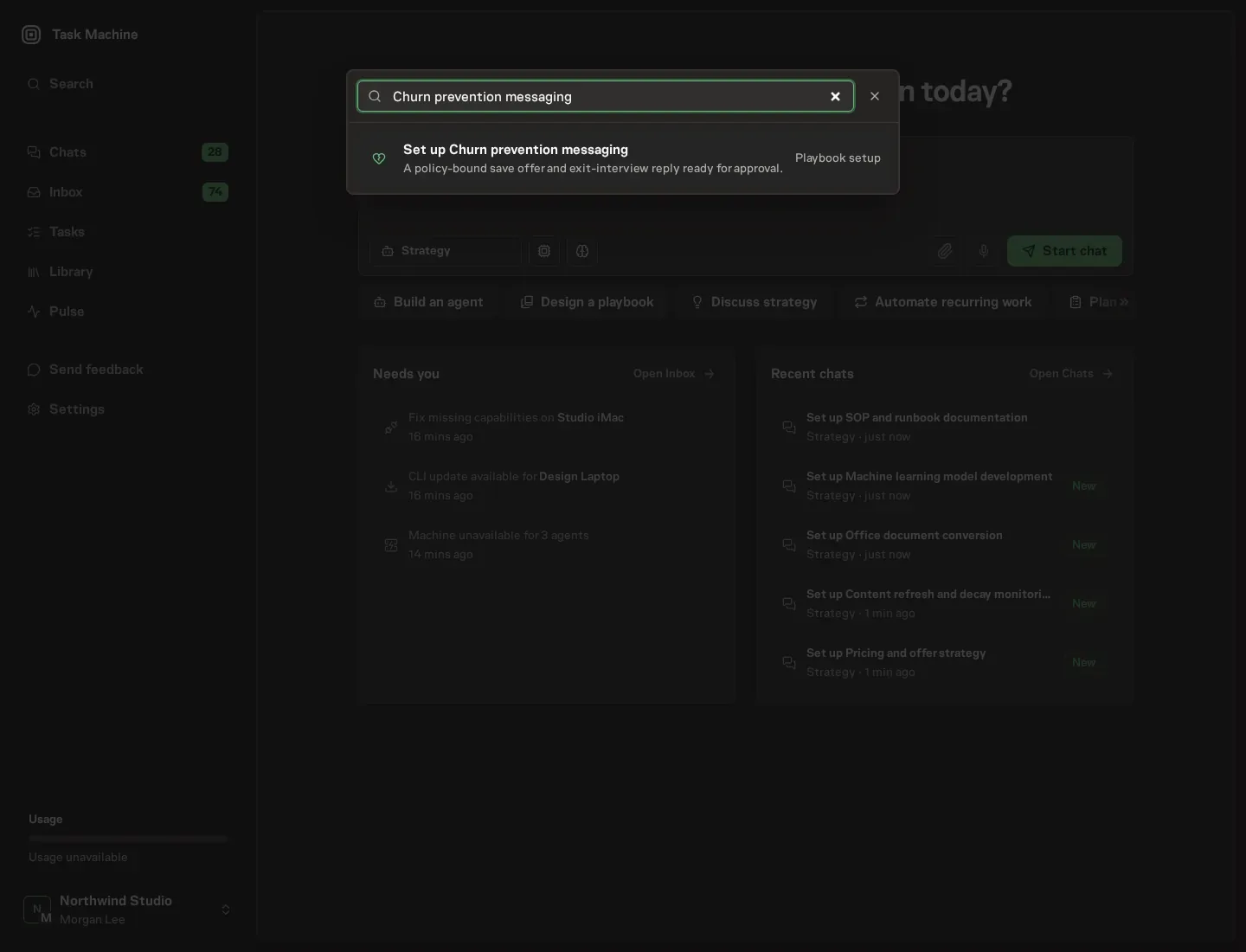
2. Start the conversation
Choose Set up Churn prevention messaging. Task Machine opens a dedicated Chat with the Playbook card and an editable, unsent request. Read the intended job and outcome. Add your situation and send it when ready. Opening the draft does not install anything or start work. This walkthrough uses settings that require approval of the proposed Playbook.
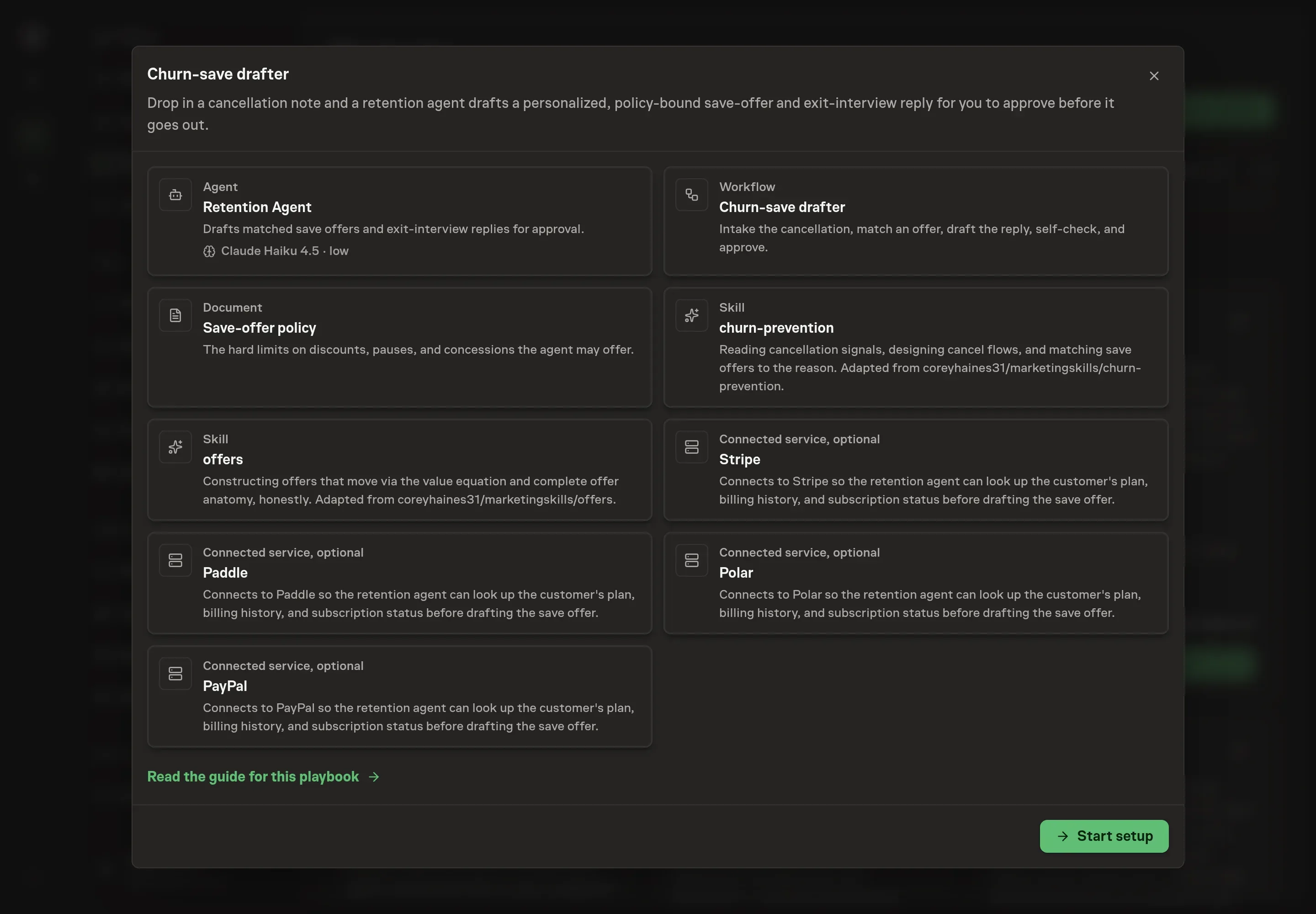
3. Agree the services
Tell the Agent which services you use. The catalog offers these starting choices:
- Payment providers: Stripe, Paddle, Polar, PayPal. Optional.
Discuss any missing access or export-based alternative before generation. Check the exact proposal includes only the services you agreed. Enter credentials only through secure setup, never in Chat.
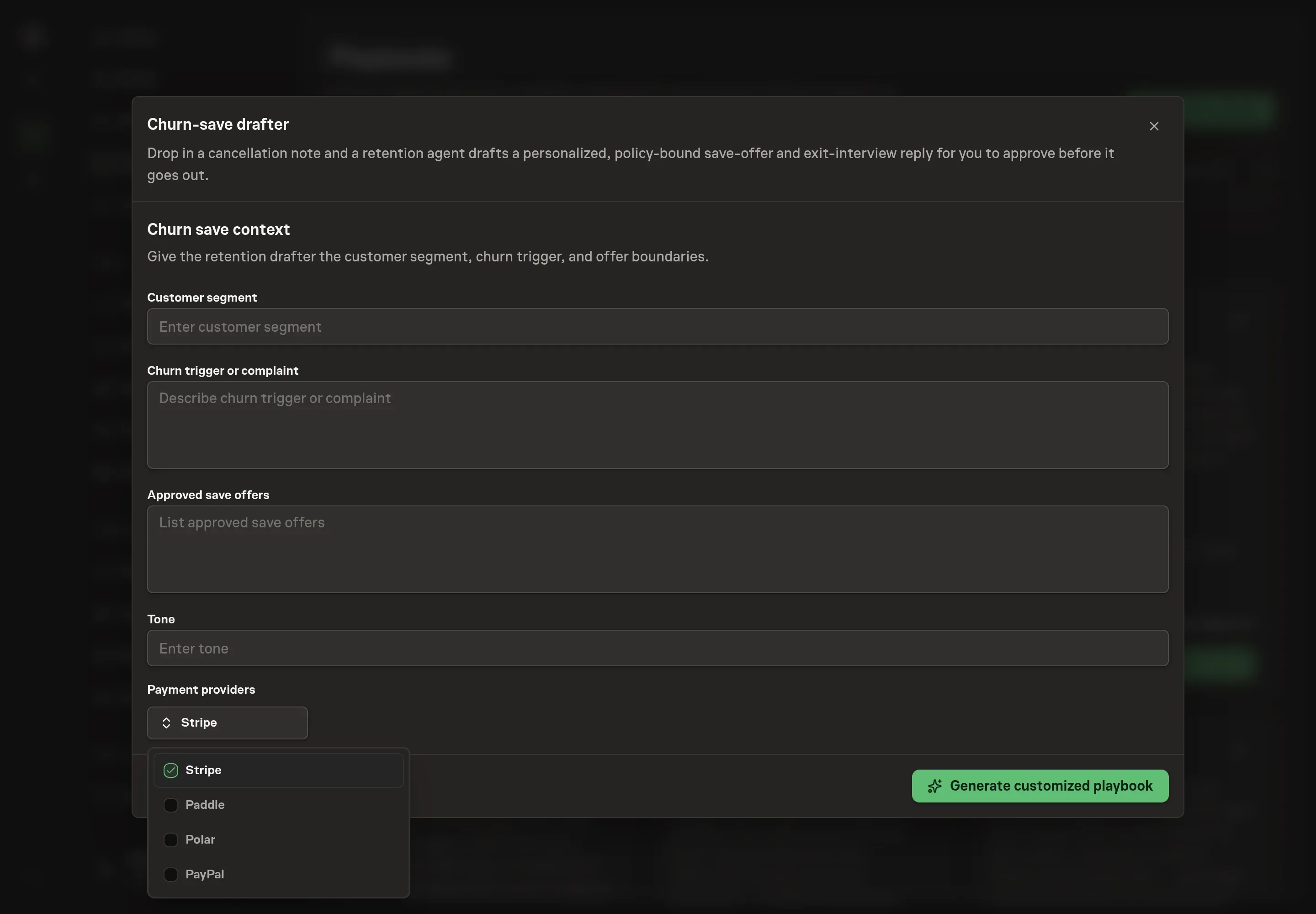
4. Agree the working brief
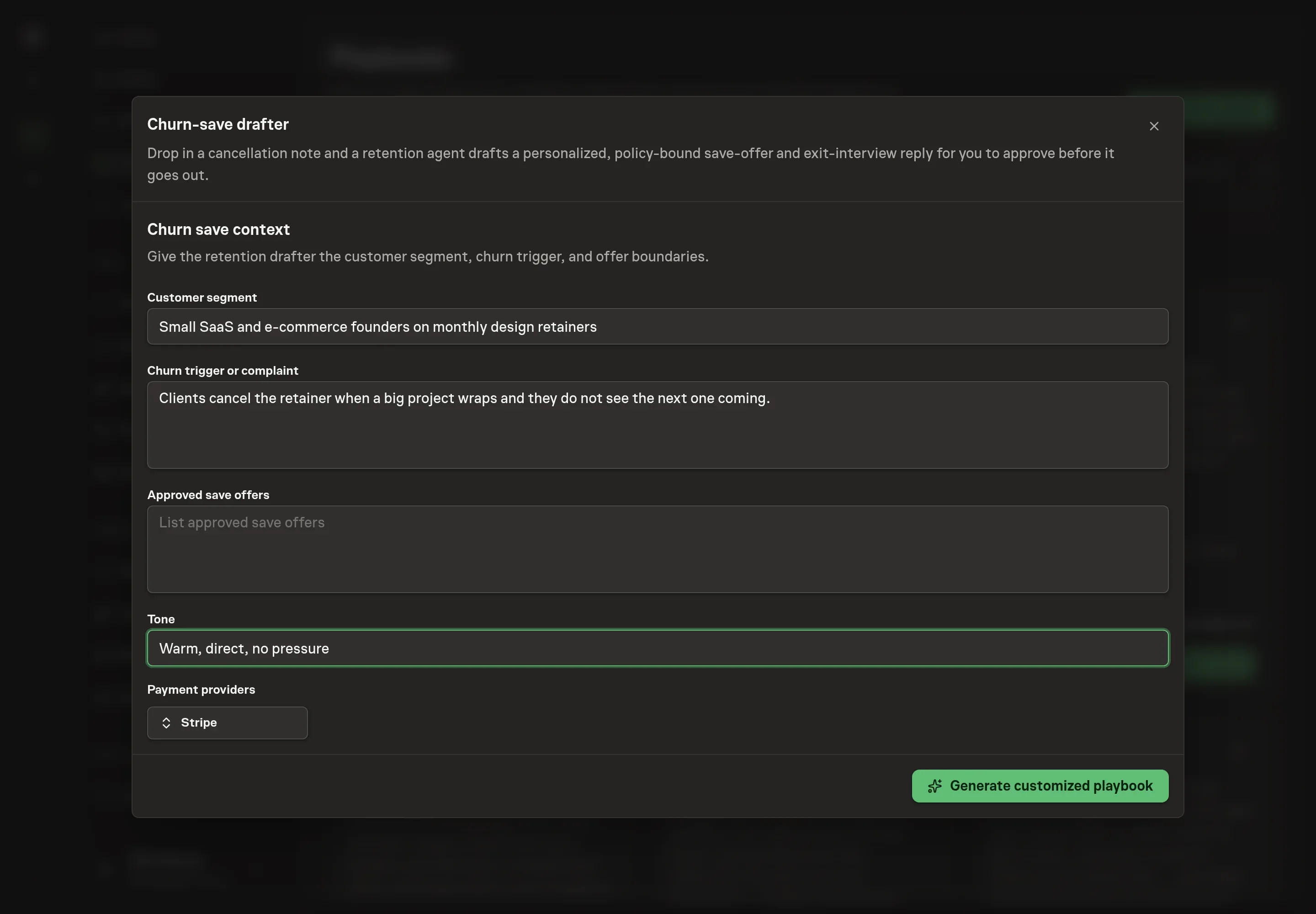
Use Chat to agree the inputs, expected output and limits before asking for a proposal. Four details shape every draft. Customer segment tells the agent who the replies address. Churn trigger or complaint describes the cancellation reason you see most, which primes the classification. Approved save offers lists the concessions a draft may propose, and nothing outside that list appears in a reply. Tone sets how the replies sound.
5. Review the proposed Playbook
Ask the Agent to generate the Playbook from the agreed brief. Open its proposal in Chat and check the instructions and resources it will install, which carry more detail than the conversational summary. Read through the agent and workflow cards, confirm the approved offers match what you would give, and check that only the providers you requested appear as connected services. Ask for a revised proposal if anything is missing or changes the job.
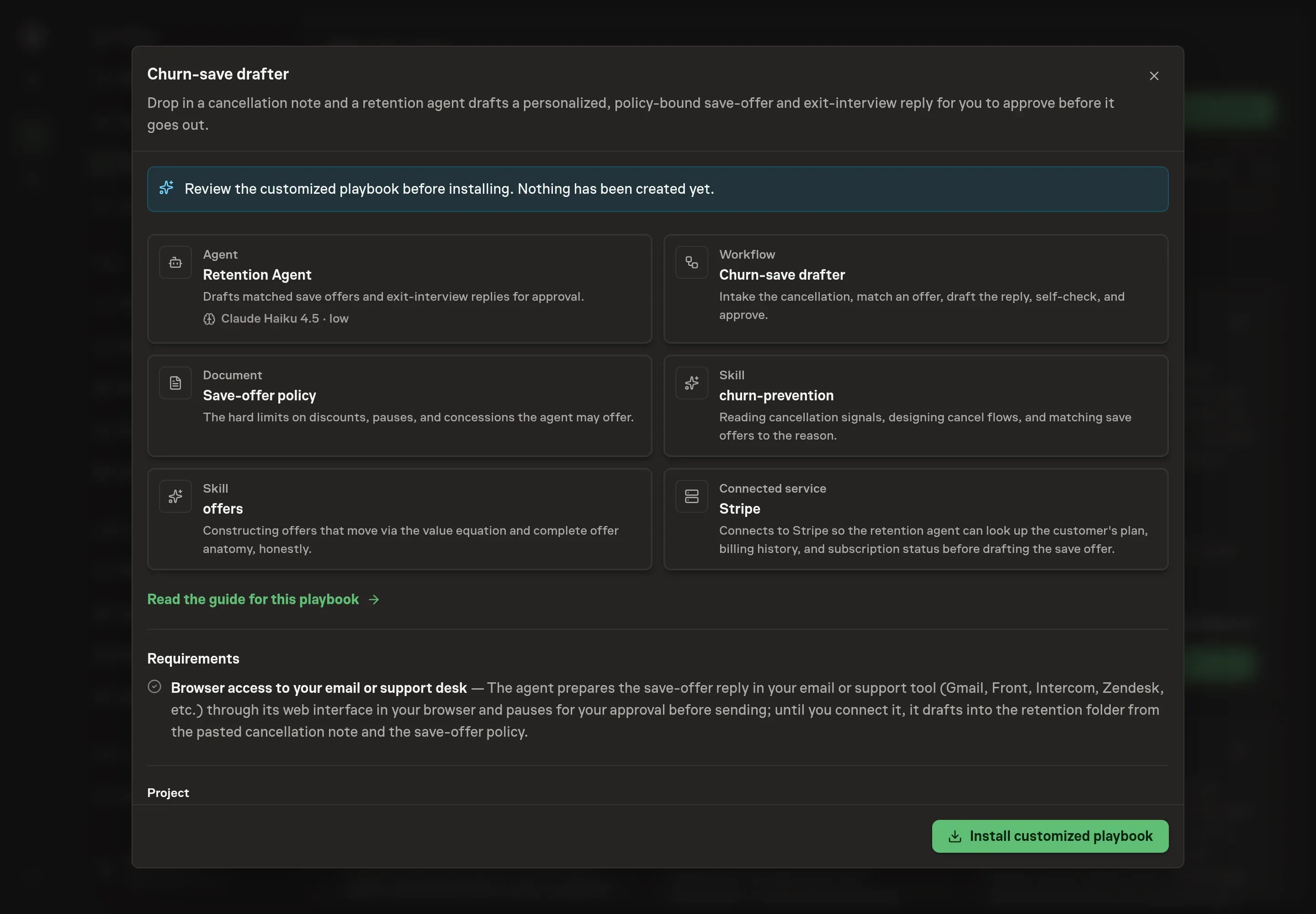
6. Approve and prepare the first work
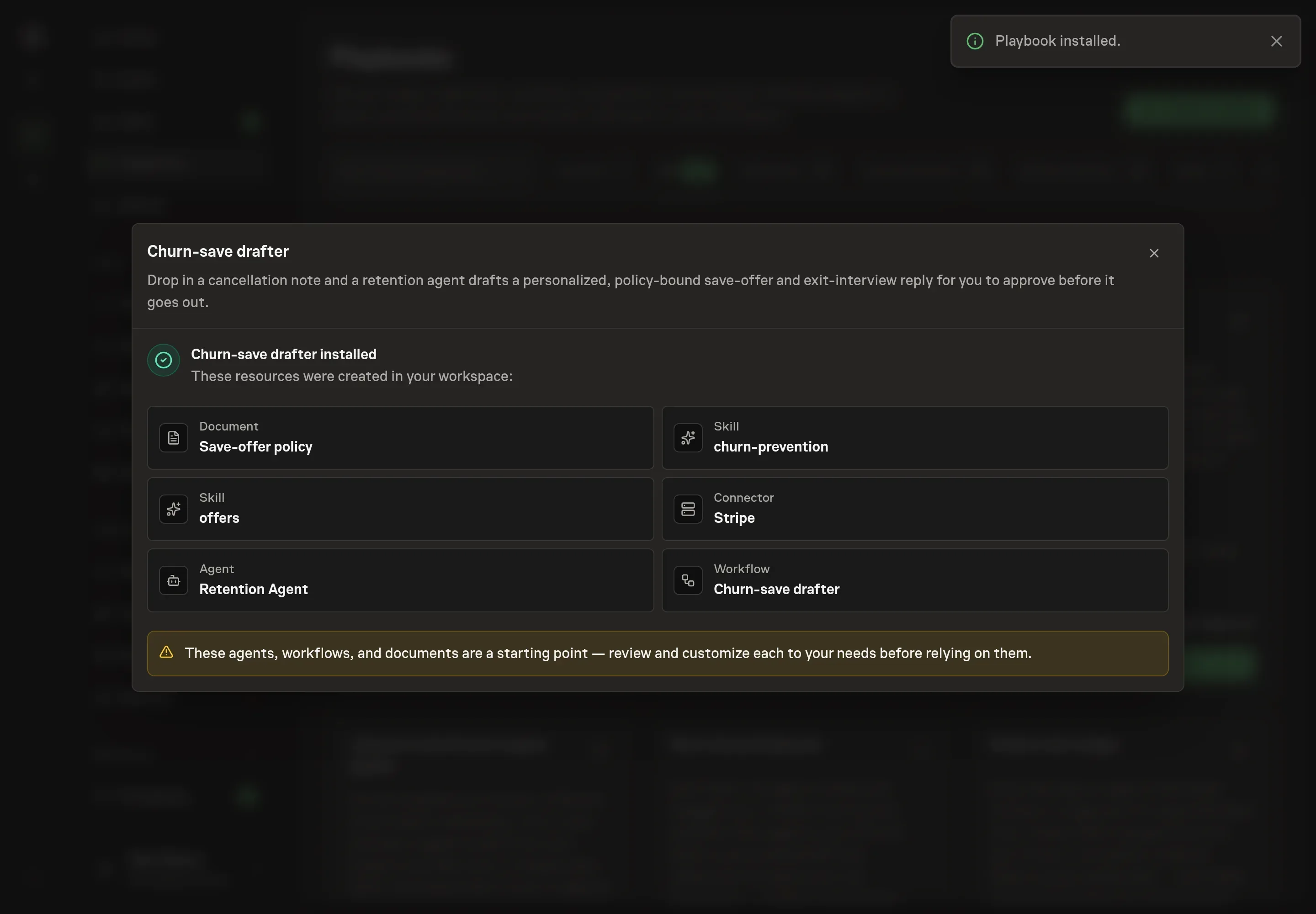
Choose Approve on the proposal in Chat when the configuration matches your brief. Task Machine installs that reviewed configuration. The approved item retains its review details. If your autonomy settings allow direct installation, this approval may not be required. Check the resulting configuration in that case too.
Complete any remaining secure service setup from the installation details in Chat. Inbox keeps those setup items available if you return later. Prepare the source documents and inputs before starting the first Task or Workflow. Installation does not authorize sending, publishing or changing an external service beyond the boundaries you agreed.
What good looks like
Three signals tell you whether the process works:
- Every offer traces to the reason. Reading a week of drafts, you should be able to name the reason bucket from the offer alone. A run of discounts going to customers who stopped logging in means the matching has drifted.
- Pauses come back. When a pause is the right match, it usually is for customers whose need is temporary: 60 to 80% of customers who pause return. A growing share of pauses over discounts is a healthy sign.
- No customer hears an offer twice. The once-per-customer limit is the difference between a save program and a discount hotline. Any repeat offer in the log is a policy breach worth investigating.
Common questions
Should every cancelling customer get a discount? No. A discount only fixes a price objection. Sent to everyone, it trains customers to cancel whenever they want a deal, and it does nothing for the customer who left because of a bug or a missing feature. Match the offer to the reason and reserve discounts for "too expensive".
How big should a save discount be? 20 to 30% off for two to three months is the working range, always time-boxed, never beyond 30%, and stated as the dollar amount saved rather than a percentage. Deeper cuts save the account this month and devalue the product permanently.
What if the customer's reason is a bug or an outage? No deal. A discount on a broken product reads as an insult. The right move is an immediate escalation to support, optionally with a credit, and that is exactly what the agent does with that reason bucket.
Does a save attempt make cancelling harder? It should not. Every draft makes leaving easy regardless of whether the customer takes the offer, uses no fake scarcity or countdown, and closes with a genuine thank-you and an easy reactivation path. The save is the offer, never friction.
Can this run before connecting an email or support tool? Yes. Paste the cancellation note into the workflow and the agent drafts the reply into the Retention folder, working from the note and the save-offer policy. Authorizing browser access to your email or support tool lets it prepare the approved reply where you send from.