How to Nudge Stalled Deals
A practical guide to finding deals past their stage dwell time and drafting context-aware follow-ups with approval.

Founder, Task Machine
A stalled-deal nudge is a follow-up sent when an open opportunity has sat in one sales stage longer than that stage normally allows. The job is to find the deals where the next step has gone stale, research what changed, and send a useful reason to re-engage.
The work matters because pipeline decay hides inside otherwise healthy CRM totals. The deal still exists, the amount still counts, and the forecast still looks alive, but no next action is moving it forward.
Why stalled deals distort the pipeline
A stale opportunity creates two costs. The first is revenue that may still be recoverable if someone sends the right note. The second is a forecast that overstates reality because inactive deals stay in the same stage.
The usual manual response is a generic "just checking in" email. That is fast, but it gives the buyer no reason to answer. A better nudge ties back to the last conversation, a change in their world, a useful resource, or a concrete decision they need to make.
What the manual process looks like
Done by hand, stalled-deal rescue is a repeated CRM pass:
- Define expected dwell time for each stage.
- Scan open deals for days-in-stage, last activity, next step, owner, amount, and close date.
- Exclude deals that should not be nudged, such as legal review, procurement review, booked meetings, or founder-owned accounts.
- Research what changed since the last contact.
- Draft one follow-up per deal with a reason to reply and one clear question.
- Approve the send, update the deal record, and record whether the nudge worked.
The loop is simple, but it is easy to skip because every deal needs slightly different context.
What an agent can automate
An agent can handle the repetitive CRM and drafting work while keeping the send decision with a person:
- Find the stalled deals. It compares each open deal's days-in-stage against the dwell rules for that stage.
- Respect exclusions. It skips deals listed in the never-nudge rules and flags ambiguous cases for review.
- Research the context. It reads activity history and recent notes so the draft references something real.
- Draft one useful nudge. It avoids empty bumps, asks one question, and proposes a low-friction next step.
- Update the learning log. After approval, it records the stage, angle, and outcome so the team learns which nudges convert.
What stays judgment: every send, every CRM update, and any proposal to change stage or close a deal.
The guardrails that make it safe
The safety boundary is approval per follow-up. The agent drafts and explains the reason for each nudge, then the batch waits in your inbox. Nothing is sent and no CRM record is updated until a person approves it.
The stage dwell document is the second boundary. It states which stages can age how long, which deals are off-limits, and when silence should trigger a stage-change recommendation instead of another email.
Set it up in Task Machine
The Stalled deal follow-up playbook provides a starting point for the method above. You need an active Task Machine workspace with Chat, workspace-management and Playbook-installation access (workspace owners have it). CRM access is useful but not required up front. Until you authorize it, the agent works from attached deal and activity exports.
1. Find the playbook
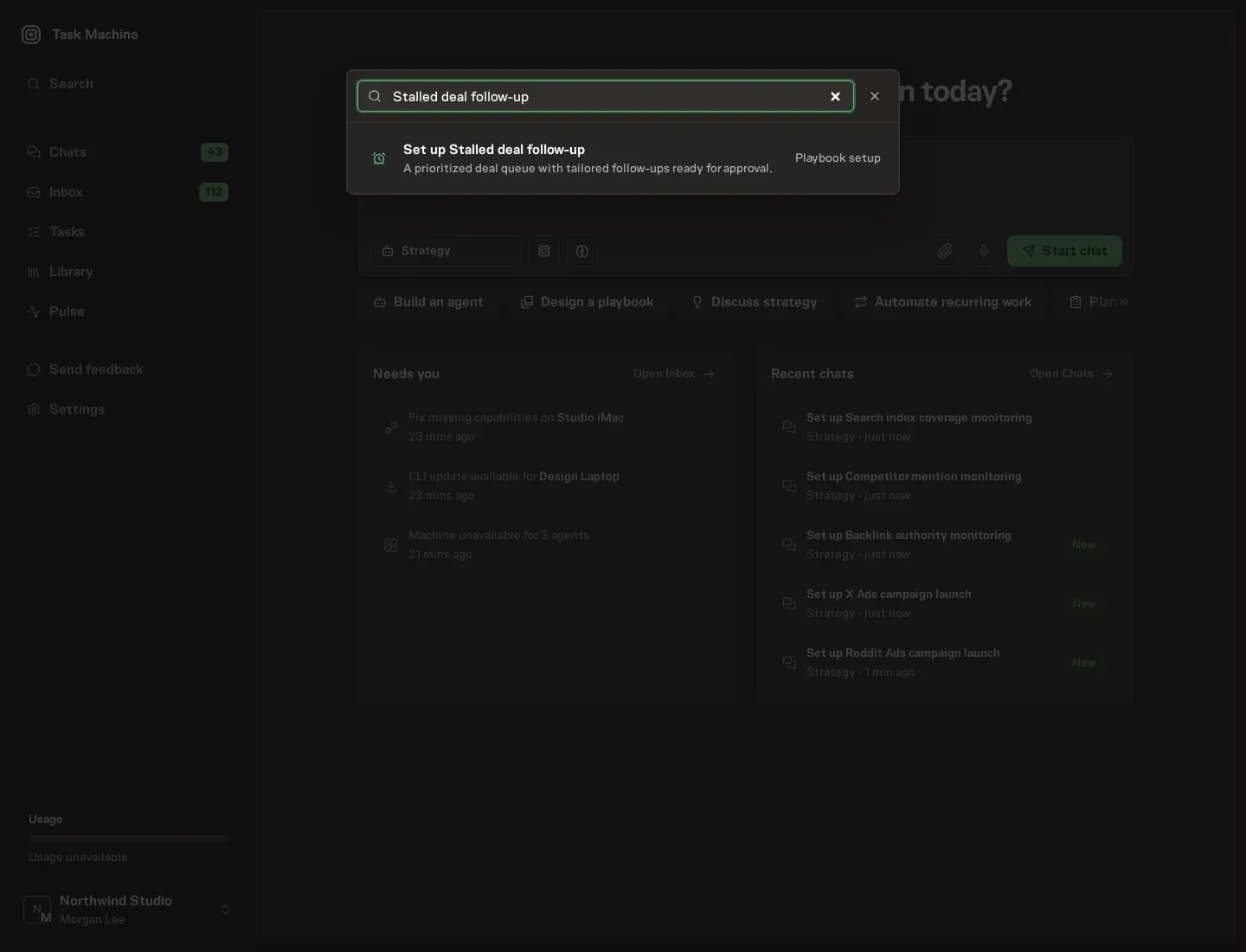
Open Search in your workspace and enter "Stalled deal follow-up". The command center lists Set up Stalled deal follow-up under Playbook setup.
2. Start the conversation
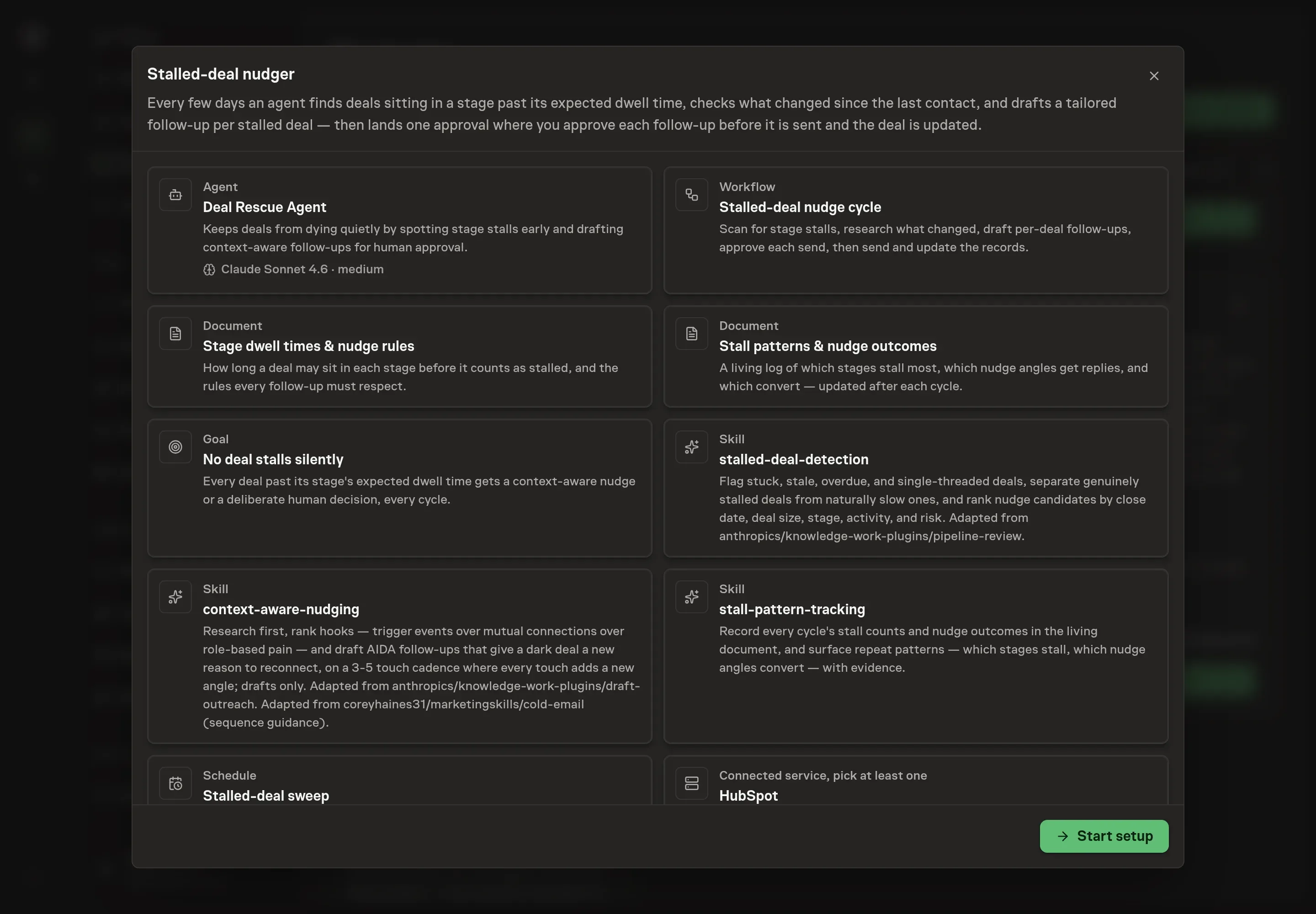
Choose Set up Stalled deal follow-up. Task Machine opens a dedicated Chat with the Playbook card and an editable, unsent request. Read the intended job and outcome. Add your situation and send it when ready. Opening the draft does not install anything or start work. This walkthrough uses settings that require approval of the proposed Playbook.
3. Agree the services
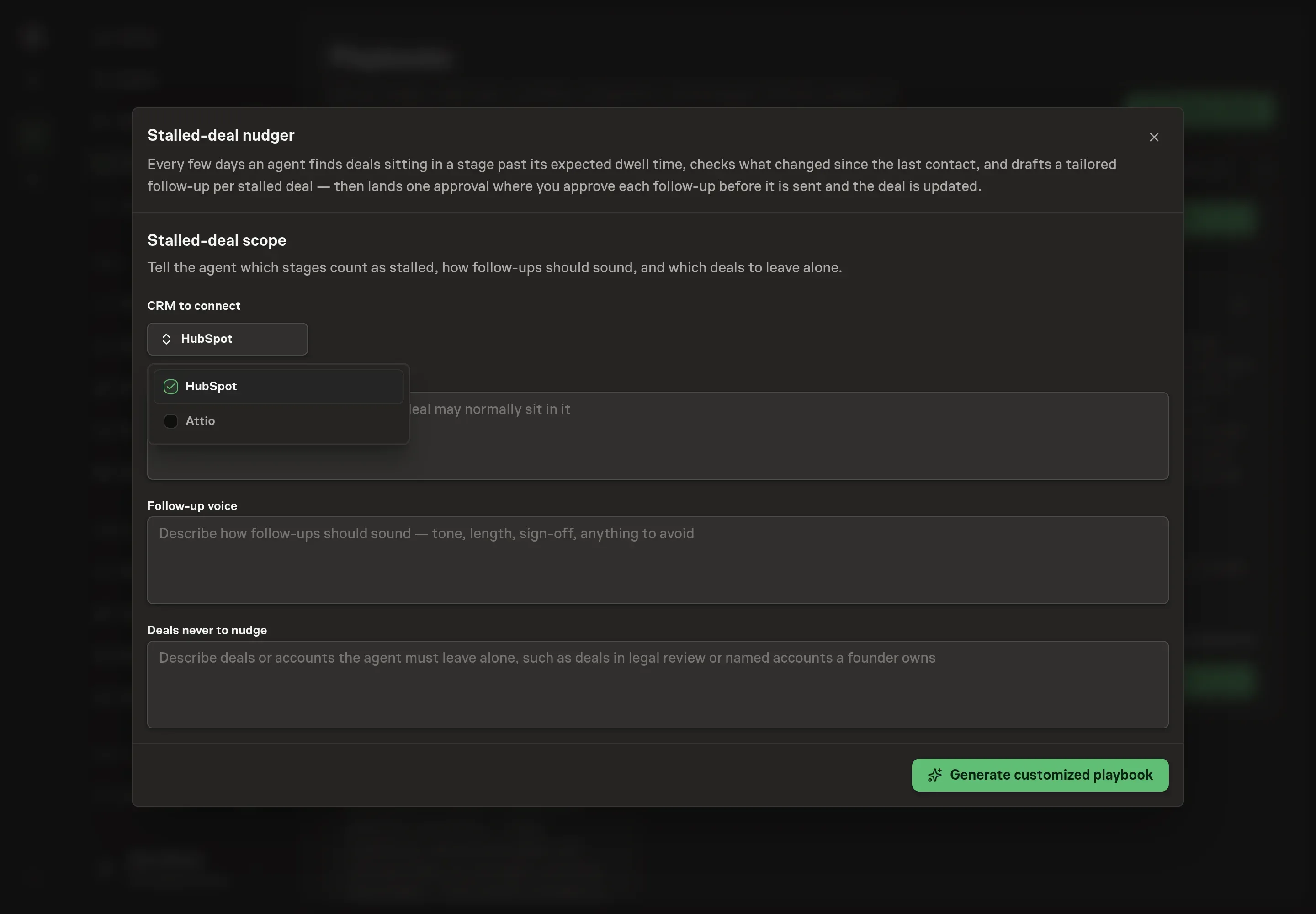
Tell the Agent which services you use. The catalog offers these starting choices:
- CRM to connect: HubSpot, Attio. Required for this catalog setup.
Discuss any missing access or export-based alternative before generation. Check the exact proposal includes only the services you agreed. Enter credentials only through secure setup, never in Chat.
4. Agree the working brief
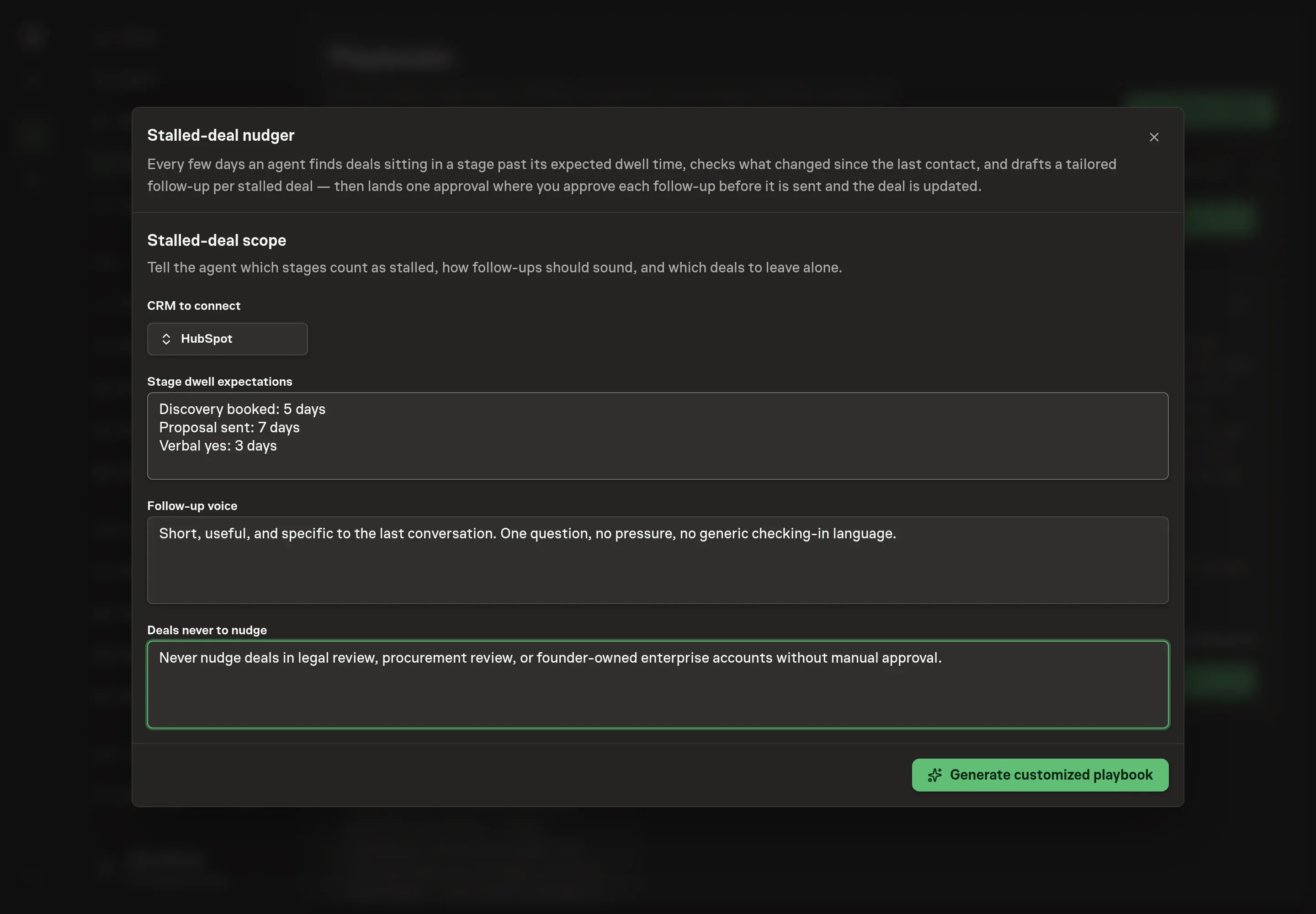
Use Chat to agree the inputs, expected output and limits before asking for a proposal. Discuss the stage dwell expectations, follow-up voice, and deals that should never be nudged. Use specific rules such as "proposal sent: seven days" and "no nudges for legal review".
5. Review the proposed Playbook
Ask the Agent to generate the Playbook from the agreed brief. Open its proposal in Chat and check the instructions and resources it will install, which carry more detail than the conversational summary. Review the generated agent, workflow, dwell document, stall log, schedule, and selected CRM service. Ask for a revised proposal if anything is missing or changes the job.
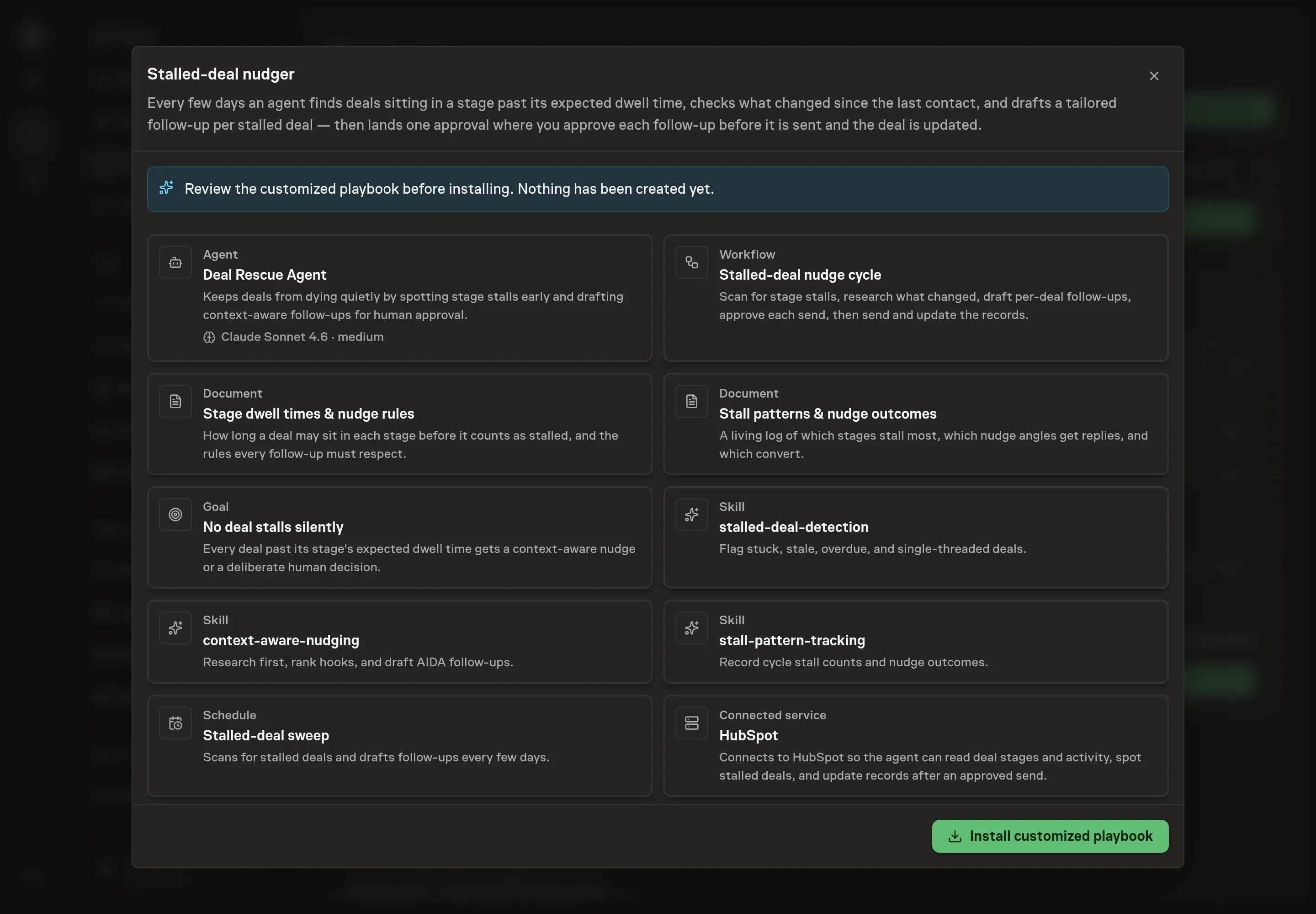
6. Approve and prepare the first work
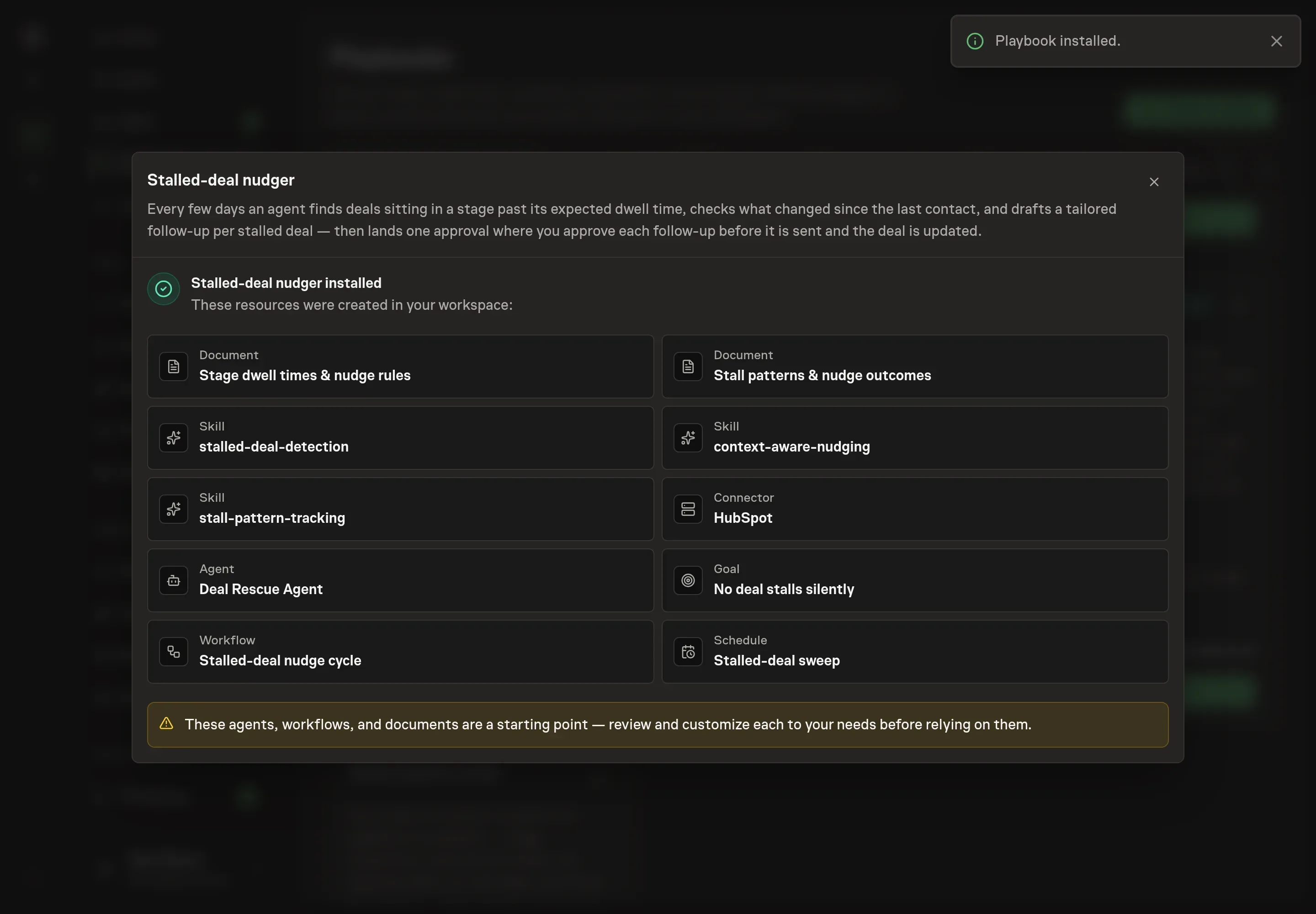
Choose Approve on the proposal in Chat when the configuration matches your brief. Task Machine installs that reviewed configuration. The approved item retains its review details. If your autonomy settings allow direct installation, this approval may not be required. Check the resulting configuration in that case too.
Complete any remaining secure service setup from the installation details in Chat. Inbox keeps those setup items available if you return later. Prepare the source documents and inputs before starting the first Task or Workflow. Installation does not authorize sending, publishing or changing an external service beyond the boundaries you agreed. Confirm each schedule's cadence and timezone, and resolve any pending schedule setup before it starts. A readback must wait for its agreed observation window and source data. Check the reviewed tracker or results document before the first cycle so evidence and human decisions have a durable home.
What good looks like
- Every nudge has a reason. The draft references a real prior conversation, trigger, or decision point.
- Forecast noise falls. Deals that should close-lost or move stage stop sitting untouched.
- Patterns improve the process. The stall log shows which stages need clearer next steps or different dwell times.
Common questions
Does this send follow-ups automatically? No. Every follow-up waits for approval before sending.
What if a deal has no clear next step? The agent flags that as part of the nudge context. The draft asks one concrete question instead of pretending the next step is known.
Can it update the CRM after a send? Yes, after approval. The update is part of the approved workflow, not an autonomous change.
Should every quiet deal get nudged? No. Deals in legal review, procurement, active meetings, or named-owner accounts should be excluded.