How to Run a Weekly Pipeline Review
A practical guide to turning CRM movement, forecast deltas, at-risk deals, and focus deals into a reviewed weekly brief.

Founder, Task Machine
A weekly pipeline review is the operating brief that explains what changed in the sales pipeline since last week. It covers stage movement, new and lost deals, forecast deltas, at-risk deals, and the few opportunities that need focus next.
The point is a shared read of movement: what improved, what slipped, what explains the forecast, and what the team should do this week.
Why pipeline reviews become theater
Most sales teams can open a CRM dashboard. Fewer can explain why the forecast changed without manually digging through deal history. The review meeting then becomes a tour of stale numbers, with the team discovering gaps live.
The hidden cost is inconsistency. If this week's forecast includes best-case deals and last week's did not, the delta is noise. If at-risk means "the manager feels uneasy", the list cannot be trusted.
What the manual process looks like
Done by hand, the weekly pipeline review has a fixed shape:
- Pull this week's CRM snapshot and last week's snapshot.
- Compare stage transitions, new deals, won deals, and lost deals.
- Recalculate the forecast using the same stage definitions every week.
- Decompose the forecast delta into deals added, grown, shrunk, slipped, or closed.
- Flag at-risk deals using written criteria.
- Pick three focus deals and one concrete next action for each.
- Review the brief against the raw numbers before sending it to the team.
The work is valuable because it is repetitive. Changing the format every week makes the brief harder to trust.
What an agent can automate
An agent can compile the brief and run the consistency checks:
- Compare snapshots. It reads the current CRM data and the prior week's brief or export, then calculates movement using the same window.
- Explain deltas. It ties forecast movement to named deals rather than reporting a number with no cause.
- Apply at-risk rules. It flags deals by criteria such as no activity, pushed close date, past close date, or single-threading.
- Choose focus deals. It recommends three deals with why now and the next action.
- Verify the brief. A reviewer agent checks numbers against the raw inputs before the human approval step.
What stays judgment: approving the brief, changing forecast definitions, and deciding whether recommended focus deals match the team's reality.
The guardrails that make it safe
The workflow is read-only. It reads the CRM, writes the brief, checks it, and waits. It does not change deal stages, owners, amounts, or close dates.
The definitions document is the control point. It fixes the review window, forecast weighting, at-risk criteria, and brief sections so every week is comparable to the last one.
Set it up in Task Machine
The Weekly sales opportunity review playbook provides a starting point for the method above. You need an active Task Machine workspace with Chat, workspace-management and Playbook-installation access (workspace owners have it). CRM access is useful but not required up front. Until you authorize it, the agents work from attached deal exports.
1. Find the playbook
Open Search in your workspace and enter "Weekly sales opportunity review". The command center lists Set up Weekly sales opportunity review under Playbook setup.
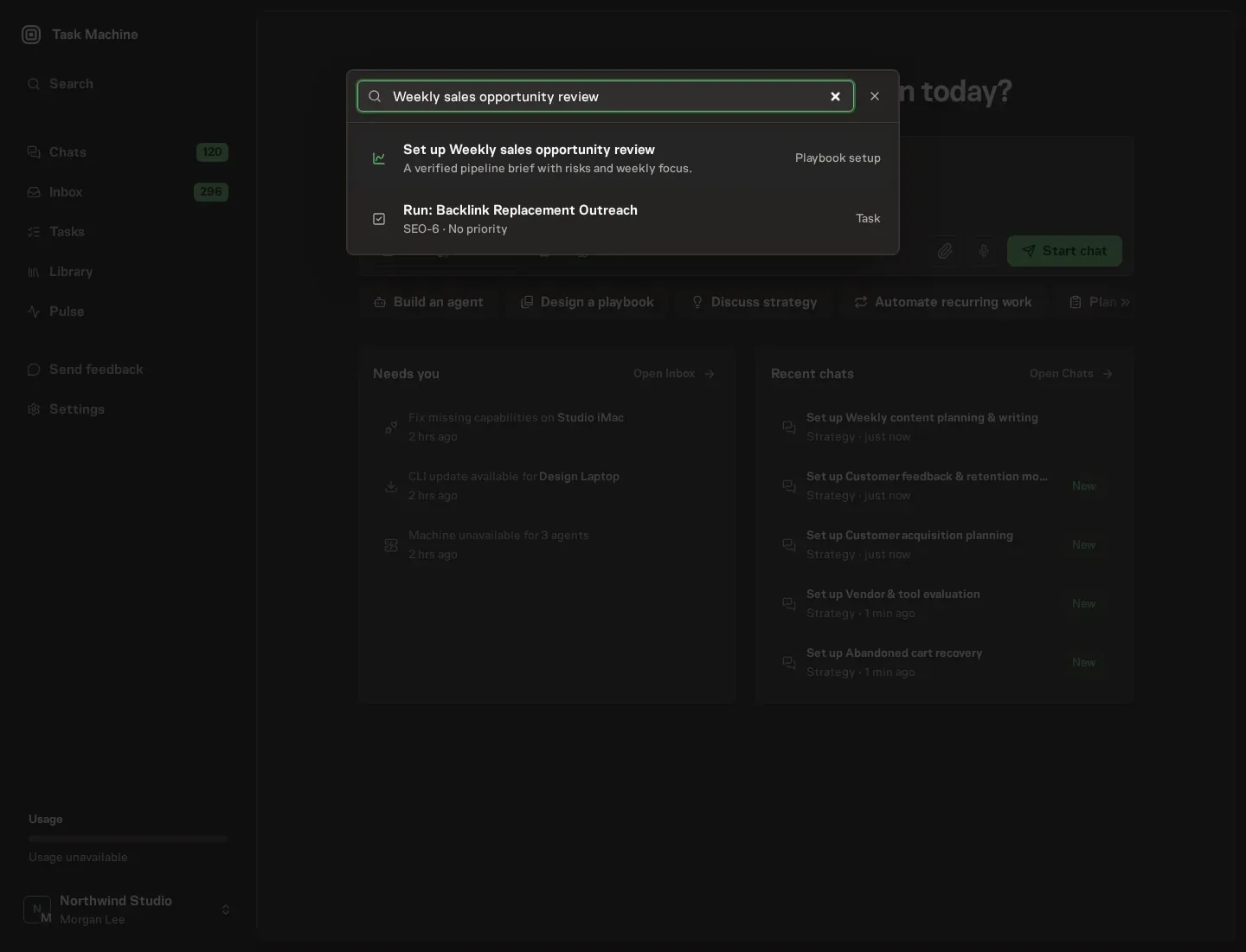
2. Start the conversation
Choose Set up Weekly sales opportunity review. Task Machine opens a dedicated Chat with the Playbook card and an editable, unsent request. Read the intended job and outcome. Add your situation and send it when ready. Opening the draft does not install anything or start work. This walkthrough uses settings that require approval of the proposed Playbook.
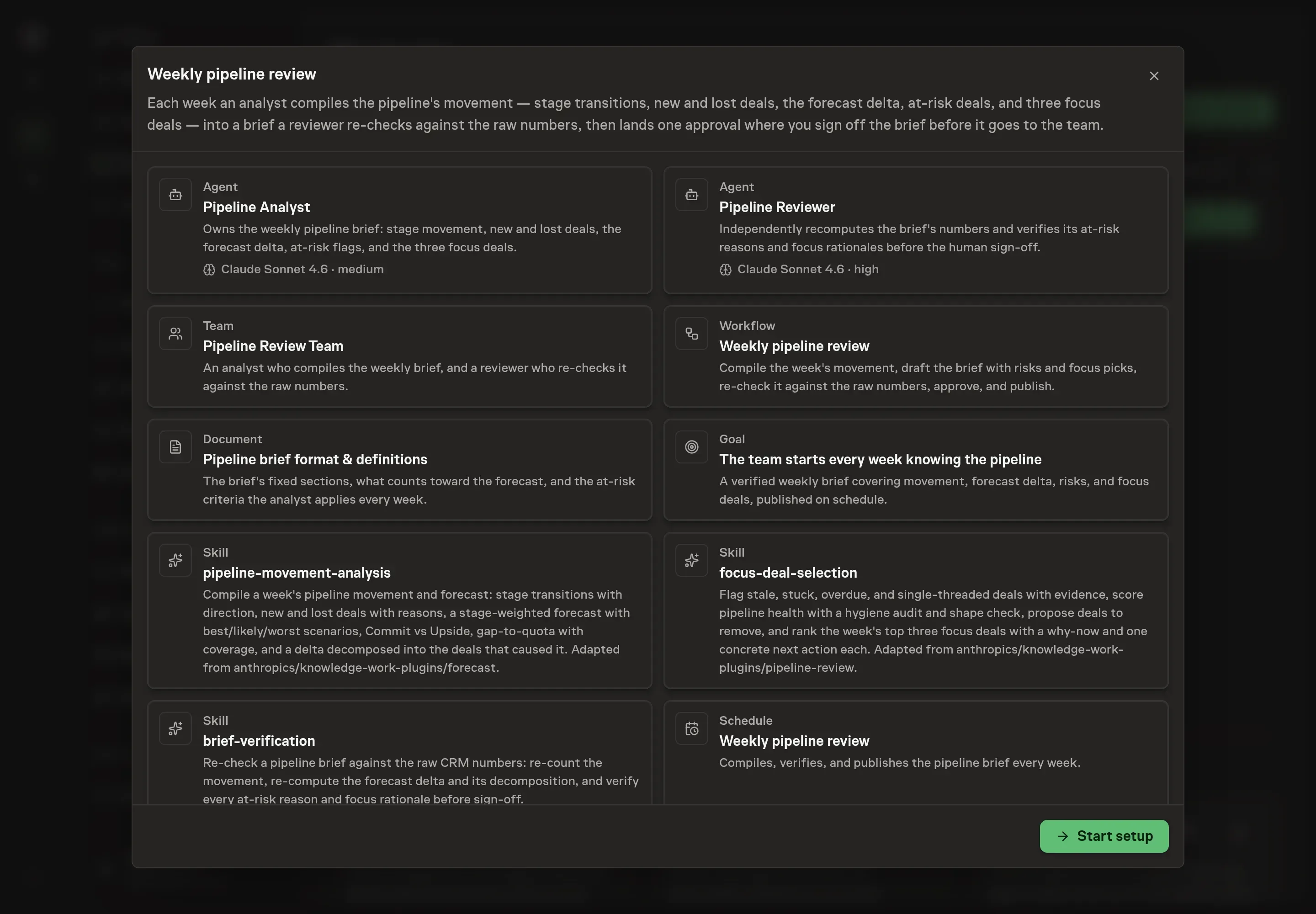
3. Agree the services
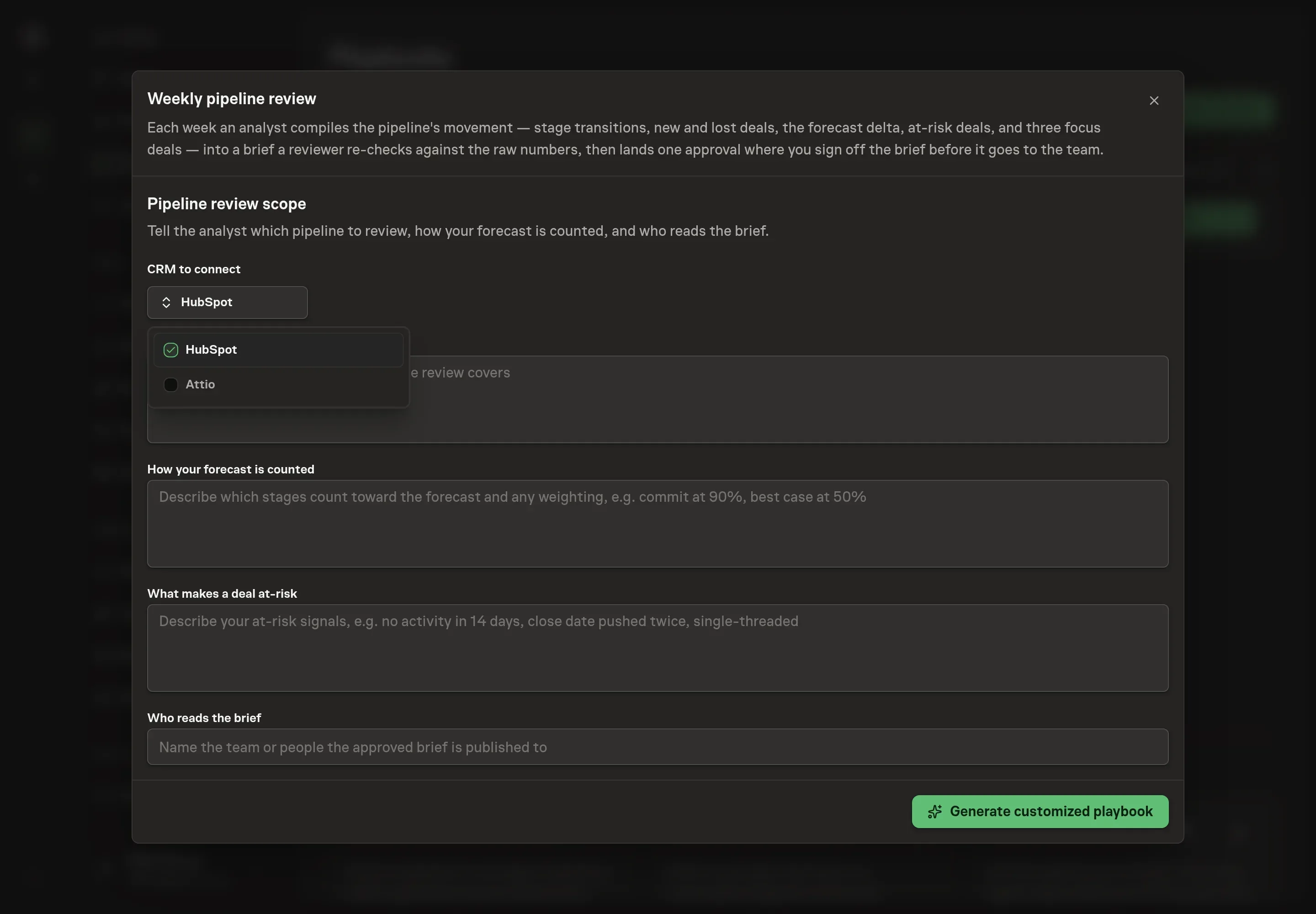
Tell the Agent which services you use. The catalog offers these starting choices:
- CRM to connect: HubSpot, Attio. Required for this catalog setup.
Discuss any missing access or export-based alternative before generation. Check the exact proposal includes only the services you agreed. Enter credentials only through secure setup, never in Chat.
4. Agree the working brief
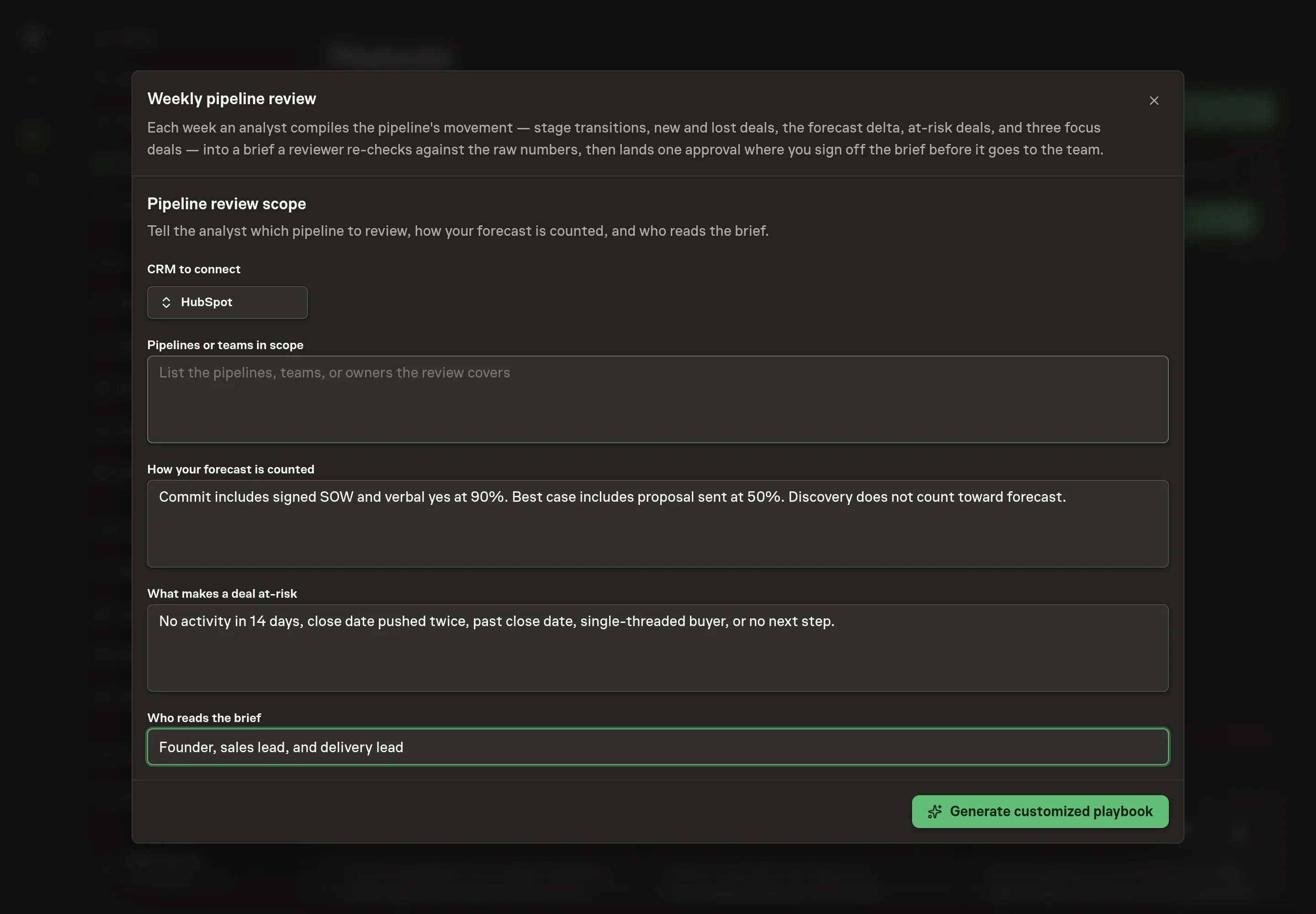
Use Chat to agree the inputs, expected output and limits before asking for a proposal. Discuss the pipeline scope, forecast definition, at-risk criteria, and brief audience. This is where you make the weekly numbers comparable.
5. Review the proposed Playbook
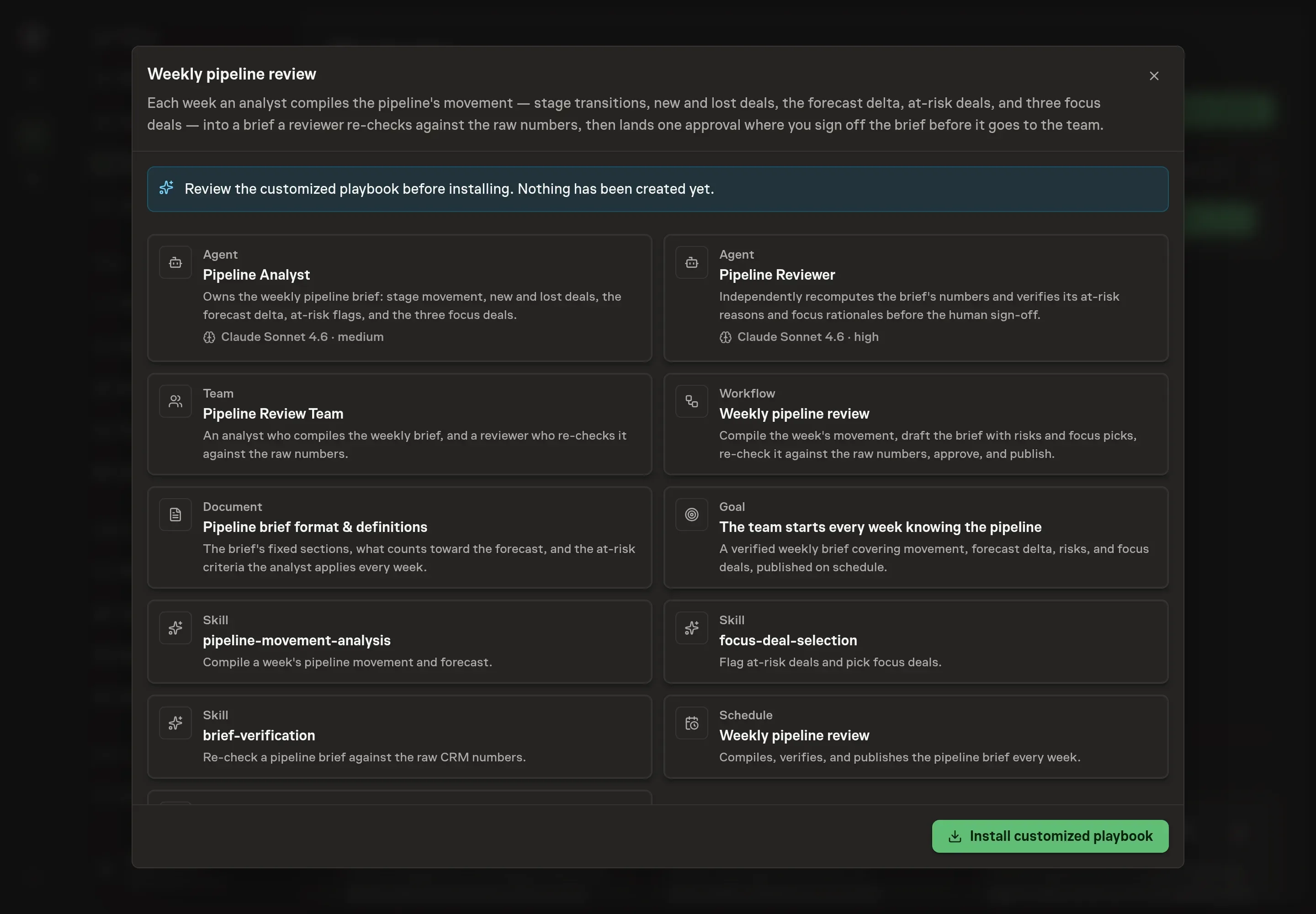
Ask the Agent to generate the Playbook from the agreed brief. Open its proposal in Chat and check the instructions and resources it will install, which carry more detail than the conversational summary. Review the generated analyst, reviewer, workflow, definitions document, selected CRM service, goal, and schedule. Ask for a revised proposal if anything is missing or changes the job.
6. Approve and prepare the first work
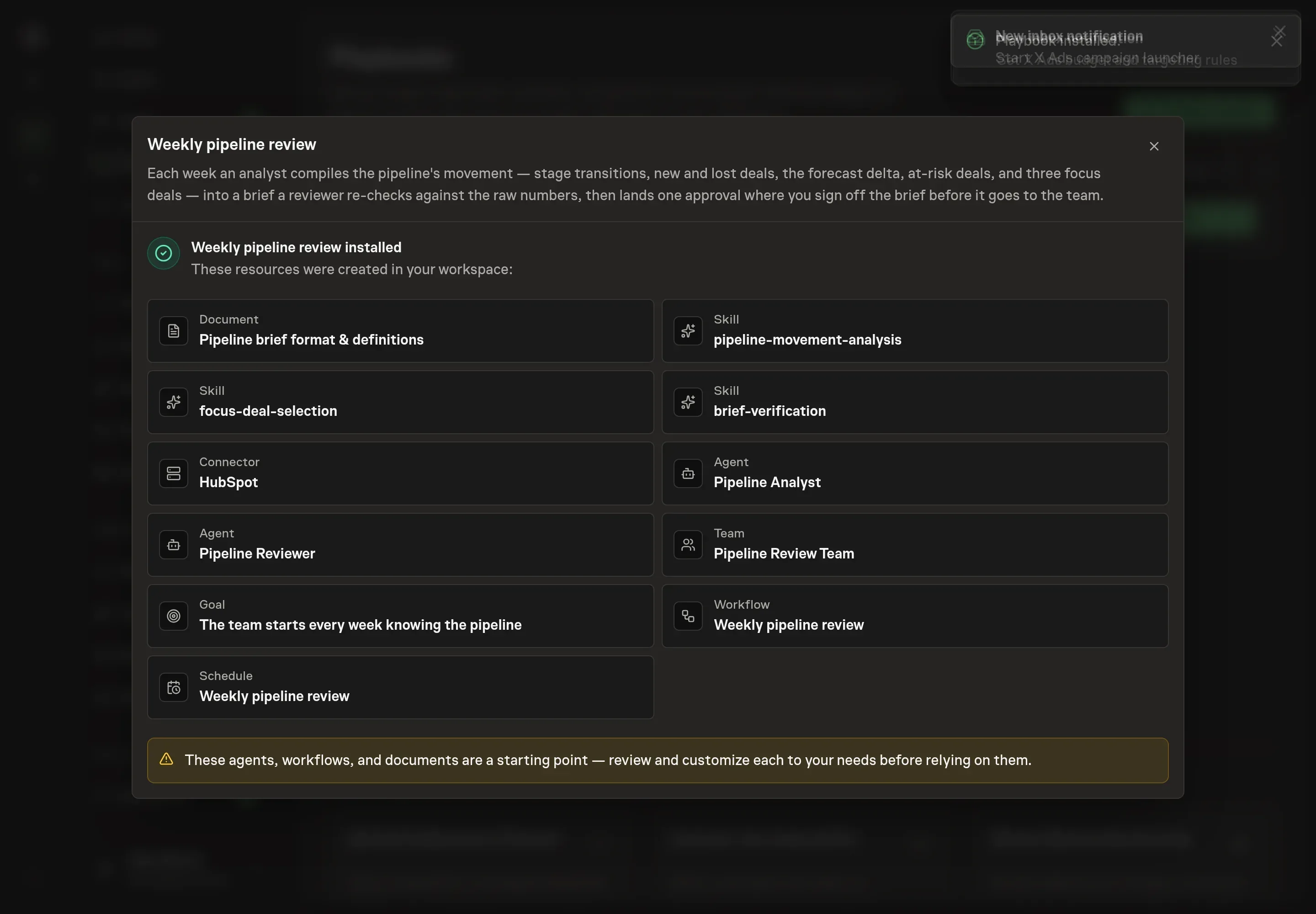
Choose Approve on the proposal in Chat when the configuration matches your brief. Task Machine installs that reviewed configuration. The approved item retains its review details. If your autonomy settings allow direct installation, this approval may not be required. Check the resulting configuration in that case too.
Complete any remaining secure service setup from the installation details in Chat. Inbox keeps those setup items available if you return later. Prepare the source documents and inputs before starting the first Task or Workflow. Installation does not authorize sending, publishing or changing an external service beyond the boundaries you agreed. Confirm each schedule's cadence and timezone, and resolve any pending schedule setup before it starts. A readback must wait for its agreed observation window and source data.
What good looks like
- Deltas are explainable. Every forecast change points to specific deals.
- The format stays stable. The team reads the same sections in the same order every week.
- At-risk means something. Each risk label names the signal that triggered it.
Common questions
Can it replace the pipeline meeting? It can shorten the meeting. The team still decides what to do with the focus deals.
Does it change CRM records? No. The review workflow reads and reports only.
What if our forecast definition changes? Update the definitions document and note the change in that week's brief so comparisons remain honest.
Can it run from exports? Yes. Attach current and prior deal exports until CRM access is authorized.