Updates
Product updates and implementation notes for Task Machine.
-
Improvement
Talk through an agent's plan before work starts
Reviewing an agent's plan in the Inbox now works like talking it through with the agent. The review opens on a short overview, your reply goes straight back to the planner, and an urgent fix can ship while the proper fix waits as a planned follow-up. It also checks the plan's estimate against the task's time budget. We changed it because long written plans were hard to read and slow to correct, so many reviews moved back into a terminal conversation with the agent instead of staying in the Inbox, and because nothing in the review showed whether a plan fit the hours you had.
See what you are approving at a glance
The review now opens on Overview. It shows the risk assessment with the planner's own reasoning, the goal, the planned work, the decisions the planner made that nobody has confirmed yet, and the checks the result must pass. The complete plan sits one tab away under Spec, where a revision picker marks what changed since the previous version.

Correct the plan by replying
Discussion keeps the planner's questions, your answers, and your change requests in one thread per task. A reply there sends the plan back with your feedback, and the planner can answer you in the thread, ask another question, or submit a revised plan. When the planner assumed something, such as which page a fix touches, Change next to that assumption starts the reply for you.
Ship the quick fix now and plan the proper fix
For a checkout bug customers hit today, the planner can offer a quick fix as this task and pre-plan the proper fix as follow-up tasks, each with a short brief. The follow-ups appear in the review, and nothing starts until you create them, one at a time or the whole chain at once. Each created follow-up waits for this task and for any earlier follow-up it depends on.
Check a plan against the hours you have
When a task has a time budget, the review now shows the agent's estimate beside the work limit, which is the budget minus a short planning reserve. An estimate over the limit is flagged with the time it overshoots, such as 36m over budget, so you can approve it, request changes, or adjust the budget before work starts. The flag is a warning, not a block, and the planner still reports an honest estimate when the full work does not fit. While the agent works, its time reminders follow the same limit whenever it is tighter than the agent's own estimate.
Read Task specs for how the review and the follow-ups fit together, and Tasks to set a time budget.
-
Improvement
Agents and Teams earn automatic handling sooner
Learned autonomy now proposes automatic handling after a short record of unchanged approvals, then reduces how often you still spot-check that work as the record grows. We built it because the earlier bar took close to two hundred approvals before Task Machine offered to stop asking, so most of the reviews it could have removed stayed in your Inbox.
An Agent action, or one kind of Team routing decision, can now earn Automatic after 16 unchanged approvals instead of 189. The proposal still arrives in the Inbox with the evidence behind it, and nothing changes until you approve it. A short lucky streak does not count: confidence is a conservative estimate from the newest 200 decisions.
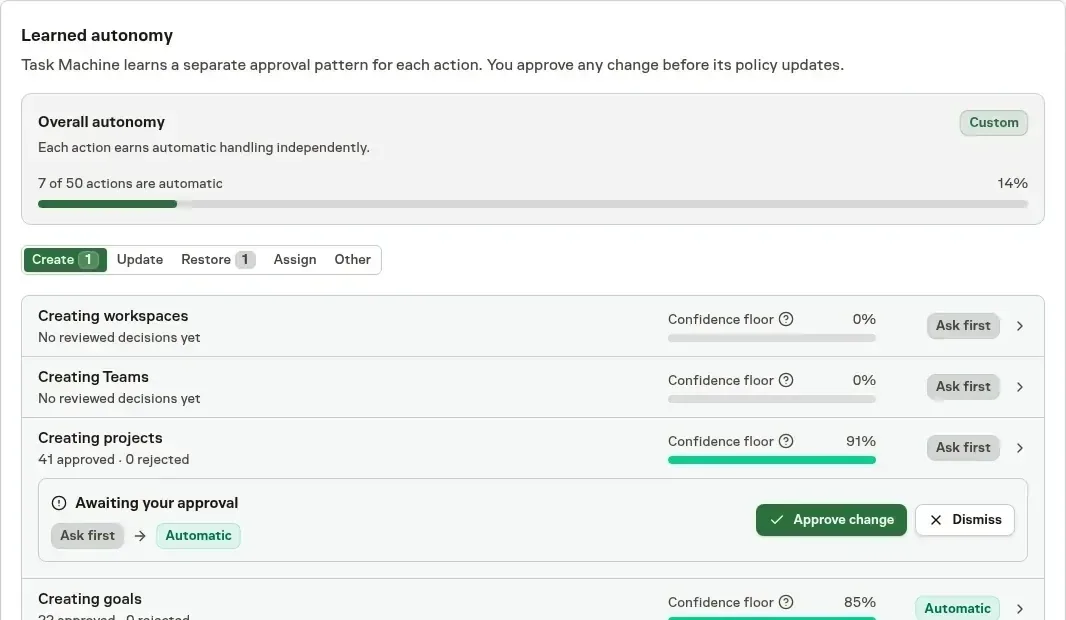
Spot-check less as the record grows
Automatic does not mean unwatched. A newly automatic action holds every 2nd action for your review. As the record strengthens, Task Machine relaxes that to every 4th, then every 10th, then every 25th action without asking, and it tightens again when recent decisions turn out worse. If they contradict every automatic rate, it proposes returning the action to Ask first and you decide.
You never pick or approve the rate. Each action's detail in Autonomy shows how often it is currently spot-checked.
Keep working while spot checks wait
Up to three spot checks can wait for you at once while the action keeps taking effect. Before, one waiting spot check sent every later action of that kind back to review. A proposal you dismiss waits for twenty more reviewed decisions before it can return, and the action keeps its record.
Read Autonomy for how the rule, the record, and the spot-check rate fit together.
-
New Feature
Give every project, goal, and team its own memory
Memory now has layers. A lesson belongs to one agent, project, goal, team, or the whole workspace, and each run receives the notes that apply to its work. A pricing decision made on the Launch project stays with Launch, while a habit like "check the owning source before drawing a conclusion" follows the agent everywhere. We built it because one notebook per agent mixed project decisions with working habits, so a correction on one project leaked into unrelated work and workspace-wide rules lived in a single agent's head.
Notes live where the work lives
Agents, Projects, Goals, and Teams each have a Memories page, and workspace memory sits in settings. A Goal's notes might say the autumn launch excludes pricing changes, and a Team's notes might say release reviews stay with Delivery until another Team accepts ownership. A task draws on its project, goal, and routing team, Chat uses the agent's and workspace's notes, and a team lead draws on the teams and goals it leads. Access is checked before notes are selected, and each run records the exact note versions it received.
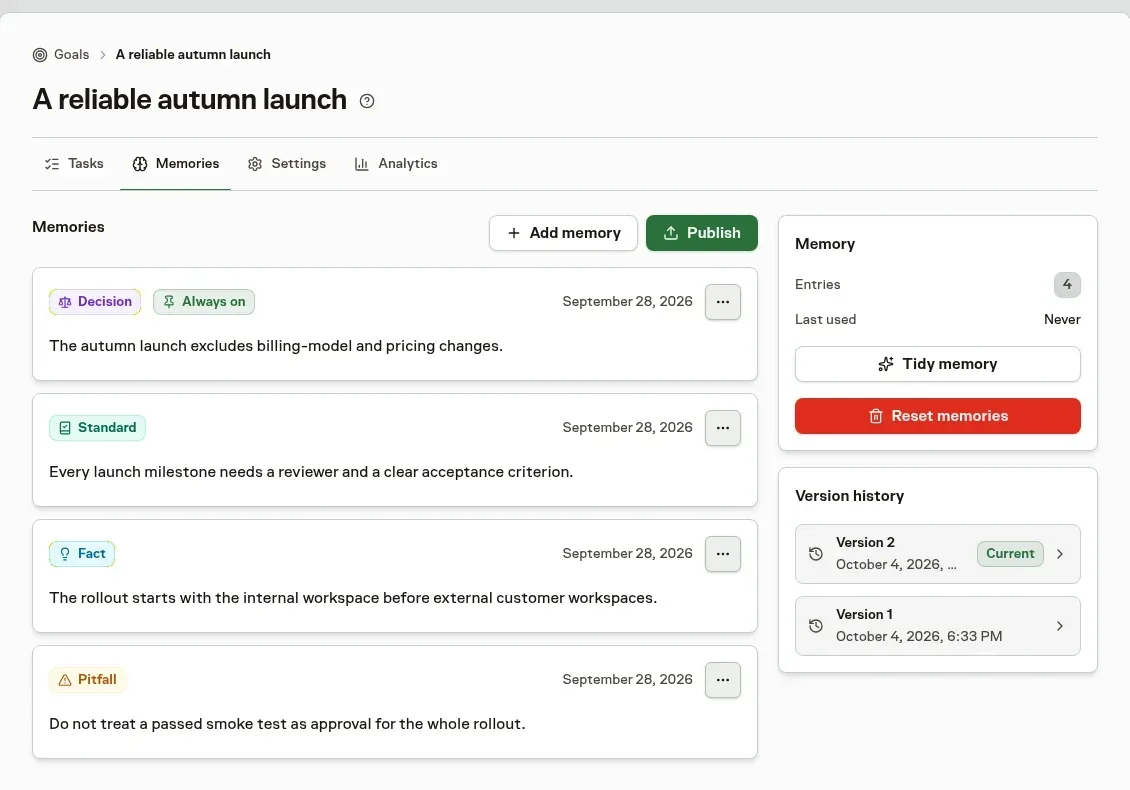
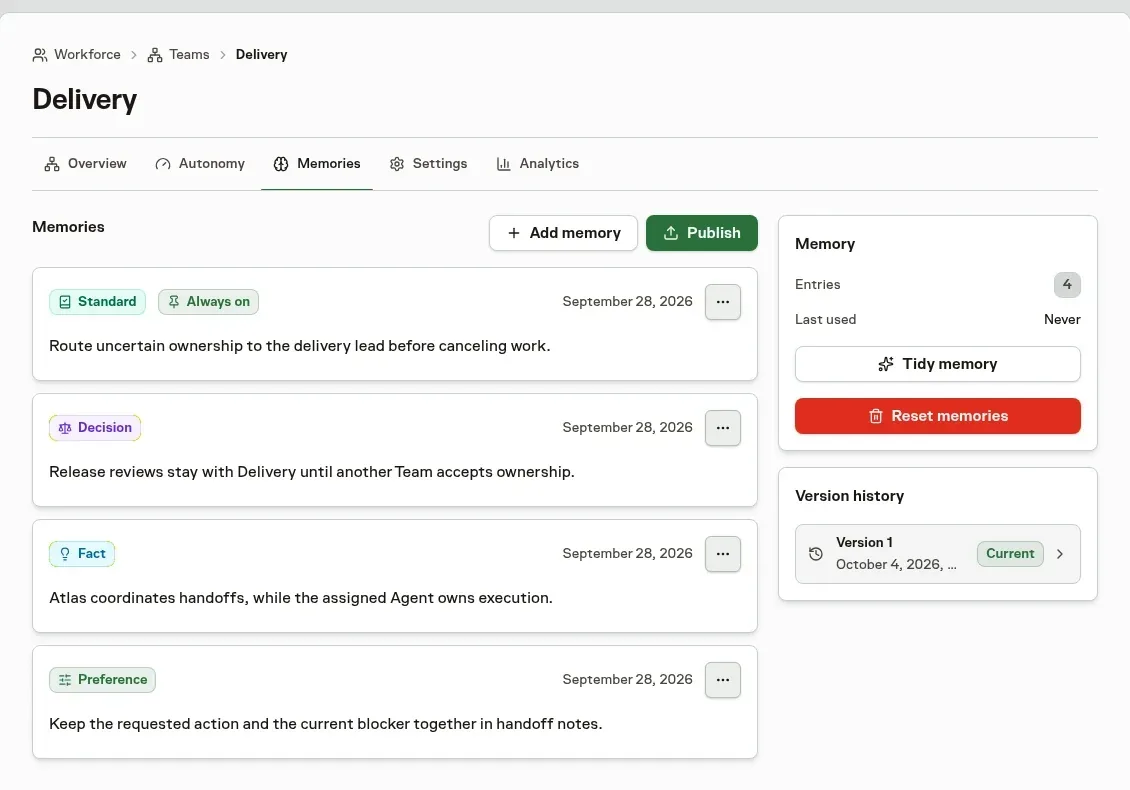
Notes carry a kind, a date, and a reason
Each note is one short entry marked as a decision, standard, fact, pitfall, or preference. Mark a note Always on so it reaches every applicable run, and give a fact an expiry date when it stops being true, such as a promotion that ends on November 1. Other notes are chosen per run by relevance, and older facts rank below newer evidence. Select View evidence on any change to see the task, comment, or Inbox decision behind it, with the exact words added and removed.
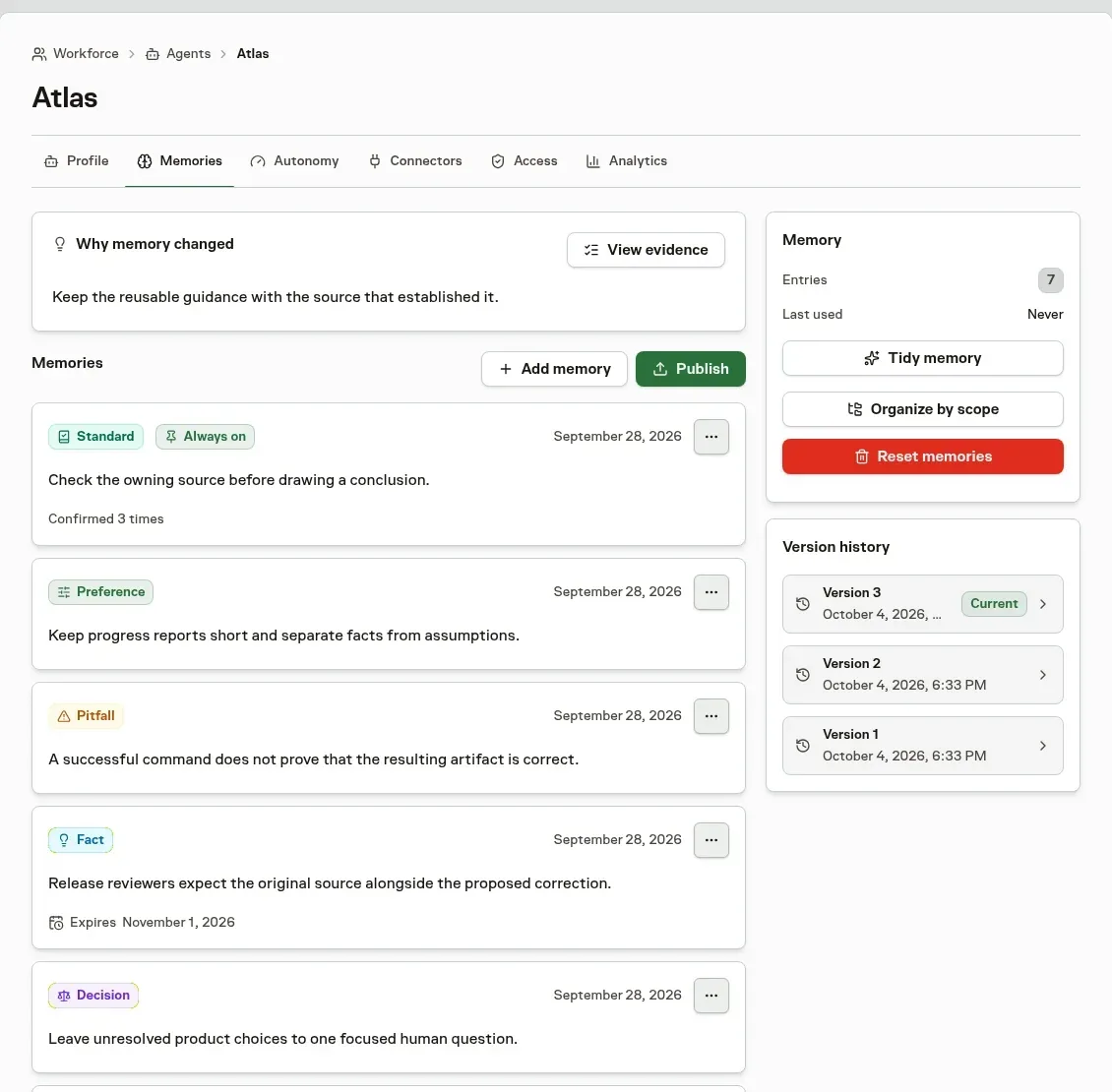
Agents can curate their own notes
Agents with Manage memory add, update, replace, and archive their own notes as they work, and every change keeps its history so you can restore an earlier version. Suggestions for shared notes wait for background learning to adopt them. Tidy memory proposes a shorter set of notes for you to accept or discard, and Organize by scope moves older agent notes into the project, goal, or team they belong to. An agent can now remember as many notes as it needs.
See Memory for permissions and the review flow.
-
New Feature
Agents now review code against your repository's rules
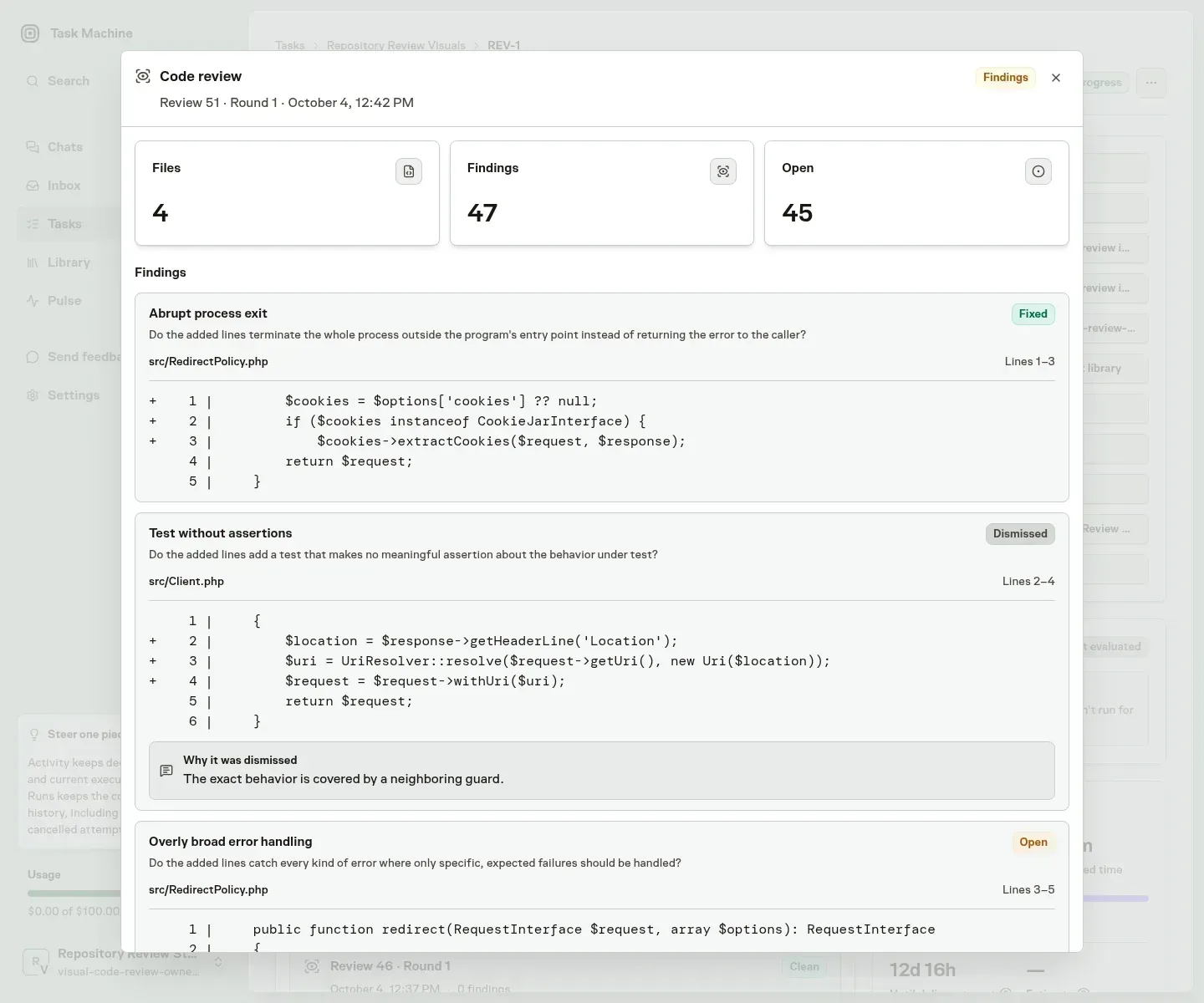
Coding tasks now get a code review against your repository's rules before the work reaches you. When an agent finishes a change, Task Machine scans the added lines for violations such as a test with no assertions or an error handler that catches everything, and the same agent fixes each finding or explains why it does not apply. We built it because repository conventions were where agent-written code drifted most, and catching them by eye in every pull request took more of your review time than the change deserved.
Every changed line is checked against your rules
Each repository starts with a built-in rule set that covers security, correctness, maintainability, failure handling, and test quality. A rule is a yes or no question about the added lines, such as whether a new test makes any meaningful assertion about the behavior under test. The scan covers committed changes, tracked edits, and new files since the work branched from your default branch, so it can run while the pull request is still a draft.
Agents fix findings in the same run
When the scan reports a violation, the implementing agent receives the rule, the question, the file, and the flagged lines. It fixes the code or dismisses the finding with a written reason, for example that a neighboring guard already covers the behavior. A finding counts as fixed only after a rescan stops reporting it, and one task gets an initial scan plus up to five fix rounds. A clean scan hands the task on without starting an agent.
Your rules, approved from the Inbox
Agents can read a repository and propose rules specific to it, such as how your team stores money amounts or writes database migrations. Each proposal reaches your Inbox with its question, its reason, and the files it came from, and you approve or reject it there. You can also add a custom rule or switch off a default one yourself under the repository's Review rules. Task Machine tests every new rule against example code before it can run automatically.
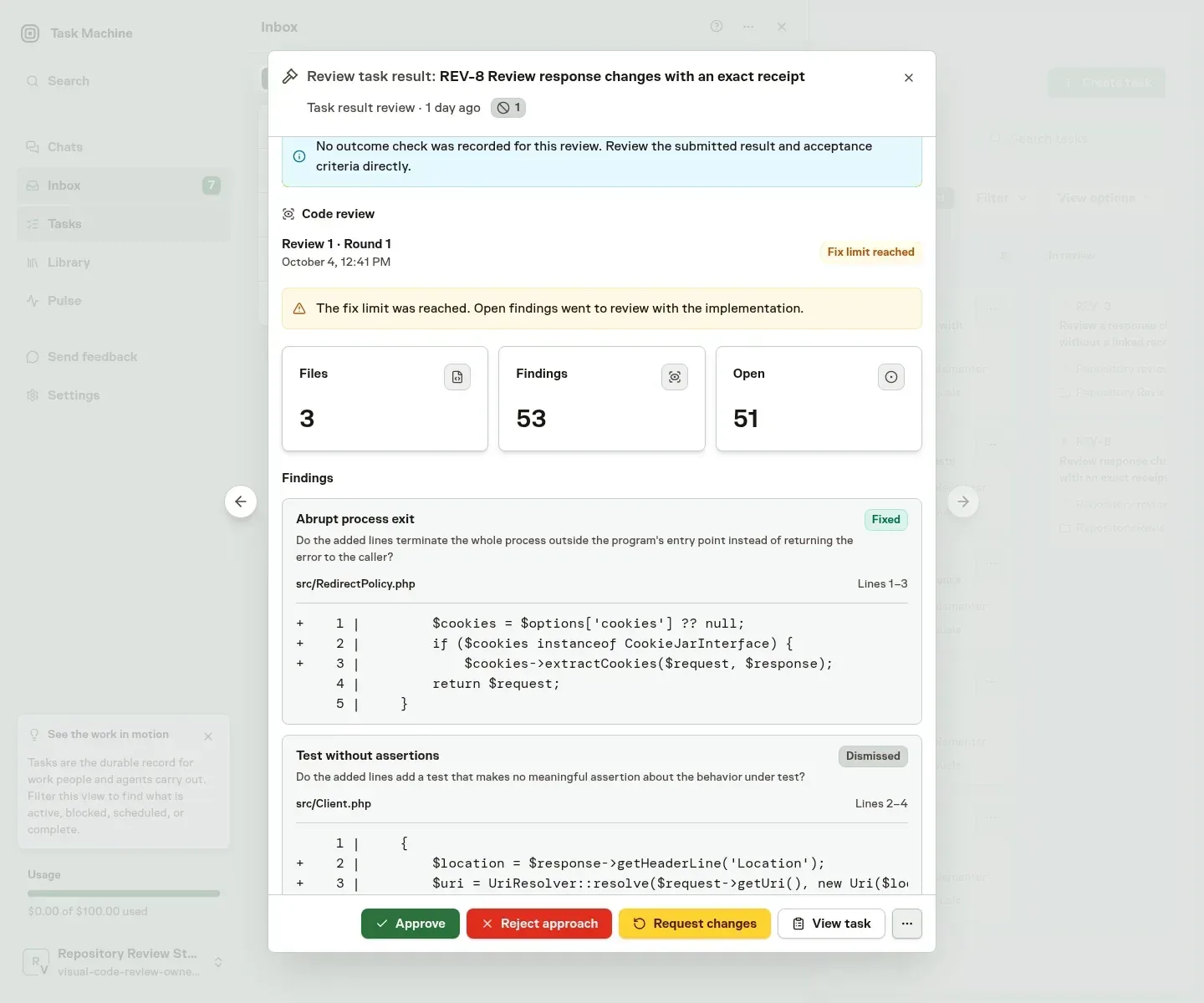
Open findings stay visible to your review
If findings remain after the last fix round, the task continues to review with those findings attached, and the Inbox shows them beside the approve, reject, and request changes actions. A review that ran out of fix rounds never claims the code passed.
Code review covers engineering tasks that have an agent implementer and a connected repository. It adds to pull-request review, the agent's own pre-review, and your final decision. See Reviews for how the checks fit together.
-
Improvement
Agents now use the browser faster
Agents now work through websites faster. An agent hands a whole browser objective, such as "open invoice DF-20 and read its status", to a goal that moves through the pages and comes back when it is done or stuck, so it no longer reasons through every click and form field one at a time. We built it because browser tasks spent most of their time on the agent deciding the next click, and a long form meant a long wait.
A whole objective in one step
The agent states the objective, the start page, and any values to fill in, such as the text of a post. A fast decision model reads each page, picks the next button or field from what is on screen, and carries on until the objective looks complete. The agent then checks the result before it calls the task done.
Every step stays reviewable
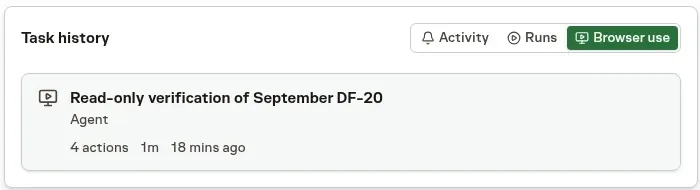
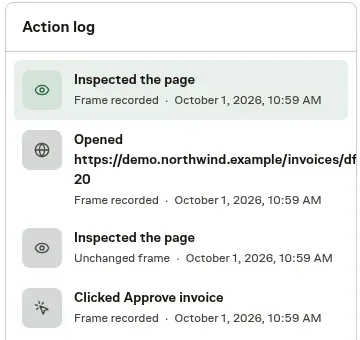
Each action lands in Browser use history with a masked frame of the page, so you can step through the journey after it finishes. Passwords, payment fields, and one-time codes are masked before a screenshot is kept.
Sign-ins and uploads work inside a goal
Goals fill Vault credentials without revealing the password, key, or code, and they can upload files from the task's working directory. A goal checks that the page still matches what it read before it acts, so a stale click never lands on the wrong button.
Stopped goals explain why
When a goal cannot continue, the agent gets a specific reason. A decision may need your approval, a sign-in may be missing, a prerequisite may not be set up, or the page may not support the interaction. The run transcript records that reason with recovery guidance, so a login wall never looks like a broken browser, and the agent never works around a missing approval or purchase to finish.
Each goal uses a small amount of included workspace usage. See Browser use for reviewing journeys and Usage and fees for what counts toward usage.
-
Improvement
Long agent sessions now clean up instantly
Long agent sessions now make room for new work instantly. When a session grows long, Task Machine removes old command output and file reads the agent no longer needs and keeps everything you and the agent said word for word. Standard compaction wrote a summary of the whole session, which paused the work and replaced your exact wording with a paraphrase. We built it because a summary loses the details a long session depends on, like the error message you pasted at the start.
Cleanup starts at the right point for each model
Every model has its own context window, so the cleanup point is tuned per model. A run cleans up once its context reaches 70 percent of the model's window or 500,000 tokens, whichever is smaller, and it does so before the next request rather than after the model runs out of room. A turn in progress is never interrupted for it. Local coding sessions follow the same rule and respect any threshold you have set yourself.
It covers cloud runs and local sessions
Managed cloud runs, runs on your own computers, and interactive coding sessions all use it. Each cleanup uses a small amount of included workspace usage. If the cleanup cannot run, for example because usage is exhausted, the session falls back to standard summarizing compaction instead of stopping. Workspaces that require EU processing keep standard compaction until the model it depends on is available for EU processing.
See the CLI command reference for the local coding agent and Usage and fees for what counts toward usage.
-
Improvement
The Inbox now puts urgent decisions first
The Inbox's Priority sort now orders decisions by how much a delay would cost. An approval that unblocks a failing checkout or protects a deadline due today appears above routine requests, so the decisions that need you first are at the top. We changed it because sorting by arrival time could bury a decision that was blocking real work under routine requests.
Task Machine rates each decision as Low, Normal, High, or Critical based on what waiting would put at risk. Emphatic wording alone does not raise a rating. Critical is reserved for active harm such as data loss or a live outage. Some signals always count as at least High: a linked Task marked Urgent, a deadline that has passed or is less than 24 hours away, an agent estimate that no longer fits the deadline, and problems that stop agents from running until someone acts.
Within the same urgency, decisions that block other work come next, then the one whose deadline is closest, then the higher Task priority, then the request that has waited longest.
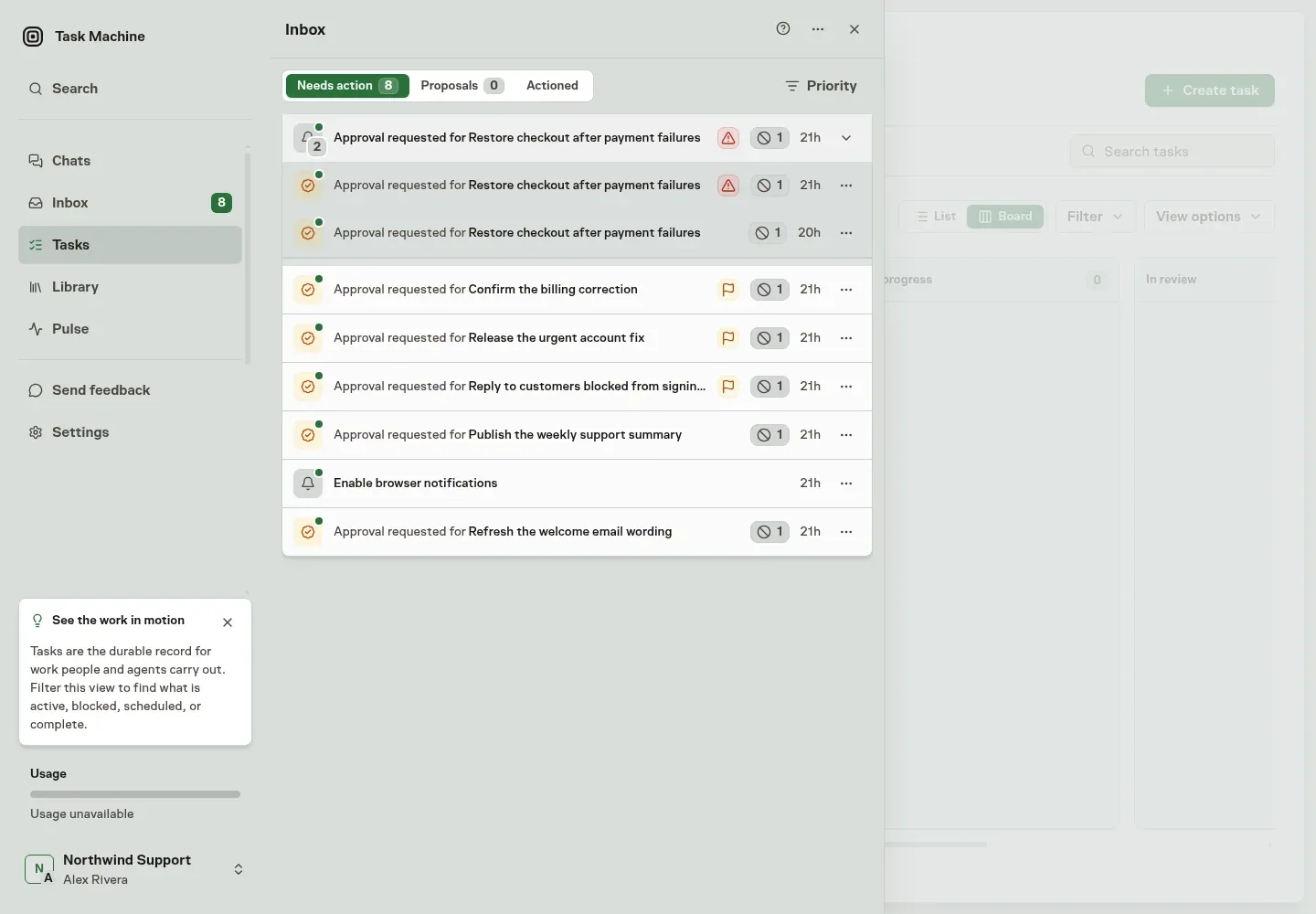
High and Critical decisions carry a marker in both sort modes, and the decision window repeats it next to how many Tasks are waiting on the request. Newest stays chronological and remains the default. A newly rated decision updates its marker without reshuffling a Newest list you are reading.
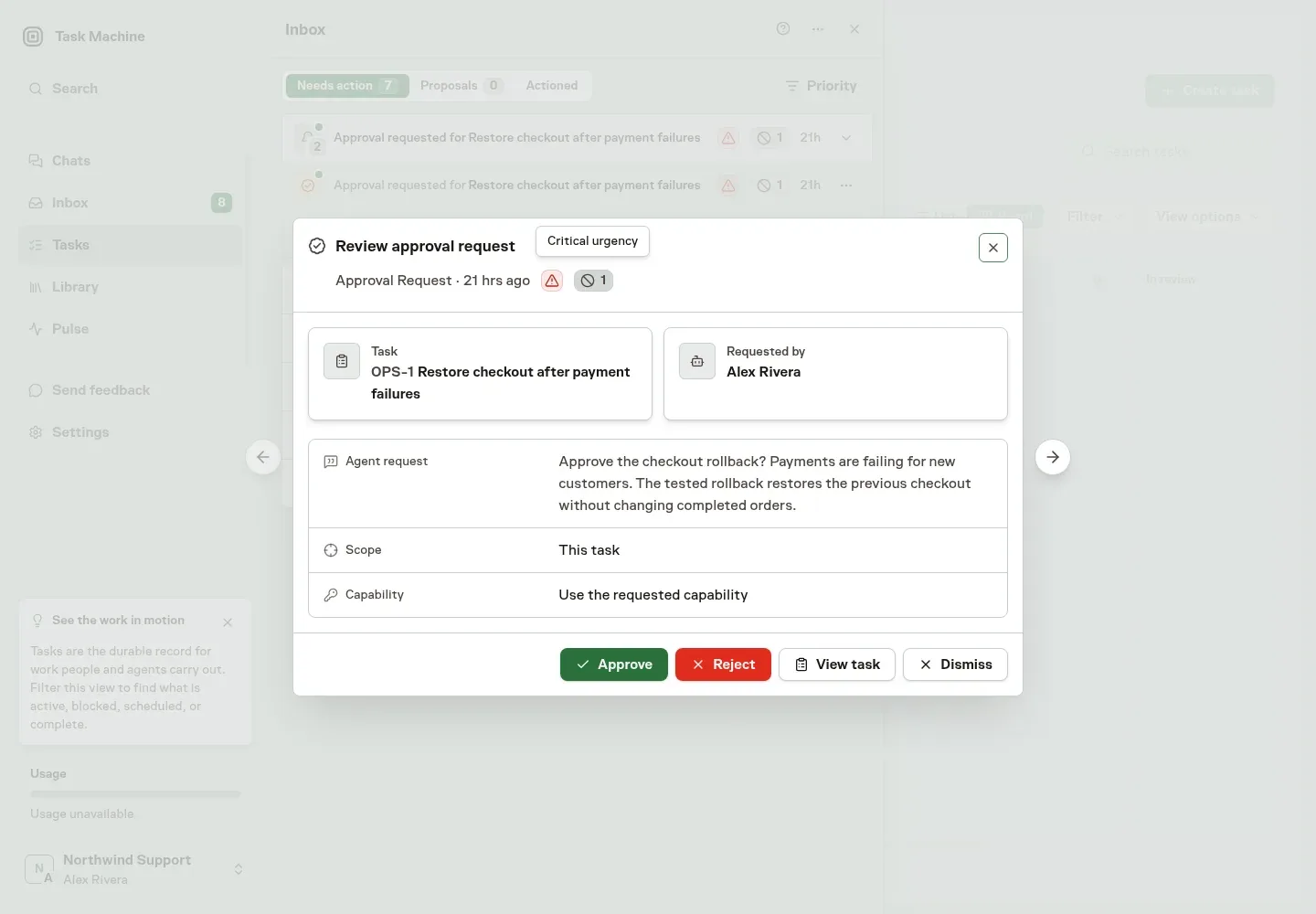
See Inbox for how sorting and urgency work.
-
New Feature
Task Machine suggests the details when you create a Task
When you create a Task, Task Machine can fill in the details you left at their defaults. Write the title and description, press Create task, and review the suggested project, people, dates, and labels before anything is saved. We built it because filling every field by hand made quick Tasks slow to create, and skipping them left Tasks without an owner or a date.
Suggestions can cover the project, goal, labels, implementer, planner, reviewer, repository, priority, deadline, start date, and a repeat schedule, using the projects, people, and labels already in your workspace.
Each suggested field is highlighted, and hovering it shows what you had before. You can change any field or edit the title and description in the same window, then choose Create task, or Save as entered to keep your original choices.
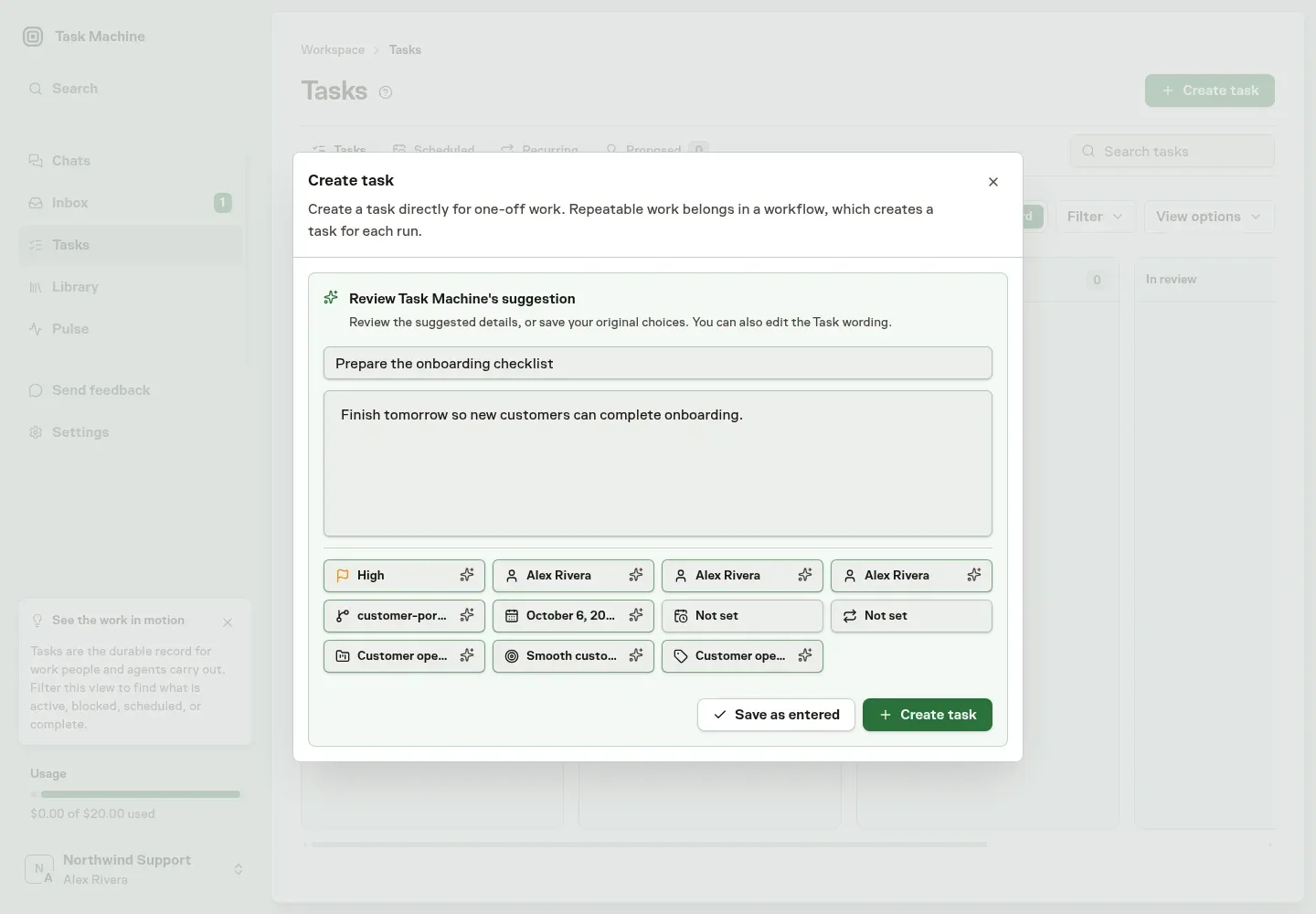
See Tasks for creating and editing Tasks.
-
New Feature
Give agents direction by voice
You can now dictate Chat messages, Task comments, and Inbox replies or feedback in Task Machine. Explain a change to an outreach plan or a draft, review the text, and send it from the same place.
Review what you said before sending
Select the microphone in the composer and speak. Text appears phrase by phrase as you pause, while the microphone keeps listening. Stop finishes the last phrase without sending the message. You can edit the text, keep typing, or cancel recording without losing your existing draft.
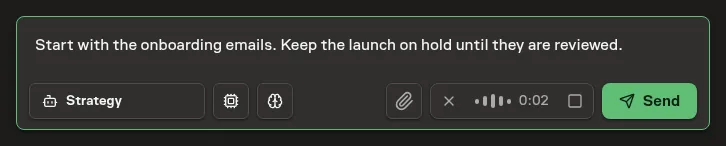
English dictation is supported for now. Vocabulary hints include Task Machine terms, major model names, and the Projects, Agents, Workflows, Playbooks, and Local Machines you can access. Hints help with names. They do not guarantee a correct transcript.
Keep usage visible
Voice input counts toward Workspace usage, including trial usage. It is free during incomplete Guided Setup before activation. Usage history groups Voice input into one total per day, rather than listing every phrase.
Task Machine does not store recordings or a separate transcription history. Dictation requires zero-data-retention provider routing and follows the Workspace's EU-processing requirement. Text becomes ordinary work history only when you submit it.
Read Privacy and data for the retention and processing details.
-
New Feature
Bring your agent team into the same conversation
Task Machine now lets you tag several agents in a task comment or Inbox reply. Bring in a second perspective or coordinate launch work without starting separate conversations.
Get a second perspective on the same work
On a launch task, ask one agent to check the messaging and another to review the checklist in the same reply. Type
@and choose each agent you want to involve, including the agent already handling the thread. Each tagged agent receives your message.Steer the work without leaving the Inbox
When an agent mentions you, open the thread in the Inbox and tag the agents you want to hear from. You can read the conversation, add attachments and send your direction without switching to the Task page.
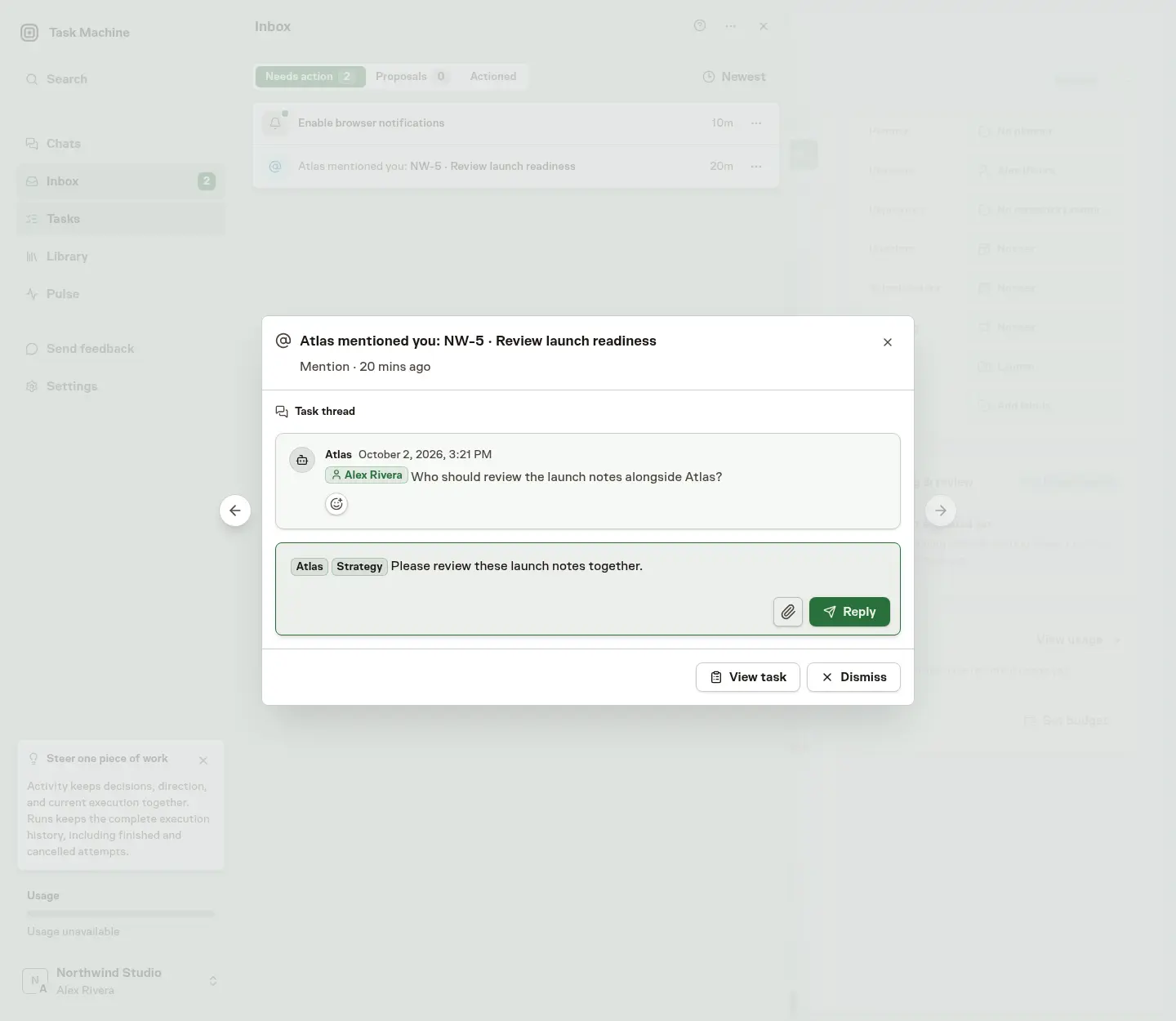
Bring in help without handing over the thread
Tagged replies go only to the agents you choose, so include the thread owner when you want them involved too. Later replies without agent tags return to that owner, keeping the original conversation intact.
You can still tag a Team instead, but Agent and Team tags cannot be combined in the same comment.
Read Comments and mentions for the full conversation and tagging behavior.
-
New Feature
Each requirement is now checked against the evidence
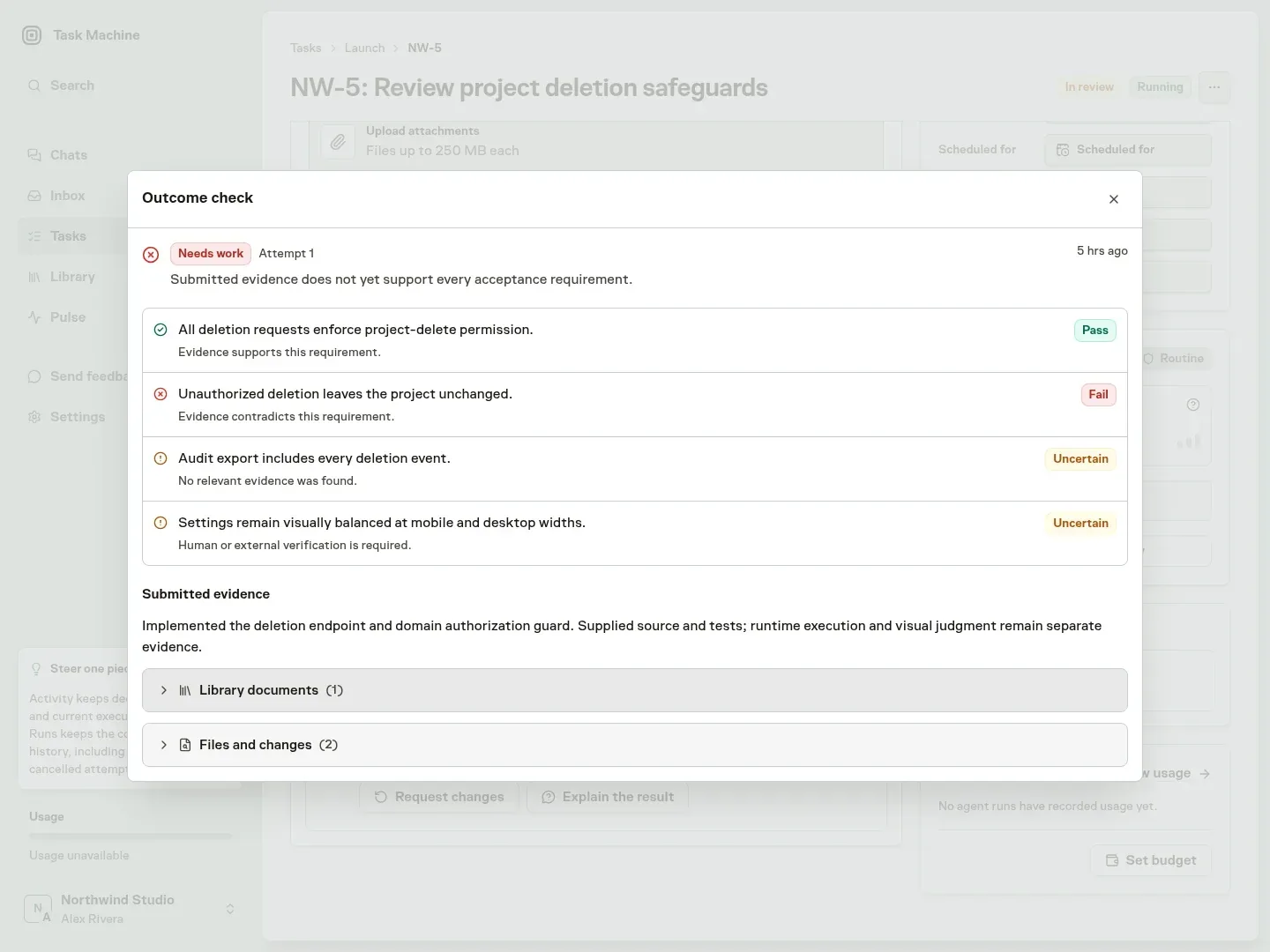
Before a finished task reaches your review, Task Machine now checks each requirement of the approved plan against the evidence the agent submitted and marks it Pass, Fail, or Uncertain. A requirement such as "Unauthorized deletion leaves the project unchanged" gets its own verdict, based on the code and the diff behind it. We built it because a confident summary could hide a requirement nobody had verified, and reviewers only found out after reading the whole change.
Verdicts come from the files themselves
The check reads the file excerpts, the change diff, and the exact Library document versions the agent submitted. For repository work, the complete diff from the common ancestor with your default branch is included automatically. A summary or an empty patch cannot pass a requirement on its own. Large submissions are checked in sections, and a requirement that spans several sections is judged against all of its related evidence together, so size adds work and never shortens the check. An interrupted check resumes where it stopped.
Failed requirements go back to the agent
The agent receives the result right away. A Fail or a missing piece of evidence stays with the implementing agent, so the task returns for fixes before it asks for your time.
Uncertain means a person decides
Some requirements need a human. "Settings remain visually balanced at mobile and desktop widths" cannot be proven from code, so it is marked Uncertain and the task continues to your review with that requirement called out. Results appear on the task and in your Inbox decision beside the original requirement text, and they stay in task history even when the move to review is rejected.
A passing check never approves a task, and your decision stays final. Tasks without explicit requirements follow the ordinary review. See Reviews for how evidence is selected and how results appear.
-
Improvement
Welcome to your new home
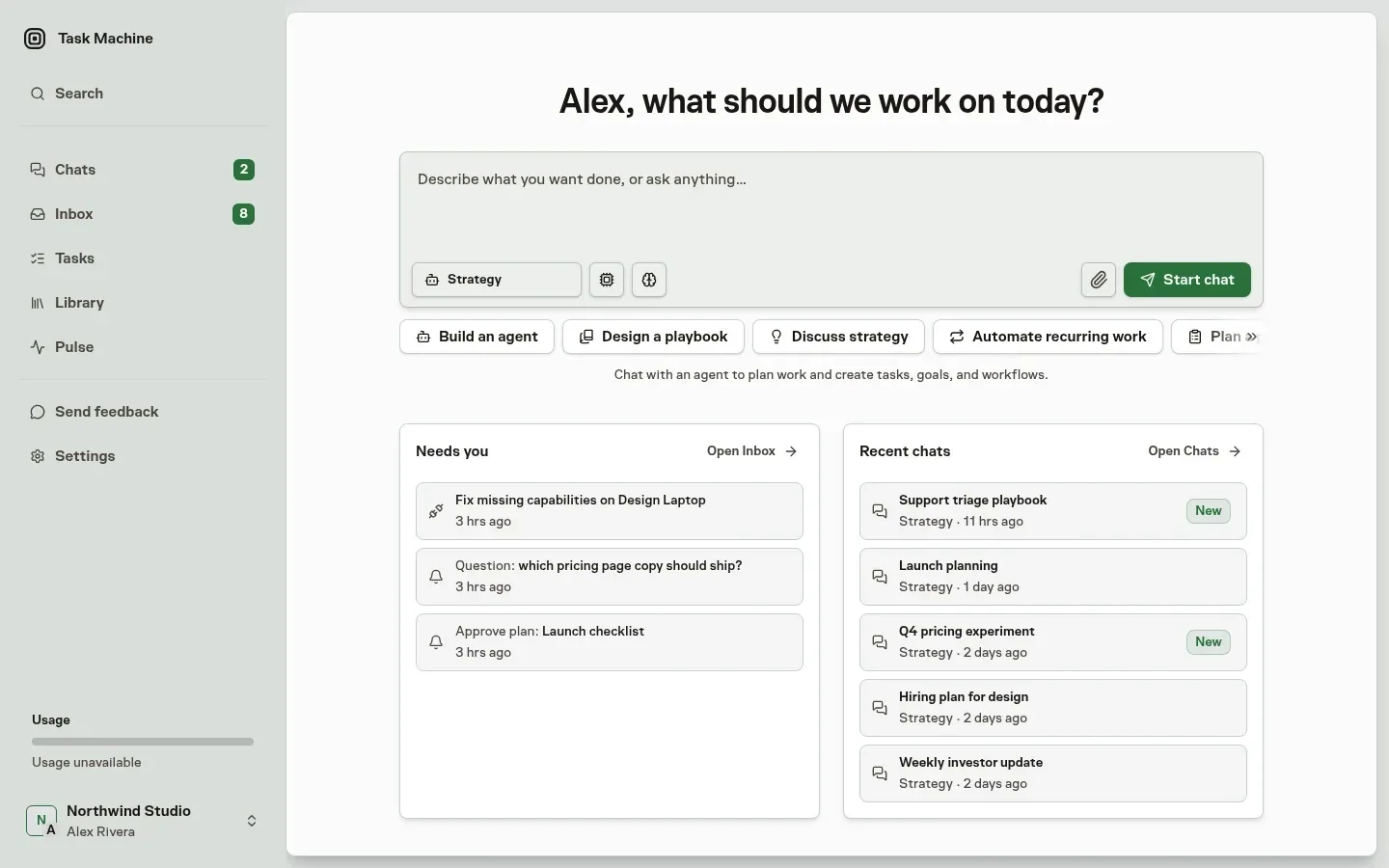
Task Machine now opens on Home. A greeting, a message box, and the decisions waiting for you replace the task list you used to land on. Type what you want done, such as "Plan next week's launch emails", and an agent in Chat picks it up. We built it because the first move, whether on day one or after a week away, should be saying what you want done.
Start any job by saying what you want
Home greets you by name and asks what to work on today. Starters such as Build an agent, Design a playbook, Discuss strategy, and Automate recurring work fill the message box with a first prompt. Pick the agent and model, attach files, and select Start chat. Setup, configuration, and strategy requests all begin in the same box, and the agent creates the tasks, goals, and workflows from the conversation.
See what needs you before anything else
Below the message box, Needs you previews your top Inbox items in priority order, so an approval that blocks a failing checkout sits above a routine request even when your Inbox is sorted by newest. Selecting one opens it for a decision. Recent chats sits beside it with your latest conversations and the agent each belongs to.
Home is one click away
The Task Machine logo in the sidebar returns you to Home from any page. Chats, Inbox, and Tasks stay in the sidebar, and every existing surface works as before. See Getting started for the first steps in a new workspace.