Observability
Browser use
On this page
Browser work has its own history inside an execution Run. Open a named journey to inspect what was recorded, keeping action evidence separate from the Agent's written description of the result.
Browser use on a Task
Open Browser use in Task history. Each card represents one focused browser journey within an Agent Run, separate from execution Runs and attachments.
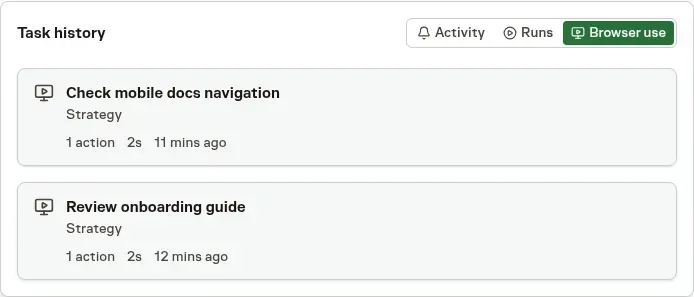
A card shows the journey's name, Agent, timing, and action count. Older unnamed journeys use a timestamp instead. Only an active journey carries a Live badge.
Select a card to compare its recorded actions and frames. This sample history shows opening the setup guide and following its Task and Workflow setup links.
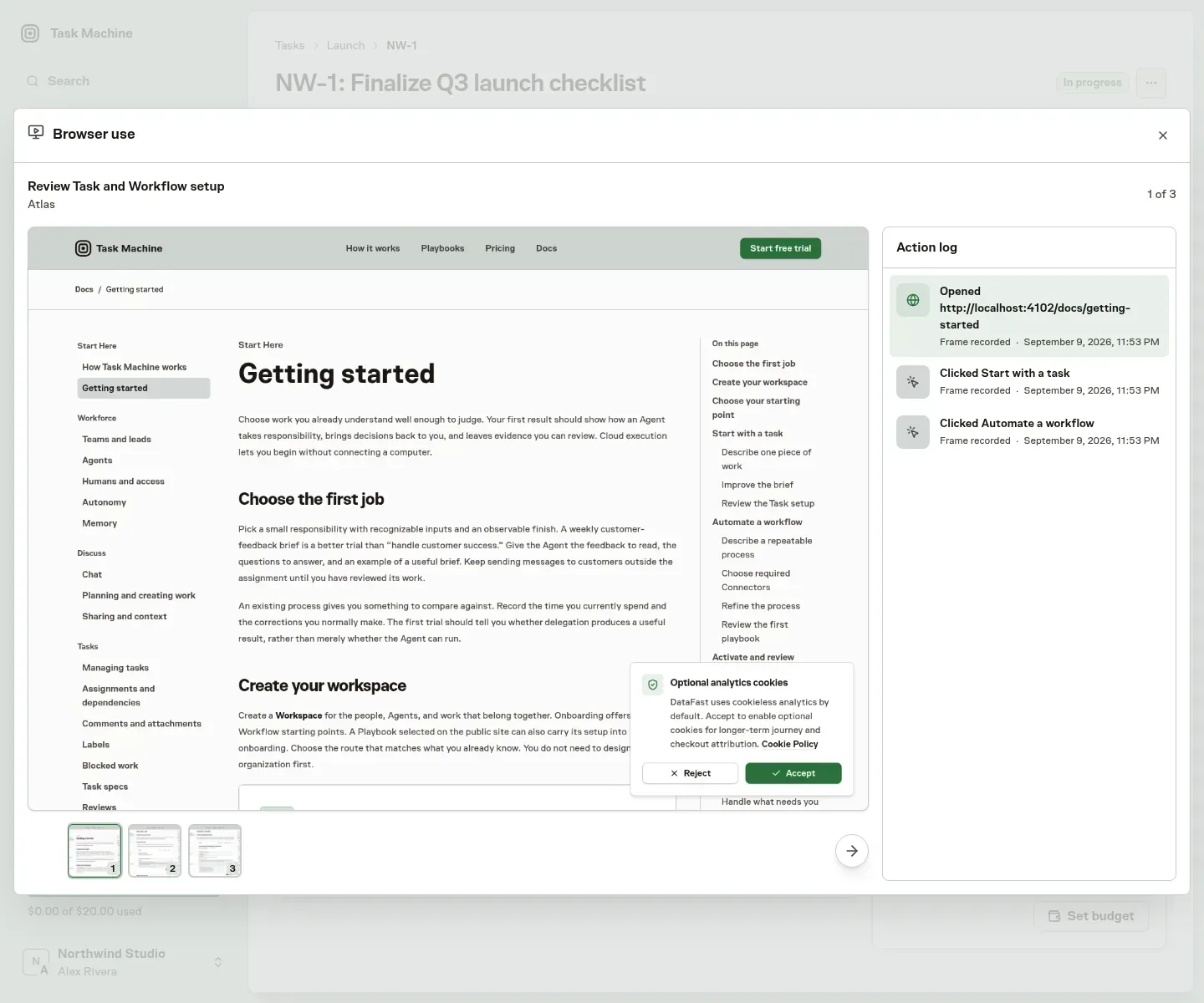
Move through the journey using:
- Previous and Next, or the Left and Right keys.
- A swipe across the viewer.
- A thumbnail beneath the main image.
- An entry in the chronological action log.
The selected action stays highlighted and shows an action-specific icon and localized timestamp. Labels describe actions such as opening a page or clicking a named button. They sit beside the image, and field values are not stored in the action log.
Lists and logs load 25 records at a time. The current and adjacent main images load first, so a long journey does not require loading every full image at once.
Viewing this history requires both Browser use access and access to the Task.
Browser evidence in Chat
A Chat keeps its own browser history. Its Details tab previews the conversation's newest journeys beside the Chat tab. The card stays hidden when that Chat has no browser history.
Open the viewer from Chat
Select a journey in the Chat's Details tab to open its viewer. It uses the same names, Live badge, thumbnails, action log, and navigation controls as Task browser history.
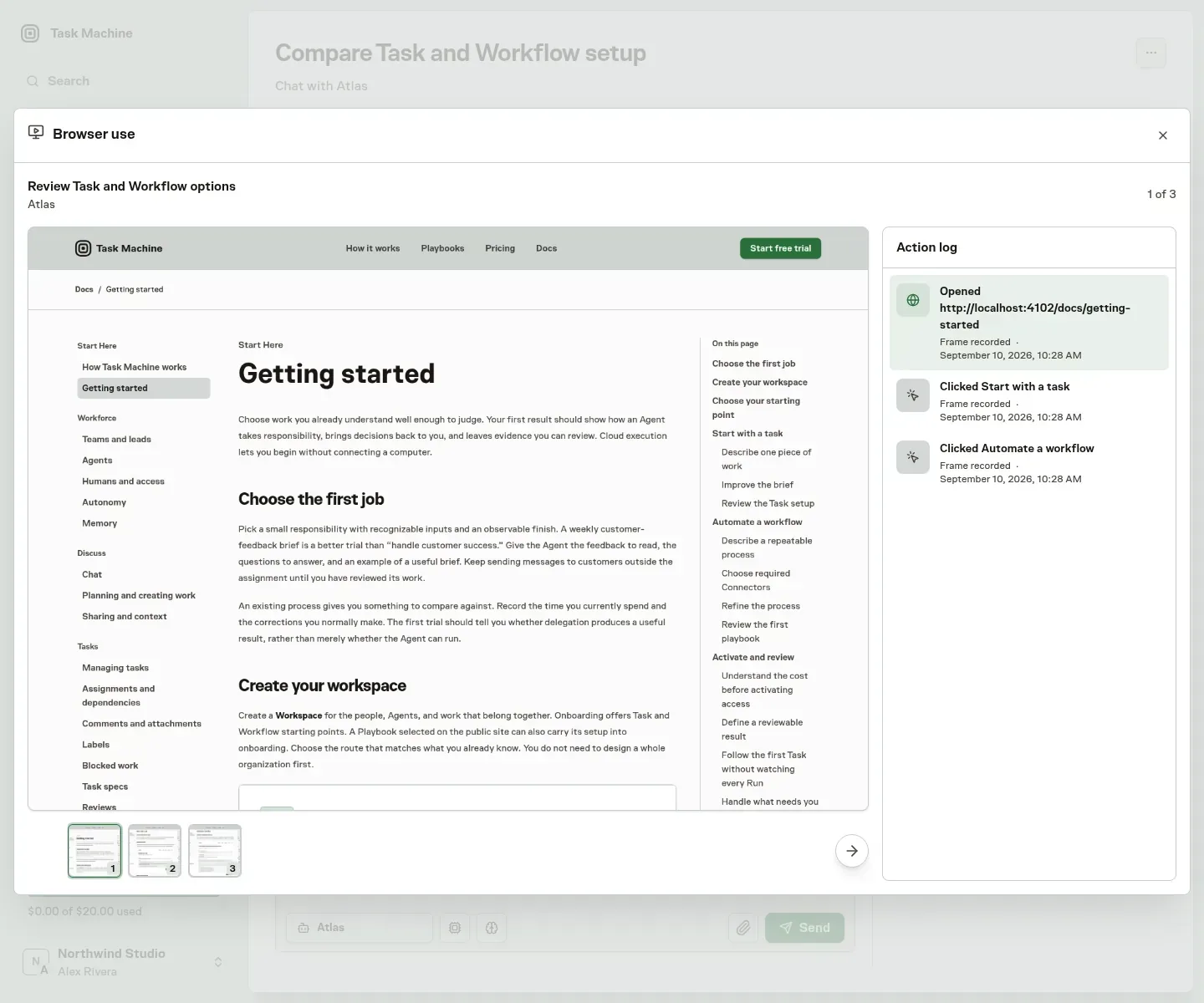
Viewing it requires Browser use access as well as access to that Chat. Its history follows the conversation's retention and does not become a public artifact.
Control screenshot recording
Automatic screenshots are enabled by default for the Workspace. Owners and admins can turn future screenshots off in Settings, then General, without stopping browser action logging.
Existing images remain unless the person disabling screenshots chooses irreversible deletion in the confirmation. Turning capture off alone does not delete earlier evidence.
Password, payment, one-time-code, Vault-filled, and known secret values are masked before a screenshot is kept. A failed masking pass withholds the image.
A page can still display other personal or confidential information. Treat access to Browser use accordingly, and see the Privacy Policy for the data boundary.
Understand stopped browser work
An Agent can stop a browser objective because approval, sign-in or another prerequisite is missing, because the available controls cannot perform the action, or because the evidence is insufficient to act safely. Its Run transcript records a specific reason and recovery guidance. A policy block alone does not establish a browser malfunction.
The Agent can inspect available evidence without bypassing a permission or repeating an action whose result is uncertain. When your decision is required, it should bring the context and resolution into the Inbox. See CLI commands for the technical reasons and recovery contract.
Interpret incomplete evidence
Disabled, deleted, withheld, missing, or failed-to-load images retain their action entry. An image-off fallback replaces the unavailable thumbnail. A reported audit gap describes missing evidence rather than changing the browser journey's work status.
A screenshot alone does not prove that an action was fully captured or that its result was correct. Check the available evidence against the Task's acceptance criteria.