Inbox
Setup and recovery
On this page
Use the setup or recovery item to resolve the actual blocker. Dismissing a notice does not repair access or resume a paused schedule.
Missing credentials
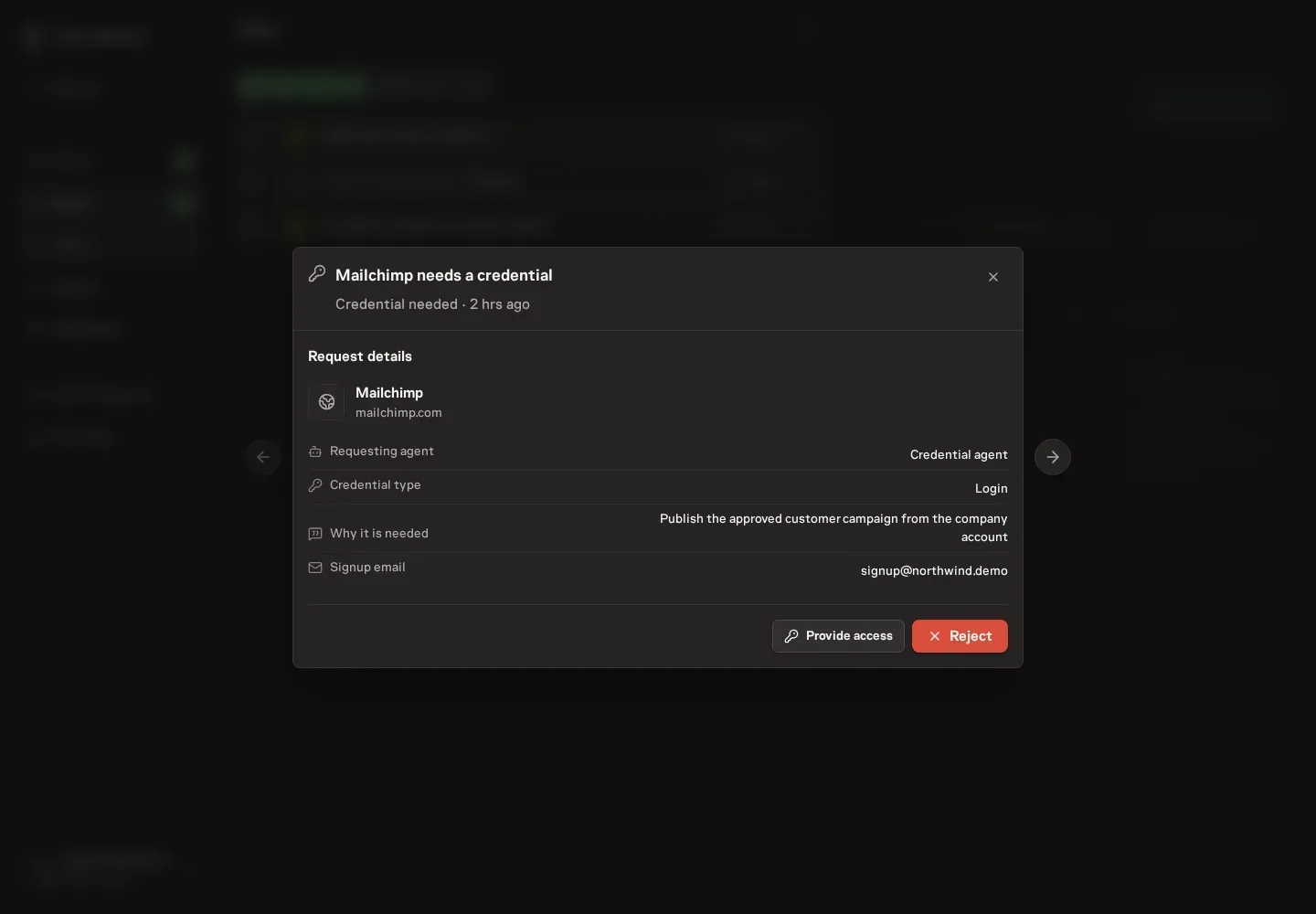
The item identifies the website, requesting Agent, credential kind, reason, and account-signup option. Open Provide access to select a suitable Vault credential, add one through the embedded write-only form, or approve a separate account with the configured signup email. Reject the request when the access is unnecessary.
The add form starts with the requested kind. You can correct it to a login, API key, or generic secret and include an authenticator setup key for a login.
Durable access is labeled For this task when a Task asked and For this agent when taskless Chat asked. One use is the limited alternative. A successful selection, addition, or signup approval grants the chosen scope and can continue waiting Task work. It does not start a new Chat turn. Existing runs paused on credential access still resume after access approval.
See Vault for the complete credential flow.
Expired service authorization
An expired Connector account can pause the work and raise a Log in again request. Complete the provider's consent flow from that item, then return to the same Inbox detail. Hosted MCP connections follow Verification, while API account recovery checks authorization without that protocol probe. Task Machine clears the related recovery requests and resumes waiting work only after the new login passes its required checks and is saved automatically.
A failed check keeps its progress and recovery actions in the item. Choose Retry for a temporary failure or Log in again when new consent is needed. Closing the detail does not cancel background Verification, and a failed or cancelled attempt does not replace the previous stored login.
Temporary service and network failures remain retryable errors rather than asking for another login. Changing the Agent's assignment does not repair the expired account. See Connectors.
Complete a Playbook connection
A Playbook's Connector setup item keeps its credentials, account authorization, instructions and save action inside Inbox. Optional how-to instructions start collapsed. Expand them if you need to create a token or your own OAuth app, while required fields and callback values remain visible.
Hosted MCP setup includes Verification. API and Command line save without that protocol check, and initial account authorization still requires an explicit save after consent. Closing the setup leaves its handoff available. See Connectors.
Paused recurrence
A recurring Task or Workflow whose earlier occurrence is still open when the next one comes due receives a Recurring schedule paused item, whether that occurrence is still in progress, blocked, or recovering from a failed Run. Its details identify the schedule, blocker, and available failure evidence, and list every open occurrence of the schedule, without requiring a trip to Tasks or Runs.
Each open occurrence has Cancel invocation in its row menu. Recurrence continues once no earlier occurrence is open, and cancelling one of several leaves the item open for the rest. Stop recurring schedule archives future recurrence while leaving the current occurrence available for review. Dismiss clears only your notice. It does not resume unsafe work.
Use the original question, approval, or Run-failure item when you want to resolve that underlying blocker instead. New setup can also ask you to Set schedule before a recurring job begins. See Schedules.
Execution configuration
If an Agent has a fixed model that Cloud does not offer and no Local Worker is selected, an execution item asks an authorized manager to choose an available configuration.
Choose Choose another to open configuration in Inbox. Choose Auto, another Cloud model, or a supported model from a connected Local Worker, then save there. When a replacement recommendation is available, the item shows the unavailable model beside the recommended one. Review it before choosing Use recommended model instead.
A successful configuration updates the Agent and completes the related active requests. Dismissing your copy does not clear another manager's request or make the unsupported model runnable.
Some items have no task behind them. A budget warning or a machine-level alert belongs to the workspace or a worker. Those items still keep their decision context and resolution in the Inbox, with destination links reserved for optional detail.
Recover the current task step
A Task needs recovery item explains why its current step stopped and shows the affected runs with their actual execution outcomes and reports. A run can have succeeded while the task still needs a different approach. When no run started, the item says so.
Choose Run again to request the current step through the normal approval, dependency, budget, and execution checks. Choose Give direction to post a comment to the assigned agent from the same Inbox item. Neither action replays an old run.
A successful action moves the decision to Actioned. Newer direction archives obsolete attention without recording a decision you did not make. Historical items remain read-only, and recovery items disappear when you no longer have permission to act on the task.
Finish processing a run
An agent can finish its execution while Task Machine still needs to process the result, such as creating a review or recording the next step. If repeated processing attempts fail, one Run processing stopped item identifies the Task or Chat, shows the execution outcome, and explains what stopped.
Use Retry processing when offered to continue unfinished processing on the original run. This action does not start another agent run. The item is marked handled once processing is queued, which does not mean processing has finished.
Dismiss clears your notice without retrying processing. Completed and superseded items retain their history and cannot retry an old request.
Repository decisions and recovery stay in the Inbox
A Chat that needs source context can ask its owner for repository access without guessing which codebase to use. The request names the Chat and agent, explains why the conversation paused, and keeps the complete choice in the Inbox. The owner can choose an active workspace repository, create one and finish SSH setup, or decline.
Approval binds that repository to the Chat. Declining leaves it without repository context. Neither decision starts another Chat turn. Send a message when you want to continue the discussion.
A task can make the same request when its agent discovers that source context is necessary. Task Machine blocks the Task while sending one Repository needed decision to a human who can update the task and manage repositories.
The decision keeps repository selection or creation in the Inbox, and attaching an active repository resumes only this recovery block. A task that does not need repository context remains valid without one.
A coding task, repository-backed Chat, or rule discovery can fail because the repository refused Task Machine's key. When the failure is a confirmed SSH public-key rejection, the Inbox raises a repository access required item instead of a generic failed-run alert or a pasted Git error.
The reminder is scoped to the repository so you fix access once and then retry the affected work. Rule discovery can need this recovery without a Task or Chat behind it.
That scope matters when the same repository is used again. Eligible humans see only the newest open reminder for that repository, so a later failure replaces an older one instead of stacking duplicates. Task recovery requires permission to change the Task and manage repositories. Chat recovery requires access to manage that Chat and repositories. Discovery recovery requires repository management alone. Another repository keeps its own reminder.
If your permission changes while a reminder is open, its detail explains that an owner or administrator must finish setup instead of showing controls you cannot use.
Opening the item shows which repository blocked the work and keeps the recovery actions together. The public key and provider-specific steps for GitHub, GitLab, Bitbucket, or another Git host appear directly in the Inbox detail. If the key could not be prepared yet, the detail offers Retry key setup first.
Once the public key appears, add it in your Git provider and use Retry task for Task work or Retry repository for a Chat or discovery from the same detail. Discovery retry starts a fresh attempt through the normal execution checks. A failed checkout instead asks you to verify the saved clone URL and access before retrying.
The item is marked handled only after the retry is scheduled, so a retry that cannot start leaves the reminder open for the next person who can act.
The reminder also clears on its own when access is working again. After a later run gets past repository access successfully, older repository-access reminders for that repository are archived automatically, so the Inbox returns to showing only work that still needs a human fix.
Update a connected computer
When a connected computer needs an update, its Inbox item identifies the machine and available version. Use Update now when offered. Manual installation belongs in CLI setup.
