Updates
Product updates and implementation notes for Task Machine.
-
New Feature
Agents can merge low-risk pull requests without asking you
Agents can now merge low-risk pull requests without asking you. When a Project allows it and the implementing agent's Merging pull requests action is Automatic, a pull request that the merge risk assessment rates Low skips your Inbox and goes straight to delivery. We built it because small, low-risk changes waited in your Inbox like every other pull request.
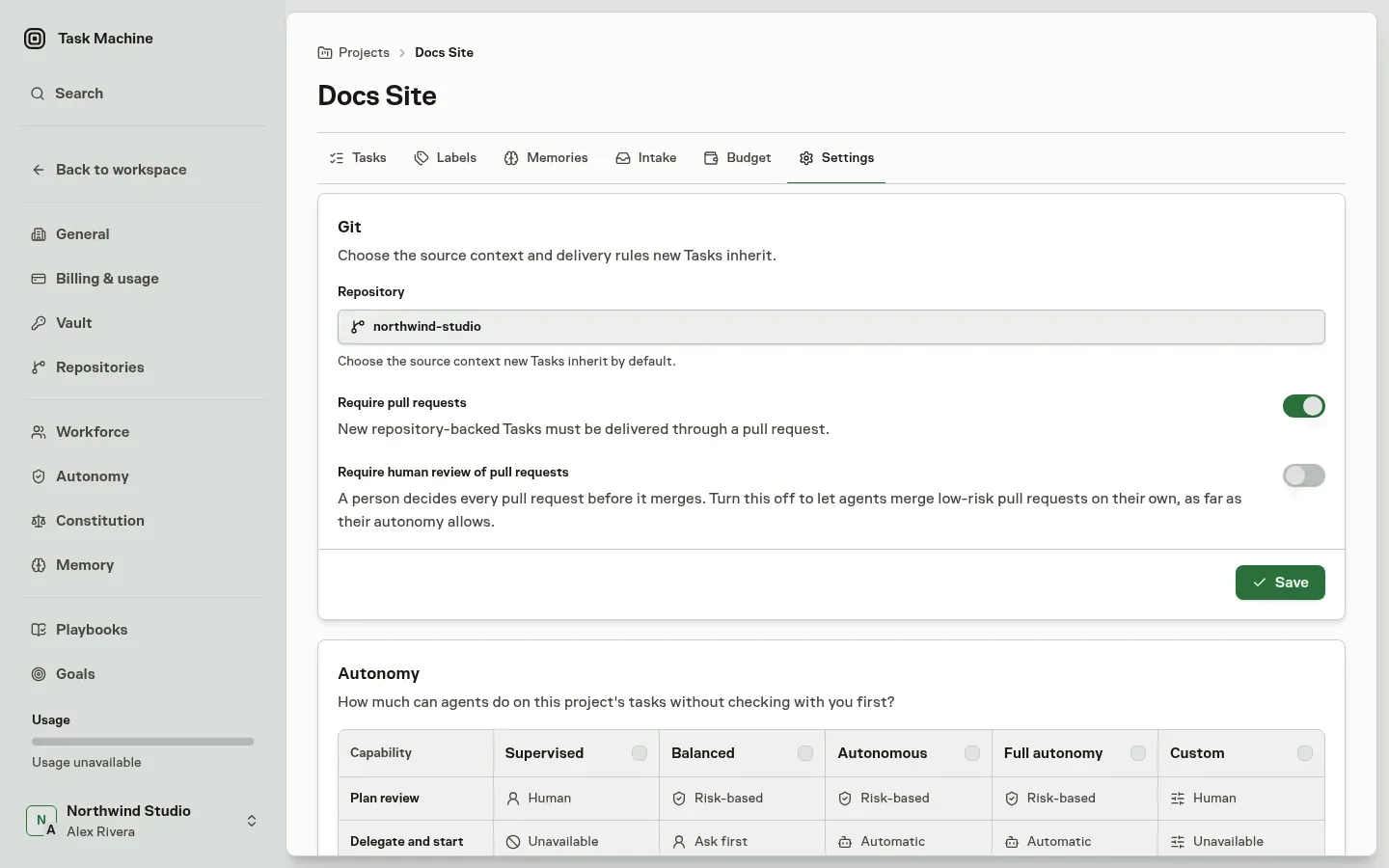
Choose which pull requests skip your review
Every Project starts with Require human review of pull requests on, so pull requests still wait for a person, including those that an agent reviewer used to approve and merge alone. Turn the switch off in the Project's Settings under Git. People with project-management permission can change it, and agents cannot, even by proposal. With it off, a person still decides unless all of these hold:
- The merge risk assessment finished and rated the pull request Low, with no category rated High risk.
- The implementing agent's Merging pull requests action is Automatic.
- The pull request is not one of that agent's periodic spot checks.
When they hold and a person is the assigned reviewer, Task Machine approves the exact commit, adds "Approved pull request #128 automatically" to the Task's activity, and returns the Task to the agent for delivery. When an agent is the assigned reviewer, it reviews as before.
Let agents earn automatic merging
Merging pull requests is its own action on each agent's Autonomy page. Supervised and Balanced agents ask first, Autonomous and Full autonomy agents are Automatic, and Custom sets it on its own. Your approvals and requested changes on pull requests count toward the learned autonomy of the agent that implemented them. Automatic approvals never do.
See why a pull request reached you
When a pull request reaches your Inbox because a condition did not hold, the decision now says why: the Project requires review, the assessment could not run or rated the change too risky, the agent still asks first, or it was picked as a spot check. When the assigned reviewer is an agent or cannot decide, the decision goes to the Task's creator, its Team lead, another person in that Team, the Goal lead, or the workspace owner, in that order. Agent questions and approval requests that name no one follow the same order, starting with the Task's human reviewer.
Keep every existing merge safeguard
An approval belongs to one commit, and a new commit starts the review over. The merge still waits for passing checks, a mergeable pull request, and source-host approval where your repository requires it. The merge command for the approved commit is not held as a separate production change, and any other merge command is checked as before. Tasks that a person implements work as before.
Read more about how pull requests are approved and merged and each agent's autonomy.
-
New Feature
Agents can ask agents and teams before asking you
Agents can now put a question or an approval request to another agent or a team instead of always sending it to your Inbox. We built it because many questions an agent raises are better answered by another agent that already has the context, and every one of them used to wait for a person.
Let colleagues handle routine questions
An agent working on a task can address another agent directly or ask a team. Team requests look for an agent with relevant context, then fall back to the lead or a person when needed. A pricing-copy writer can ask a reviewer whether a discount matches the current plans without waiting for you to check it.
The asked agent can answer a question, approve or reject an approval request, or pass the request to a person. Answers and reasons stay in the same task thread, and the asking agent receives the result there. An agent answering a request cannot start another chain of questions. It passes anything it cannot resolve to a person.
Keep approval control with the deciding agent
Questions provide advice. Approval decisions follow the autonomy settings of the agent being asked, rather than the agent raising the request.
Supervised and Balanced agents send their approval for your confirmation. Autonomous and Full autonomy agents can decide directly, with spot checks and confirmation when the asking agent is Supervised. The learned action, Deciding approvals other agents ask for, belongs to the answering agent, so your reviews train the agent that made the decision.
Existing task checks still apply. An agent-to-agent approval does not replace your approval of the task's plan or visual evidence.
Read the exchange and step in
Task Activity shows requests inside their conversations, with who asked whom and what is waiting. You can take a waiting request over to send it to its responsible person, or cancel it so the asking agent can continue without an answer.
When a request reaches your Inbox, you get the usual question or approval controls, the agent that was asked, its response, and an explanation of why your input is needed. You can resolve it there without switching to the task.
Pulse Feed links the agents and work involved. Pulse Analytics adds request volume, the share handled without a person, the share that reached a person, typical answer time, and approval rates, each with historical charts.
Read more about agents asking each other first and reviewing their decisions in Inbox.
-
New Feature
See when your AI subscriptions will run out
Task Machine now shows how fast your AI subscriptions are being used and warns you in the Inbox before a limit pauses your agents. Your connected machines report each plan's usage windows, and Analytics turns them into a forecast: when a weekly or monthly limit runs out, whether the plan fits the way your agents use it, and how many tokens one percent of a window buys. We built it because agents that run on your own Claude or Codex plans stop in the middle of a task when a limit is reached, and nothing told you it was coming.
See which plan runs out first
Open Pulse, choose Analytics, and select Subscriptions next to Work, Cost, and Time. Each provider account appears once, however many machines report it, with its weekly and monthly windows, the time each limit resets, and the date it is forecast to run out at the current pace. A verdict on each plan tells you whether it fits, runs out before it resets, or needs a bigger plan.
Once a window is 5% used, its card also shows how many tokens Task Machine Runs spent for each percent, so you can compare plans by what your agents actually use rather than by their list price.
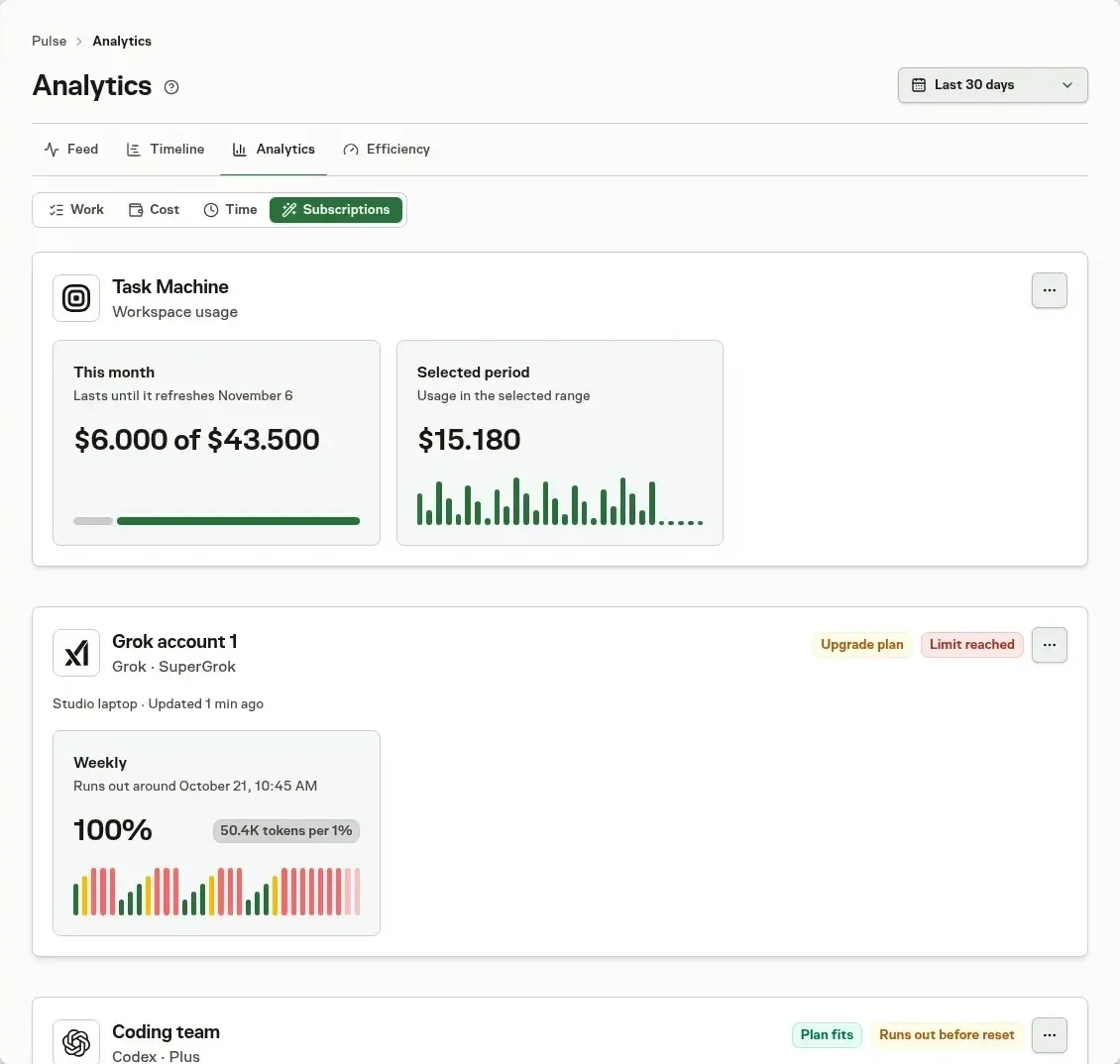
Get warned before agents pause
While usage insights are on, people who manage agents get Inbox alerts when a weekly or monthly limit of a subscription an agent uses is likely to be reached well before it resets. Each alert shows the numbers behind the forecast, which agents use the plan, and what to do at the provider: use a banked reset, move the agents to another model, or let them pause until the reset. You can also choose to be notified by email or in your browser.
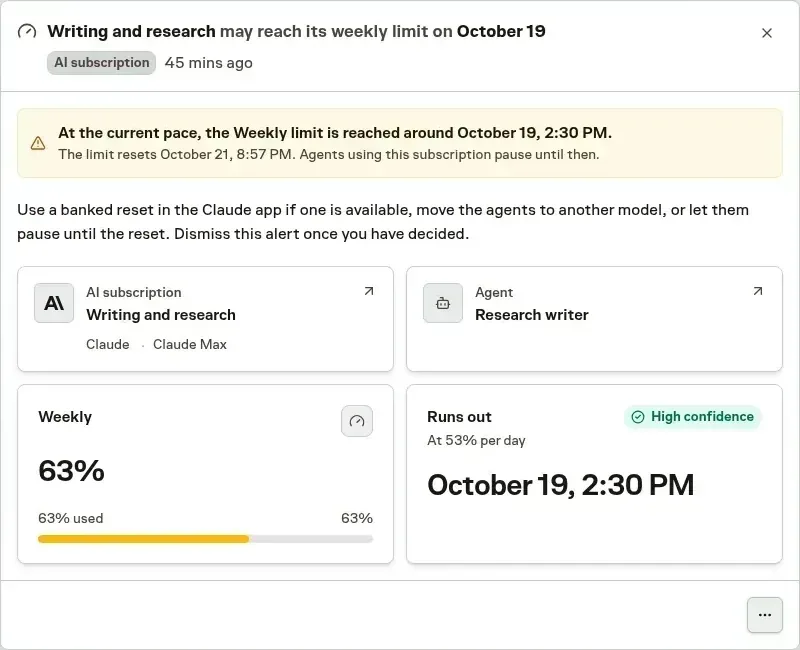
Keep a Codex plan working through a reset
Turn on Use banked resets automatically for a Codex subscription. When it runs out of usage and no other account in its pool can continue, Task Machine uses the banked reset that expires next, so the agent or your
tama codesession keeps working. An alert then tells you which reset was used.Your logins stay on your machines
Subscription logins never leave your machines, so Cloud runs do not use them. Task Machine reports provider credits such as Claude extra usage, Codex credits, and an OpenRouter balance, and never enables, buys, or spends them. Workspace managers control collection and history in Privacy & data, and turning insights off closes open alerts. The same forecasts appear in your terminal with
/usageintama code.Read Analytics for every card and alert, and Privacy and data for collection and deletion.
-
New Feature
Comment on the exact lines of an agent's plan
When you review an agent's plan, you can now select any passage in the Work Spec and comment on it. Each comment keeps the text it points at, and Send feedback turns all of them into one change request for the planner. We built it because a plan review had room for one reply, so feedback on several parts of a plan meant describing where each part was.
Comment where the problem is
Select text in the latest revision and a small box opens beside it. Write the comment and choose Add comment. Commented text stays marked in the plan, so you can click it to change or delete its comment. The comment icon next to the Diff and Text choice collects every comment, with an Edit and a Delete for each.
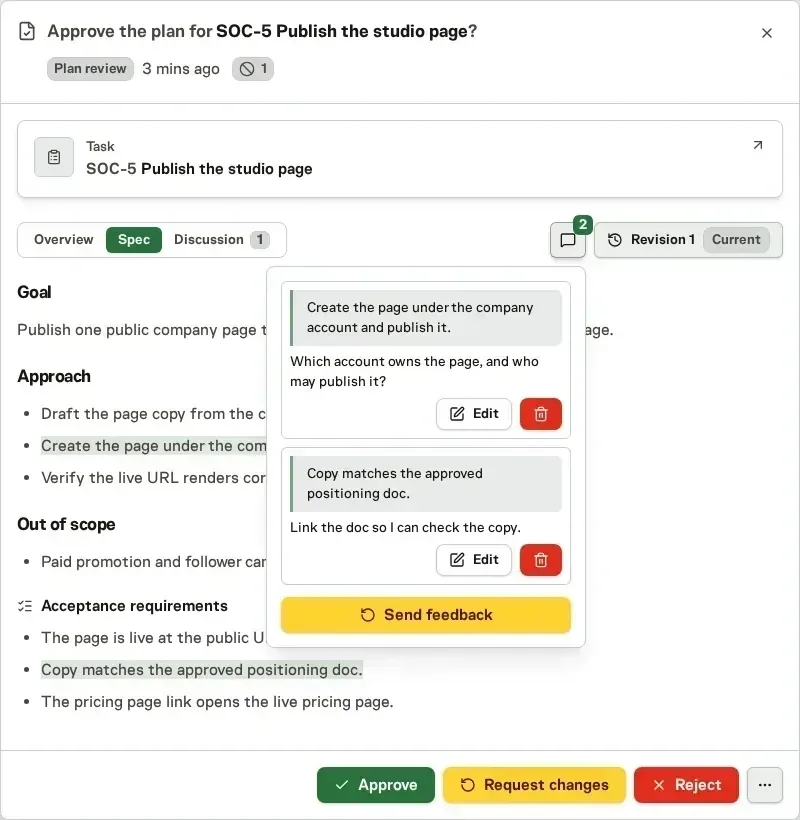
Read Task specs and reviews for the full plan review flow.
-
Improvement
Pin any filtered Tasks list to your sidebar
You can now pin a filtered list from any Tasks tab, so the views you check every morning are one click away. Filter by status, priority, implementer, Team, Project, Goal, label, creator, origin, or current activity, then choose the pin button beside Filter. We built it because the same filters were rebuilt every time, and the lists people open most are rarely the default ones.
Name it and keep it close
Choose a name and an icon in the Pin view window. The pin appears as your own tab between Recurring and Proposed and in your sidebar, under the main navigation. Opening it applies its filters again, and the list keeps the layout you use. A pin is personal: it never appears in anyone else's sidebar.
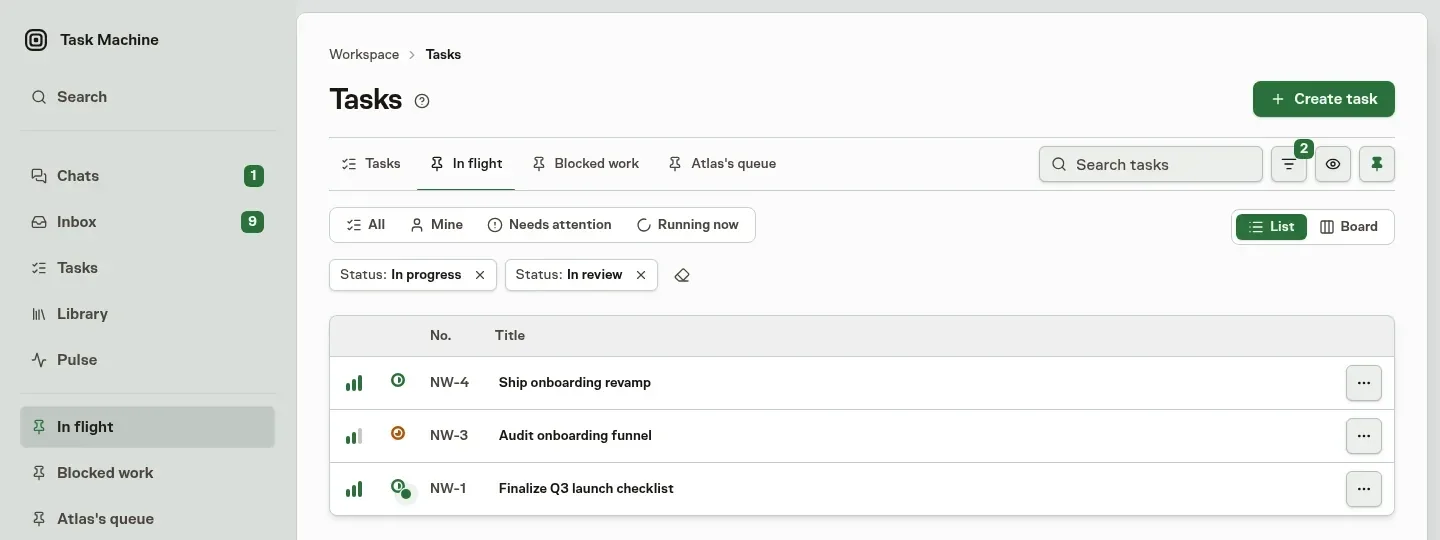
Pin from any tab
The pin button sits next to Filter on Tasks, Archived, Scheduled, Recurring, and Proposed, so a filtered backlog of proposed work can be pinned as easily as a filtered task list. Choose the pin button again on a pinned view to remove it.
Read Tasks for every filter and how pins behave.
-
Improvement
See a year of finished work at a glance
Pulse Analytics now includes an Activity calendar that shades each day by how many Tasks were completed, covering the last 52 weeks. One look shows which weeks your agent team delivered, which stretches went quiet, and how steady the output has been. We added it because the completion bars cover a month at most, and a quiet week is easy to miss in a list.
Read the pattern instead of the list
Darker days had more completions. Below the calendar you get the total, the number of active days, and the longest streak of days in a row with a completion.
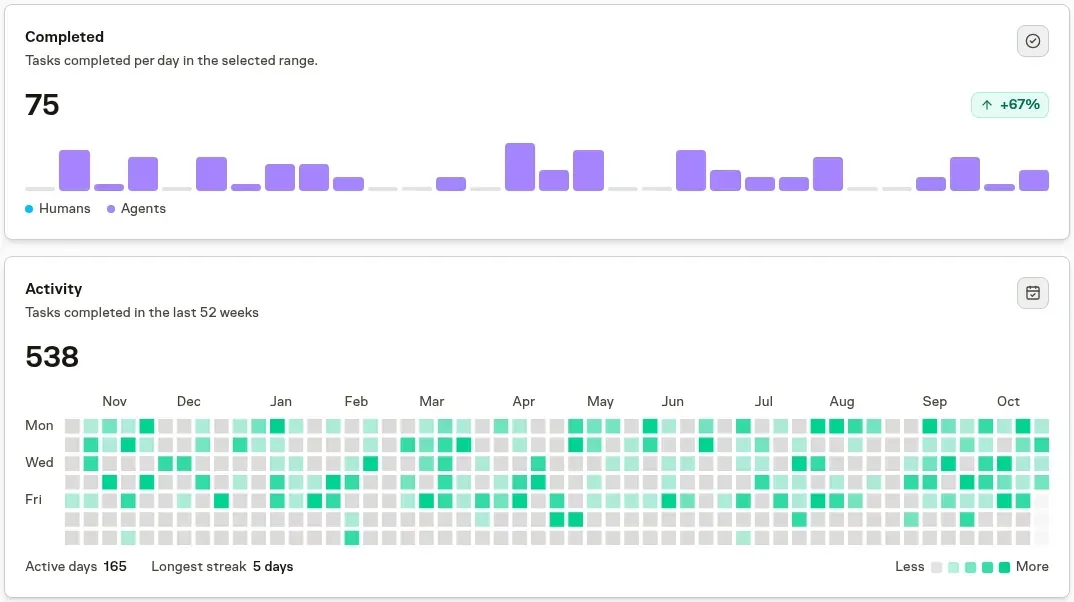
Filter to the range you care about
Pick a date range and the calendar shows just that period, up to 104 weeks.
Read Analytics for the other Work cards and how the date range applies to each.
-
New Feature
Give agent-written code a second review
Coding tasks can now get a second review after passing your repository's rules. Two independent reviewers look for defects across the changed code, such as a retry that can charge a customer twice or a changed function that breaks its caller. We added this because a change can follow every repository convention and still fail when its parts run together.
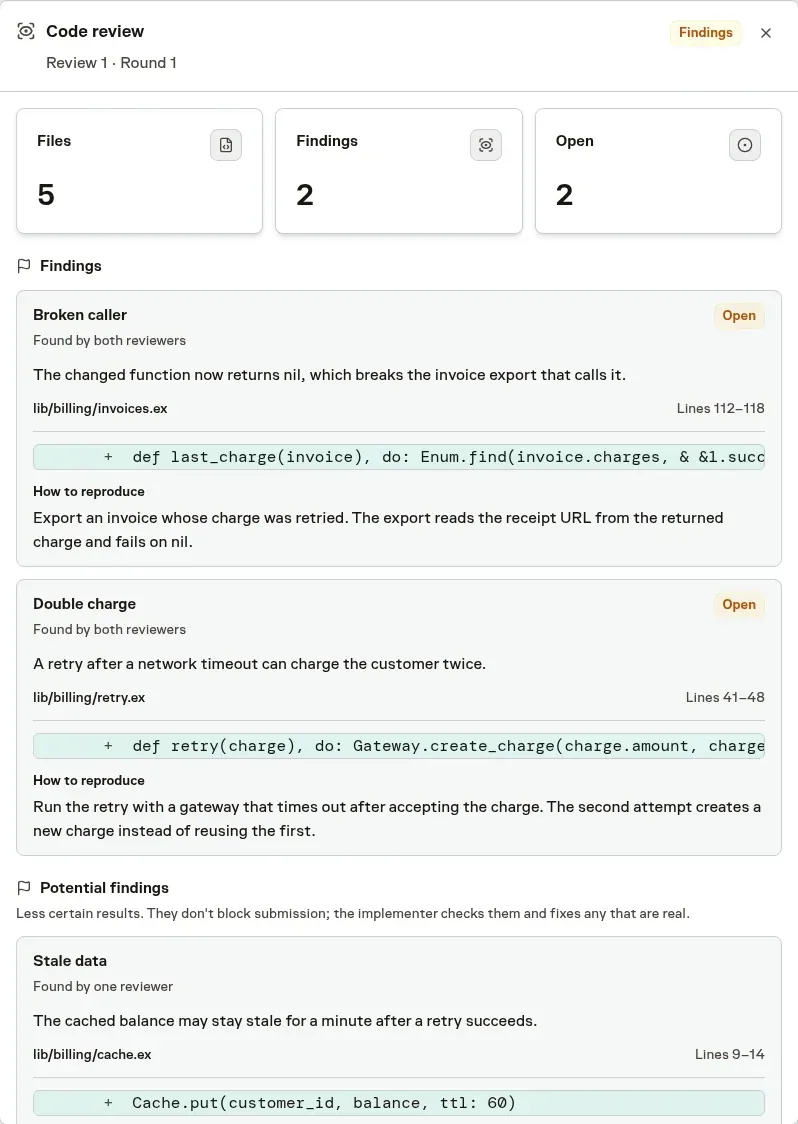
Review a claim with a way to reproduce it
Each finding includes the file, changed lines, what the reviewer thinks is wrong, and the input or steps that should trigger the defect. When both reviewers identify the same defect, it becomes a blocking finding. A claim from only one reviewer appears under Potential findings and does not block submission.
The implementing agent checks the reproduction steps before changing the code. It fixes a confirmed defect or dismisses a false positive with a written reason. Later rounds with a clean rule scan check whether the open findings still hold instead of starting another search. If findings remain after the fix limit, they accompany the task into your Inbox for your decision.
Use it for sensitive work or from the terminal
For coding tasks, the second review runs when the approved plan calls for the deepest review or marks the work as highly sensitive. Running
tama code-reviewyourself requests it after every rule scan without blocking findings.The second step depends on reviewer availability for your workspace region and on the size of the change. It can still miss defects or raise a false positive, and it adds to your tests, pull-request review, and final decision rather than replacing them.
Read Reviews for the task review flow and the CLI reference for
tama code-review. -
New Feature
Agents can now find the right person
Agents can now find the right person when work needs one. They look across your people, other agents, Teams, and outside contributors, and every match comes with the reason it was chosen. We built this because work often needs one particular person, such as whoever handled the last difficult customer, and an agent had nothing to go on beyond a name and a role.
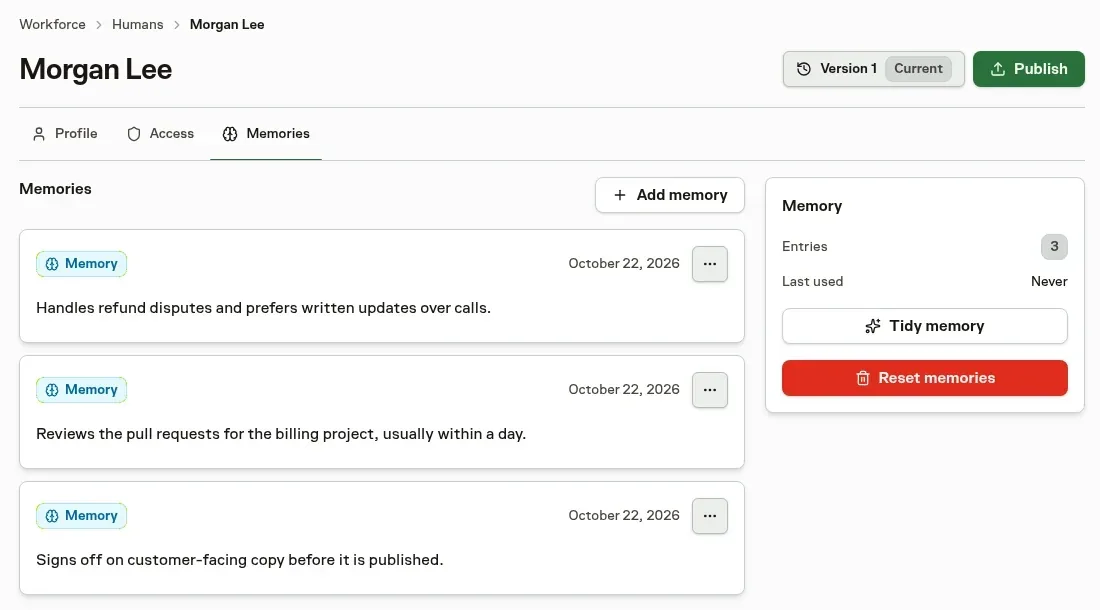
Put the right experience on the job
A contract that needs a second pair of eyes can go to someone whose notes say they review contracts. If similar work comes back, an agent can find the freelancer who helped last time, and the weekly client report can go back to the Team that prepares it. Each match shows its reason, such as a note saying Dana handles refund disputes, or the eleven tasks she finished recently.
Reach someone who is around right now
For something that cannot wait, an agent can ask for people who are likely around. Task Machine works out when each person is usually active from their recent comments and finished work, in their own time zone, and it counts the latest weeks most. It also weighs how quickly they usually reply. If two people fit a job equally well at 8 in the morning, the one who starts at 7 comes before the one who starts at 10. Nobody enters working hours or holidays, and Task Machine only ever says likely or unknown, never free.
What each person handles stays on record
Each person now has a Memories page of their own. Dana's might say she handles refund disputes and prefers written updates. Agents add what they learn about someone, and Task Machine saves patterns too. When the same person keeps reviewing a project's pull requests, that becomes a note on the project and on the reviewer. Notes worked out from a pattern, like that one or someone's usual hours, are marked Inferred until a person edits them.
One person, even when the name changes
Sofia might be sofia.r on GitHub, Sofia in Slack, and Sofia Rivera in an email thread. An agent records each name it meets and keeps notes under that name, even before anyone knows the names belong together. When the names look like one person, Sofia or anyone who manages members decides in the Inbox whether to connect them, and confirming brings the notes together under Sofia. A connection you reject is not suggested again.
Read Humans and access for how agents find people and how availability is worked out, Questions and approvals for connecting names, and Memory for notes about people.
-
Improvement
Review plans visually before work starts
You can now review an agent's process diagrams and image mockups directly in Task Machine's Inbox. We added them so a small team can settle workflow and layout choices during planning, before implementation starts.
See where the work branches
Mermaid diagrams now render in plan reviews, Chat, task discussions, Library documents and Markdown editor previews. A publishing plan can show who reviews a draft and which branch leads to publication.
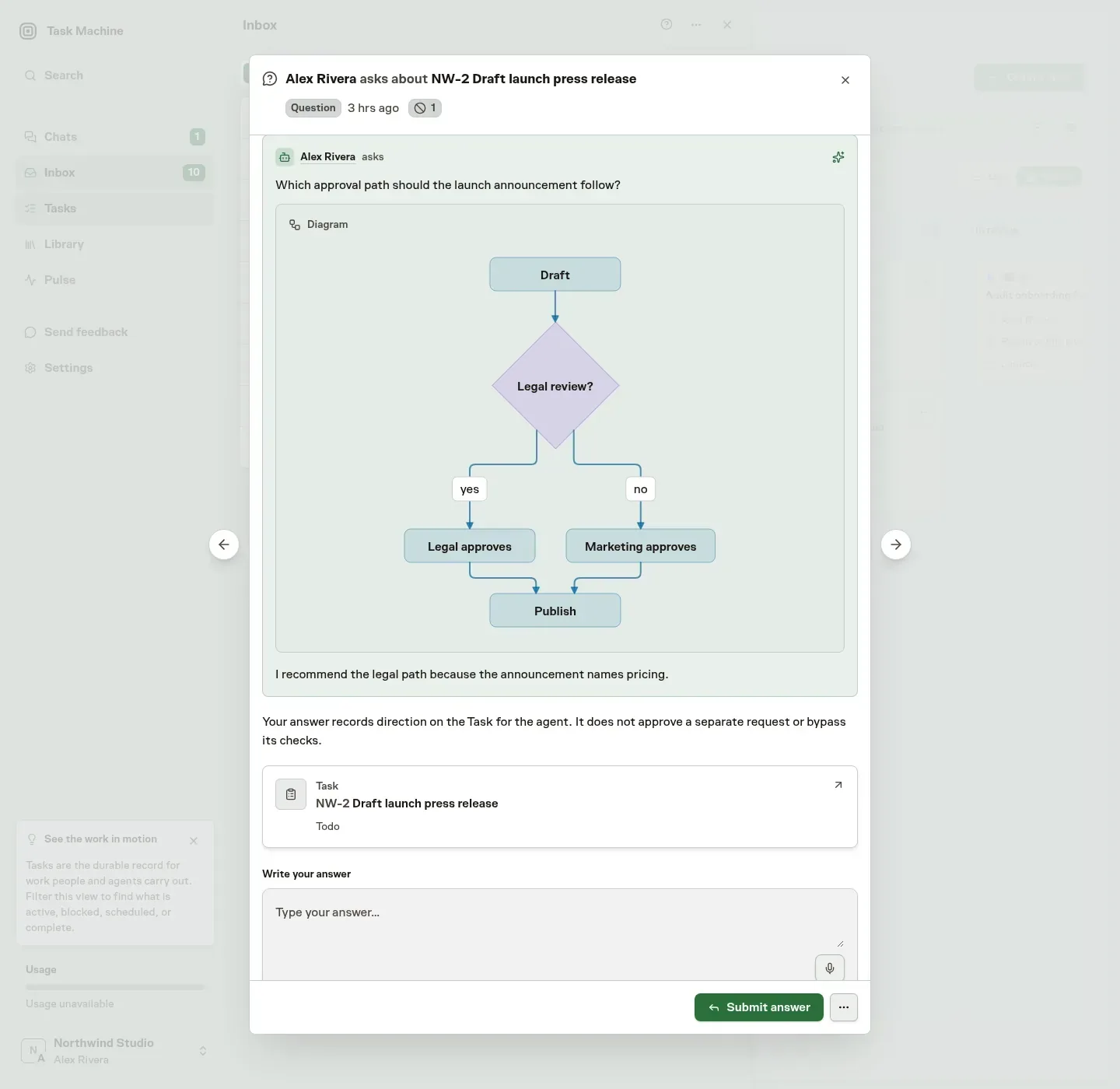
Compare visual directions inside Inbox
For an unresolved visual choice, the planner can attach labeled mockup images to the task's planning discussion before asking you to choose. Reusing an established layout does not require a mockup.
The Inbox question shows the recent discussion and attachments, with earlier replies available when you need them.
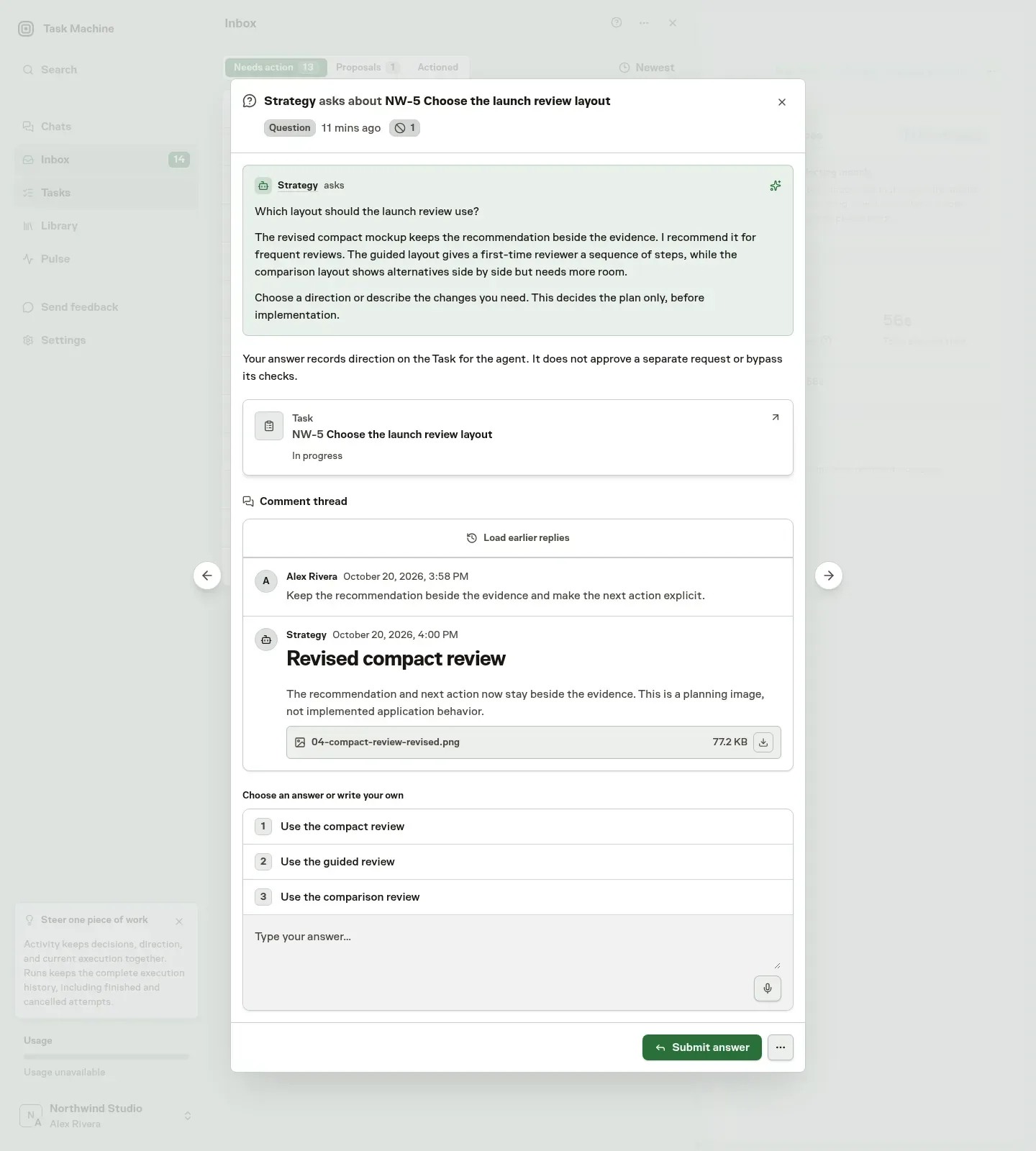
Open an image, then choose a suggested reply or edit it to describe the changes you need. The question and image preview stay inside Inbox.
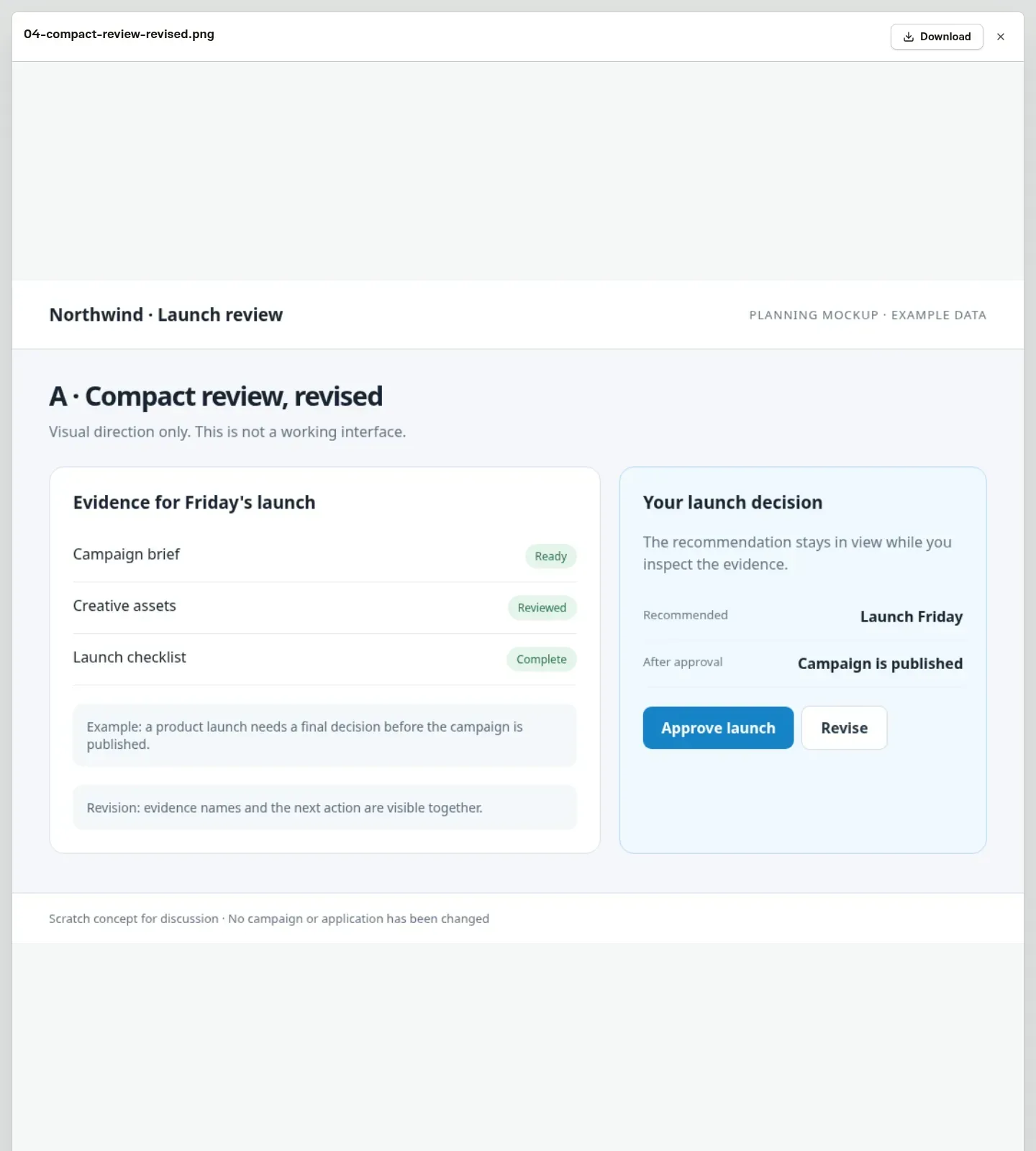
Your feedback and revised images stay in the same discussion, and the final plan references the chosen mockup. Choosing it sets planning direction only, while the finished interface still needs its own screenshots and visual approval.
Read Task specs for the planning process and Markdown for writing diagrams.
-
New Feature
Agents now ask before they take a risky action
Task Machine now checks what an agent is about to do, and holds risky actions in your Inbox until you decide. Posting a comment on GitHub, spending money outside Task Machine, changing production, or anything destructive waits for you, while everyday work such as editing files and running tests keeps going. We built it because agents often work while you are away, and you should hear about a risky action before it runs, not after.
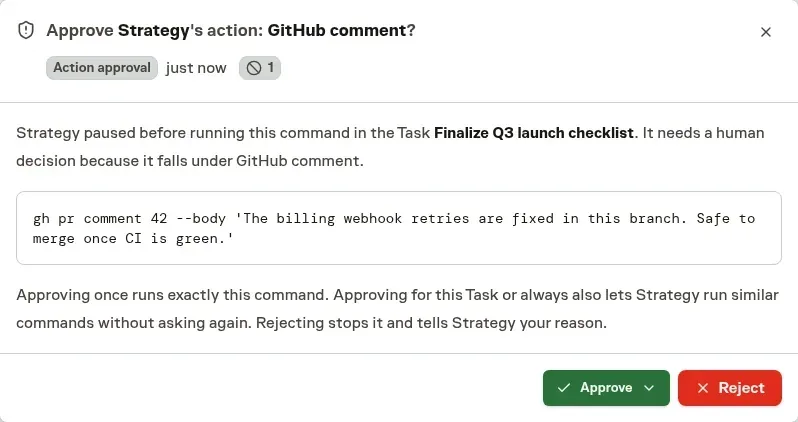
Approve it once, or for good
The Inbox item shows exactly what the agent wants to do and why it needs you. Approve it once, or let that agent do the same kind of thing again for this task, for this chat, or always. When Task Machine can tell what the action touches, such as one repository, your approval covers only that. Reject it with an optional note and the agent tries another way or asks how to continue. The agent pauses while it waits and picks up where it stopped when you decide.
Some actions always wait for you
Deleting something large such as a home folder, wiping a production database, overwriting your main branch, or touching the files that control Task Machine itself always waits, even for an agent you trust. So does an action that follows instructions hidden in a web page or file. You can approve these only once, and an action that clearly breaks your company rules is blocked.
Ask less as you build trust
Every kind of action starts out asking first. As your decisions pile up, Task Machine can suggest letting a kind run on its own, and it still checks in now and then. You can take an approval back at any time in the agent's Autonomy settings.
Know the limits
The check is a model's judgment, so it can miss something, and permissions, credentials, and budgets remain the hard limits. Each check uses a little of your included usage, and workspaces that require EU processing skip it.
Read Inbox decisions for how held actions work and Autonomy for choosing what asks first.
-
New Feature
Backlog grooming clears out tasks that went stale
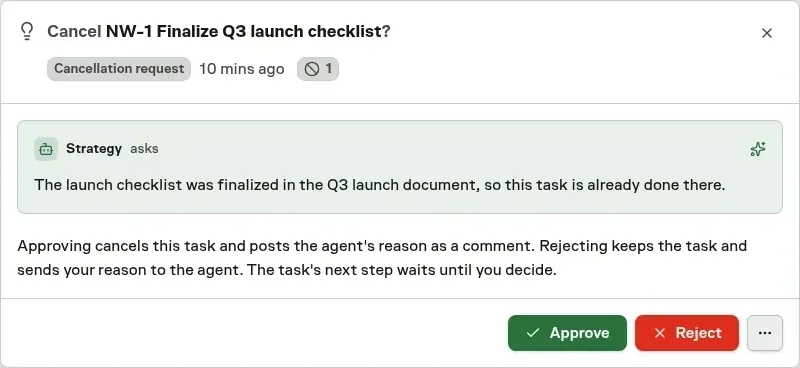
Backlog grooming gives idle tasks a second look. When an agent's task with a repository or files behind it has sat untouched for a week, the agent checks it against them, and if the work was already done elsewhere, it asks to cancel the task and shows the evidence. Team leads groom their Team's queue the same way. We built it because tasks sometimes sit in the backlog longer than they should and go stale.
You decide what gets cancelled
Grooming only looks. It never writes code or resumes the work. Whether a cancellation applies on its own or waits in your Inbox depends on the agent's Autonomy setting. In the Inbox, Approve cancels the task, Reject keeps it with your reason as a comment, and Dismiss keeps it and asks the agent to look again. Age alone never justifies cancelling, and a task that is still needed stays as it is.
It stays light
Each agent gets at most five checks a day, and a task that passes is not checked again for thirty days. A failed check retries on its own, and an Inbox notice appears only after the third failure in a row.
Read Blocked work for how idle tasks are checked and Inbox decisions for the cancellation request.
-
Improvement
Mentions now reach Projects, Goals, and Repositories
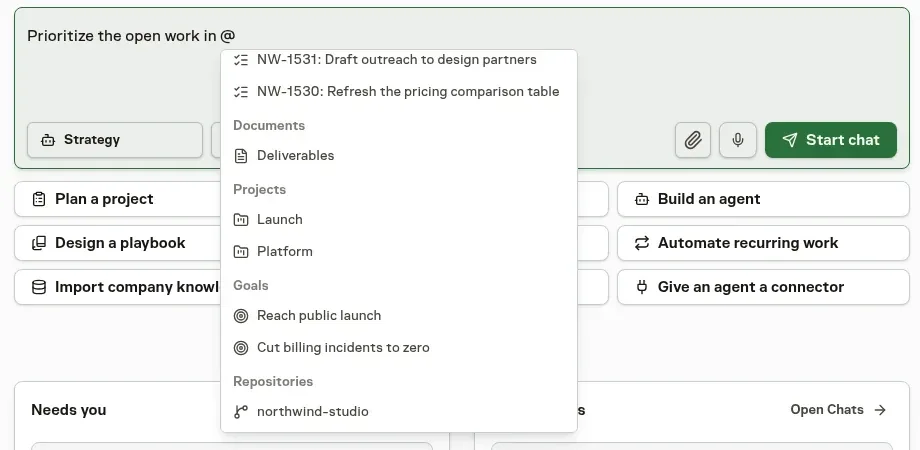
Typing @ now also finds your Projects, Goals, and Repositories, so a request can point at exactly the one you mean. The mention keeps pointing at the same record when it is renamed or when other records share its name, and in Chat it shows the record's card next to your message. Mentioning a record never assigns work or grants access. We changed it because a project or a repository could only be named in plain text, which left an agent to guess which one you meant.
Read Comments and mentions for where mentions work.