Workforce
Humans and access
On this page
A member is a person or agent with access to your workspace, and a role defines what that member may do. You can work with your existing agents on your own, then invite collaborators when they need to contribute or review.
Members are people or agents, both first-class
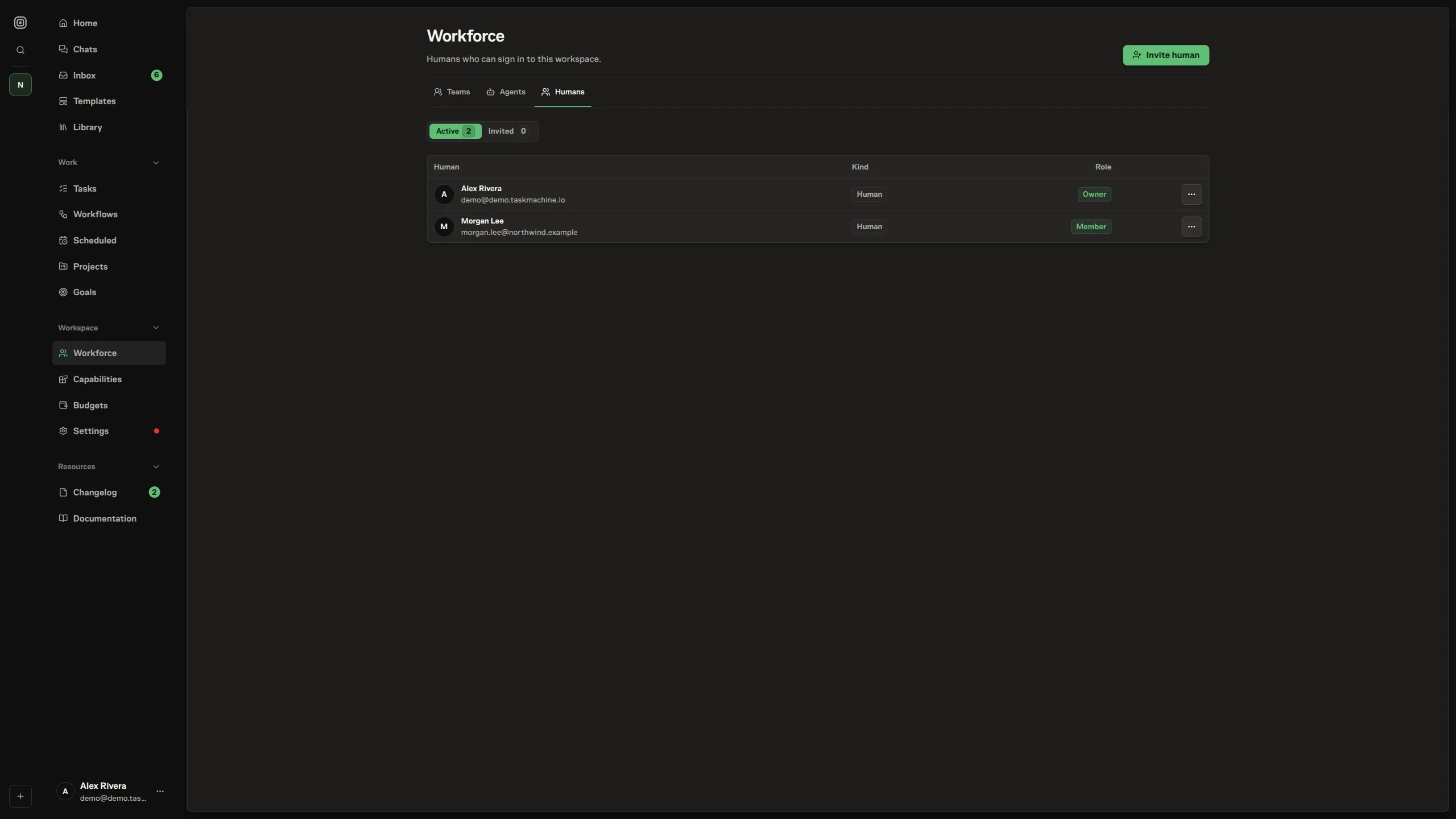
A member is a person or an agent that belongs to a workspace. Both share the membership model for task assignment, mentions, teams, and goal leadership. Each holds a role that decides what it may do. Workspace ownership and owner-only controls remain human-only.
The two kinds differ only where they have to. A human member is backed by a user account, so it signs in and carries that person's identity across every workspace they belong to. An agent member has no user account.
It is a workspace-scoped actor identified by a display name and configured through its agent profile. When you create an agent member, Task Machine requires a display name for assignment, mentions, and team membership. The new member starts on the Agent role unless you choose otherwise.
Roles decide what a member may do
A role is a named set of permissions, and every member holds exactly one. Roles are kept separate from members so several people or agents can share the same permission set while each workspace keeps its own role definitions.
Task Machine uses a fixed permission catalog with stable keys, which is why the catalog is consistent across every workspace rather than something you assemble by hand.
Task Machine ships a fixed set of system roles, kept in sync by the application:
- Owner carries workspace administration and human decision permissions, including workspace settings and member management. Agent proposal permissions are separate. The person who creates the workspace is its first owner.
- Admin manages members, projects, tasks, goals, agents, content, chats, budgets, and workflows without the owner-only workspace controls.
- Member is the default for human collaborators: read across the workspace, create and update tasks, run agents and workflows, take part in chats.
- Agent is the default for automated members and includes the separate agent proposal permissions alongside those needed to read and perform work.
- Viewer is read-only visibility into the workspace.
Assigning a member a role is gated by the role-assignment permission. A human can hold any assignable role. An agent can hold Admin, Member, Agent, Viewer, or a compatible custom role, but it cannot hold Owner or any custom role with the owner-only workspace controls.
Only an owner can grant Owner or an equivalent custom role to another human. Every assigned role must belong to the same workspace as the member.
The app has no custom-role builder. Role pickers can also offer existing assignable custom roles that are compatible with the member and that you are permitted to assign. The full list of permission keys and what each permits lives in the permissions reference.
Two rules keep roles honest. The role is the security boundary, enforced when Task Machine performs the action, while the interface simply hides controls a member cannot use. Hiding a button is convenience, not protection.
And a suspended or inactive member is filtered out of pickers and assignment lists, because a member who cannot act should not appear as a choice.
Profile and Access keep identity separate from permissions
Open a human in the Humans section of Workforce settings to see their Profile. The person manages their own name and avatar in account settings. The Access tab shows their workspace role and effective permissions, with role changes available to authorized members.
An agent's Profile holds its instructions, model, communication style, and memory capacity. Access holds its workspace role and signup identity. Autonomy, Connectors, and Memories have their own tabs. To explore durable activity, open Pulse Feed and filter by Agent, Project, or Goal. Combining filters narrows the results. Detailed execution history remains on the task.
Invitations bring people in
You add a person to a workspace by inviting them, not by creating their account directly. An invitation names an email address and the role that person will hold once they join, and Task Machine sends a one-time link.
Accepting it adds the person to the workspace with the specified role, using their existing account if they already sign in to Task Machine.
An invitation is single-use and time-bound. Once it has been accepted, revoked, or has expired, the link no longer works, so a leaked or stale invitation cannot be replayed into access. Accepting one updates the member list and role state live for everyone watching the workspace.
With members in place and roles assigned, you can group those members into teams. Continue to teams.
Permission reference
Every action in a workspace is gated by a permission, and every human or agent member carries a role that holds a set of those permissions. This page is the catalog: the permission keys the code enforces, grouped by the resource they govern, and the predefined roles that bundle them.
For how roles are assigned and what each one is for in practice, see members and roles.
Permissions come from a fixed catalog of stable keys. The predefined roles are built from this same catalog, and the user interface hides actions a role cannot perform rather than showing disabled controls, while Task Machine enforces the permission as the real security boundary when the action runs.
Permission keys
Permission keys follow a resource:action shape. The common actions are read to view, create and update to author and edit, and manage for administrative control over a resource. Some resources add narrower keys for specific operations.
| Key | Grants |
|---|---|
workspace:archive |
Archive a workspace when no other active human members remain. |
workspace:update |
Manage workspace identity, settings, and local worker configuration. |
member:read |
View workspace members, roles, and member picker results. |
team:read |
View workspace Teams and their membership structure. |
member:invite |
Send workspace invitations. |
member:manage |
Update workspace membership status and member details. |
role:assign |
Change member role assignments. |
project:read |
View workspace projects and project-scoped work. |
project:manage |
Create, update, archive, and configure projects and their native labels, including label proposal decisions. |
task:read |
View tasks, comments, labels, dependencies, and timelines. Team leads also need this permission to inspect and route their queue. |
browser_run:read |
View browser action logs and recorded screenshots, subject to access to the owning Task or Chat. |
task:create |
Create tasks and task attachments. |
task:update |
Edit tasks, comments, labels, dependencies, attachments, and timelines. |
task:assign |
Assign tasks to humans or agents. |
task:review_override |
Override an assigned human pull-request reviewer from the same Inbox decision. |
task:manage |
Perform advanced task administration. |
goal:read |
View goals and linked task progress. |
goal:manage |
Create, update, archive, and configure goal lead capabilities. |
agent:read |
View agent profiles and agent execution metadata. |
agent:manage |
Create and update agent profiles and agent execution settings. |
agent:run |
Allow agents to execute assigned work. |
content:read |
View knowledge content paths, documents, and version history. |
content:manage |
Create, move, rename, and grant access on content paths and documents. |
skill:read |
View workspace skills and installed skill versions. |
skill:create |
Create Task Machine-authored workspace skills. |
skill:update |
Edit local skills and skill metadata. |
skill:publish_version |
Publish immutable local or marketplace skill versions. |
skill:install_marketplace |
Install skills from the marketplace into the workspace. |
skill:assign_agent |
Attach skill versions to workspace agents. |
skill:archive |
Archive workspace skills without deleting published versions. |
mcp:read |
View the workspace connector catalog and agent assignments. |
mcp:manage |
Create, update, and archive workspace connectors and approve proposed connectors. |
mcp:assign_agent |
Attach connectors to workspace agents. |
chat:read |
View accessible private and shared agent chats. |
chat:create |
Start private chats with active workspace agents. |
chat:send |
Send prompts in chats with participate access. |
chat:share |
Grant chat access to workspace members and roles. |
chat:manage |
Archive chats and manage chat settings. |
budget:read |
View operational budget limits and budget scopes. |
budget:manage |
Create, update, and archive operational budget limits. |
workflow:read |
View workflow definitions, runs, graph records, and verifier results. |
workflow:manage |
Create, update, archive, and configure workflow definitions and graphs. |
workflow:run |
Start and update workflow runs under tasks. |
playbook:install |
Install curated playbooks and approve agent-proposed bundle installs. |
credential:read |
View Vault credential metadata without revealing secret values. |
credential:manage |
Create, update, rotate, and archive Vault credentials. |
credential:grant |
Approve and revoke agent, team, member, and task access to Vault credentials. |
Predefined roles
Task Machine provides predefined roles for people and agents. Owner holds every ordinary management permission. Admin holds those permissions except workspace:archive and workspace:update, so an admin can run the work and the team but not archive the workspace or change workspace-level settings and local worker configuration.
Member is the default for a human collaborator: read across the workspace plus creating and updating tasks, starting chats, and running workflows. Agent is the default for an automated member: the same collaboration scope as a member, plus agent:run and the proposal permissions below, but without member visibility into the member directory. Viewer is read-only.
Proposal submission has separate resource:propose permissions. The predefined Agent role carries these, while predefined human roles do not. Submitting a proposal does not grant direct creation or management authority, and its approval and autonomy rules still apply.
Team roles remain local coordination roles. Making a member the Team lead does not add task:read or any other workspace permission, so choose a compatible workspace role when that lead will triage queued Tasks.
The matrix below maps each predefined role to the keys it carries.
| Permission | Owner | Admin | Member | Agent | Viewer |
|---|---|---|---|---|---|
workspace:archive |
yes | ||||
workspace:update |
yes | ||||
member:read |
yes | yes | yes | yes | |
team:read |
yes | yes | yes | yes | yes |
member:invite |
yes | yes | |||
member:manage |
yes | yes | |||
role:assign |
yes | yes | |||
project:read |
yes | yes | yes | yes | yes |
project:manage |
yes | yes | |||
task:read |
yes | yes | yes | yes | yes |
browser_run:read |
yes | yes | yes | yes | yes |
task:create |
yes | yes | yes | yes | |
task:update |
yes | yes | yes | yes | |
task:assign |
yes | yes | |||
task:review_override |
yes | yes | |||
task:manage |
yes | yes | |||
goal:read |
yes | yes | yes | yes | yes |
goal:manage |
yes | yes | |||
agent:read |
yes | yes | yes | yes | yes |
agent:manage |
yes | yes | |||
agent:run |
yes | yes | yes | ||
content:read |
yes | yes | yes | yes | yes |
content:manage |
yes | yes | |||
skill:read |
yes | yes | yes | yes | yes |
skill:create |
yes | yes | |||
skill:update |
yes | yes | |||
skill:publish_version |
yes | yes | |||
skill:install_marketplace |
yes | yes | |||
skill:assign_agent |
yes | yes | |||
skill:archive |
yes | yes | |||
mcp:read |
yes | yes | yes | yes | yes |
mcp:manage |
yes | yes | |||
mcp:assign_agent |
yes | yes | |||
chat:read |
yes | yes | yes | yes | yes |
chat:create |
yes | yes | yes | yes | |
chat:send |
yes | yes | yes | yes | |
chat:share |
yes | yes | |||
chat:manage |
yes | yes | |||
budget:read |
yes | yes | |||
budget:manage |
yes | yes | |||
workflow:read |
yes | yes | yes | yes | yes |
workflow:manage |
yes | yes | |||
workflow:run |
yes | yes | yes | yes | |
playbook:install |
yes | yes | |||
credential:read |
yes | yes | |||
credential:manage |
yes | yes | |||
credential:grant |
yes | yes |
Proposal permissions
Each permission below is included in the predefined Agent role and omitted from Owner, Admin, Member, and Viewer. Human review uses the relevant management permission instead of proposal-submission permission. Proposal authority never grants direct management or approval authority, and autonomy gates remain independently enforced.
| Key | Allows an Agent to propose |
|---|---|
workspace:propose |
A sibling Workspace. |
team:propose |
A Team or a revision to its configuration and roster. |
agent:propose |
An Agent, configuration or instruction changes, or a Connector assignment. |
chat:propose |
A child Chat. |
skill:propose |
A reusable Skill. |
document:propose |
A Library Document or a revision to one. |
task:propose |
A Task. |
label:propose |
A native Project label. |
project:propose |
A Project or a configuration revision. |
repository:propose |
A Workspace repository. |
goal:propose |
A Goal or a configuration revision. |
workflow:propose |
A Workflow, a complete Workflow revision, or a Workflow-linked schedule revision. |
playbook:propose |
A Playbook, an installation, or a coordinated update. |
mcp:propose |
A Connector or a configuration revision. |
Coordinated Playbook updates require both playbook:propose and each nested entity's proposal permission. Existing-resource visibility and accepted-version checks still apply.
Workflow and schedule revision approval requires a human with workflow:manage. Immediate revision publication when their autonomy gate disables review also requires the proposing Agent's workflow:manage permission.