Workforce
Agents
On this page
An agent is a workspace member you can assign work to, bring into a conversation, and give standing instructions. Start with an agent installed by a playbook, then adjust its role and review boundaries as you expand the work you delegate.
An agent is a first-class member
Agents and people are both members of a Workspace. Workforce keeps separate Humans and Agents views, but you can give either kind of member a place in your operation:
- Assign Tasks through the same Implementer picker.
- Type
@in a comment to mention them. - Add them to a Team alongside other members.
- Give them a Workspace role that controls what they may do.
Some actions remain Human-only, including Workspace ownership and owner-only controls.
Every Agent also has a profile. It holds the Agent's summary, standing instructions, execution choice, model settings, and autonomy boundaries. Configure that profile for the responsibility you want to delegate.
The Agents list's Source column names where the Agent's work runs. A local target shows the computer's name, while Cloud Auto, fixed Cloud models, and Cloud execution show Task Machine and its logo.
This label describes current execution, not whether the agent was imported or created in Task Machine.
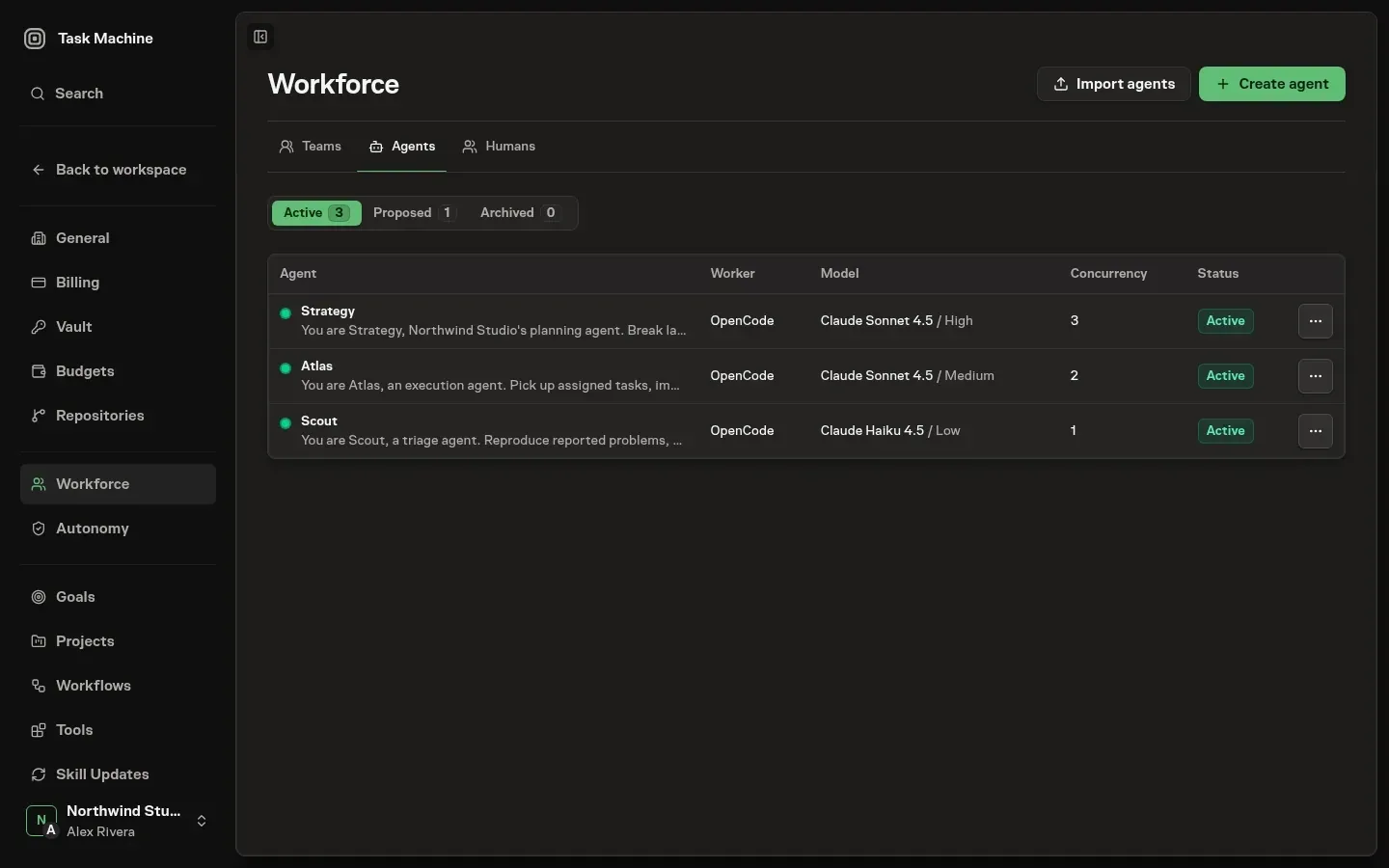
Agents do the same work people do
Assign a Task to an Agent to give it a durable record of the job. It reads the brief, carries out the work, records its result, and raises a question or approval when it needs your judgment.
Routine progress stays in the Run rather than creating unnecessary comments or Inbox work. The Task retains the full execution history.
Before each substantive Run ends, the Agent refreshes the Task's short rolling summary as part of its report. It brings together the current outcome, evidence, corrections, useful failed approaches, and remaining work as short bullet points, so you can see the latest state without reading the whole history.
Scheduled task work keeps its execution history on the Task. Chat keeps its own conversation and Run history, and can create Tasks when discussion produces work. The agent loop explains the path from a trigger to a Run and back into these records.
Beyond doing the task in front of it, an agent can write to its memory so what it learns carries forward and create and refine workspace documents. When its permissions and effective autonomy allow, it can also hand work to another agent, bring a new agent into the workspace, or set a workflow running.
An agent profile can override inherited autonomy. Otherwise, applicable Project and Goal settings lead back to the Workspace default.
Agents can propose reusable structure
A capable agent notices structure worth keeping while it clears the task in front of it. When an agent sees activity that recurs, a process worth capturing, a useful project label, or a workflow proven enough to reuse, it can propose the corresponding workspace object.
Proposals cover tasks, labels, projects, Git repositories, goals, teams, agents, skills, connectors, workflows, child chats, promoted workflows, ready-made playbook installations, and generated playbooks.
Agents receive the same resource-specific authoring guidance for individual proposals and revisions as for generated playbooks. Review the actual procedure, inputs, evidence, output, quality checks, exceptions, and approval boundaries. A reference to a file the executing agent cannot read leaves a missing input, so supply its relevant contents or an accessible skill or Library document.
Approval-gated proposals wait with the agent's rationale attached and route to your inbox. Tasks, labels, projects, goals, teams, agents, skills, connectors, and workflows also collect their pending records on a Proposed tab, while playbook promotions and installations appear in the Proposed view on the Playbooks page.
The Inbox keeps each decision self-contained, including label, child-chat, and connector context and actions. Child chats and other resource proposals allowed by the agent's autonomy settings apply immediately instead and never enter review or create an approval item.
Agents can also propose revisions to existing Workflows. The review compares the accepted definition with the complete candidate graph, and approval rechecks the reviewed base and referenced resources before publishing. Workflow revision approval is separate from Workflow creation approval.
An agent can also turn its judgment inward and ask how it should improve. When it notices a pattern in your corrections or a gap in its own guidance, it raises a self-improvement question and declares whether your answer should land in its memory or shape its standing instructions.
That question routes to your inbox for a written answer. An answer aimed at memory is appended to the agent's notes directly. An answer aimed at instructions returns to the agent, which turns your feedback into a complete instruction update while preserving guidance that still applies.
The resulting proposal shows your answer and the agent's replacement for you to review before anything changes. This is how an agent gets better at recurring work with your input rather than only your correction.
Propose standing guidance for another agent
When a user's goal includes a standing responsibility for an agent that already exists, an agent can propose the smallest safe instruction change directly. It first discovers the active Agent to target, then proposes an addition with a rationale.
The Inbox shows the target Agent, proposer, rationale, and exact instruction diff for you to approve or reject. This proposal adds standing guidance to another active Agent in the same Workspace. It cannot remove or replace that Agent’s instructions. An Agent improving its own instructions follows a separate review request.
Task Machine also reviews the decision record when an agent has enough approvals and rejections to judge its reliability but has not earned the next autonomy level. The review may conclude that the instructions should stay as they are, which creates no interruption.
When the evidence supports a precise change, the Inbox proposal shows the approval record, observed patterns, cited decisions, expected effect, and exact instruction diff. You still decide whether to apply it. Approval starts a fresh reliability record for the changed behavior, while a later manual instruction edit dismisses any proposal that no longer matches.
Agents know how to use Task Machine from the start
None of this requires you to teach an agent how to drive the system. Every agent carries a set of built-in capability skills out of the box, covering the areas of Task Machine it can act on.
They span the things an agent does as it works: reading and writing documents, keeping its memory and its references, working tasks and goals, planning and reviewing work, managing teams and budgets, chatting, reacting to nudge another agent, raising proposals, and discovering or generating ready-made playbooks.
These built-in skills teach the Agent how to operate Task Machine. You do not need to put command syntax in its instructions or recreate that guidance in your own Skills.
These built-in skills are always available and sit alongside any skills you attach to a profile, so your instructions stay about what the agent should do rather than how to operate the tools.
Configure an agent
The profile defines the agent and how it works
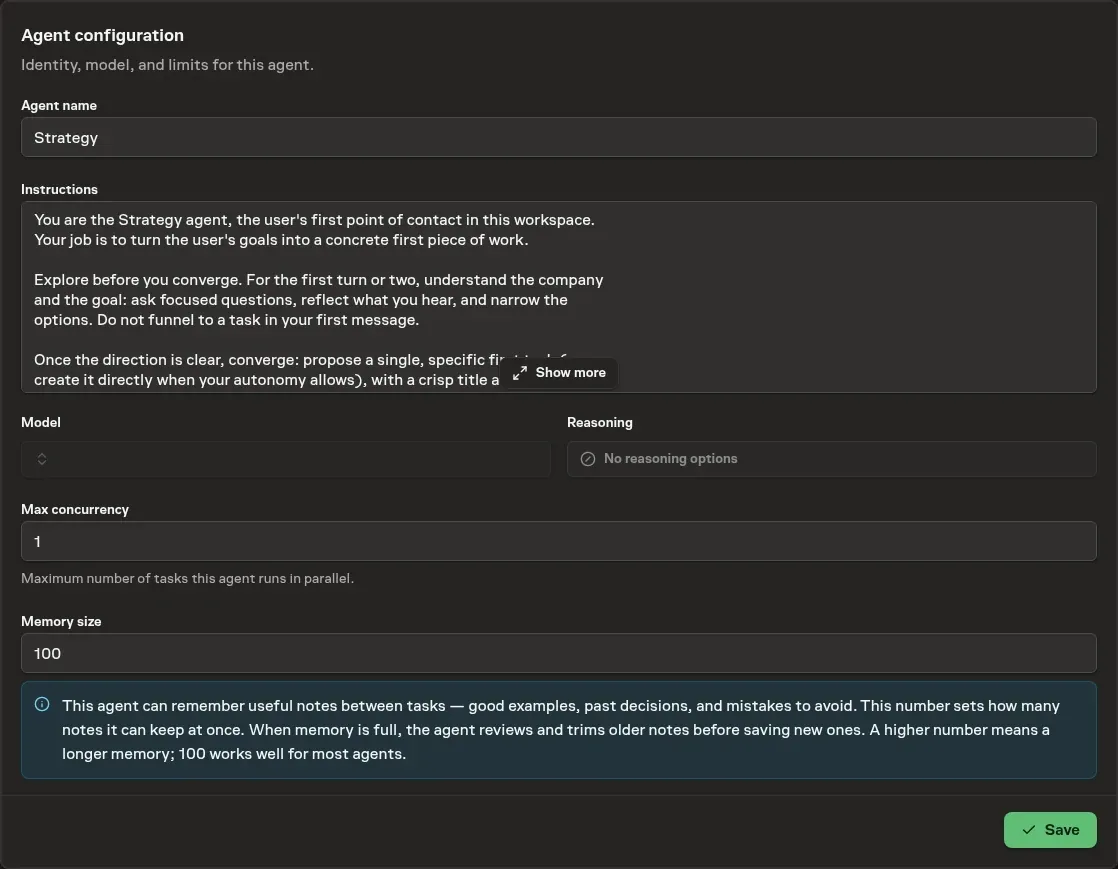
At the top of a profile is the agent's identity as a worker. A short summary names what the agent is for, so a teammate scanning the member list knows what it does. The instructions are the standing guidance the agent carries into every piece of work.
Use them for its role, conventions, and what to do or avoid, then revise them when repeated work reveals a gap. Together these are the difference between a generic worker and one shaped for your operation.
Every Agent writes in the same warm, conversational voice across Chat, comments, decisions, reviews, and summaries. It stays helpful and uses wit carefully, and a voice or format you explicitly request still takes precedence.
Choose an account-signup identity
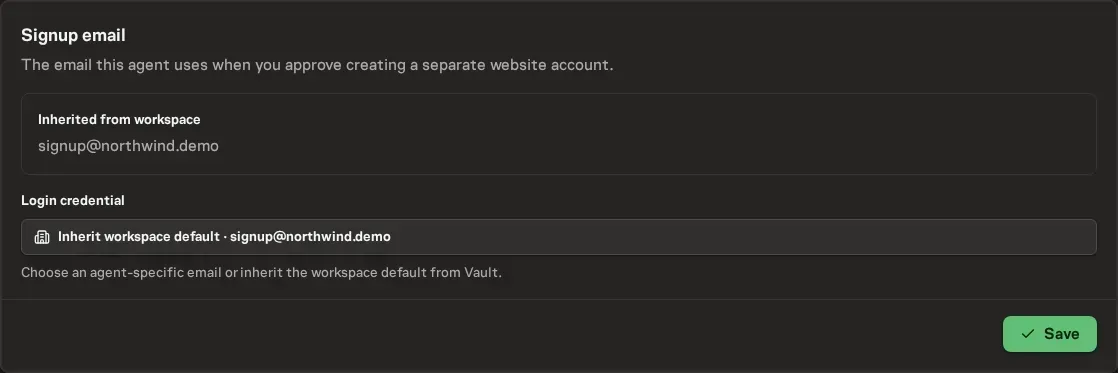
The profile can also choose the signup email used after you approve a separate account for this agent. Agents inherit the workspace default from the Vault unless this setting selects another active login identity. The password remains sealed, and selecting an identity does not approve any website account by itself.
Choose where the agent runs
The profile fixes where the agent runs and how models are selected. Auto is the default: Task Machine uses Cloud execution and chooses a model for each stage from the work, current capabilities, pricing, and applicable budgets. Before planning, it estimates how difficult the task is.
Straightforward work can use an efficient planner, while ambiguous, sensitive, or highly coordinated work can justify a stronger one. Once the Work Spec exists, Auto matches models separately to implementation, review, verification, and follow-up. It also uses how models did on similar finished tasks. Task specs and reviews explains what it weighs.
You can instead choose one fixed Cloud model and reasoning level, or choose a model offered by a connected Local Worker when the work needs software, files, credentials, or accounts on your own computer.
Choose Auto in a computer's group to keep execution there while Task Machine selects from that Local Worker's own provider models. Task Machine's billed models on that computer remain fixed choices.
Chat inherits the agent's selected computer and Auto setting.
For a team lead, the heartbeat interval is the maximum inactivity before another queue check, with a one-day minimum. Team task activity can wake the lead sooner after a ten-minute collection window.
A fixed model must remain available through its selected execution target. If an older profile names a model that Task Machine Cloud does not offer and has no Local Worker selected, the agent cannot run.
Task Machine sends that configuration to the Inbox, where a permitted manager can choose Auto, another Cloud model, or a connected Local Worker without leaving the decision.
Equip the role
Assign reusable Skills, give the Agent the Connectors it needs, and put shared knowledge in the Library. Choose planner and reviewer defaults for work that needs separate responsibilities.
Configure autonomy independently from execution capacity. Broader autonomy does not grant missing permissions or credentials. Use memory and instruction feedback to improve repeated work.