Start Here
Onboarding
The guided path from a workspace and first Goal to a playbook, cloud plan, and Strategy chat.
Onboarding turns a new account into a workspace with one concrete Goal, a first playbook, cloud capacity, and a Strategy chat ready to help you decide what to do next. Direct onboarding follows Workspace, Goal, Playbook, Plan. A playbook selected on the public site already supplies its own Goals and Projects, so that route uses the shorter Workspace, Playbook, Plan path.
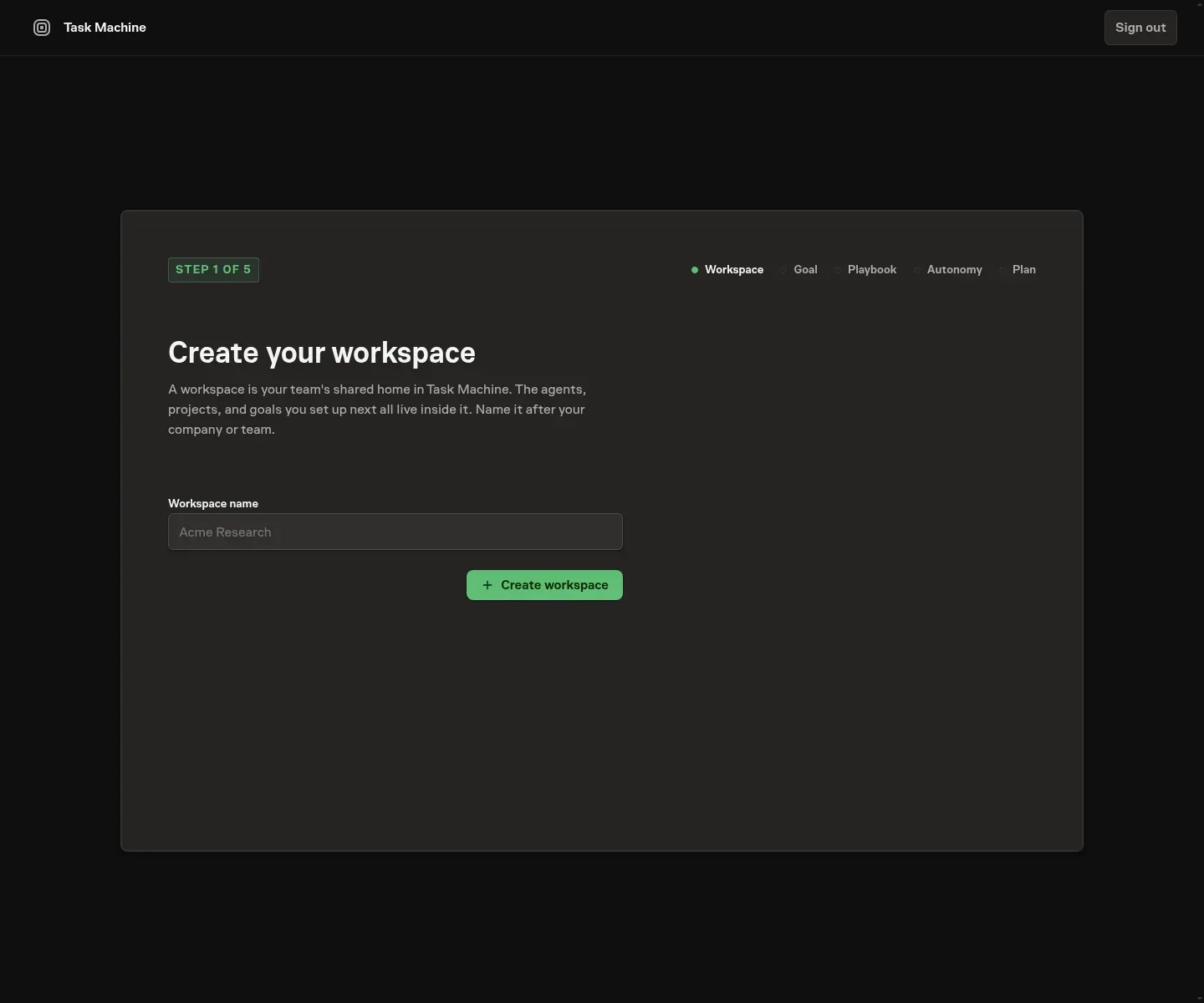
Create your workspace
The first step creates a workspace, and whoever creates it becomes the owner. Give it the name of the project, team, client, organization, or other operating context it represents. You provide the actionable detail on the Workflow or Goal step instead of completing a generic workspace profile.
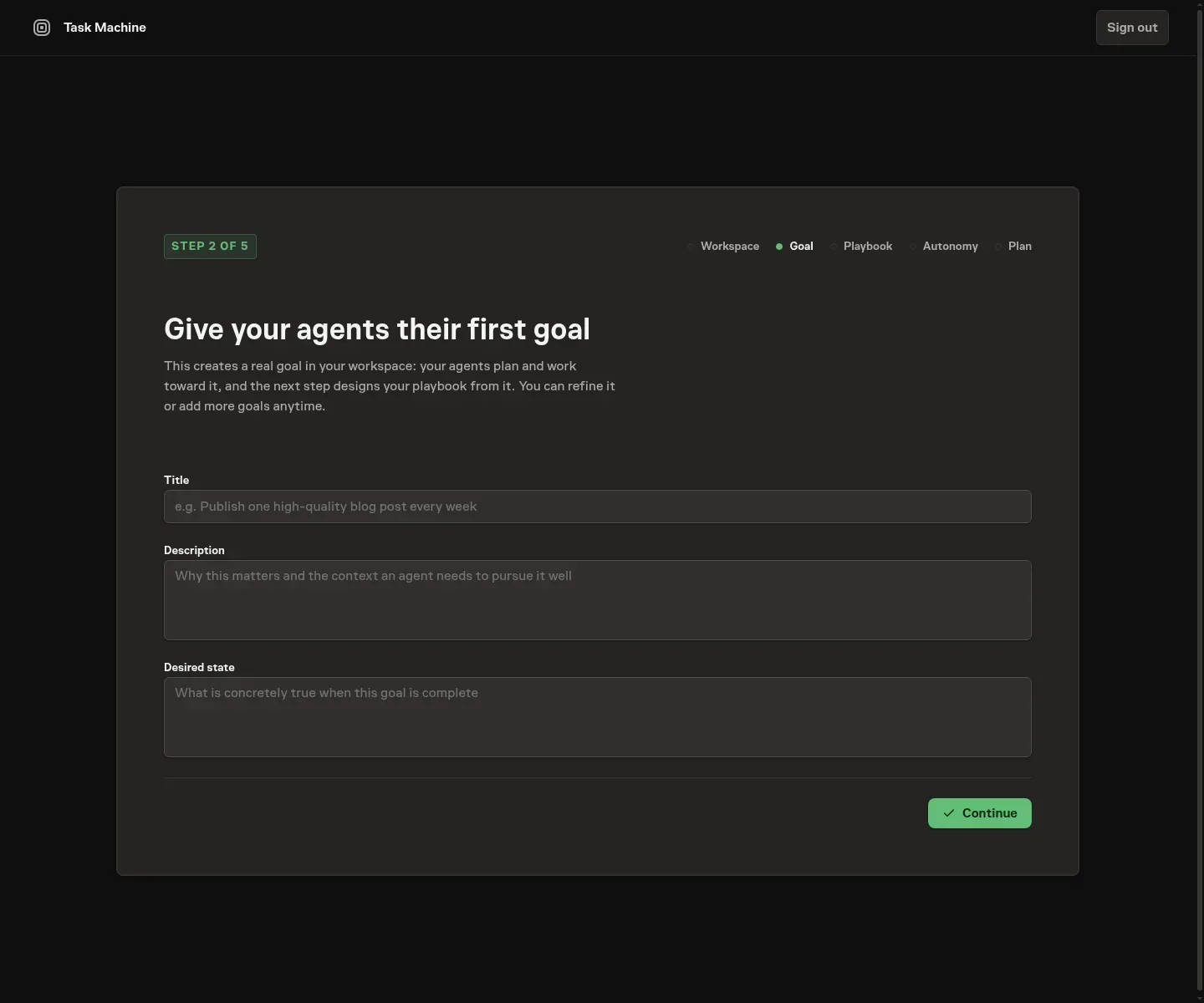
Describe what to automate first
The Goal step asks for a title and required Description covering one repeatable process or outcome. The form explains which process, inputs, dependencies, constraints, and success details help Task Machine produce a useful design. Task Machine stores the answer as a real workspace Goal so the first playbook and its agents keep that direction after setup.
You can select any Connectors the work must use. These are requirements for the generated design, not automatic installations or account authorizations. Task Machine will not silently remove, replace, or add to the services you select. If you select none, it can suggest suitable Connectors from the registry based on the work.
Before anything is saved, Task Machine reviews the title and Description using the workspace identity and required Connectors. It proposes clearer wording and fills relevant context gaps in a clean, editable suggestion. You can adjust the complete Title and Description before applying them or keep what you wrote. Selected Connectors remain unchanged. Choose Use suggestion or Continue as written. A strong input still waits for your explicit confirmation.
Review the first playbook
A playbook packages a repeatable job with the agents, context, and workflow needed to run it. Direct onboarding designs one from the work you just described. You review the complete proposal and choose what to install before any work is created. A playbook carried from the public site opens directly in this review step.

The playbooks guide explains how installed bundles become recurring work.
Select cloud capacity
The final setup step compares Growth and Scale with monthly and yearly billing. Every workspace completes Stripe Checkout and starts with a seven-day trial of the selected plan. A first workspace pays a $1 or €1 signup fee. An eligible additional workspace has that fee waived but still provides a payment method.
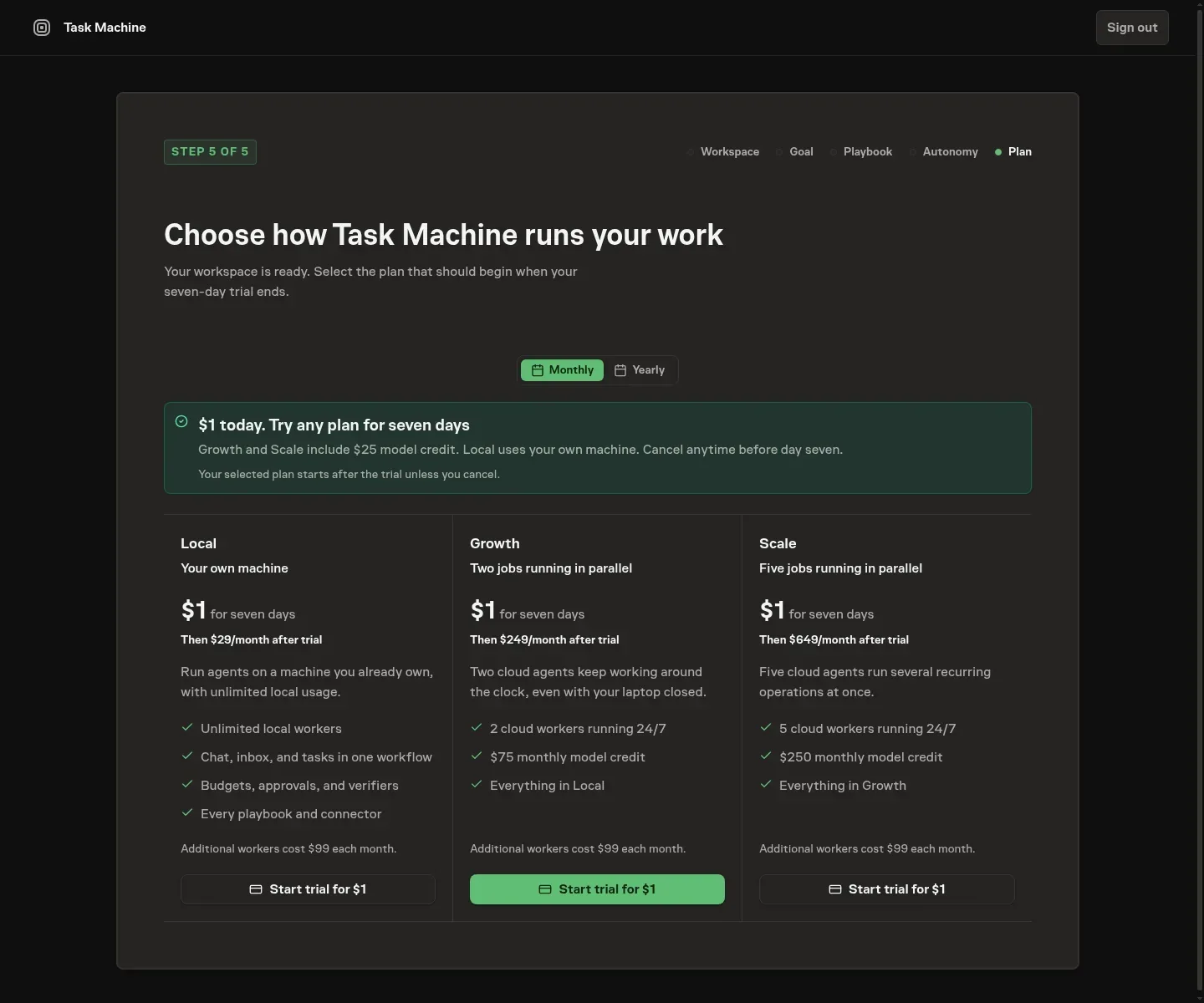
Growth and Scale trials include $25 or €25 of model credit. When the paid subscription begins, its normal included credit replaces the trial allowance. Local remains available from Billing after onboarding for work that should run only on machines you connect. The plans and trials guide covers prices, credit behavior, cancellation, and private-beta limits.
After Checkout confirms the subscription, Task Machine waits for the cloud worker and Strategy agent to be ready. Setup failures stay visible with a retry action rather than sending you to a workspace that cannot run the opening conversation.
Decide the first work in Strategy chat
Onboarding finishes inside a seeded Strategy chat. It uses the Goal, required Connectors, and installed playbook to present five ordered recommendations. It identifies the recommended starting point, but it does not create tasks until you confirm what should happen.

From there, Chat remains the place to decide, the inbox carries approvals and questions, and Tasks shows the work in progress. How Task Machine works explains that operating loop, while Getting started covers connecting a local machine later when your work needs one.