Tools
Playbooks
On this page
A Playbook gives you a starting point for a job instead of asking you to configure each part yourself. In an active Workspace, choose a catalog starting point or describe the work in Chat, then review the proposed setup. A Playbook can support a one-off responsibility or recurring work.
Choose the smallest structure that fits
Start with the smallest structure that carries the work clearly. Add a broader setup only when the job needs reusable steps or supporting resources.
| Use | Choose it when | What it gives you |
|---|---|---|
| Task | You need one result with one durable owner and history. | One job to assign, steer, review, and complete. |
| Workflow | The work needs explicit steps, branches, verification, or approval, whether it runs once or repeats. | One visible process that a Task can run. |
| Workflow playbook | You already have the Agents and supporting resources, and you want to copy one proven Workflow. | An editable Workflow draft without the broader job setup. |
| Catalog Playbook | A published setup closely matches the responsibility you want to operate. | A reviewed bundle that can include Agents, a Workflow, Skills, documents, a Goal, Connectors, and a schedule. |
| Generated Playbook | You want an Agent to adapt a catalog starting point or design a setup from your requirements. | A custom bundle checked against the supplied requirements and subject to the applicable approval rules. |
A Task is still the durable record for each job that runs. A Workflow defines the process, while either kind of Playbook helps you create reusable process and supporting setup without assembling every record separately.
A generated Playbook can consist of one Agent with directly assigned recurring Tasks, without a Workflow or extra reviewer. When the design includes Workflow agent steps, those steps still require a different Agent to verify their results.
Choose by the job and expected result
Read the guides: each one covers a recurring job, the catalog Playbook that sets it up, and the expected outcome, and its Set up this playbook button starts that Playbook's setup. Inside your Workspace, search the command center for the work you want and choose Set up on a matching Playbook, or describe the work to an Agent in Chat: it sets up a Playbook, starting from a catalog one when it fits, and proposes it for your approval. Design a playbook opens that request ready to edit. Start with a responsibility you already understand well enough to supervise, such as a research brief or recurring status report.
The Daily standup reporting Playbook combines an agent, a goal, a format document, a published Workflow, and a recurring schedule. That setup lets you inspect and adapt a concrete process. It does not mean a report has already run or been delivered.
Anyone can read the guides. Starting a Playbook requires workspace-management, Playbook-installation, and Chat access. Creating credentials, Repositories, or Connectors through secure forms requires the corresponding permission. Selecting an existing resource still requires access to it.
Review the job before starting
Choosing Set up this playbook on a guide, after signing in if needed, or a Set up result in the command center, opens a setup Chat for that Playbook. The Playbook's card sits above an editable request naming the Playbook and its expected outcome. Edit the request and send it when ready. Opening it does not submit a message, install resources, or start work. This is ordinary Chat, with its selected execution environment and normal Workspace usage.
Describe the result, relevant services, approval boundaries, and timing. Answer the Agent's questions and correct any misunderstanding before approving a proposal. Suggested answers remain editable. Never paste credentials into Chat. Use the secure setup actions when access is needed.
Review the actual proposed Agents, instructions, Workflows, documents, services, and schedules. Check that they preserve your requirements, including actions that must wait for you. Proposal details and decisions stay available inside Chat. Installation applies the approved configuration together, without leaving a partial bundle on failure.
First-time onboarding uses a separate guided conversation with an explicit Start confirmation. It installs the exact reviewed proposal and, after Workspace activation, opens the first Task. Scheduled first work remains pending until its agreed due time. Opening that Task does not start it early.
Choose the execution settings deliberately
Catalog Agents use Auto by default. Review execution settings on the installed Agent profile when needed. An agent-generated Playbook proposes one Task Machine model, one model on a particular Local Worker, or Auto for each new Agent, together with its reasoning level and autonomy.
Before review, generated reasoning levels are matched to the selected model's advertised support. Supported values stay exact, including xhigh. An unsupported level uses the highest supported level not above it, or the model's lowest level when the request is below that minimum. A model without reasoning controls uses no reasoning level. An unrecognized, unsupported level must be corrected rather than guessed. The proposal shows the effective setting.
Approval preserves that proposed selection unless you explicitly replace it. A temporarily offline or rate-limited Worker does not by itself invalidate the configuration. A removed or disabled Worker, or a model or reasoning level it no longer offers, prevents approval until the changed requirement is resolved. Task Machine does not silently substitute another execution setting.
Agent profiles explains model selection. Usage and fees explains which costs belong to Cloud execution and which stay with your own tools and providers.
Generate a setup when the catalog does not fit
Design a playbook in the command center or among the Chat suggestions opens an editable, unsent Chat draft without a catalog selection. Describe the result you want and refine it through the conversation. Generation is a proposed setup, not evidence that the work has run.
You can also ask an Agent in an existing Chat to propose a Playbook. Both paths use that Chat's selected Cloud or Local execution environment. Generation reviews existing Workspace context so it can reuse suitable resources, identify the required Project, and select verified Repositories and Workers instead of inventing references.
Supply the relevant source contents when your requirements depend on a policy, voice guide, or operating method. A file path, URL, or reference to an earlier Chat does not give the generator that content. An agent can include what it has read, but the resulting instructions must also give the executing agent the requirements or point to a skill or Library document it can actually access. Missing contents or access need your input before that part of the work can proceed.
Before storing a generated proposal, Task Machine validates dependencies and Workflow connections. It uses canonical Connector registry settings, resolves reused Connectors, checks exact Goal due dates, and requires connected, cycle-free Workflow graphs with valid branch connections.
The generator also checks its design against the complete requirements you supplied. A mismatch allows one correction attempt. If the replacement still fails, the Agent receives the unmet criteria rather than a proposal to approve. These checks do not replace your judgment about whether the work fits your needs.
The proposed configuration remains available for later review by both the Agent and the human.
Distinguish direct installation from an Agent proposal
Choosing Start during onboarding approves that exact reviewed version. Ordinary Agent proposals follow the Workspace's applicable autonomy rules. When human approval is required, you can inspect and decide the proposal inside Chat or Inbox. Approval installs the bundle under the approving person's authority. Rejection records the decision without creating the proposed setup.
The proposal can stand up several related resources, so inspect the complete preview and its consequences. The Agent's ability to suggest a process does not grant it permission to install one. Inbox covers proposal review and resolution.
Complete setup before expecting work to run
Every newly created Workflow is graph-validated and published as an immutable active version inside the Playbook installation transaction. If any Workflow cannot be published, the complete installation rolls back. A reused Workflow remains on its existing active version. You can review the exact installed steps in the Workflow builder, and any later edit creates the usual new draft for review and publication. Installation creates no separate Workflow-publication Inbox request, and it remains neither a completed Run nor proof that recurring work is active.
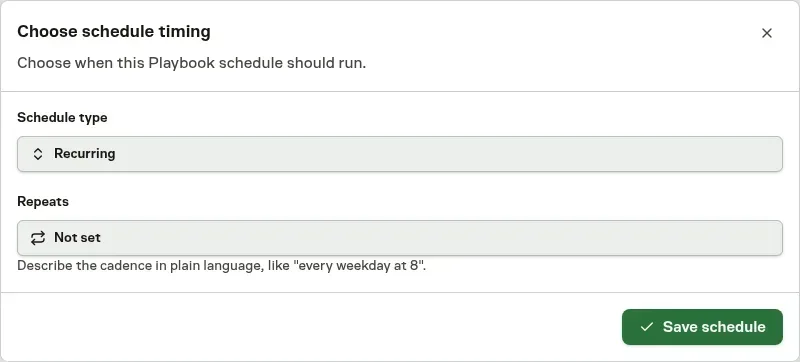
An installed schedule without a time or cadence shows Needs schedule, with its timing shown as Not set. Open its Inbox setup item and choose Set schedule to enter either a recurring cadence and timezone or a one-time date. Saving completes the schedule item inside Inbox.
You can also set timing from the Scheduled work page. Completing timing does not bypass an unready Connector or another execution requirement.
When a generated Playbook includes a Connector that needs setup, the installation summary identifies it. Setup opens the Connector's Details, Connection, authorization, and Verification flow without closing the summary. Skip returns without activating the Connector.
You can complete the work later from the summary or its Inbox setup item, subject to the required Connector and Vault permissions.
New schedules can inherit Connector requirements from reused Agents, Team leads, or Workflows. Any unfinished setup appears in Inbox, without adding those Connectors to the installation summary unless the Playbook explicitly includes them.
Approving a Playbook from Inbox opens the same installation summary. A schedule depending on an unready Connector can show Waiting for Connector setup. Completing the last required Connector releases that access-related hold while preserving the cadence. Check other requirements, including timing and approvals, before expecting a Run.
Workflow execution explains where Runs appear, when they pause, and how to review their results. From one Playbook to an operation helps you move from installation to dependable recurring work.
Reuse a Workflow without installing a whole bundle
A Workflow playbook is a narrower workspace blueprint. It duplicates one Workflow definition into a new editable draft, including its steps, configuration, and branch connections. It does not install the Agents, documents, Goals, or schedules around it.
Members who can manage Workflows can find these blueprints in Command center and duplicate one there. Use a catalog Playbook for the broader job setup, or a Workflow playbook when you already have the surrounding resources and want to reuse the process.
From installation to recurring work
Adapt one playbook before installing more
Choose a playbook for a job you already want done. A content workflow, for example, needs an audience, source material, a voice guide, and someone who will review and publish the result. Fill those gaps before judging the agent's output.
Inspect the installed resources and any schedules. Review the published Workflow before starting it, and create a new reviewed version if the installed process needs changes. Confirm the agent's effective autonomy, choose Supervised for unfamiliar work, and keep explicit approval steps before consequential actions. Check where the Workflow ends. If it produces an approved content draft, publishing that output still needs an owner.
Make the first cycles useful from the Inbox
Review configured approvals and answer questions in your Inbox. Give a specific reason when the output needs changes. Use Tasks for detailed steering when a job needs investigation, rather than opening every run as a daily monitoring habit.
Keep a small record of each cycle's usable output, corrections, recorded usage, and your own effort. Update the instructions or source guidance when a correction should apply again. Check the next result for evidence that the change helped. The process is settling when the handoff repeats without you rebuilding its context each time.
A clean record can justify less review of a particular action. It does not require raising autonomy or removing the final approval. Deciding when to trust agent output helps separate those choices.
Make shared guidance explicit
Save reusable corrections in Library documents, such as audience guidance, approved product facts, or a client reporting standard. Other agents can use those documents when their permissions and task context allow it. Each agent's memory remains separate.
For example, save an audience correction in the Library if both content and outreach should follow it. Reference the document in the new assignment and check that the next output reflects it. Do not assume installing another playbook transfers the first agent's private memory or makes all workspace documents relevant to every task.
Add an adjacent responsibility with a clear handoff
If a content workflow produces useful approved material, an outreach-drafting job can use that material as a source. A weekly report can summarize the results of both. Define what passes between them, when it is ready, and what the receiving agent should do when it is absent or out of date.
Installing related playbooks does not by itself connect their work. Inspect existing agents, documents, workflows, and schedules before adding more. A second schedule for the same responsibility can create duplicate drafts and decisions. Start each new responsibility supervised and assess its own results, even when it reuses familiar guidance.
An authorized agent can also make proposals for new work or changes to a workflow. The applicable autonomy gate determines whether the change waits for human approval or applies directly. Review the effective settings before relying on every proposal to wait in the Inbox.