Workforce
Team lead routing
On this page
Assign a Task to a Team with an Agent lead when you want the lead to decide how the work should be handled. The lead recommends a decision, explains its reasoning, and sends it to your Inbox when approval is required.
Give the Team responsibility
Choose the Team as the Task's Implementer instead of naming a member. The Task enters the Team's queue. A proposed Task joins that queue only after you approve the proposal.
Team assignment does not start every member or make the lead the implementer. It also grants no workspace permissions. The lead's workspace role must include Task read access to inspect and route queued work. If that access is missing, Task Machine pauses queue checks until a workspace administrator updates the role or selects another lead.
The lead normally coordinates the work, though it can take the implementer role when the Team has no other active Agent member.
A routing recommendation settles the Implementer, Planner, and Reviewer together, using explicit choices or the configured defaults. The Implementer must be an active member of the Task-owning Team. The Planner and Reviewer may be separate eligible active workspace members, so a specialist can plan or review Team work without becoming one of its implementers. See Assignments and dependencies for how those roles differ.
Review the recommendation
When approval is required, open Review triage in Inbox. You can inspect the lead's rationale, the proposed Task details, and each role assignment without leaving the decision.
In this demonstration, Strategy recommends Scout to plan the checklist changes, Atlas to implement them, and Alex Rivera to review them.
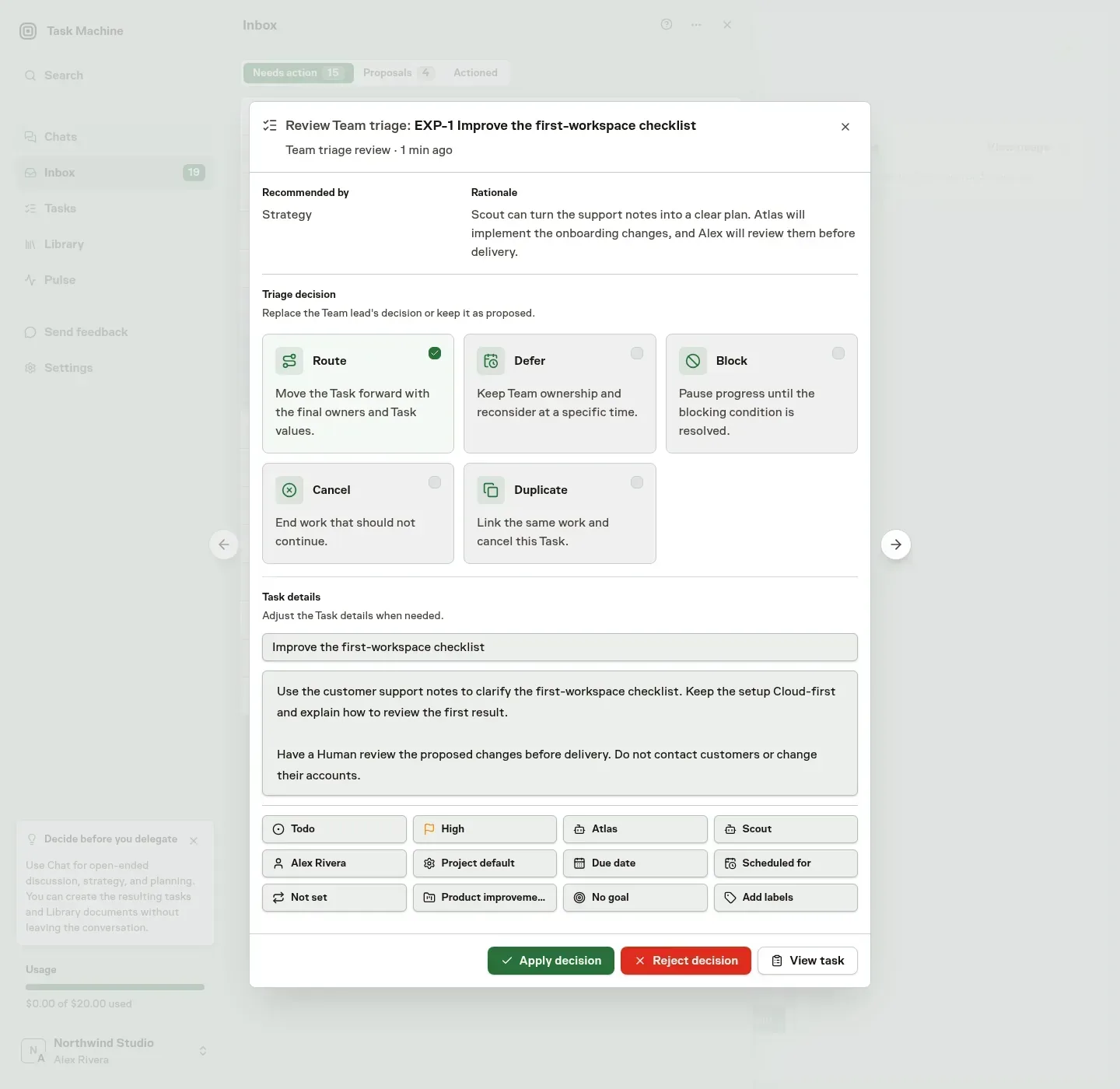
The Task remains owned by the Team while the review waits. The proposed member has not received the assignment yet.
Choose how the work should proceed
The lead can recommend more than a new owner. Review the consequence of the selected Triage decision:
| Decision | What happens when applied |
|---|---|
| Route | Applies the final Task details and assigns the work directly to the selected member. |
| Defer | Keeps Team ownership until the future Reconsider at time, when the Task becomes eligible for another check. |
| Block | Pauses progress with an actionable reason. See Blocked work. |
| Cancel | Ends work that should not continue. |
| Duplicate | Links the selected Tasks that already represent the work and cancels this Task. |
Before recommending a decision, the lead checks for plausible duplicates. Related work and regressions can still deserve their own Tasks. A Duplicate decision should identify the same underlying work, not merely a similar topic.
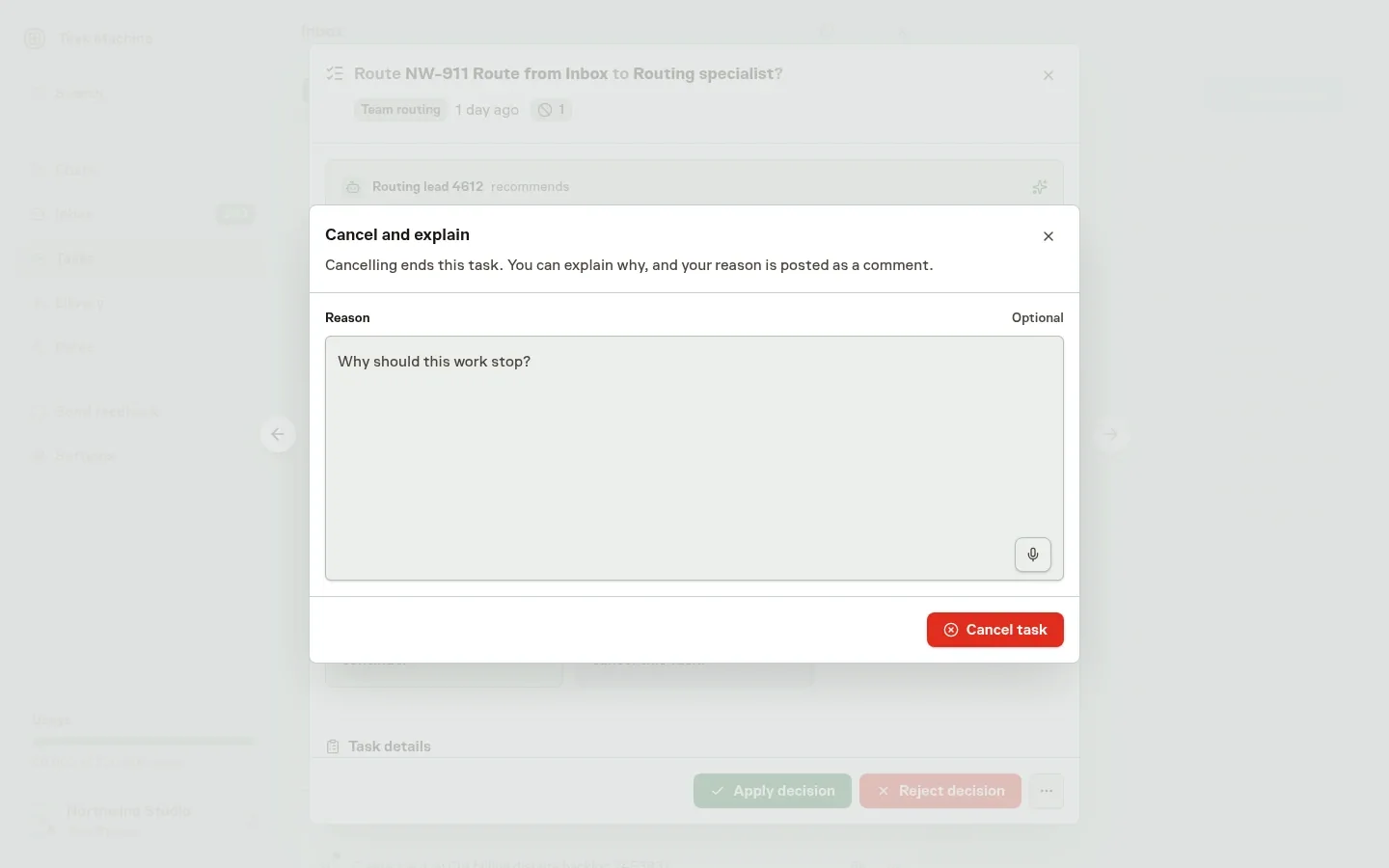
Reasons for a cancellation or block appear in the Task's Activity as comments. When the lead's Cancel decision stands, whether it applied automatically or you approved it, the lead's reason appears as the lead's comment. When your final decision is Cancel or Block, choosing Apply decision first opens a dialog like the one on the Task. It asks for a reason, which is optional. If you add one, it appears as your own comment. The lead's wording is never reused as the reason for a decision the lead did not recommend, and adding a reason does not count as correcting the lead.
Apply, adjust, or reject the decision
You can change the recommendation inside Inbox before applying it:
- Read the rationale and check the proposed Task details and owners.
- Keep the selected decision or choose another. For Defer, provide a future reconsideration time. For Duplicate, select the Tasks that already represent the work.
- Edit any Task details or assignments that need changing, then choose Apply decision to save your final choices and resolve the item. For a final Cancel or Block, the dialog that opens asks for your optional reason and applies the decision when you confirm it.
Choose Reject decision when the lead should reconsider, and explain why. Rejection leaves the Task unchanged and returns it to the lead's queue. Closing the modal does not apply the recommendation.
If the Task changes after the recommendation, applying the old review leaves the newer Task untouched, marks the obsolete review as superseded, and removes it from Needs action. The skipped review does not appear in Actioned.
Set the approval boundary
The effective delegation settings determine whether a routing recommendation waits for Human approval. When approval is not required, the decision applies automatically and is recorded. See Autonomy for the settings and their scope.
Each kind of routing decision (duplicate, defer, block, route, and cancel) builds its own record. As your approvals pile up, Task Machine proposes making that decision Automatic, and nothing changes until you approve it. Automatic decisions are still spot-checked, and Task Machine adjusts how often as the record changes. Rejected or heavily edited recommendations count against the decision they belong to and can propose returning it to Ask first.
Changing a routing decision's setting by hand, or switching the team between following its lead and its own settings, starts that decision's record over.
Applying a route makes the Task a direct assignment. It still follows the selected member's normal behavior and any planning, approval, dependency, access, budget, and execution-capacity requirements. Routing approval does not approve the Work Spec or the finished result.
An eligible Human can also claim Team work directly. That is separate from an Agent lead's routing recommendation.
When the lead checks work
Agent leads collect Team-owned Task activity for ten minutes before checking the queue. Their configured heartbeat interval also provides a backstop after at least a day without a check-in.
The lead works through the queue by priority and age, considering blocked work, how busy members are, and the active Goals.
Pending routing reviews and deferrals that are not yet due stay out of ordinary queue checks, so a waiting decision does not produce repeated requests.
After normal triage, the lead performs a Backlog review of up to twenty Team-owned Tasks whose routing reviews have waited at least seven days without Task, comment or Run activity. A successful check starts a thirty-day wait before the next backlog review. A failed heartbeat leaves the Tasks eligible for another attempt.
If the work is still needed, nothing changes and no reminder appears. If current evidence shows it was fixed elsewhere or is no longer needed, the lead can replace its recommendation. The old review leaves Needs action, and the replacement follows the Team's current approval settings. Cancellation records the lead's evidence as a comment when applied. Age alone never justifies cancellation.
Each heartbeat runs where its lead Agent is configured: Cloud or the selected Local Worker. Cloud check-ins use the workspace's ordinary usage and Cloud Run capacity, without occupying a Task slot. See Cloud execution for retained Team files and their storage controls.
Task Machine does not start another heartbeat while one is active.
A failed check-in retries on its own: after five minutes, then 30 minutes, two hours, six hours, and every twelve hours until one succeeds. Inbox shows Team check-in failed only from the third failure in a row, or when a check-in has been due for a day without starting because the computer the lead runs on is unavailable. The next successful check-in clears the item. Retry starts a check-in immediately, and Dismiss only clears the notice without stopping later check-ins.
The lead can also use a check-in to propose new goal-linked Tasks or a dedicated Project.
Use Teams and leads to set up the group and its responsibility. Continue with Agents to configure the members who will plan, implement, and review the work.