Execution
Local execution
On this page
Choose Local execution when a job needs a computer under your control. A connected computer runs Agent work with tamacode, Task Machine's coding agent, using the model subscriptions you already pay for. Start with Cloud execution when the work does not need that computer.
Connect a computer when the work needs it
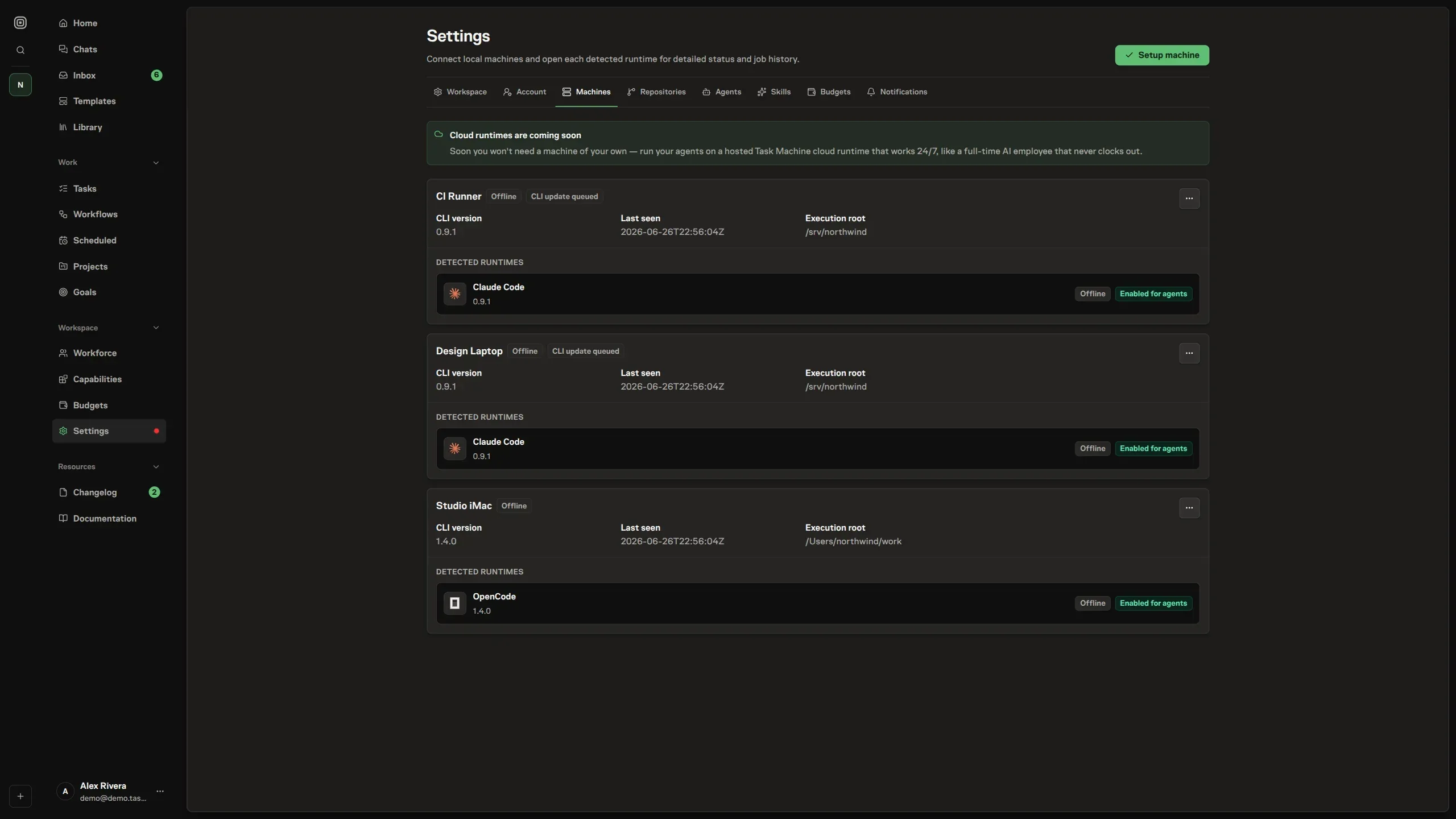
Install and connect Task Machine using CLI setup. That technical guide owns the commands and connection checks. In the app, open Settings, then Workers & limits to inspect each computer and its current availability. Select a computer to open its page with its runs, pause state, and agent availability.
Keep the computer available
The computer must stay awake and keep reporting to Task Machine. A closed laptop or stopped local process becomes unavailable even if its last report said it was online. Work assigned to it waits until execution is available again.
Agent managers receive the relevant Inbox attention rather than needing to watch the settings page continuously.
Keep the installed version current
When an update is needed, Local workers and Inbox show the available action. Update now requests a verified update on the computer. Older installations may require manual installation and restart. A machine below the minimum supported version cannot start new work until it is updated.
Use your own subscriptions
Sign in to your model subscriptions once on the computer: run tama code, type /login, and choose a provider such as ChatGPT (Codex), Claude, or GitHub Copilot. You can add more accounts for one provider, and tamacode switches between them when one reaches its usage limit. The CLI command reference covers the details. Claude subscription login is included at your own risk and must follow Anthropic's terms for Claude subscriptions.
The models your logins provide appear under the computer's name when you configure an Agent. Signing in makes a model available for configuration, but only a working login lets it start Agent work.
Task Machine models are always available on every computer too, listed first under its name. Choosing one runs the work on that computer through Task Machine and uses your workspace's included usage, like Cloud work. Auto on a computer chooses only among the models of your own subscriptions.
Enable the computer for Agents
A computer must be enabled for Agents before you can select it in an Agent's configuration. Use Disable for agents on its page to keep Agents from starting new work there without disconnecting it.
Pause new work without changing assignments
Use Pause on the computer to stop it accepting new Runs. Existing Runs continue, and queued work waits. Resume makes the computer available for new work again. Pausing does not rewrite the Agents that use it.
Capacity follows available headroom
Local starts share the computer’s available processors and memory across its connected Workspaces. Pressure can delay new starts without interrupting healthy work already running. Workspace-wide execution limits still apply. Local capacity does not increase Cloud capacity.
A computer needs to be online, unpaused, and freshly reported before it can accept new work. Provider usage blockers, budgets, capacity, and Task approvals can still prevent work from starting.
Continue after restoring provider access
When a subscription reaches its provider's usage limit, Task Machine pauses new work on that computer until its recorded retry time.
After you restore provider access or change accounts in tamacode, choose Retry now in the usage-limit Inbox item. People who manage the Workspace or its Agents can request recovery there without opening settings.
Workspace managers can also choose Clear usage blocker on the Local workers page or the computer's page. This clears Task Machine's waiting period and requests normal recovery for eligible interrupted assignments.
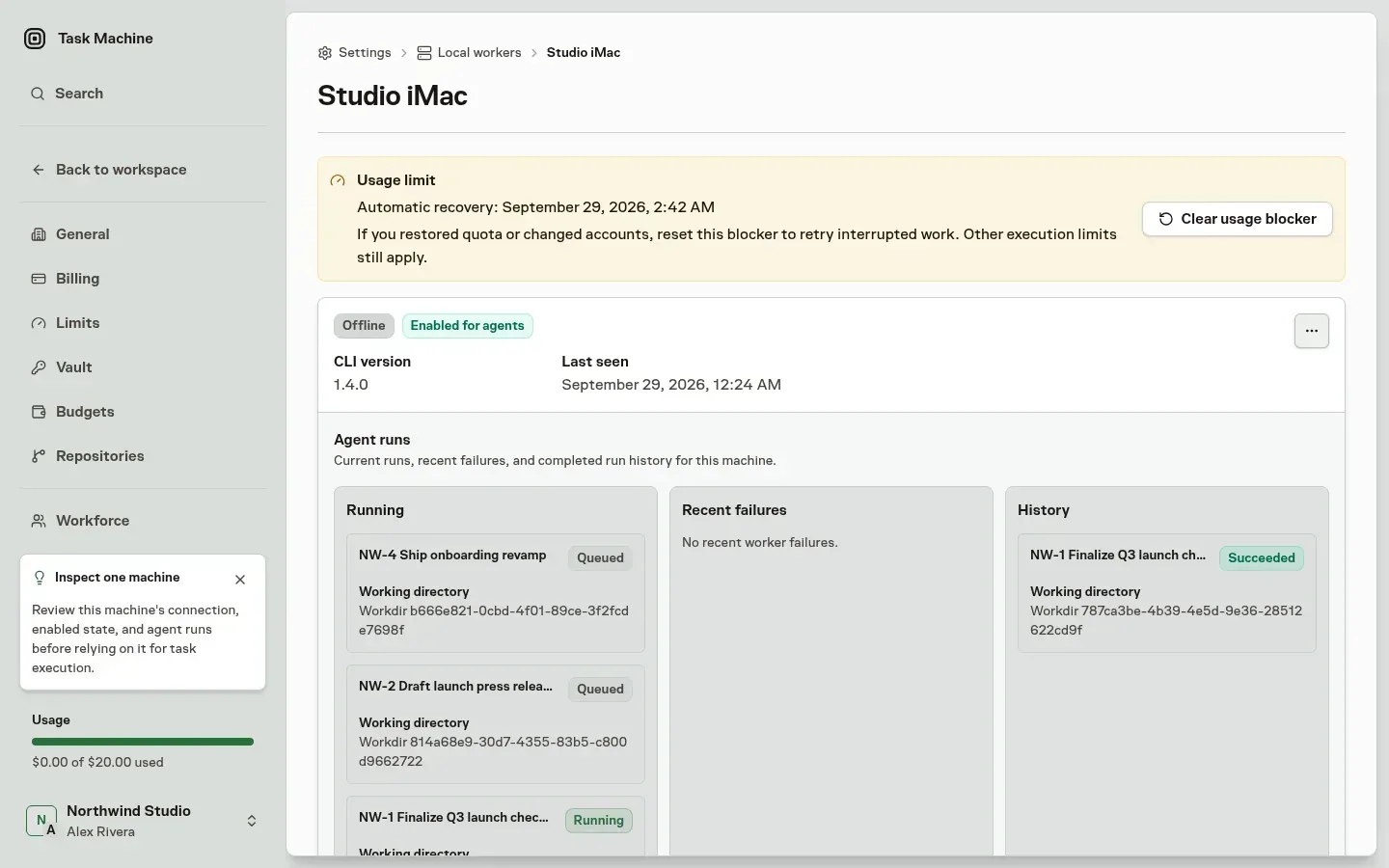
Neither action resets the provider's quota, consumes a banked provider reset, or changes accounts for you. A manually paused computer stays paused, and a disabled computer stays disabled.
Budgets, capacity, approvals, and routing still apply. If the provider reports another usage limit, Task Machine records a new waiting period.
What Agent runs receive
Task Machine supplies the Agent’s assigned Skills and Connectors, alongside applicable checked-in repository configuration. Agent runs reuse your tamacode logins and multi-account setup, but never your personal tamacode settings, extensions, skills, or conversations.
Your own subscriptions are billed by their providers. Task Machine models chosen on a computer use your workspace's included usage. Task Machine's own AI features, such as smart grep and smart compaction of long sessions, also use a small amount of usage for work on your computers. Billing lists them.
Contain what local agents can reach
Task Machine does not sandbox local Agents. Separate Task and Chat working folders keep their files organized, but an Agent that can use the shell can reach everything available to the operating-system account that runs tama, including your files, saved logins, and anything else that account can open. Decide how much of the computer that account should see before you connect it.
Choose the level of separation that fits the work:
- A dedicated user account keeps your personal files, browser profiles, and shell history out of reach. It is the lightest option and works on any computer.
- A virtual machine or container puts the whole environment behind a boundary you control and lets you discard it. Use it when Agents run unreviewed code or open untrusted material.
- Narrow file permissions limit what the account can read and write. Give it the working folders and repositories the work needs and nothing else.
- Minimal credentials mean the account holds only the logins the work requires. Grant secrets through the Vault and services through Connectors so each grant stays separate, visible, and revocable.
- Network controls, such as a firewall or a restricted network, keep a contained environment from reaching internal systems it does not need.
- Disposable workspaces let you delete a folder or rebuild an environment after risky work instead of cleaning it up.
Cloud execution runs each Cloud Run in an isolated environment that Task Machine provides, so it suits work you would not run on a computer you care about.