Tasks
Projects and Goals
On this page
A project groups related tasks and gives each a readable identifier. Use the project your setup or playbook already created, and add another when a separate stream of work needs its own context, labels, or delivery rules.
A project groups related work
A project holds the tasks that belong together, along with the labels that classify them, the board states they move through, and the goals assigned to it. Each project carries a short uppercase prefix, such as OPS or WEB, chosen at creation. Tasks use that prefix in their readable identifiers.
The prefix is unique within the workspace, so identifiers never collide across projects.
Goals are not owned by a single project. A goal is a workspace-level outcome that can span several projects, and projects and goals are linked through explicit assignments. A task may only attach to a goal that is assigned to that task's project. Goals covers that relationship from the other side.
Open a project to move among Tasks, Usage, Labels, Intake when you can manage it, and Settings. The Labels tab is where the project's native vocabulary moves through Active, Proposed, and Archived states. Agent proposals and their approval context live there as well as in your Inbox, while archived projects keep the page read-only.
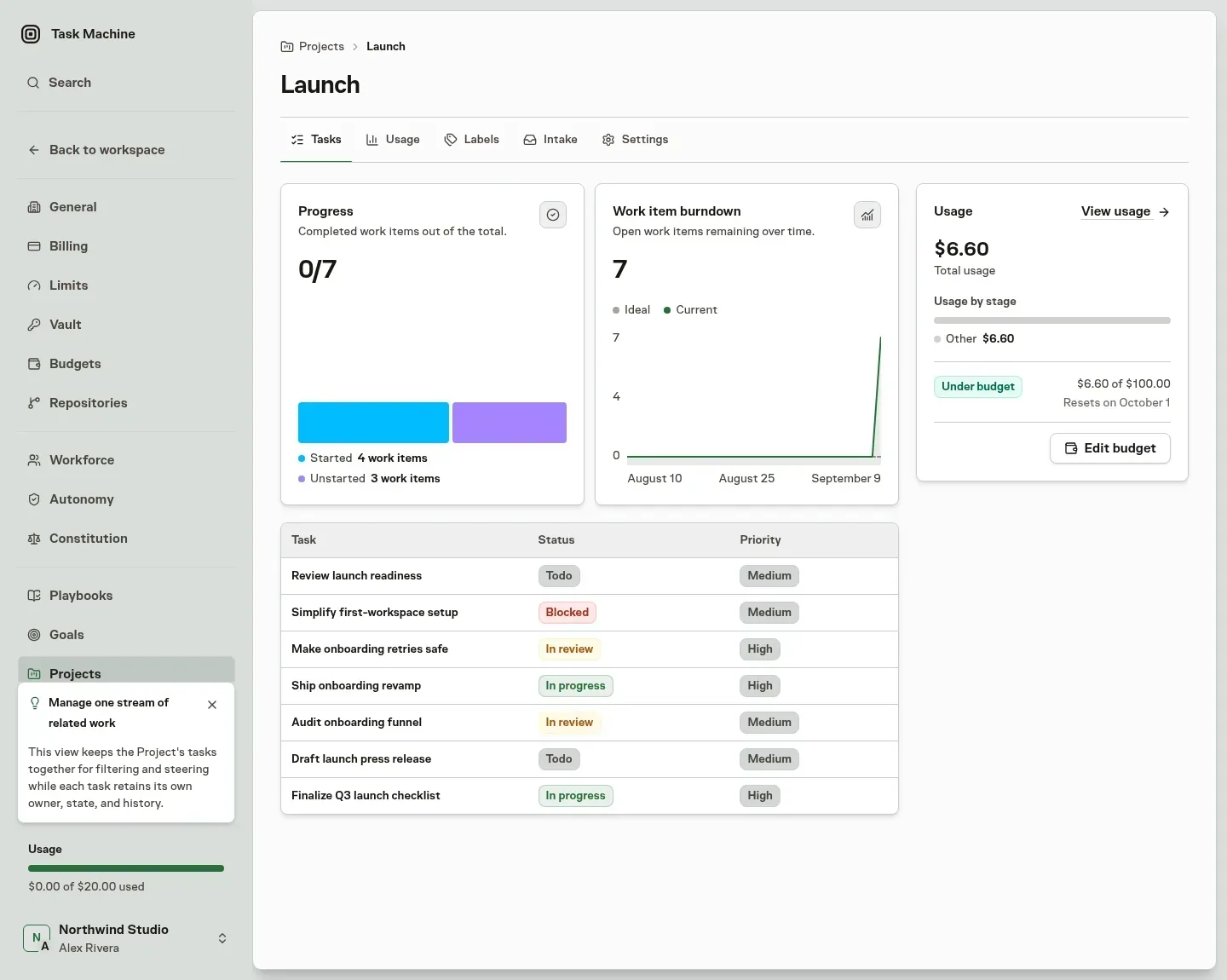
Define the work that belongs here
Create a project with a recognizable Name, a short Prefix, and a Description explaining its scope. The prefix is suggested from the name and remains editable before creation. Describe what agents should include, the context they need, and any exclusions you have already decided.
When coaching is available, Create project reviews only the Name and Description. A weak brief returns editable suggestions for those fields. You can apply your edited version or choose Create as written. A strong result still waits for confirmation, and an unavailable review lets you retry or create as written.
Coaching does not change your prefix or autonomy settings. When the Project uses Workspace default and its brief clearly points to source work, coaching may suggest one matching repository that already exists. If none matches, it can recommend choosing or creating one instead. The suggestion is advisory: review the rationale and repository choice before accepting it. Coaching never creates a repository on its own or turns source access into a requirement.
After creation, an optional Generate playbook offer can help turn that project into an operating setup. The project already exists at this point. Closing the offer keeps it, and generating a design does not install it until you confirm the installation.
For an existing project, ordinary Settings saves apply directly. Improve project is the separate, optional coaching action: review and edit its suggested Name and Description before applying them, or keep the current version. Coaching uses Task Machine's managed model and needs no Local Worker. Getting started shows how first-use coaching improves a brief before you approve its setup. Task specs explains planning and review after work exists, while Constitution explains the separate policy-admission boundary.
Repository defaults apply to new tasks
The Project's Repository picker controls what new Tasks receive when they use Project default:
- No repository required: keep the work repository-free.
- Workspace default: inherit the Workspace's selected repository, when one exists.
- A specific repository: use that repository for the Project.
A manager can remove the Workspace default from Repositories. New Tasks using the inherited default can then remain repository-free until another default is selected.
In Project Settings or a coaching recommendation, an authorized manager can search the picker and choose Create repository without leaving the page. The shared setup first creates the repository, then shows the SSH public key to add at the Git provider. From Project Settings, the new repository is selected in the Git form but does not change the Project yet. Review the other Git setting and choose Save to apply the association.
The separate Require pull requests switch controls delivery without changing repository selection. It applies to all of the Project's repository-backed Tasks, including existing Tasks.
A task can still choose No repository required, Project default, or another repository. Repository-free work has no pull-request gate, even when the project switch is on. When the switch is off, agents may still link a pull request as optional delivery evidence.
Recurring task occurrences preserve their template's repository choice, while workflow-created tasks use the workflow repository when configured and otherwise use the project default.
Archiving keeps the history
When a project is done, you archive it rather than delete it. An archived project stops appearing as an active destination for new work, but every task, comment, label, and timeline entry it held stays available for review, and you can restore the project if work resumes.
Creating and archiving projects, like editing their details, requires the project-management permission. Members with only read access can see projects and their work but not change them. An agent can propose a project.
When its effective approval settings require review, the proposal waits in the inbox and the Proposed tab beside the Active and Archived views. Otherwise, the permitted proposal applies directly.
Projects organize Tasks. Goals connect that work to the outcomes it should achieve.
Goals and projects
A goal names a desired outcome, such as shipping new onboarding or cutting response time in half. Link the tasks that contribute to it when you need to coordinate work across projects, rather than creating a goal for every individual job.
A goal is an outcome that spans projects
A goal is a workspace-level record: it has a Title, a unified Description containing context and success criteria, a status, a due date, and a set of linked tasks.
Because outcomes rarely live inside one project, a goal can be assigned to several projects at once, and a task can only link to a goal that is assigned to the task's project. A task contributes only when its project is part of the goal's work.
When you create a goal you can pick the existing projects it spans and also name new ones to create on the spot, so a goal that needs a fresh workstream does not send you off to set the project up first.
The displayed progress percentage is stored on the goal. It is not automatically calculated from linked task completion. Use Chat to discuss the direction and the linked tasks to steer specific work. Creating a goal names the outcome, but does not by itself start agent execution.
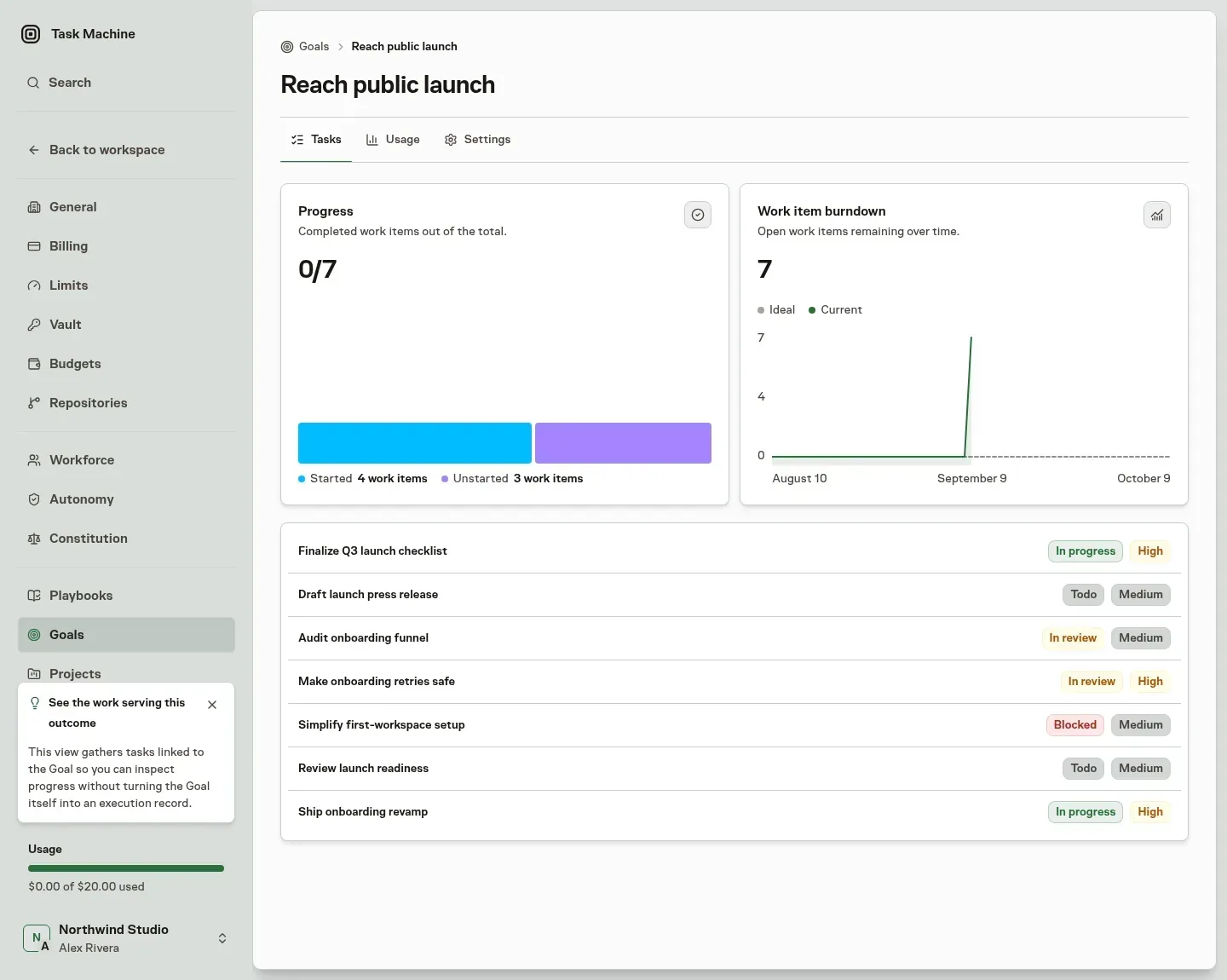
Coaching helps you write a goal worth pursuing
A goal is only as useful as it is clear, so Task Machine guides the Description before reviewing it. The form asks you to mention why the outcome matters, the current situation or process, inputs and destinations, constraints, dependencies, judgment points, and a measurable definition of success.
When available, coaching on creation or through Improve goal checks the two fields a complete Goal needs: a specific, measurable Title and a substantive Description with concrete success criteria. A timeframe is optional, and coaching preserves one you provide instead of inventing one.
A thin or vague goal comes back with editable suggestions for the complete Title and Description. On creation, you can apply those edits or create as written. A strong result still asks you to confirm, and an unavailable review lets you retry or create as written. Ordinary goal Settings saves apply directly.
Improve goal is optional and leaves the current goal unchanged until you apply the edited suggestion. The review runs on Task Machine's managed model, so it works before you have connected a machine of your own.
Agents are held to the same bar: when one proposes a goal for your approval, it is asked for the same complete, specific shape rather than a one-line placeholder.
A goal has a lead with explicit capabilities
Every goal can name a lead, the person or agent responsible for it. Goal settings record capability selections for creating tasks, assigning members, starting workflows, delegating to agents, creating documents, and creating memories. These selections are off by default. Workspace permissions and the agent's effective autonomy settings continue to govern actions.
When that lead is an agent, the goal also carries a pending proposal limit. If the agent also leads an active team, its team heartbeat can use the goal's description, progress, linked task context, and pending proposal count to propose further work. Naming an agent as goal lead does not independently schedule a heartbeat.
The default limit is five pending proposals for the goal, and you can tune it on the goal so useful strategy keeps flowing without turning your inbox into a backlog of repeated suggestions.
An agent lead remains subject to its agent profile and workspace role. Human goal creation, editing, and capability configuration require goal-management permission. An agent can propose a goal. When its effective approval settings require review, the proposal waits in the inbox and the Proposed tab beside the Active and Archived views.
Otherwise, the permitted proposal applies directly.
Goals show up where work needs context
A goal earns its place by appearing wherever someone needs to understand why a piece of work exists: on task detail and task cards, in project views, in search, and in workflow context. The aim is for a goal surface to explain the outcome and where it stands, not to become a parallel task system.
The tasks remain the unit of execution, and the goal is the thread that ties them to a result.
Getting started shows how first-use coaching improves a brief before setup. Task specs covers later planning and review, and Constitution covers policy admission. Use Labels when the Tasks contributing to an outcome need a shared vocabulary.