tama CLI
CLI setup
On this page
Connect a Local Worker when agents need tools, files, or accounts on a computer you control. This is optional. Getting started covers the Cloud-first path without a local installation. Here you install tama, connect your machine, and make sure it remains available for work.
Agents on a connected machine can reach everything the account that runs tama can reach, so decide which account that is before you install. Contain what local agents can reach lists the options.
Install the tama CLI
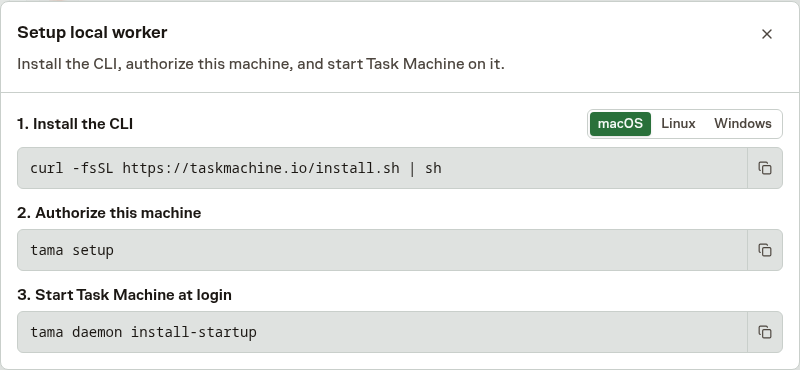
Install the latest tama release on macOS or Linux with one command:
curl -fsSL https://taskmachine.io/install.sh | sh
On Windows, run the PowerShell installer:
irm https://taskmachine.io/install.ps1 | iex
The installer picks the right binary for your operating system and CPU and verifies the download against the release checksums before installing anything. On macOS and Linux it installs to ~/.local/bin without sudo or system-wide files and prints the exact export PATH=… line to add when that directory is not on your PATH yet.
On Windows it installs to %LOCALAPPDATA%\TaskMachine\bin and adds that directory to your user Path for you. Set TAMA_INSTALL_DIR before running the installer to choose a different directory.
If Task Machine support asks you to install a specific version, set TAMA_VERSION:
TAMA_VERSION="0.3.0" sh -c "$(curl -fsSL https://taskmachine.io/install.sh)"
$env:TAMA_VERSION = "0.3.0"; irm https://taskmachine.io/install.ps1 | iex
Connect the machine with tama setup
With the binary installed, connecting the machine is one command:
tama setup
tama setup opens Task Machine in your browser, where you approve this machine and choose which workspaces it may access. Once you approve, the CLI saves the machine's credentials locally and asks one question: whether to start Task Machine on your computer automatically when you log in. Accept the default.
Setup then leaves Task Machine running either way, so the machine reports in and shows up connected. If support gives you a different app URL, tama setup --api-url <url> uses it.
Running tama setup again to add a workspace or reconnect after credentials expire is safe: setup stops Task Machine on your computer first, saves the new connection, and starts it again.
Sign in to your subscriptions
Agents on this machine run with tamacode, Task Machine's coding agent, using the model subscriptions you sign in to. Open it once after tama setup. When the machine is connected to several workspaces, tamacode asks which one to use:
tama code
Type /login and choose a provider such as ChatGPT (Codex), Claude, or GitHub Copilot. Use /subs to add more accounts for one provider. Your logins stay in ~/.taskmachine/tamacode, and the machine reports the models they provide to your workspace. Claude subscription login is included at your own risk and must follow Anthropic's terms for Claude subscriptions.
Task Machine models are available on the machine without signing in to anything. They use your workspace's included usage. Work on your own subscriptions also uses a small amount of usage for Task Machine's own AI features.
Keep the machine online
Agents can only work on this machine while Task Machine on your computer runs. Heartbeats stop within seconds of it exiting and the machine shows offline. If you accepted the start-at-login prompt, Task Machine starts with your session, and on macOS and Linux it also restarts itself after a crash.
You can make that choice later or on a machine set up non-interactively with:
tama daemon install-startup
On a Linux server you reach over SSH, install-startup also enables lingering, which keeps Task Machine running after you disconnect and starts it at boot. When the system does not allow that automatically, the command prints the loginctl enable-linger line to run.
For a quick session at the terminal, tama daemon runs Task Machine in the foreground and reports continuously until you interrupt it. tama daemon stop stops Task Machine on your computer, wherever it started.
tama daemon restart safely finishes active work, restarts on any supported operating system, and reports the machine again without requiring a platform-specific service command. When Task Machine runs in the background, its output lands in ~/.taskmachine/daemon.log, which is the first place to look when a machine misbehaves.
Confirm everything is connected
tama status shows the machine's health at a glance: the app URL, installed CLI version, whether Task Machine on your computer is running, its current local Run target and resource admission state, and whether the server is reachable. For each workspace, it shows the running version, machine status, last heartbeat, and tamacode.
If the installed and running versions differ, the report tells you to restart. Processor or memory pressure explains why new work is waiting, while an unreachable server or expired credentials appear as a labeled line with the command to fix the problem.
The CLI command reference covers the bounded temporary concurrency override when you deliberately need a different target.
The Local workers tab of the workspace's Workers & limits settings shows the same machine from the app side, so you can confirm the connection from either end. After signing in to a new subscription, tama sync asks Task Machine on your computer to report its models immediately rather than waiting for its next scheduled check-in.
Add repository access before a coding task needs it
If your first task should work against a codebase, open the workspace's Repositories settings and add that repository once before you start. Task Machine stores the clone URL, an optional default branch, and the workspace default there so projects, tasks, and workflows can keep reusing the same repository record.
Leave the name blank if you want Task Machine to derive it from the repository path. The first repository in a workspace becomes the default automatically. A workspace can also have no default: managers can remove the current default from its action menu or make another repository the default later.
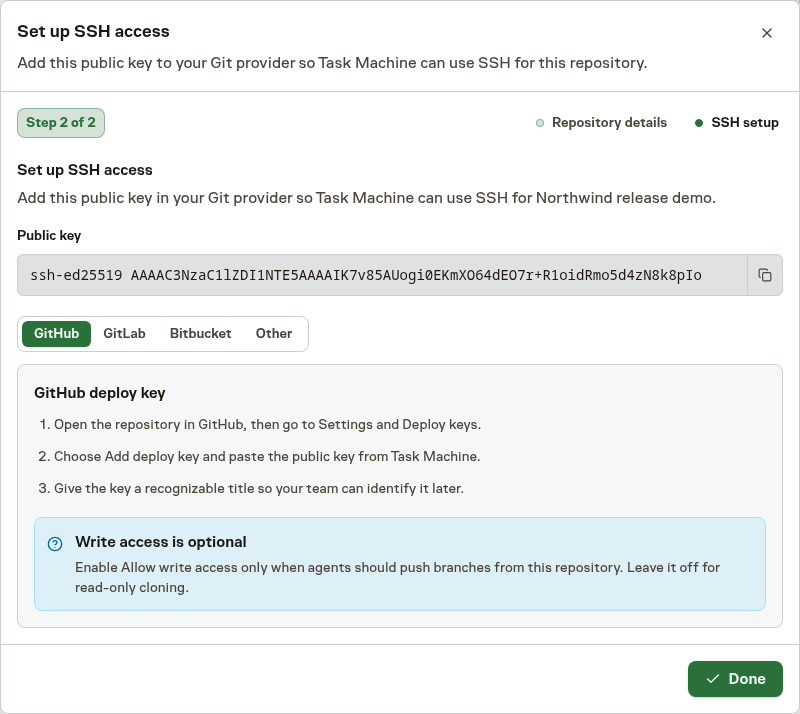
Saving the repository moves straight into SSH setup. Task Machine generates one public key for that repository and every worker that uses the repository reuses that same key, so you add access once per repository rather than once per machine.
Copy the key into GitHub, GitLab, or Bitbucket from the matching setup tab, or use Other for a self-hosted Git service. GitHub and GitLab can stay read-only unless agents need to push branches. Bitbucket repository access keys can clone but not push, so code-changing work there needs another write path.
If the key is not ready yet, stay on the same step and use Retry key setup until the public key appears.
SSH covers Git transport: cloning, fetching, and pushing branches. Pull requests or merge requests, reviews, issues, and CI operations use a separate provider connector. In the Connectors Marketplace under Settings, install the official GitHub, GitLab, or Bitbucket connector and assign it to the coding agents that need those operations.
Each provider Connector uses the provider's own hosted endpoint and starts with account authorization. Keeping the connector separate lets you scope provider actions per agent without widening repository-key access.
If you skip SSH setup and later create a coding task with no repository, Task Machine can stop on that task and ask you to connect an existing repository or create a new one in place.
If a saved SSH repository later rejects access, the Inbox sends you back to the same repository-key flow so you can finish setup there and retry the task from the reminder.
Where the CLI keeps things
The CLI stores its connection in one JSON file, ~/.taskmachine/config.json: the app URL, the connected workspaces, and the machine's identity. You connect once and the machine stays connected across restarts. Task Machine renews the connection automatically and asks you to run tama setup again only when the machine must be reconnected.
A machine connected by an older release that wrote to the legacy path ~/.config/taskmachine/config.json keeps using that file until it is reconnected.
Agent work itself runs under the execution root (by default ~/.taskmachine/workspaces), with one folder per workspace and task or chat, so each piece of work gets a dedicated working folder, and a task against a git repository gets its own clone there. This folder organization is not an operating-system sandbox.
Agents can retain the broader access of the OS user running them. To put agent work somewhere else, set execution_root in the config file to an absolute path:
{
  "execution_root": "/Volumes/work/taskmachine"
}
The machine reports its execution root to the workspace when it checks in, so you can confirm from the app where a given machine runs agent work.
Keep tama updated
Task Machine can require a minimum CLI version before a machine may start new agent work. When a machine reports an outdated version, the Local workers page shows an update action and workspace managers get an Inbox nudge.
Requesting the update lets the machine install the trusted release in the background and restart Task Machine on your computer with the new version. You can also update manually:
tama update
tama update --check reports whether a newer release exists without installing it, and tama update --target-version <version> installs a specific release, including an older one when support asks you to roll back. If tama status later shows that the installed version is newer than the running version, use tama daemon restart.
Task Machine syncs immediately after the restart.
Uninstall tama
Removing the startup entry also stops Task Machine on your computer, on every platform:
tama daemon uninstall-startup
Then remove the binary from wherever it was installed. command -v tama (or Get-Command tama on Windows) prints the path:
rm "$HOME/.local/bin/tama"
Remove-Item "$env:LOCALAPPDATA\TaskMachine\bin\tama.exe"
That leaves ~/.taskmachine/config.json, your tamacode logins in ~/.taskmachine/tamacode, and the execution root in place, so a later reinstall reconnects with the existing local state. To remove the saved connection too, delete the config file and any legacy copy at ~/.config/taskmachine/config.json. The repositories and task folders under the execution root are yours. Review them separately before removing anything.
You can also delete the machine from the Local workers tab of the workspace's Workers & limits settings to remove its records from Task Machine.
From here
Local workers covers ongoing machine operations and execution choices. The CLI command reference lists the available commands and flags. If a machine shows offline, follow Troubleshooting. Return to Getting started when you are ready to put a first job through the operating loop.