Tasks
Schedules
On this page
Use a Schedule when work should start at a chosen time or repeat on a cadence. Set the timing and timezone deliberately, then review the upcoming occurrences. A due date expresses when a result is needed and does not replace a scheduled start.
Schedule a Task
Choose the timing that matches the responsibility:
- One time: the Task becomes actionable at the chosen time.
- Recurring: each due point creates the next scheduled occurrence.
The root task stays stable while each scheduled task keeps its own status and history, so repeated work does not flood the Tasks board.
A time budget on the root task carries to each scheduled task. Every occurrence takes the root's current budget when it is created, so editing the budget changes later occurrences and never the ones that already exist.
An actionable Agent-assigned Task enters its execution queue without another instruction from you. Its dependencies, approvals, budget, and execution availability still apply.
A decision linked to a Task waiting for its scheduled start becomes at least High in Inbox when that start is within 24 hours or has passed. A recurring template's next occurrence uses the same rule. The marker shows the scheduled time in your timezone, and Priority ordering considers when the decision is needed. Urgency never starts work early or bypasses its approvals.
A directly Agent-assigned recurring Task waits for its assignment review and required template plan before creating its first occurrence. The Recurring list shows Waiting for approved plan, and the Task's planning section names why the schedule is paused. A Team-routed Task with no plan yet creates its first occurrence for ordinary Team assignment and planning, then waits for that invocation's approved plan before creating further occurrences. Each later occurrence receives its own copy, so the work is not planned again. Automated review and planning do not add a passive Inbox notice. When a person must approve the assignment or plan, the existing approval item is the place to decide. Clearing the final review resumes the ordinary cadence with at most one overdue occurrence rather than replaying every missed time.
Describe the cadence in plain language, such as “every Monday at 9.” Task Machine previews upcoming Runs in your timezone. Check those times before saving.
An advanced disclosure keeps the underlying expression editable when you need precise control.
A recurring task never runs two scheduled tasks at once. While the current scheduled task is still open, whether it is in progress, blocked, waiting for review, or being retried after a failed agent attempt, the schedule adds no new schedule runs. The scheduled task remains available from the root task's Schedule runs tab while its schedule waits, and retrying the work does not create a second schedule run.
Task Machine places one schedule-attention item in your Inbox with the current blocker, every open scheduled task of that schedule, and the choices to cancel any of those scheduled tasks, stop the recurrence, or dismiss the notice. An unanswered question, approval, or run-error item remains the place to resolve that specific blocker, while the schedule item explains the consequence without copying its failure content.
Once the scheduled task is done, or you deliberately cancel or archive it, the schedule resumes with one run for the missed cadence and then continues on time, without replaying every missed cadence. Other recurring tasks continue normally, so one stalled routine does not hold up the workspace.
Schedule a Workflow
A Trigger starts a workflow at a chosen time or on a recurring cadence. A workflow can have several Triggers, and its Triggers tab lists each one with its timing, type and status. A one-time Trigger shows its run in your own time. A recurring Trigger names its timezone only when that timezone differs from yours.
Choose Add trigger on that tab, or from the workflow's row menu on the Workflows page, then pick the trigger type: a Recurring schedule or a One-time schedule. Each row's menu lets you edit or archive that Trigger. Archived Triggers move to the Archived view on the same tab, where their menu restores them. Members who can only view workflows see the Triggers without these actions.
A recurring Trigger also asks what to do If the last run is still going. Skip the new run is the default and works like a recurring task: the Trigger holds its next run and puts a schedule-attention item in your Inbox. Choose Start the new run too only when each run is independent of the previous one, so runs can overlap.
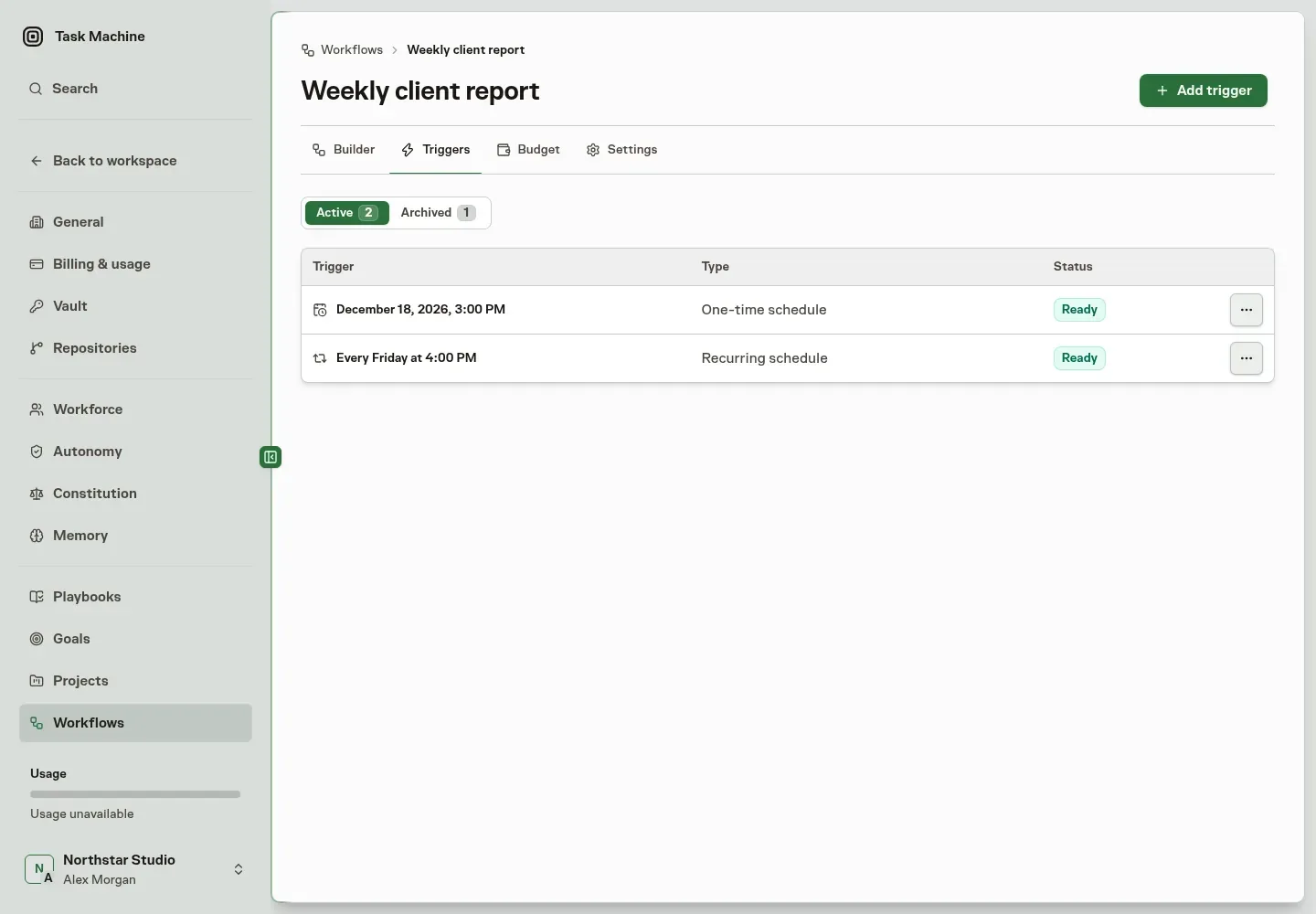
The Workflows list shows a workflow's schedule, or how many Triggers it has when there are several. Task Machine creates one stable root task for each Trigger, then starts a run when its chosen time comes due.
Each firing creates its own run and backing task under that root, exactly as if you had started it by hand, but the generated task does not become another root card in Tasks.
When the workflow executes agent work, the root task also owns the recurring Work Spec. The workflow's default team lead, or otherwise the agent of its first agent step, writes that spec once, you approve it from Inbox like any plan, and every later schedule run starts from that same approved spec instead of planning the recurring intent again. Until that spec is approved the schedule waits instead of firing, and clearing the approval resumes the ordinary cadence with at most one overdue run rather than replaying every missed time.
A time budget on the root task carries to each run the same way, even before its spec is approved. Editing it changes later runs and leaves existing ones as they are.
Keep scheduling on the Workflow itself rather than creating another Task to start it. Its stable root Task gives you one place to inspect and steer the schedule's history.
An agent can propose a Trigger for an existing workflow using its inspected references and your chosen timing and timezone. Configured and learned autonomy decide whether you review it in Inbox. While review is pending, the proposal starts no work and creates no root task.
Approval publishes the Trigger and creates its root task together. External MCP clients can submit the same proposal but always require human review. Trigger proposals do not publish workflow definitions or change direct task scheduling.
You describe the cadence in plain language rather than cron syntax, such as "every weekday at 8". Task Machine resolves it, previews the next runs in your timezone so you can confirm them, and keeps the raw expression editable behind an advanced disclosure when you want precise control.
A one-time schedule fires its run at the chosen moment and is then finished. A recurring schedule keeps creating the next run on its cadence until you cancel it. Cancelling a schedule stops future runs and leaves any runs it already created untouched, so ending a cadence never disturbs work already in flight.
An open invocation pauses further recurrence
A recurring workflow never runs two invocations at once. While a scheduled task is still open, including when it is blocked or its run failed, Task Machine leaves the schedule due but pauses that cadence so it does not create a growing queue of copies.
The existing scheduled task and run remain available from the root task's Schedule runs tab, and a schedule-attention item in Inbox explains the blocker, lists every open invocation, and lets you cancel any of them, stop the recurrence, or dismiss the notice. A question, approval, or run-error item remains the direct path for resolving its underlying blocker.
A failed or timed-out run blocks its generated task with the recorded reason. The schedule stays paused through an explicit retry, so correcting that run never creates another invocation beside it.
A successful run completes the scheduled task and resumes the next schedule run. Cancelling the run cancels its generated task, while later task status decisions you made remain in place. Deliberate cancellation or archival also releases the pause. The other schedules keep running, and recovery skips missed cadence points rather than replaying a backlog.
Future runs use the latest published version
A schedule follows the workflow's current published version rather than the one that was live when you set it up: publish a new version and the next firing runs that version, with no schedule to recreate. Each firing creates the backing task in the workflow's project and copies the schedule's execution brief into its description.
A schedule without its own brief uses the current published workflow description instead, so the agent receives useful context while the scheduled run remains as legible and steerable as one you started yourself.
Starting a workflow by hand follows the same principle: a new backing task uses the workflow description unless the caller supplied a more specific one.
Finish timing setup
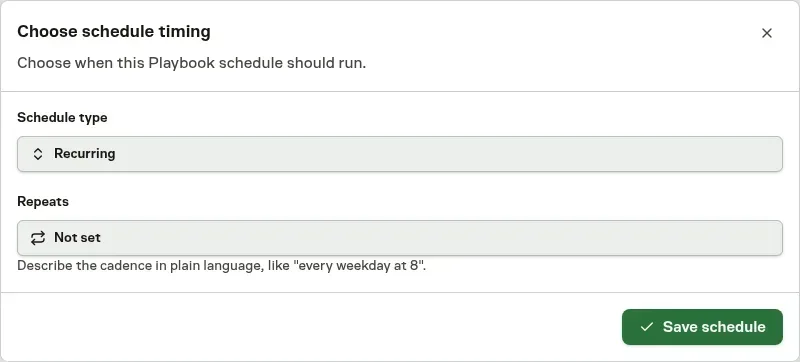
A Playbook can create work that still needs timing. The Needs schedule state and Not set timing keep this visible rather than substituting an invented date or cadence. Open its Inbox Set schedule action to choose one-time or recurring timing and confirm the timezone. Connector-dependent work can also wait for the required connection to be ready.
Inspect occurrences
Recurring work keeps individual occurrences and their execution history. Workflow Triggers have a stable root Task with a Schedule runs view for the generated work. Use the occurrence's Task to inspect that result without treating every firing as a new unrelated responsibility.
A schedule root also has Schedule runs. It lists the generated scheduled tasks newest first, with the scheduled time and current status, and loads 25 records at a time.
The rows are not separate Tasks-board cards: opening one takes you to that scheduled task's own Activity and Runs history, where its questions, approvals, artifacts, and execution evidence remain complete.
Future firings can use the current published Workflow version. Existing Runs retain their own history. Downtime does not promise a replay of every missed occurrence.
Resolve a paused schedule
An open invocation, including a blocked or failed one, pauses later recurrence. Read the incident and its owning Task before choosing the remedy. Cancelling that invocation and stopping the recurring schedule have different effects: stopping prevents future cycles, while cancelling addresses the current work.
A schedule waiting for approval, access, or setup needs that decision completed. Retrying an execution attempt does not supply missing timing or authorize access. Inbox owns the decisions and Troubleshooting helps distinguish the waits.