Tools
MCP
On this page
Turn a conversation in another tool into a Task Machine task, or ask how that task is going without losing your place. MCP is the connection that lets compatible AI tools work with the tasks and documents in the workspaces you choose. Task Machine keeps the history together, while decisions that need you still come to Inbox.
Connect Task Machine to your tool
Add Task Machine as a remote MCP server in the tool you want to use. Its server address is:
https://app.taskmachine.io/mcp
Each tool has its own place to add a server. Use the matching guide to find that setting, enter the address above, and start the tool's connection flow:
- ChatGPT: connect and test an MCP server
- Claude: add a custom connector
- Gemini Apps: connect a custom app
- Cursor: connect an MCP server
- Raycast AI: connect an MCP server
- Grok: connect a custom MCP server
Some clients require a paid plan or workspace administrator to enable custom servers. Raycast AI requires Pro to use MCP servers. Grok Business and Enterprise teams need an administrator to add the connector before members can use it. The guides above show where to enter the Task Machine server address.
Gemini Apps currently allows custom connections only for people aged 18 or older in the US using a personal Google Account, with Keep Activity turned on. Custom apps are available in English. Add the server in the Gemini web app first, then you can use it in the Gemini mobile app too.
Choose your workspaces
Once your tool opens the Task Machine sign-in page, sign in there and choose the workspaces it may access. You can deselect any workspace you do not want to share with that tool before you select Allow access. Never paste your Task Machine password or an access token into a client.
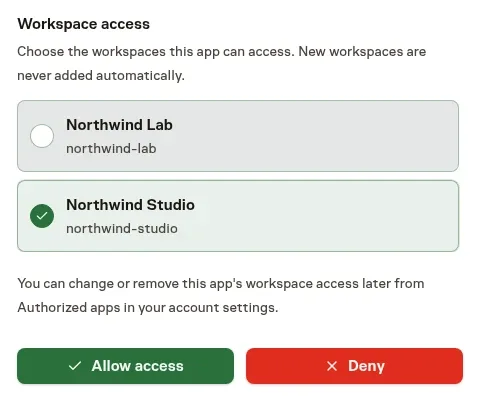
Back in your tool, try asking it to list the Task Machine workspaces you shared. You can then name one of those workspaces and ask for a task's latest update, create a follow-up task, or read a document. If the tool cannot see a workspace you joined later, open its connection flow again and explicitly select that workspace.
Keep the final decision in Inbox
A connected tool can read supported work and make eligible edits such as creating or assigning a task, leaving a comment, and proposing a change. It cannot start or control an agent run, access credentials or Agent memory, route Team work, or approve and review work for you. Proposals that need your decision arrive in Inbox, with their context and actions there.
The tool only sees supported records in the workspaces you granted, and it can do no more than your current workspace access allows. A connection does not silently gain access when you join another workspace.
Change or remove a connection
To review a tool's access, open Account settings, then Authorized Apps. You can change its workspace selection or remove its authorization there.
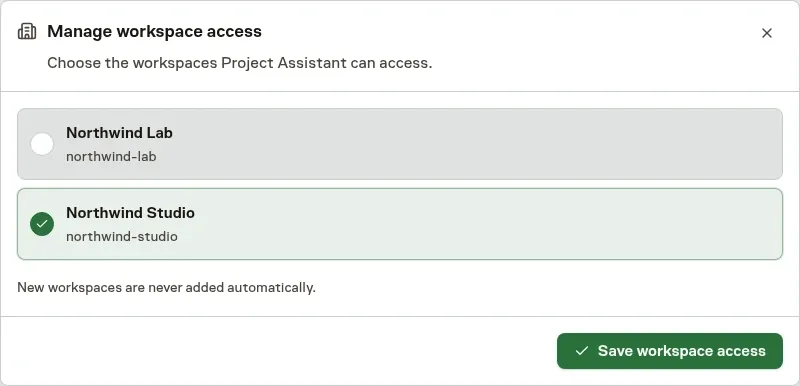
Removing a connection stops its later Task Machine requests and refreshes. An access-token string the tool already received is not erased, but those tokens expire after five minutes. If you want to reconnect the tool or give it a new workspace, start its connection flow again and select the workspaces you want it to use.
From here, Tasks shows the work and history you can also follow in your connected tool.