Put Agents to Work
Install the CLI
The tama CLI connects a machine to your workspace and keeps it reporting while agents work.
The tama CLI is the program you install on a computer to turn it into a machine your agents can run on. It does two things that matter: it connects the computer to your workspace and authorizes it, and it runs the daemon that keeps the connection alive and carries an agent's work to the local coding tools. This chapter is the technical detail behind connecting a machine — the commands you run, where the CLI keeps its credentials, and how to keep the daemon running so agents always have somewhere to execute.
Install tama
Install the latest tama release from Task Machine:
curl -fsSL https://taskmachine.io/install.sh | sh
The installer chooses the right binary for your operating system and CPU, verifies the download, and installs tama into /usr/local/bin by default. Set TAMA_INSTALL_DIR to install somewhere else. If Task Machine support asks you to install a specific version, set TAMA_VERSION:
TAMA_INSTALL_DIR="$HOME/.local/bin" TAMA_VERSION="0.3.0" sh -c "$(curl -fsSL https://taskmachine.io/install.sh)"
The same verification path is used when tama update replaces the local binary, so both fresh installs and updates check the download before anything is installed.
Connect a machine with tama setup
After installation, connecting a machine starts with one command:
tama setup
tama setup runs a browser-based approval flow. It opens Task Machine in your browser, where you approve this machine and choose which workspaces it may access. Once you approve, the CLI saves the issued tokens locally and immediately reports the coding tools it found, so the machine shows up connected with its toolset already populated. From that point the machine is registered to the workspaces you selected and is ready to run the daemon. If Task Machine support gives you a different app URL during private beta, tama setup --api-url <url> uses that URL for setup.
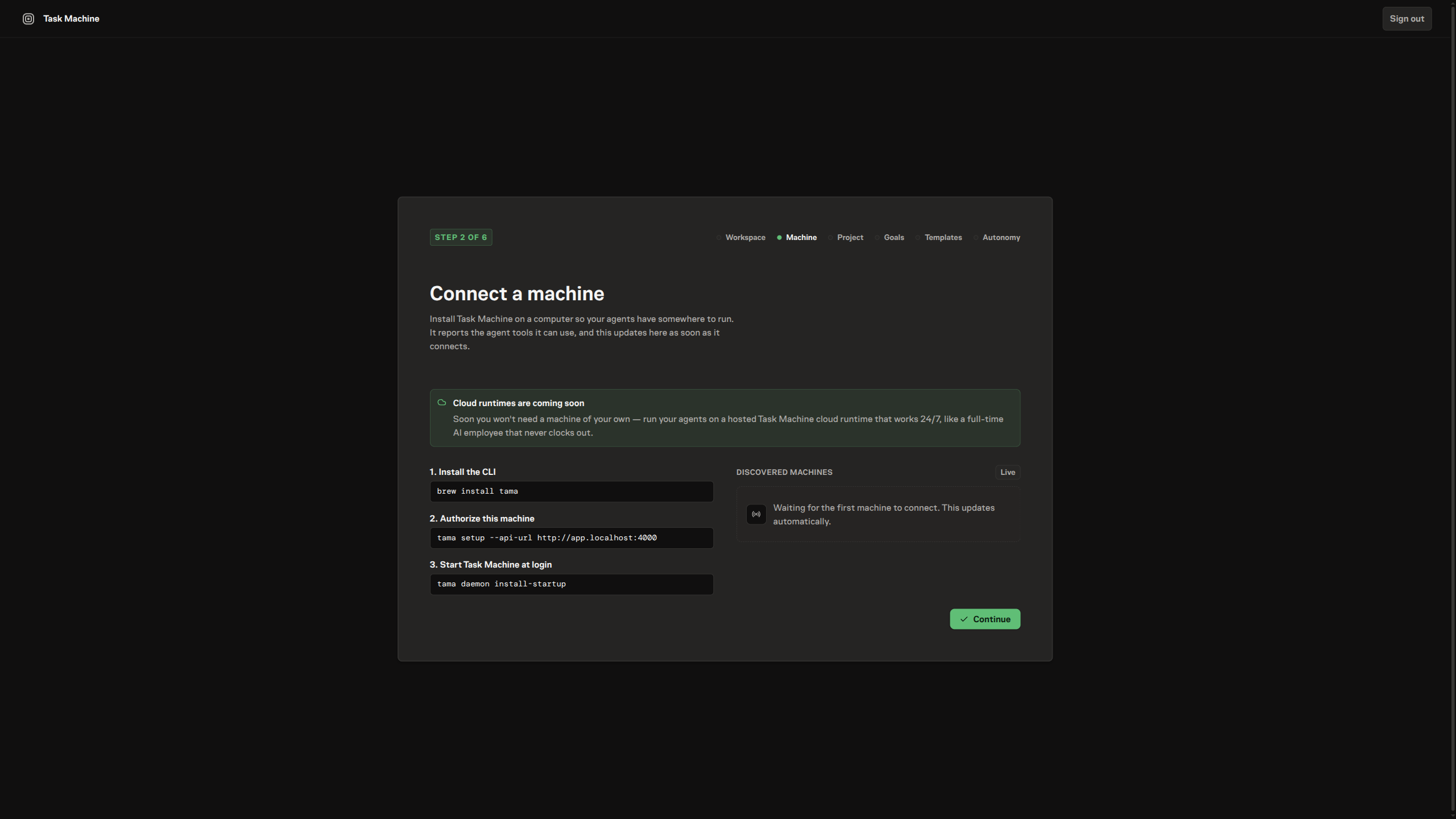
Three read-only commands help you confirm the connection. tama version prints the installed CLI version. tama status checks that the CLI can connect to Task Machine with its stored credentials and reports ok when it can. tama runtimes prints the coding tools on the machine and whether each is available or missing, so you can see what this computer will offer agents before any work is assigned.
A connected machine is not yet useful on its own: an agent runs through a coding tool, so install at least one supported coding tool on the machine before agents can run there. The daemon detects what is on the machine's path and reports it as the machine's runtimes; until at least one is found, the machine has nothing for an agent to execute on. The supported coding tools chapter lists which tools Task Machine drives and how detection works.
The CLI keeps its credentials and connections on disk
The CLI stores its configuration in a single JSON file in your home directory, at ~/.taskmachine/config.json. If you connected an earlier version that wrote to the legacy location ~/.config/taskmachine/config.json, the CLI keeps reading that file until you reconnect, so an existing machine does not lose its connection on upgrade. The file holds the Task Machine connection URL, the workspaces this machine is connected to, the machine's identity, and the access and refresh tokens the daemon uses to authenticate. You connect once and the machine stays connected across restarts. When an access token expires, the CLI refreshes it automatically using the stored refresh token; only if those credentials become invalid will it ask you to run tama setup again to reconnect.
Agents run inside the execution root
When an agent picks up work, it runs in a folder on disk rather than wherever you happened to launch the daemon, and the execution root is the directory that holds all of those folders. The daemon creates one folder per workspace and task or chat under the execution root, so each piece of work gets its own isolated place to read and write files, and a task that runs against a git repository gets a clone checked out there.
By default the execution root sits under your home directory. On macOS and Linux it is ~/.taskmachine/workspaces; on Windows it is the same \.taskmachine\workspaces folder under your home directory. To put agent work somewhere else — a faster disk, a dedicated volume, a path your backups skip — set the execution_root field in the config file to an absolute path:
{
  "execution_root": "/Volumes/work/taskmachine"
}
With that set, every workspace-and-task folder the daemon creates lands under your chosen root instead of the default. The daemon reports its execution root to the workspace when it checks in, so you can confirm from the app where a given machine runs agent work.
Keep the daemon running so agents have somewhere to execute
A connected machine only runs agent work while its daemon is running, because the daemon is what sends heartbeats and picks up jobs. Started directly, the daemon runs in the foreground and reports continuously:
tama daemon
That is enough while you are at the terminal, but a machine meant to run agent work should keep its daemon alive on its own. tama daemon install-startup installs a startup entry appropriate to the operating system so the daemon launches whenever the computer boots, and tama daemon uninstall-startup removes it. With startup installed, heartbeats keep flowing after a reboot and the machine stays online without you tending it — which, as the runtime machines chapter explains, is what keeps its runtimes available to agents.
The CLI carries a handful of further commands for working with a workspace from the terminal — among them tama exec to run a process and stream its output, and commands for reading and editing agent memory and other workspace records. The CLI command reference is the full catalog; this chapter covers what you need to get a machine connected and keep it that way.
Keep tama updated
Task Machine can require a minimum CLI version before a daemon may start new agent work. When a machine reports an outdated version, the Machines page shows an update action and workspace managers get an Inbox nudge with an Update now button. Requesting the update from the app lets the machine install the trusted release in the background. When the update finishes, the daemon exits so a startup service installed with tama daemon install-startup can start it again with the new binary; a foreground daemon needs to be started again manually.
You can also update manually from the terminal:
tama update
Use tama update --check to check for a newer release without installing it, or tama update --target-version <version> to install a specific release.
From here, with a machine connected and its tools reported, the next chapter explains how Task Machine turns each of those tools into work an agent can run through runtime adapters.