Make Work Repeatable
Templates
Install a ready-made bundle of agents, goals, workflows, and schedules that solve one recurring job.
A template is a recurring job already set up for you: instead of authoring the agents, documents, goals, workflow, and schedule a process needs one at a time, you install a bundle that wires the whole thing together in one step. Where the builder is for drawing a process yourself, gallery templates are for starting from a broader package that already works. You browse and install those bundles from the gallery in the app, and an agent can propose one for you to approve.
A bundle combines Task Machine primitives
A template ships as a bundle: a single description of everything it installs — content folders and documents, skills, agents and teams, goals, workflows, and recurring schedules — plus a small set of setup questions that tune it to your workspace. When a job is explicitly tied to one exact external service, such as a Google Ads campaign launcher, the bundle can also create the connected-service record those agents use. Generic capabilities stay as setup requirements instead: repository access, browser access, and web search or fetch access are described up front rather than guessed for you. A bundle is not a new kind of feature; it is a composition of the primitives the rest of Task Machine already gives you, assembled to solve one job. The bundled Daily Standup template is the worked example: a lead agent, a goal, a standup-format document, a draft workflow that gathers activity, composes the standup, and hands off for approval, and a recurring schedule that triggers it each morning. Nothing in it is special to standups — it is the ordinary primitives, pre-wired.
Bundles are curated and installed from one catalog, so the records they create are consistent every time. The pieces inside a bundle reference each other by name — a workflow's approval step points at the member who installed it, a schedule points at its goal — and installing resolves those references into real records together, so a half-installed template never appears.
The gallery is where you browse and install
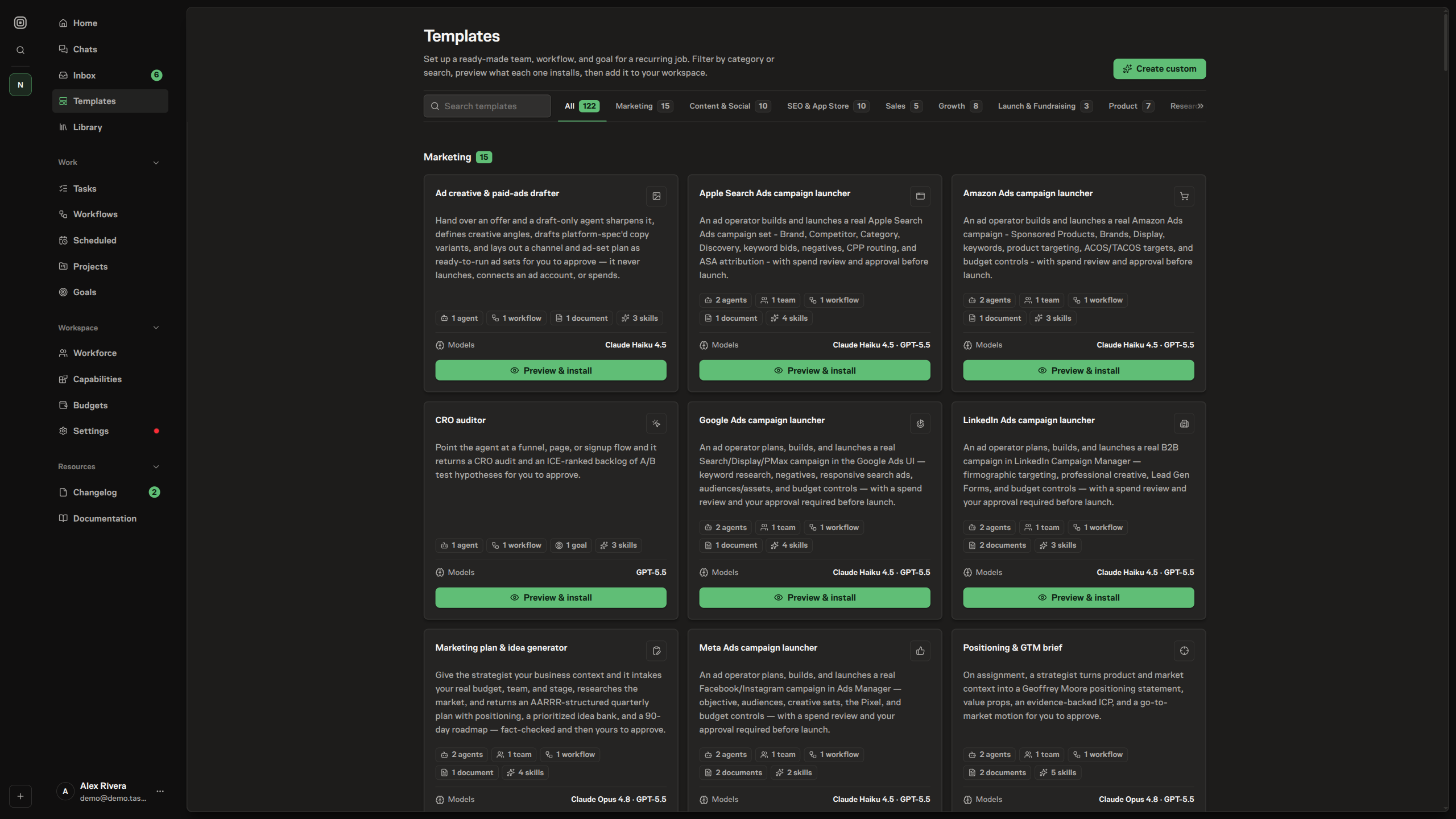
The template gallery is the screen in the app where you find a template and set it up. The catalog spans marketing, content, SEO, sales, support, engineering, finance, and more, so the gallery groups bundles by the kind of job they do and lays a category bar across the top: pick a category to narrow the grid, or search by name to jump straight to one. Each card names the bundle and what it installs, marks the work with a fitting icon, and summarizes the models its agents run on, so you can weigh a template before opening it; bundles already installed in the workspace carry an "Installed" badge.
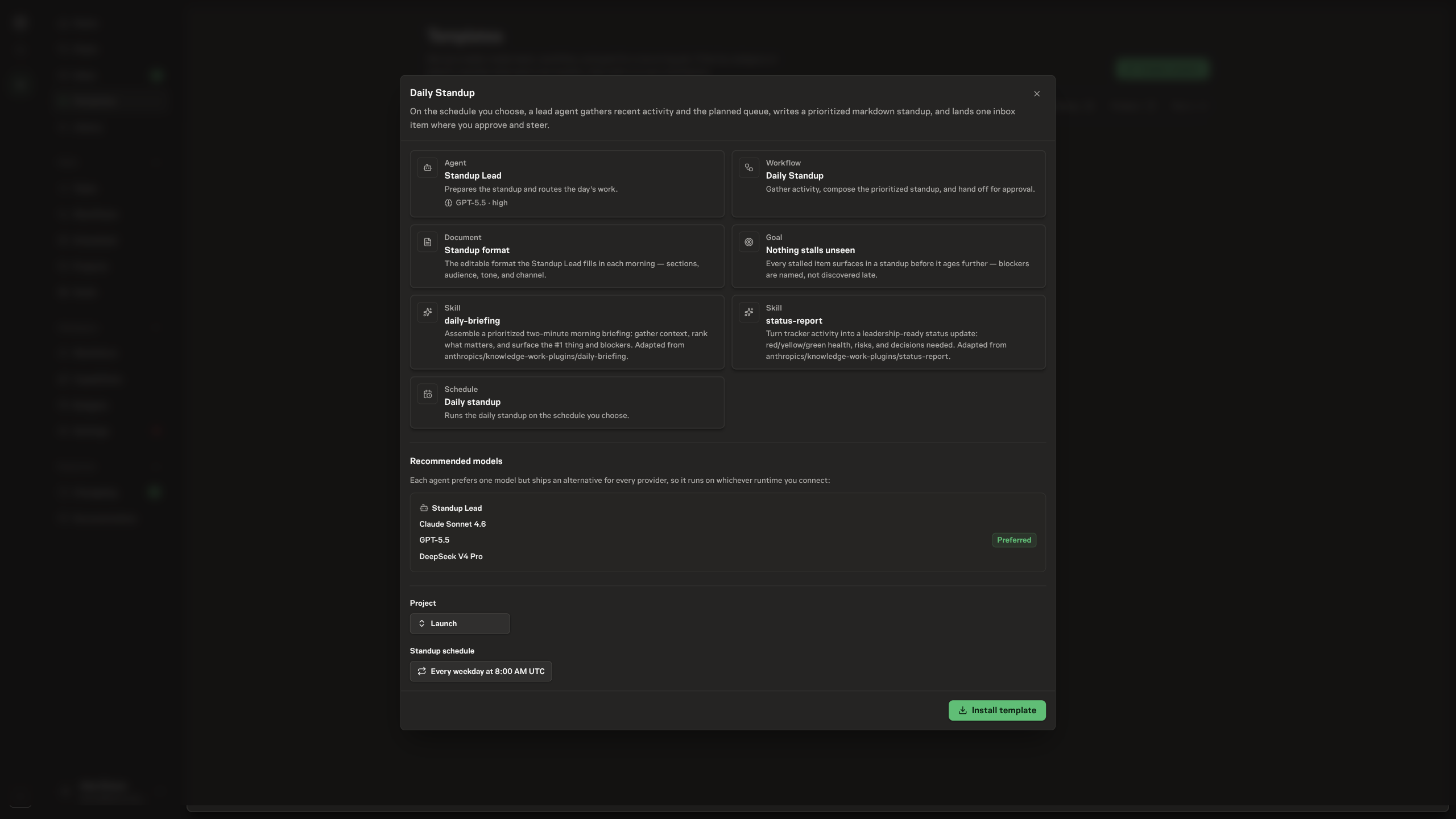
Opening a bundle gives you a preview before anything is created: it lays out the main records the template would install — agents and teams, workflows, documents, goals, skills, and schedules — each as a typed card, with each agent showing the model it runs on. Every agent declares its own model, so a single bundle can mix providers — a developer team might run its builder on Claude and its reviewer on GPT. Because not every workspace has every provider connected, each agent also ships an equivalent model for Claude, GPT, and OpenRouter, with one marked Preferred; the preview's Models section shows all three per agent. At install the agent runs on its preferred model when that runtime is connected, otherwise on the alternative for whichever provider you have — and if none is connected you pick one afterward. From the same modal you answer the setup questions — the small set of inputs that tune it, like the standup's schedule and timezone — choose the project the template installs its work into, and install.
 The gallery is browsable read-only for any member, and the install controls appear only for members who hold the
 template:install permission, so anyone can look but only the permitted install.
When nothing in the catalog fits, Create custom in the gallery header is the catch-all. You describe the job you want set up in your own words, and that opens a chat with an agent that designs a bundle for it from scratch — the same agents, documents, goal, workflow, and schedule a catalog template ships, assembled to your description. You refine it together in the chat, and the agent proposes the finished bundle for approval the same way it would propose a catalog one. It runs as an ordinary chat on a connected runtime, so it needs a machine online.
Workflow templates are narrower blueprints
A workflow template is different from a gallery bundle. It is one workflow definition saved as a reusable blueprint inside the workspace, usually promoted from a proven active workflow. It does not install agents, documents, goals, or schedules; it only duplicates that workflow graph into a new editable draft, including its retry policies, nodes, edges, and branch conditions. Members who can manage workflows can find workflow templates in the command center and duplicate one into a draft from there.
Installing a template is the moment of approval
A template tunes itself to your workspace through its setup questions before anything is created. The Daily Standup bundle, for instance, takes the schedule and timezone its recurring task should follow; the install checks those answers, fills in safe defaults, and only then creates the records. Per-record permissions still apply during creation, so installing a template never grants more than you could create by hand.
A gallery bundle reaches a workspace by one of two paths, and the difference is who decides. When a person installs a bundle directly, the act of installing is the approval — the records are created together, and that path requires the template:install permission. When an agent proposes a bundle instead, nothing is created yet: the proposal records a pending installation and raises a single approval item to the members who hold template:install. The agent can search the same catalog by job, category, and contents before proposing, so it can suggest an existing bundle instead of hand-assembling the records. Approving it runs the same install under the approver; rejecting it records the decision and creates nothing. That keeps templates inside the same draft-and-approve control story as the rest of the product — an agent can suggest standing up a whole process, and a person decides whether it happens. The proposal and its decision flow through your inbox, the same place every other approval lands.
An installed template runs
A template no longer just sets a process up — it installs one you can run. The Daily Standup bundle installs its lead agent, goal, standup-format document, recurring schedule, and workflow, and the workflow it installs is a draft you can take into the builder, publish, and run like any workflow you authored yourself (see workflow execution). A workflow template starts later in that path: it gives you only the workflow draft, ready to edit, publish, and run. Both paths end in the same execution model once a workflow is published.
From here, approvals and verifier gates covers the checkpoints that keep installed and authored processes under your judgment.